How to Publish SOPs to Confluence Without Copy-Pasting
How to Publish SOPs to Confluence Without Copy-Pasting
Confluence is a standard tool for organizing team knowledge. But when you need to create a standard operating procedure (SOP), the native editor slows you down. If you capture screenshots locally, you spend hours manually uploading image files and copy-pasting text to publish an SOP to Confluence.
This guide explains how to bypass that manual work. We will look at tools that generate step-by-step guides automatically, how to structure a Confluence SOP template, and how to keep your documentation updated without starting over.
Why Is It So Hard to Document Processes in Confluence?
The main bottleneck in Confluence is image handling. Confluence requires you to upload images individually or paste them one by one into the editor block.
If you have a 25-step process, that means taking 25 screenshots, drawing arrows on them in a separate app like Mac Preview or Snagit, saving them, and inserting them into the correct Confluence layout. If you make a mistake or the UI of the software you are documenting changes, you have to delete the specific image block, take a new screenshot, and upload it again. It turns a 10-minute task into an hour-long chore.
Because the friction is so high, teams either put off writing the documentation entirely, or they write text-only guides that new hires struggle to follow.
How Do You Publish an SOP to Confluence Automatically?
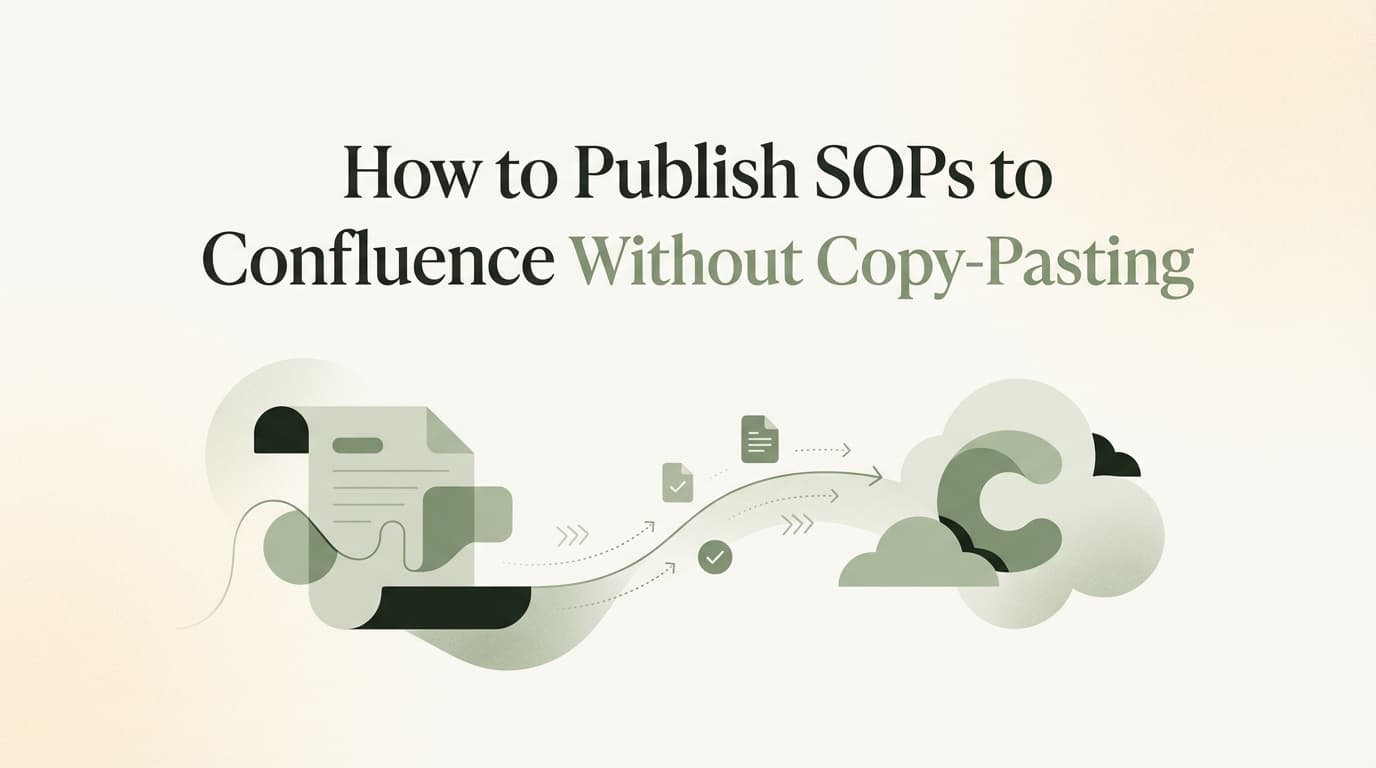
To publish an SOP to Confluence automatically, use a screen recording documentation tool like Glyde, Scribe, or Tango. These browser extensions record your clicks as you work, generate a formatted step-by-step guide with annotated screenshots, and let you paste or embed the final document directly into a Confluence page.
The workflow looks like this:
- Open the software you need to document.
- Click the extension to start recording.
- Complete your process normally.
- Stop the recording. The tool generates a formatted document.
- Copy the generated HTML or Markdown and paste it into Confluence.
Different tools handle the export differently. Scribe and Tango rely heavily on Smart Links or iframe embeds. This works, but it means your documentation technically lives outside of Confluence. If a user searches your Confluence workspace for a specific keyword inside that SOP, the search engine might miss it.
Glyde captures the DOM state and click targets, producing contextual text descriptions alongside the screenshots. You can copy the rich text directly from Glyde and paste it straight into the Confluence editor. The text becomes native Confluence text, and the images carry over automatically. This keeps your documentation fully searchable within your Atlassian environment.
Screen Recording vs. Manual Screenshot Documentation in Confluence
If you are deciding whether to change how your team builds documentation, it helps to look at the mechanical differences between the two workflows.
| Workflow Step | Manual Confluence Entry | Screen Recording Tools (Glyde, Scribe) |
|---|---|---|
| Image Capture | Print Screen, paste into image editor, draw red boxes, save file. | Tool automatically captures a screenshot on every click and draws the highlight. |
| Drafting Text | Type "Click the settings gear in the top right corner" manually for every step. | Tool reads the DOM/HTML and generates "Click the Settings icon" automatically. |
| Publishing | Drag and drop images, align text blocks, fix formatting breaks. | Copy rich text and paste once, or paste a single embed link. |
| Making Updates | Re-take the specific screenshot, delete the old one, upload the new one. | Re-record the single changed step in the tool; the Confluence page updates or you paste the new step. |
Most teams find that moving away from manual screenshots cuts documentation time by at least half, simply by eliminating the file management aspect of dealing with images.
What Should a Confluence SOP Template Include?
A functional Confluence SOP template needs four standard sections: metadata, prerequisites, step-by-step instructions, and troubleshooting. Setting this up as a standard page template in your workspace ensures every guide follows the same structure.
Here is exactly what to include in your template:
1. Page Properties (Metadata) Use the native Confluence Page Properties macro at the top of the document. Include a table with:
- Document Owner: The
@mention of the person responsible for the process. - Last Verified: A date macro showing when the process was last checked.
- Target Audience: Who this SOP is for (e.g., Tier 1 Support, All Employees).
2. Prerequisites A bulleted list of everything the user needs before they start step one. This includes specific software access, VPN requirements, or necessary account permissions.
3. The Instructions This is the core of your SOP Confluence page. Leave a placeholder here instructing the writer to paste their auto-generated guide. The format should always be numbered steps with accompanying visuals.
4. Exceptions and Escalations Process documentation rarely covers every edge case. Add a section at the bottom explaining what to do when the process fails. Include links to Jira service desks, Slack channels, or the specific person to contact.
How Do You Keep Confluence SOPs Updated?
Documentation rots quickly. A SaaS vendor updates their navigation menu, and suddenly your 30-step Confluence page is obsolete.
To manage this, use the Confluence Page Status feature. Set custom statuses like "Draft," "Active," and "Needs Review." You can use the Page Properties Report macro to create a master dashboard that pulls in every SOP and sorts them by their "Last Verified" date.
When an SOP needs an update, don't rewrite the entire page. If you used a documentation generator, open the original recording, delete the two steps that changed, record the new UI path, and replace just that section in Confluence. Assigning clear owners to specific pages ensures someone is actually watching that dashboard and reacting when a process breaks.
Learn More About Screen Recording to Documentation
For a deeper look at automating your workflows and choosing the right software, see our guide on the complete guide to screen recording to documentation, including how different browser extensions handle image capture and text generation for internal knowledge bases.
For more on this topic, see Chrome Extensions for Automatic Documentation: 2026 Guide.
For more on this topic, see Windows Steps Recorder: What It Does and Why Teams Outgrow It.
For more on this topic, see Best Screen Recording Software for Documentation in 2026.
For more on this topic, see How to Make a How-To Guide (Without Writing It Manually).
For more on this topic, see Tango vs Loom: Which Is Better for Process Documentation?.
For more on this topic, see Best AI Tools for SOP Creation That Integrate with Confluence and Google Drive.