

Purpose
This SOP describes how to edit a file in a GitHub repository and create a pull request to propose changes for review. This workflow enables collaborative development by allowing changes to be reviewed before merging into the main branch.
Scope
This procedure is intended for anyone with a GitHub account who needs to contribute changes to a repository. Follow this SOP when you need to modify repository files and submit changes through the pull request workflow for review and approval.
Prerequisites
GitHub account with appropriate repository access permissions
Write access to the repository or fork permissions
Web browser (Chrome, Firefox, Safari, or Edge recommended)
Procedure
- Step 1 of 10
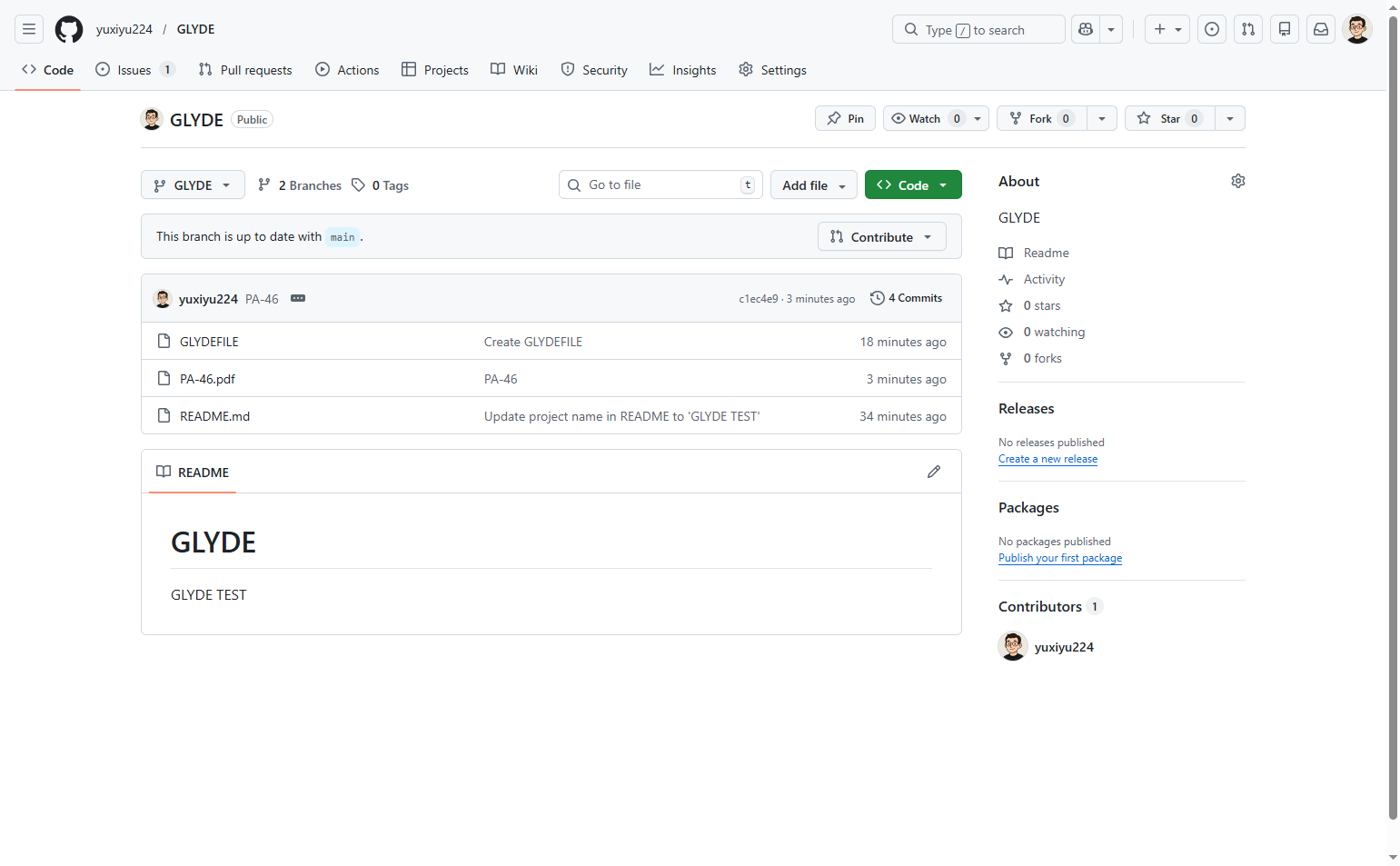
Navigate to github.com
Open the GitHub repository
Navigate to github.com and sign in with your GitHub account.
- Step 2 of 10
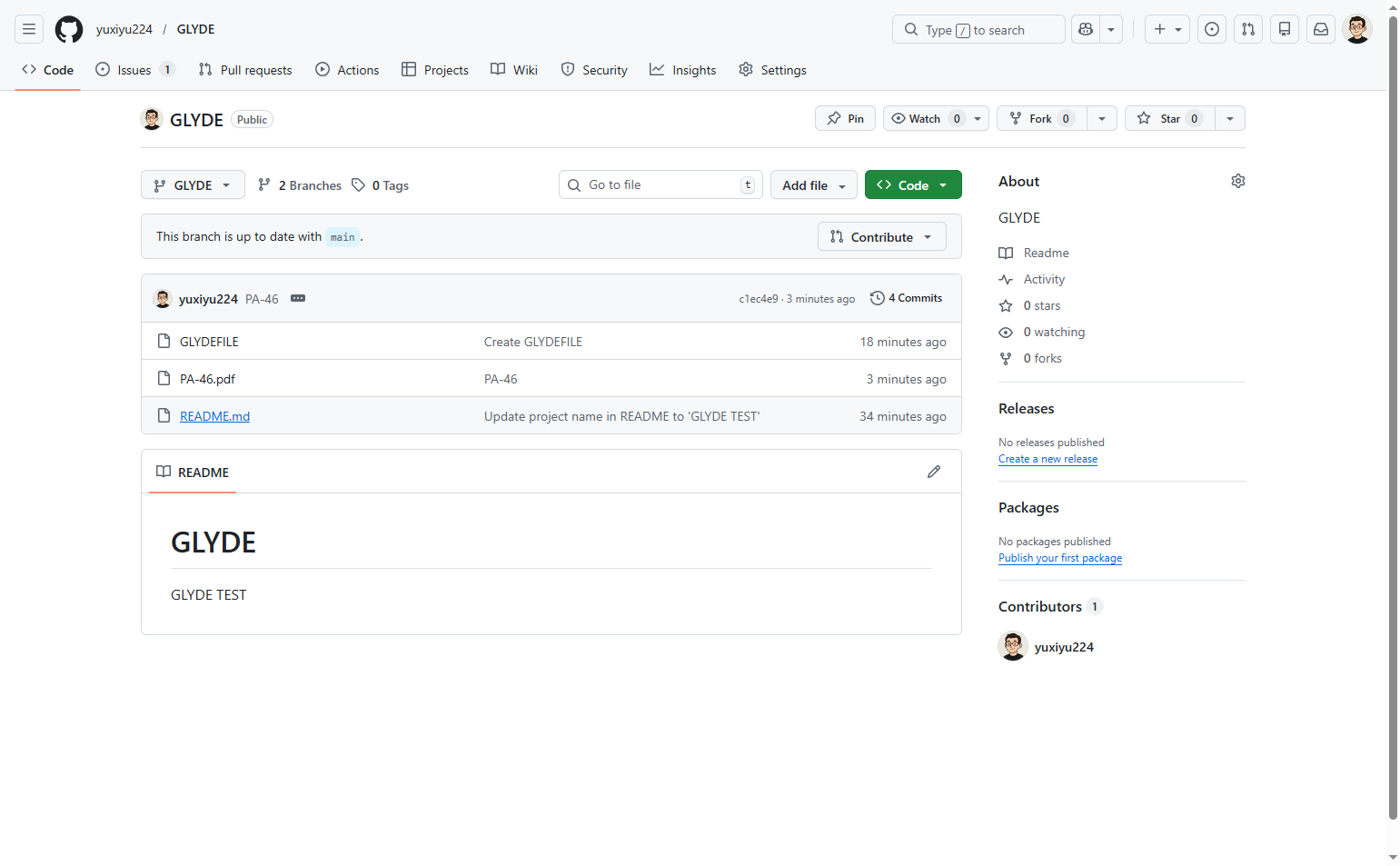
Select the file to edit
Click on README.md
Locate and click on the README.md file in the repository file list. This opens the file view where you can see the current content.
- Step 3 of 10
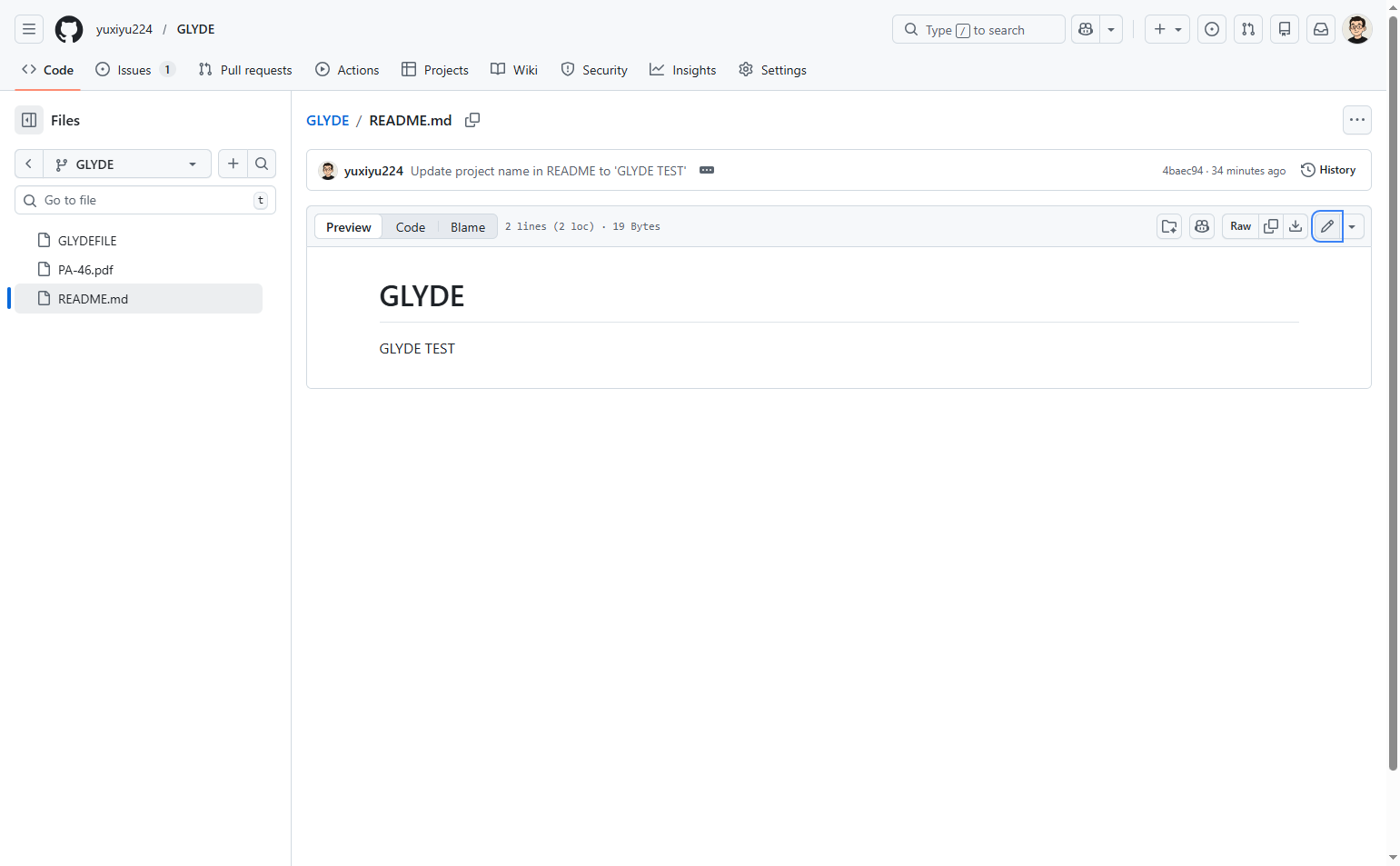
Open the file editor
Click the Edit button
Click the Edit this file button (pencil icon) in the top-right corner of the file view. This opens the inline editor where you can modify the file content.
- Step 4 of 10
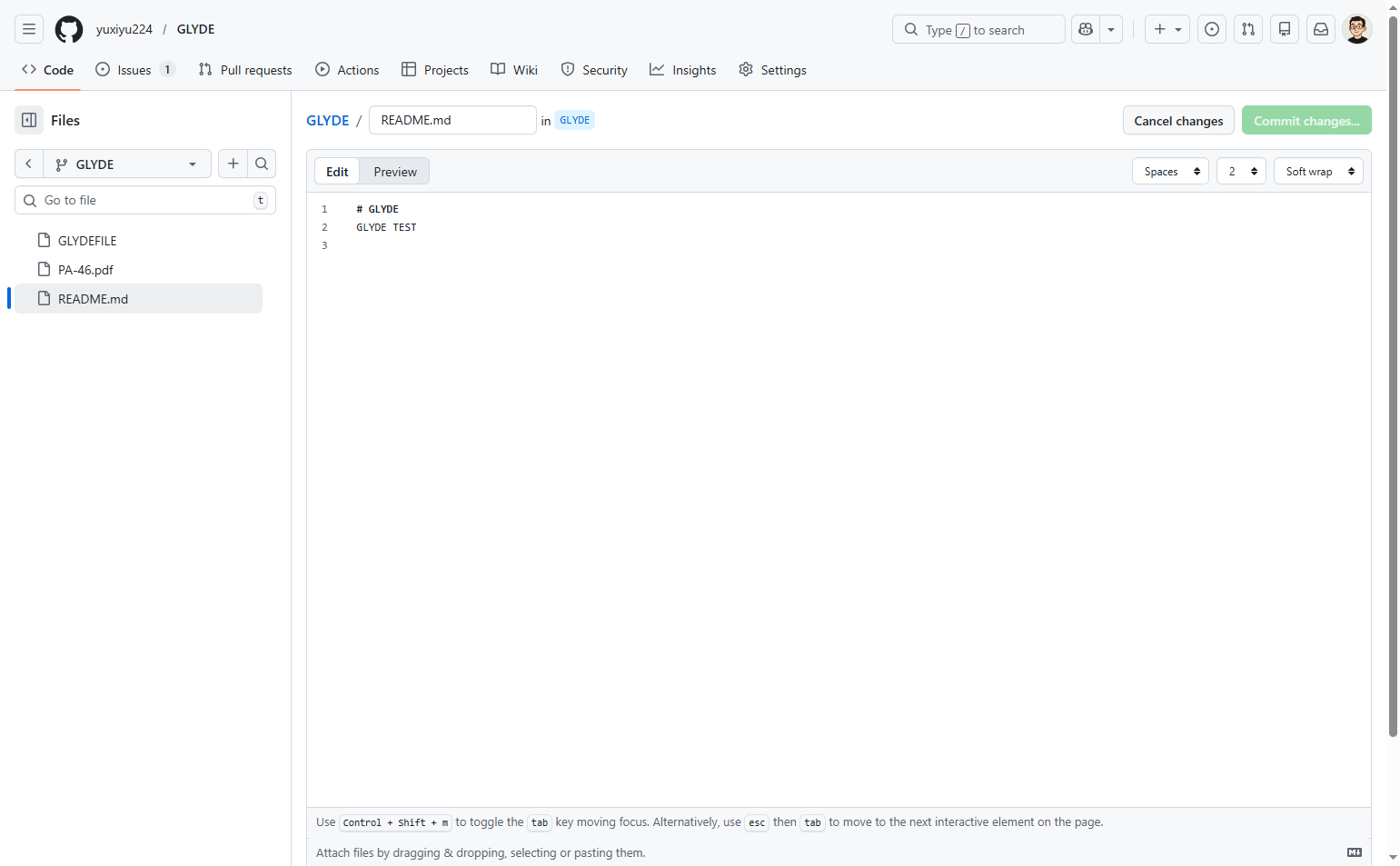
Edit the file content
Modify the text in the editor
In the text editor, make your desired changes to the file. You can:
- Step 5 of 10
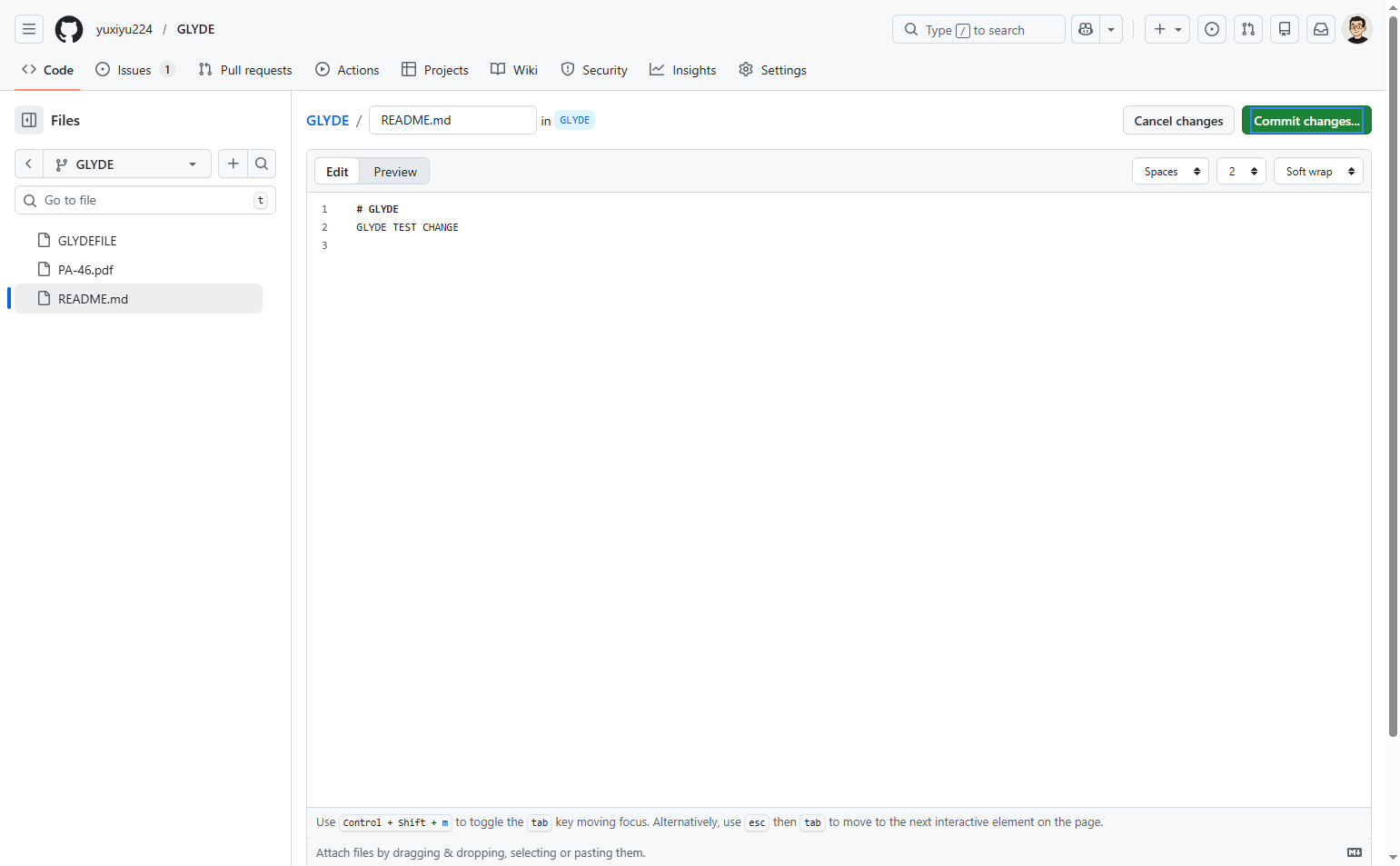
Initiate the commit
Click Commit changes button
Click the green Commit changes... button at the top right of the editor. This opens the commit dialog where you can describe your changes.
- Step 6 of 10
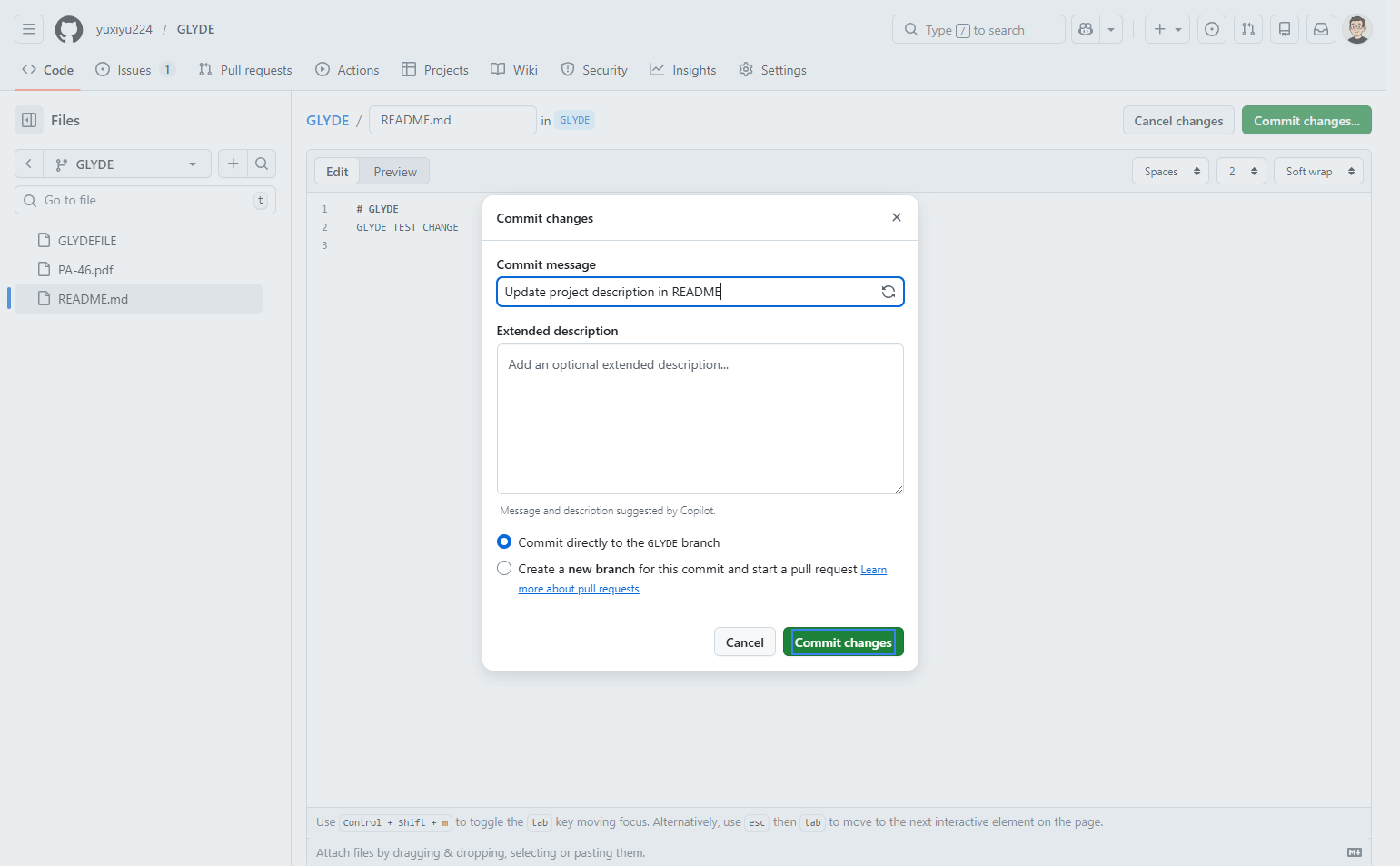
Enter commit message
Add a commit message
In the Commit message field, enter a brief description of your changes (e.g., "Update project description in README"). This message helps others understand what was modified.
- Step 7 of 10
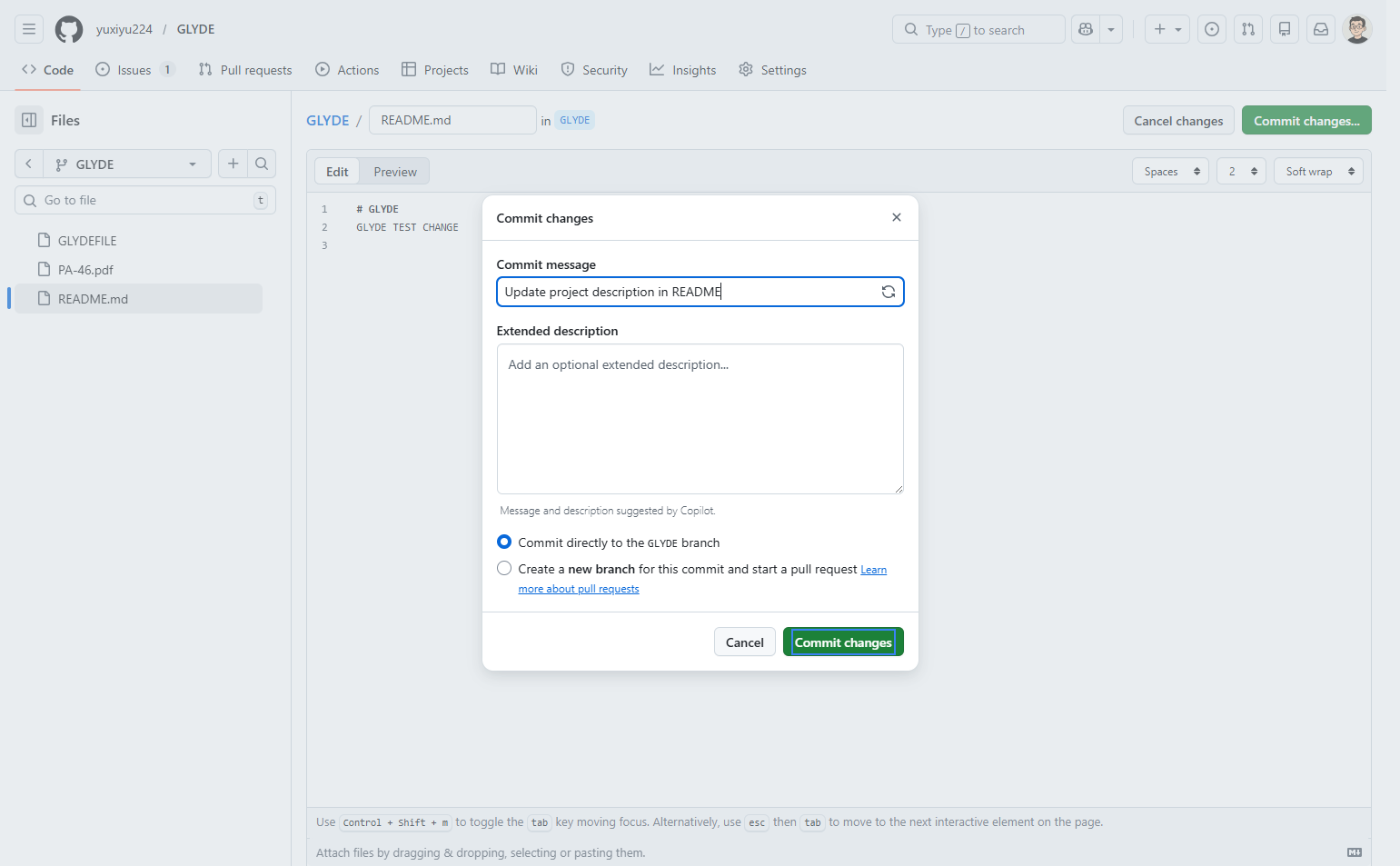
Commit the changes
Confirm the commit
Click the Commit changes button to save your changes to the branch. By default, this commits directly to the current branch (in this case, the GLYDE branch).
- Step 8 of 10
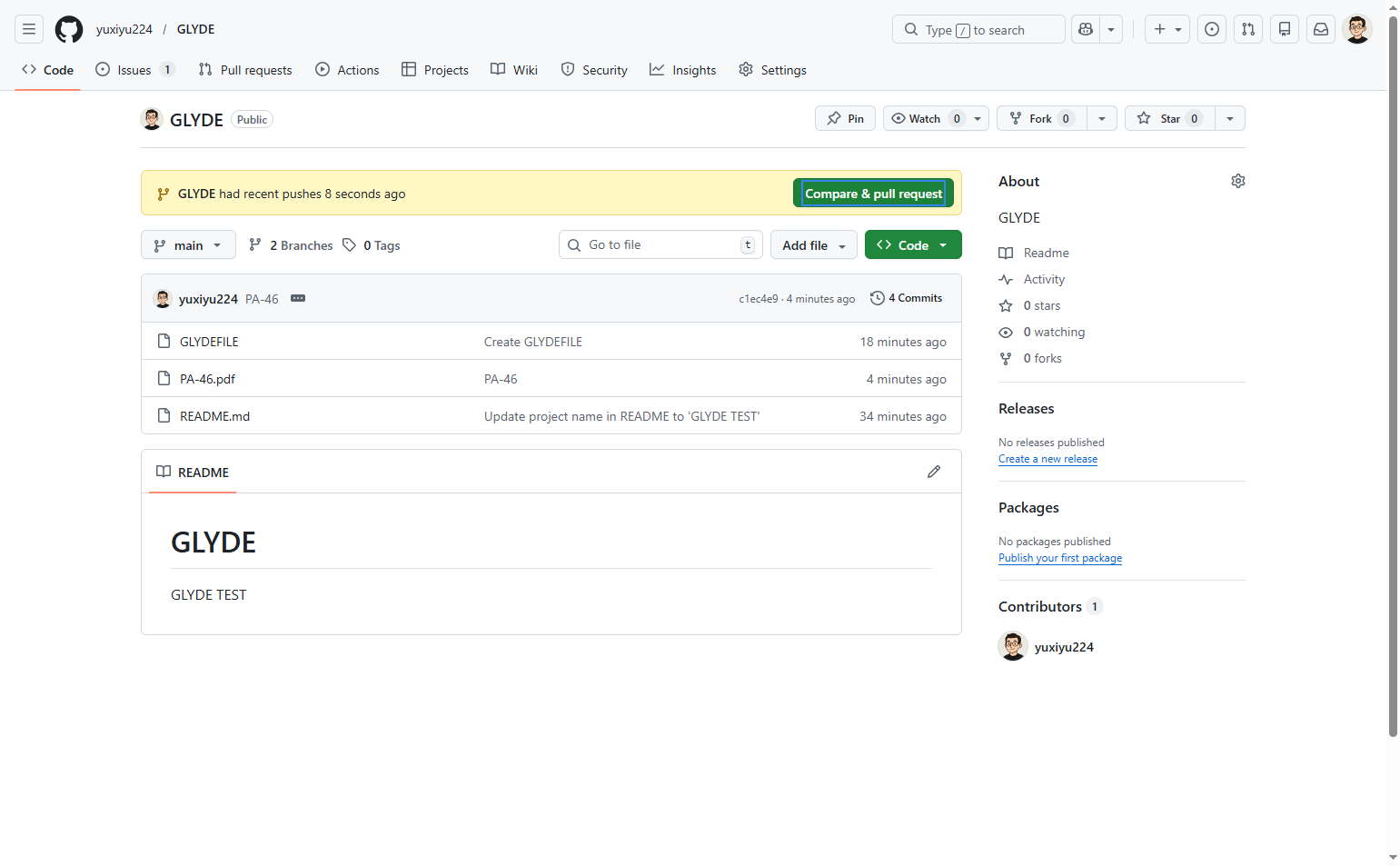
Create a pull request
Click Compare & pull request
After committing, GitHub displays a notification banner indicating your branch had recent pushes. Click the Compare & pull request button to begin creating a pull request.
- Step 9 of 10
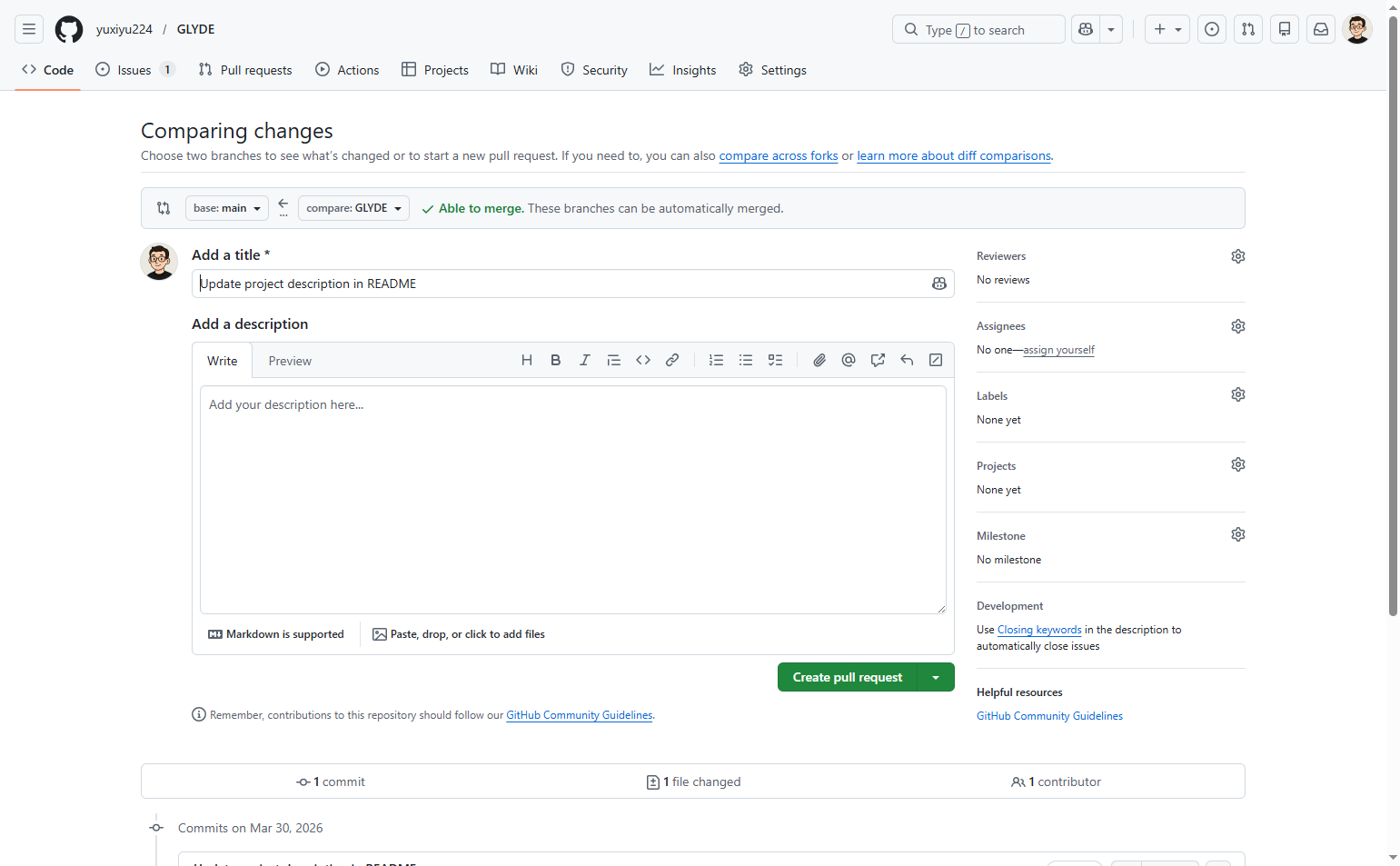
Add pull request details
Enter title and description
On the pull request creation page, review and update the following:
- Step 10 of 10
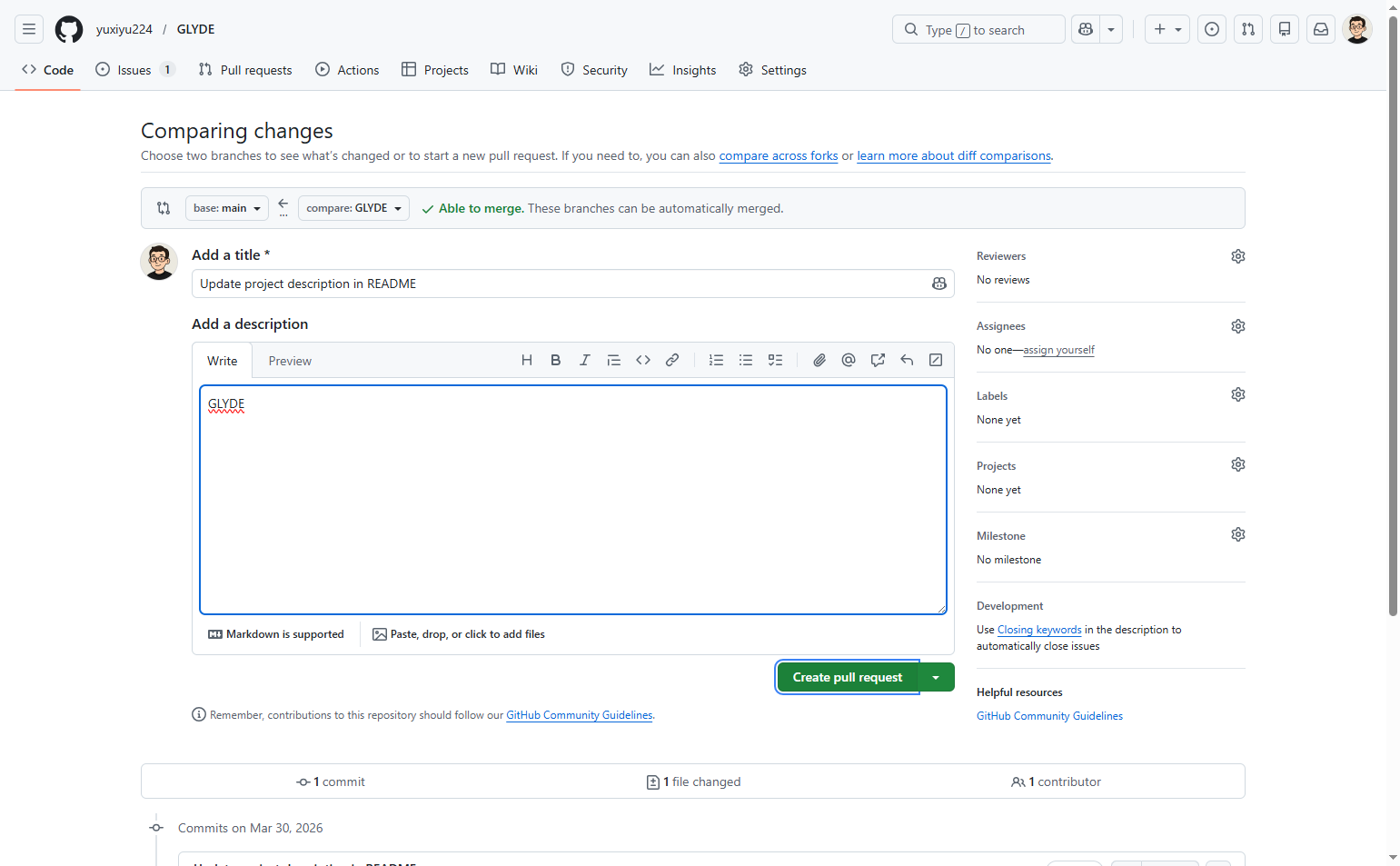
Submit the pull request
Create the pull request
Click the green Create pull request button to submit your pull request. This creates a formal request to merge your changes from the source branch into the target branch (typically main).
Verification
After creating the pull request, verify the following:
The pull request page displays with your title and description
GitHub shows "Ready to merge" or "Able to merge" indicating no conflicts with the base branch
The commit appears in the pull request with the correct file changes
Reviewers can see the diff showing what was added, modified, or deleted
Troubleshooting
Cannot find the Edit button
Ensure you are viewing a file (not a directory) and have the necessary repository permissions. If you don't have write access, you may need to fork the repository first.
Merge conflicts appear when creating pull request
If GitHub indicates conflicts with the base branch, you need to resolve them before merging. Update your branch with the latest changes from the base branch or use the command line to resolve conflicts.
Commit button is disabled
Ensure you have entered a commit message. The commit button remains disabled until a message is provided.
Conclusion
You have successfully edited a file in the GitHub repository and created a pull request to propose your changes for review. The pull request is now ready for reviewers to examine and can be merged once approved.