

Purpose
This SOP describes the procedure for creating a new GitHub issue in a repository and capturing a screenshot of the created issue for documentation purposes.
Scope
This procedure is intended for team members who need to report bugs, request features, or document tasks using GitHub issues. Follow this SOP when creating new issues in any GitHub repository.
Prerequisites
Logged in to GitHub with your account
Write access to the repository where you want to create the issue
Procedure
- Step 1 of 6
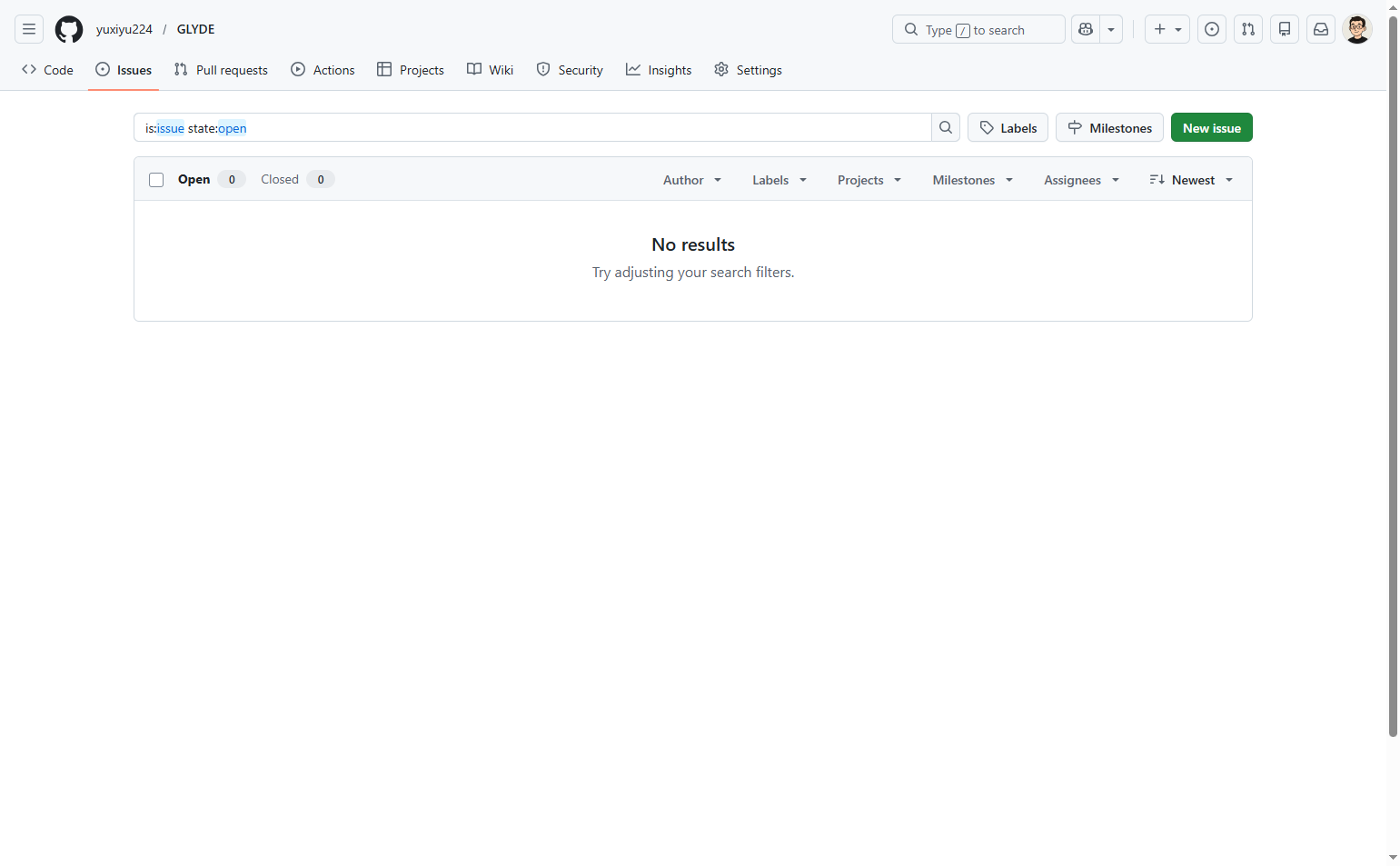
Navigate to repository issues page
Open the GitHub repository issues page
Navigate to github.com and ensure you are signed in to your GitHub account. You should be on the Issues page of the target repository.
- Step 2 of 6
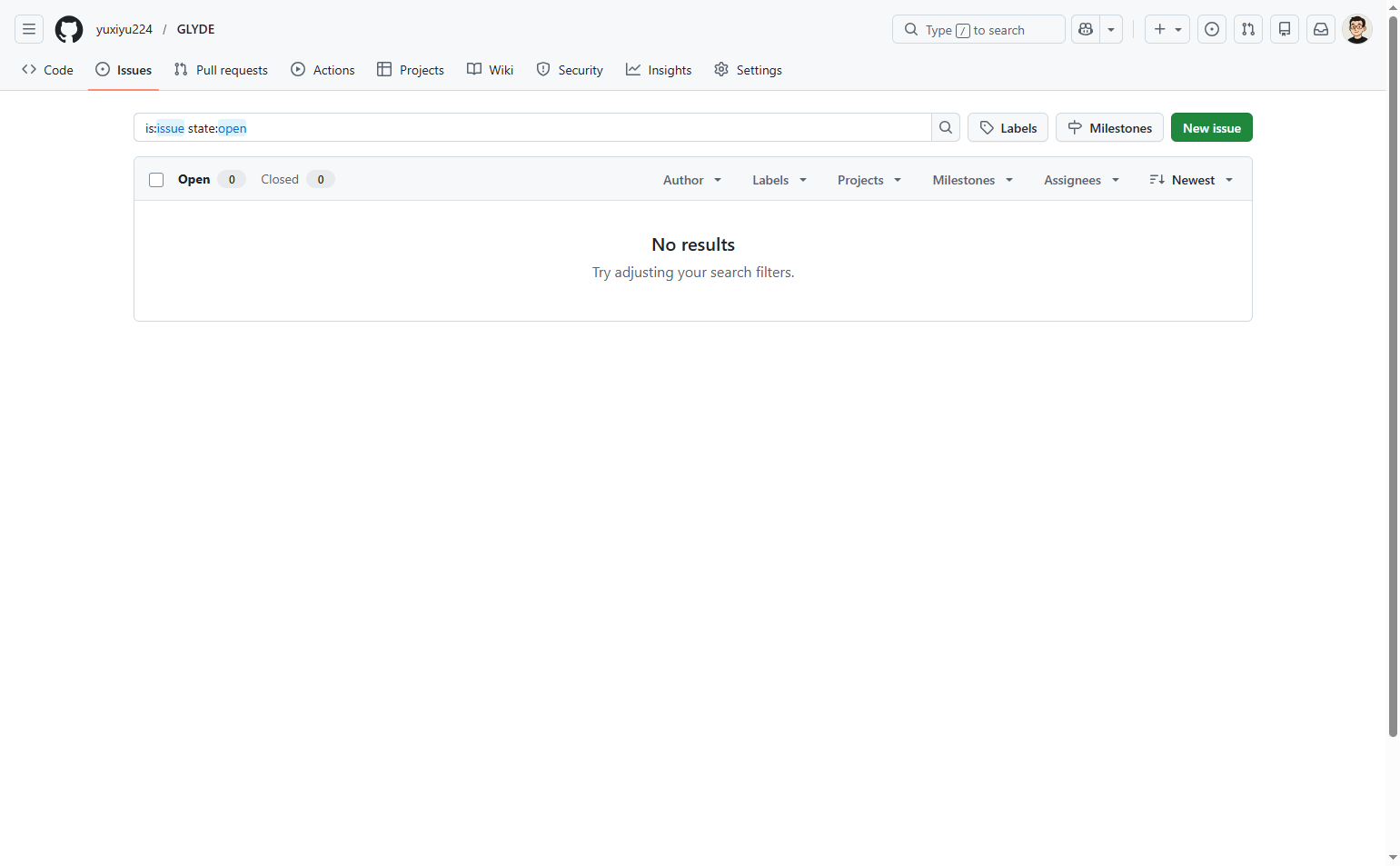
Click New issue button
Click the New issue button
Click the New issue button in the top right corner of the issues page. This will open the issue creation form.
- Step 3 of 6
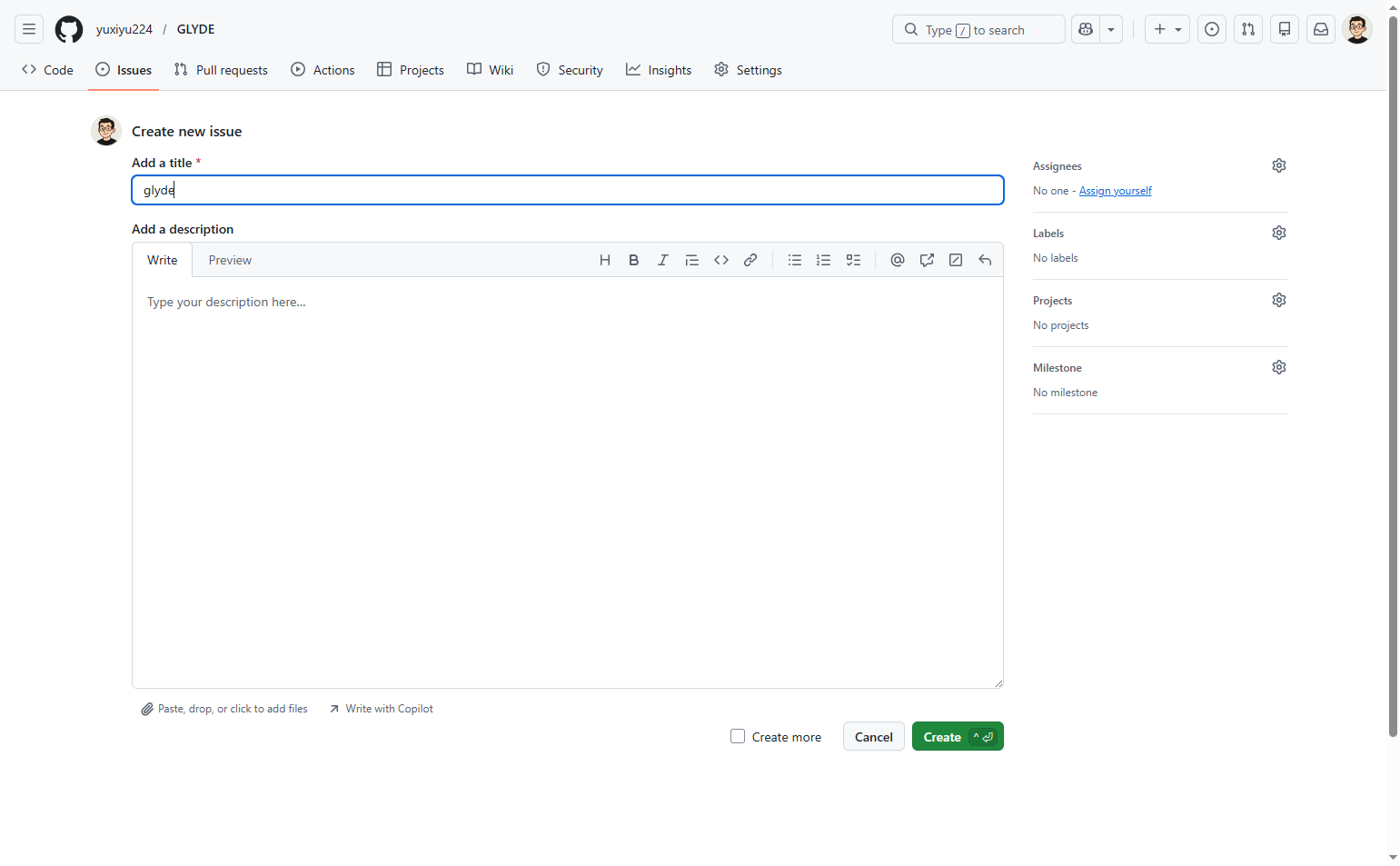
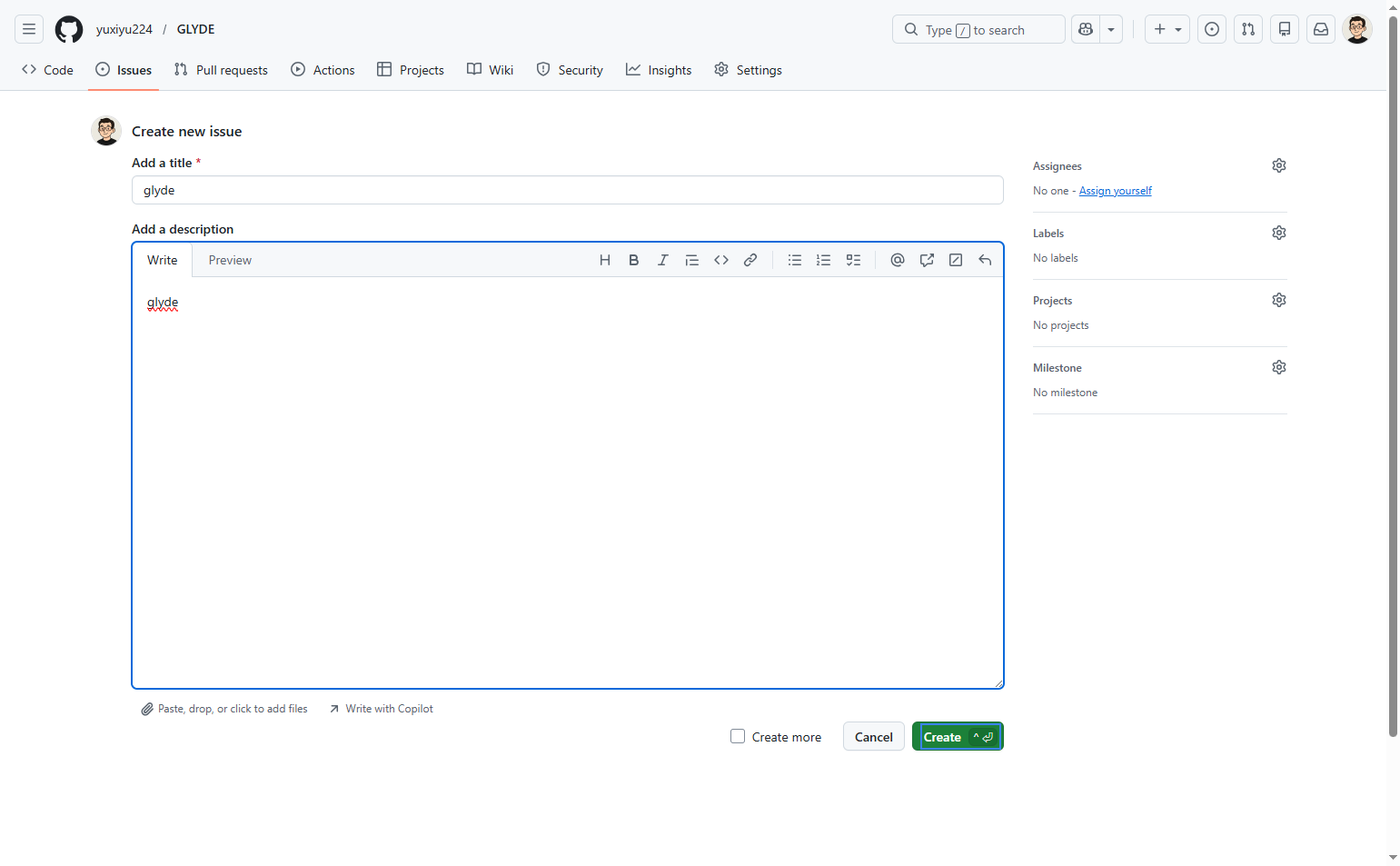
Enter issue title
Click the title field and enter a title
Click the Add a title text field and enter a descriptive title for your issue. The title should be concise and clearly describe the problem or feature request.
- Step 4 of 6
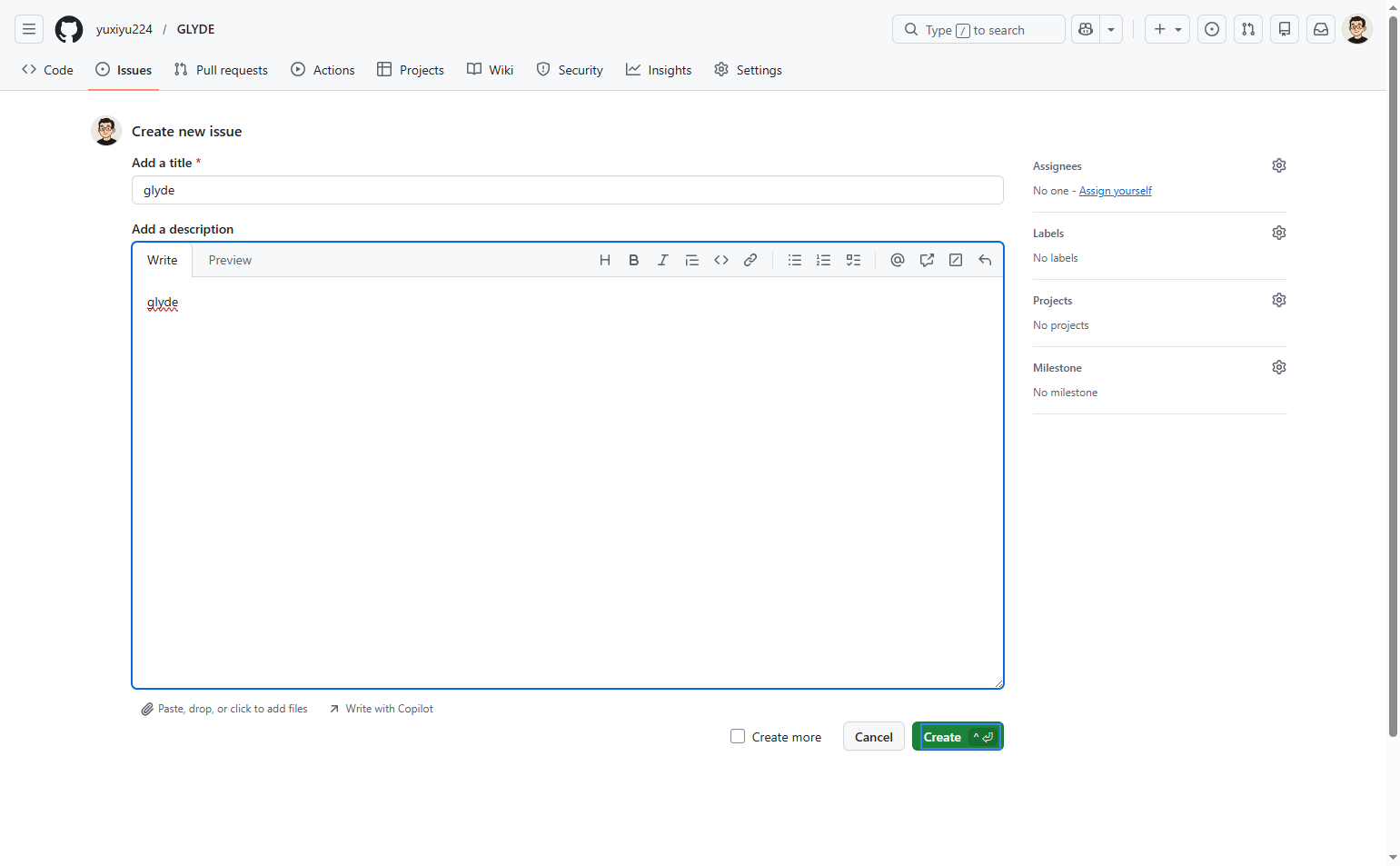
Add description
Click the description field and enter details
Click the Add a description text area and provide detailed information about the issue. Include relevant context, steps to reproduce for bugs, or specifications for feature requests. You can use the formatting toolbar to apply styles such as bold, italic, lists, or code blocks.
- Step 5 of 6
Create the issue
Click the Create button to submit
Click the Create button to submit the new issue. You can also use the keyboard shortcut Ctrl+Enter (⌃⏎) to create the issue.
- Step 6 of 6
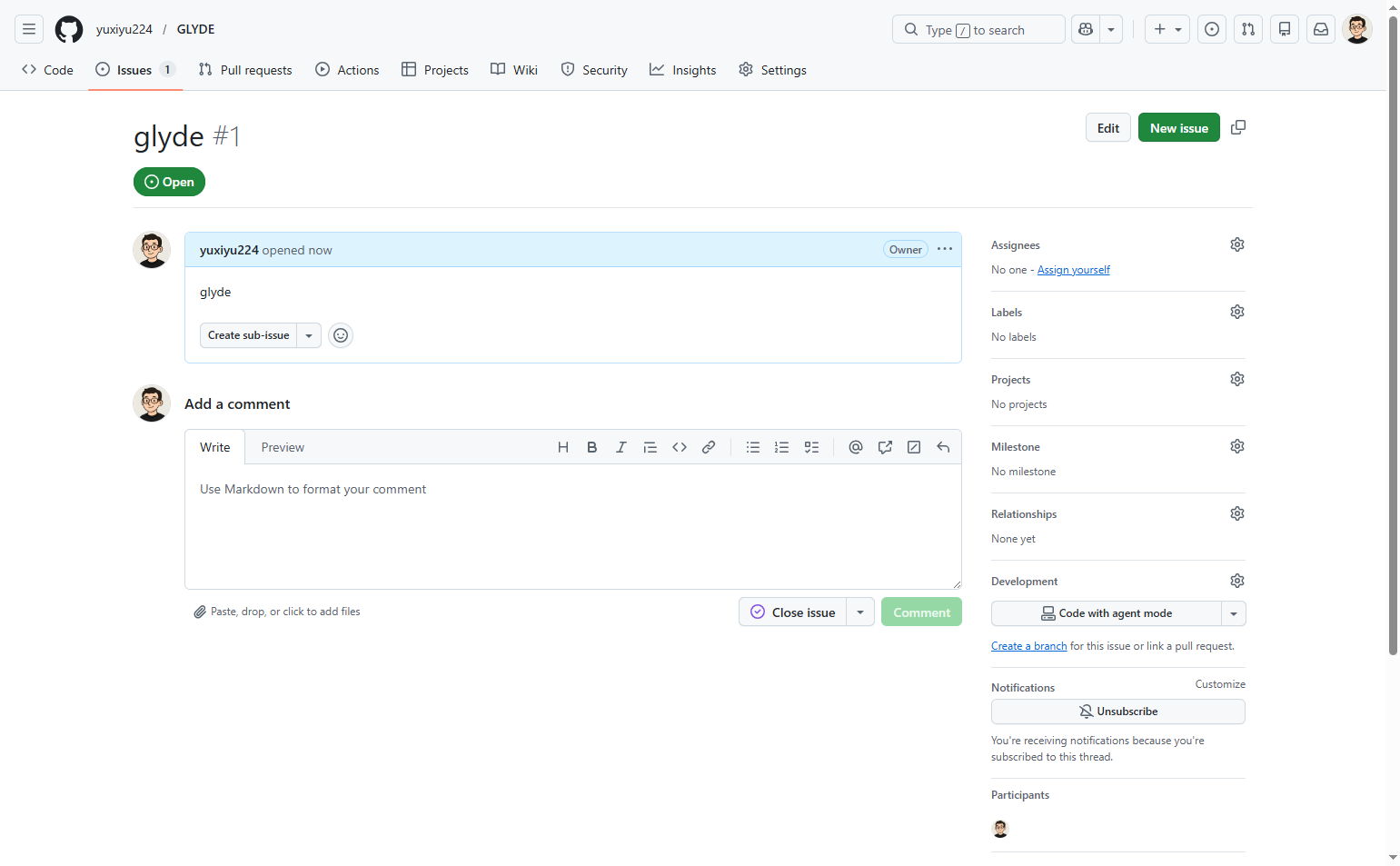
Capture screenshot of created issue
Take a screenshot of the created issue page
Once the issue is created, you will be redirected to the issue page. Capture a screenshot of the created issue showing the issue number, title, and description for your records or documentation.
Verification
Confirm the issue was created successfully:
Verify you are redirected to the newly created issue page showing the issue number (e.g., Issue #1).
Confirm the issue title and description appear correctly on the issue page.
Check that the issue status shows as Open.
Conclusion
You have successfully created a new GitHub issue with a title and description, and captured a screenshot of the created issue for documentation purposes.