
Turn any video into a step-by-step guide.
Upload an MP4 or paste a Loom link. Glyde watches the recording and writes a structured, editable guide your team can follow — searchable, shareable, and done in minutes.


Drop a video to get a guide
MP4, MOV, or a Loom link
From recording to guide in three steps.
Upload your video
Drag in an MP4 or MOV, paste a Loom link, or batch-import your entire Loom library — up to 500 recordings at once.
AI analyzes every step
Glyde's multimodal AI watches the recording, identifies each action, and captures a clean screenshot and description for every step.
Get an editable guide
Out comes a structured, searchable guide — reorder steps, edit text, blur sensitive data, then share a link or export to PDF.
Not just steps. Real SOPs.
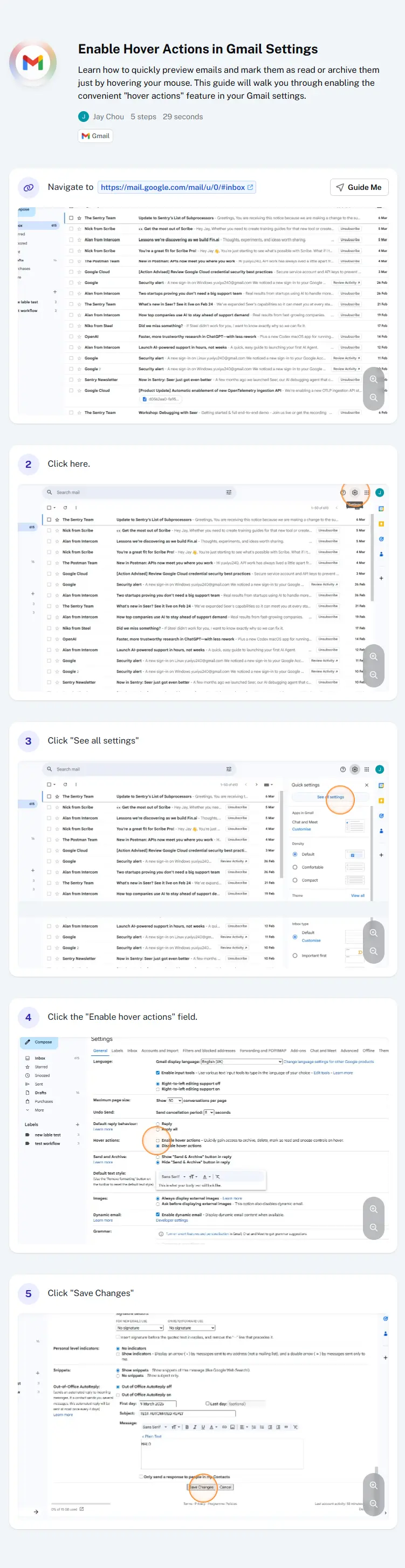
Other tools give you a list of clicks. Glyde generates structured, professional documentation your team can actually follow.

Scroll to compare.
A video shows it once.
A guide keeps it forever.
Recordings are great to capture. But raw video is hard to search, skim, and update. Turning it into a written guide fixes all three.
Searchable and skimmable
A written guide can be searched, skimmed, and jumped through. Nobody scrubs a 12-minute video to find one step.
Easy to keep current
When a process changes, edit the step — not re-record the whole video. Guides stay accurate without the redo.
Share anywhere
Public link, password-protected, or embedded in Notion and Confluence. Export to PDF or DOCX. Fits how your team already works.
Real SOPs. Real workflows.
Browse SOPs Glyde users have made across the tools they work in every day. Open any guide to see the output for yourself.
 Zoom
ZoomHow to schedule a meeting in Zoom
How to edit a recurring meeting series in Zoom
How to book an appointment with Zoom Scheduler
How to create a whiteboard and add pages in Zoom
How to create a one-off meeting in Zoom Scheduler
How to use meeting interaction controls in Zoom
How to edit a single meeting occurrence in Zoom
How to create a booking page in Zoom Scheduler
How to manage and review tasks in Zoom
How to review meeting assets and summaries in Zoom
Video to guide, answered
How do I turn a video into a guide?
What video formats can I upload?
Can I convert a Loom recording into a guide?
How long does it take to convert a video?
Can I edit the guide after it's generated?
Is video-to-guide free?
Have a video? You have a guide.
Upload your first recording and watch it become a step-by-step guide. Free to start. No credit card required.
Convert a Video Free