

Purpose
This SOP describes how to schedule a new Zoom meeting with recurring settings, AI Companion features, and meeting summary templates.
Scope
This procedure is intended for all Zoom users with a registered account. Follow this SOP when creating one-time or recurring meetings with custom settings.
Prerequisites
Active Zoom account with Basic or Pro plan
Logged in to zoom.us in your web browser
Procedure
- Step 1 of 16
Navigate to zoom.us
Open the Zoom web portal
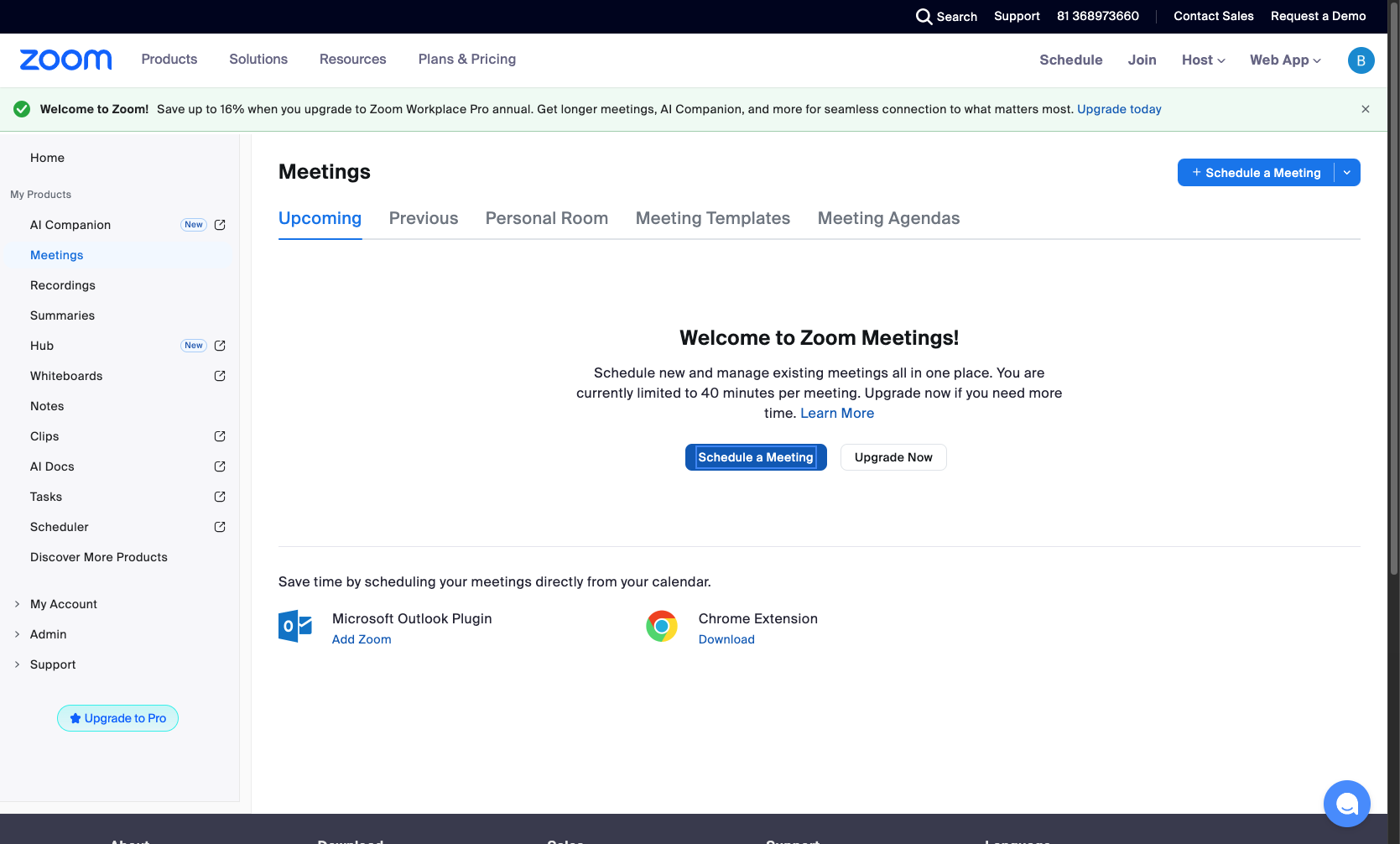
Navigate to zoom.us and sign in to your account. The My Meetings page will display your upcoming meetings.
- Step 2 of 16
Schedule a new meeting
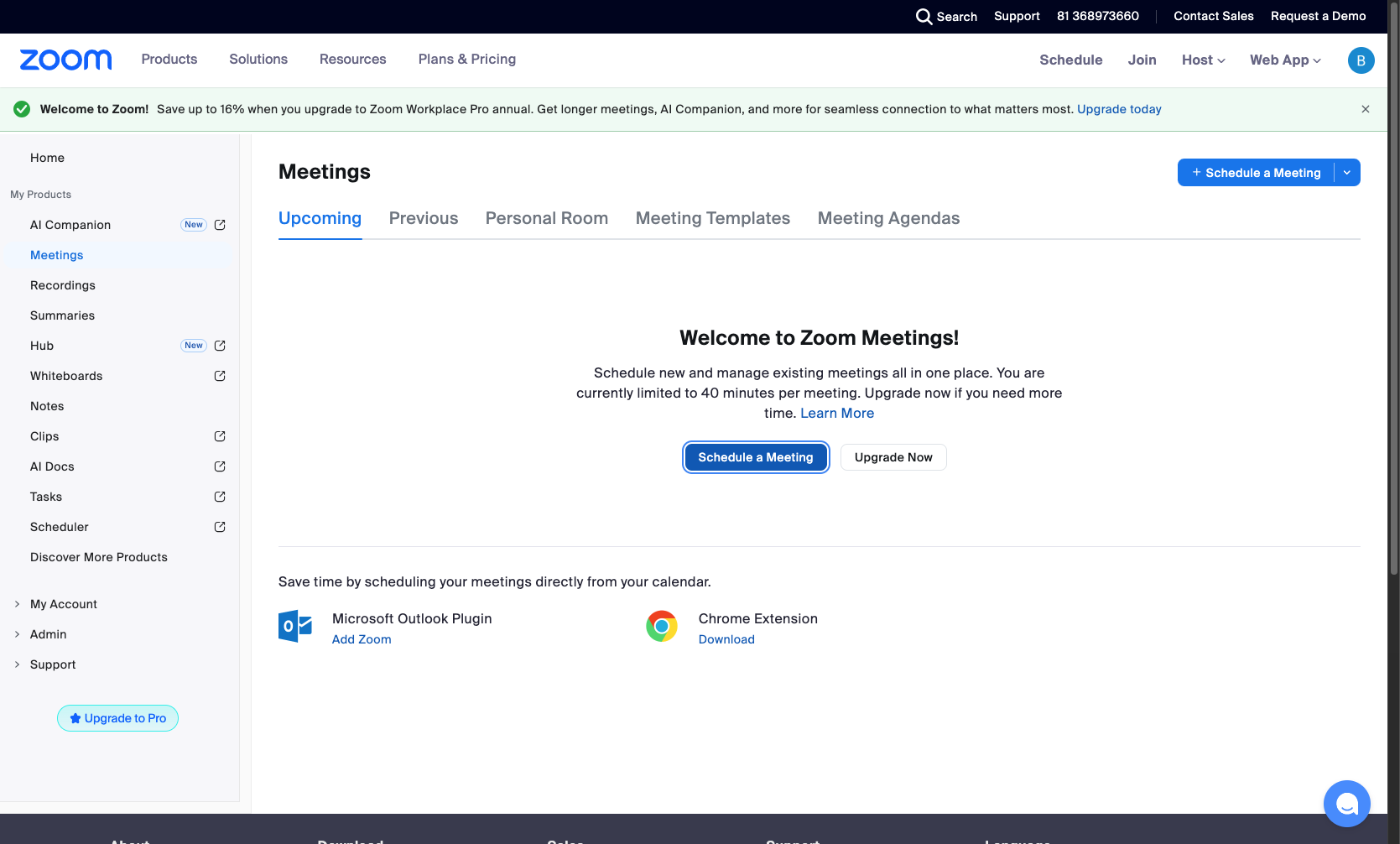
Click the Schedule a Meeting button
Click the Schedule a Meeting button in the top-right corner of the page to open the meeting creation form.
- Step 3 of 16
Enter meeting topic
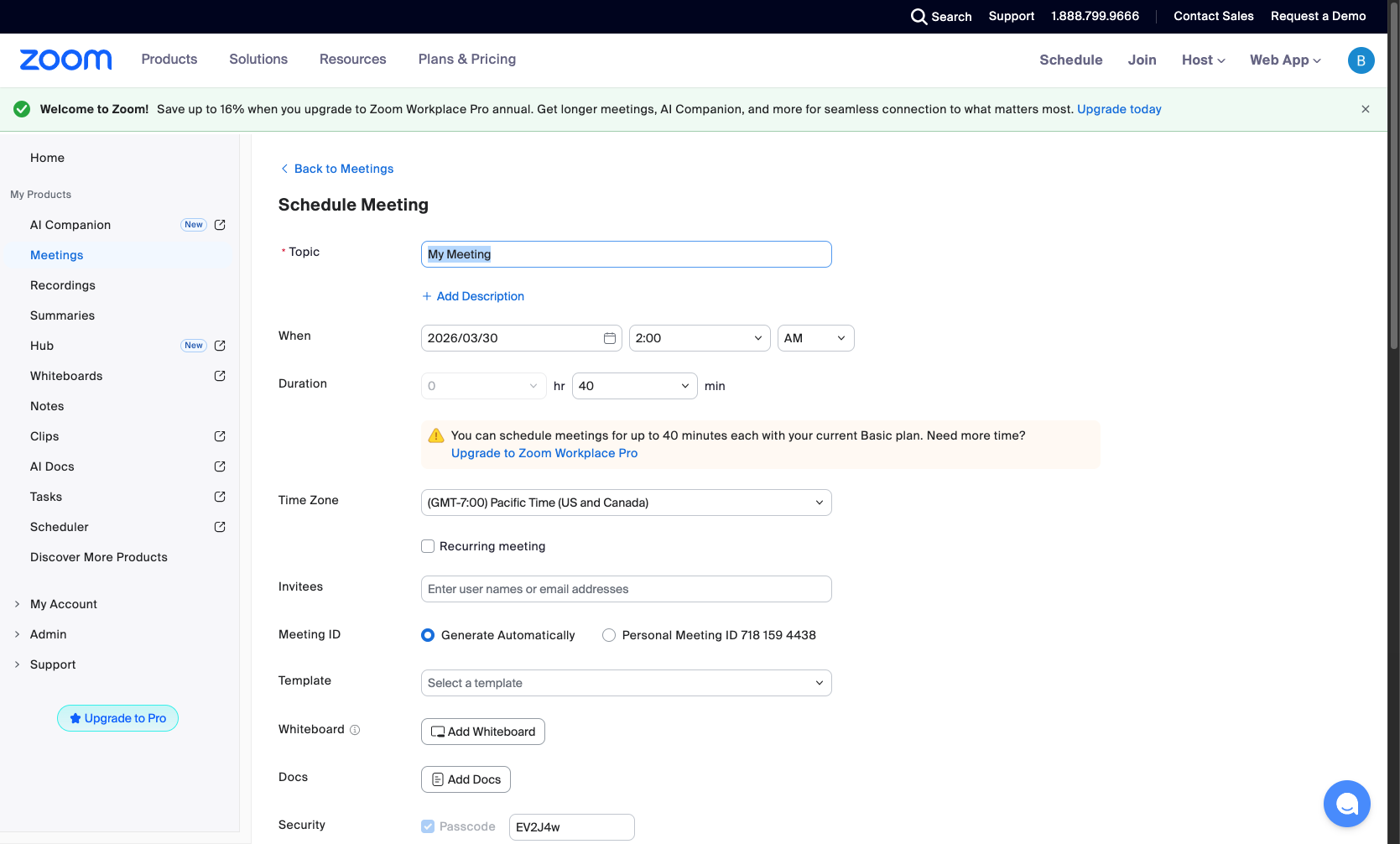
Type your meeting name in the Topic field
In the Topic field, enter a descriptive name for your meeting (e.g., "My Meeting"). You can also click Add Description to provide additional details about the meeting agenda.
- Step 4 of 16
Select meeting date
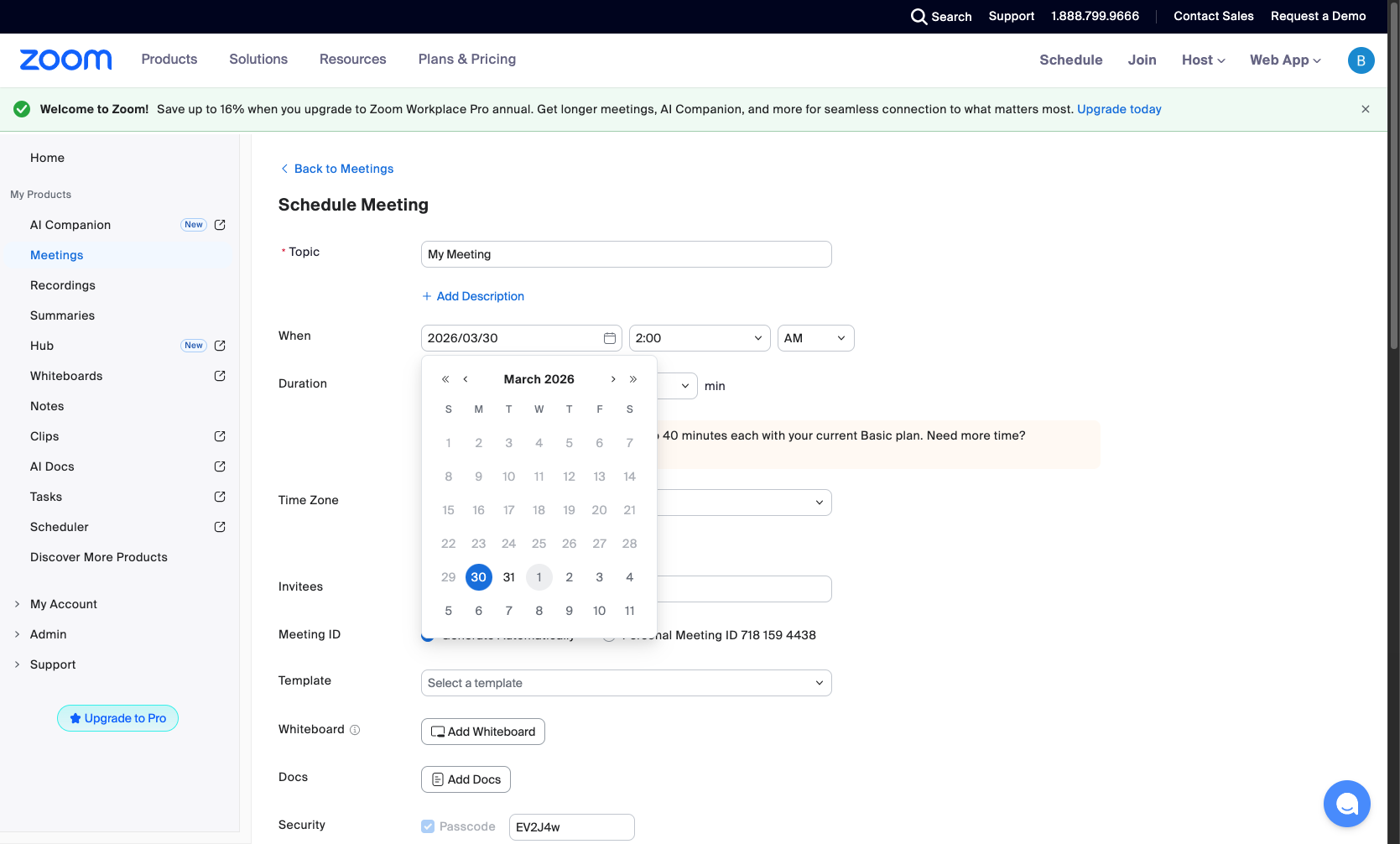
Choose the meeting date from the calendar
Click on the date field under When to open the calendar picker. Select your desired date from the calendar.
- Step 5 of 16
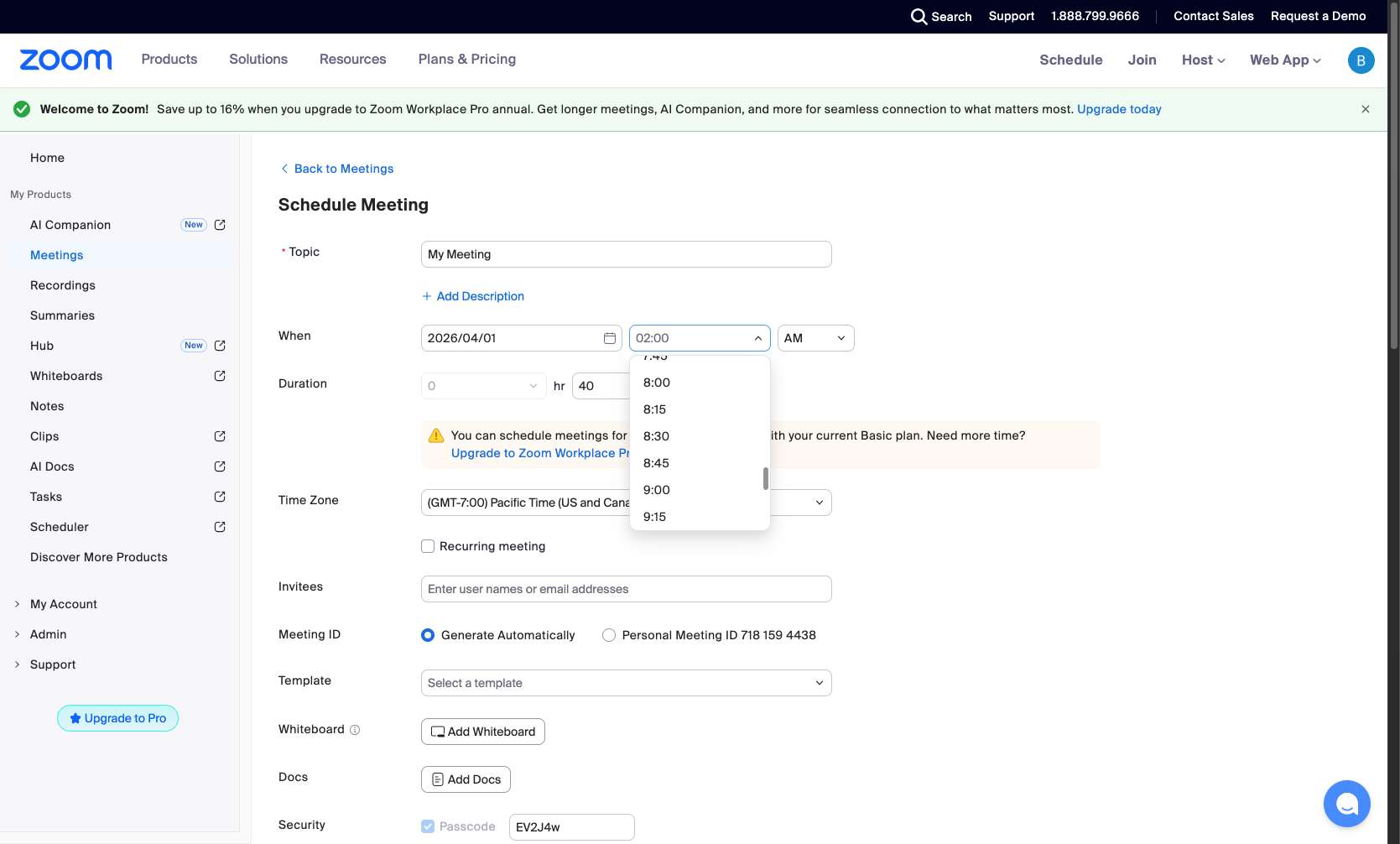
Set start time
Select the meeting start time
Click the time dropdown and select your preferred start time (e.g., 9:00 AM). The dropdown shows times in 15-minute increments starting from 8:00 AM.
- Step 6 of 16
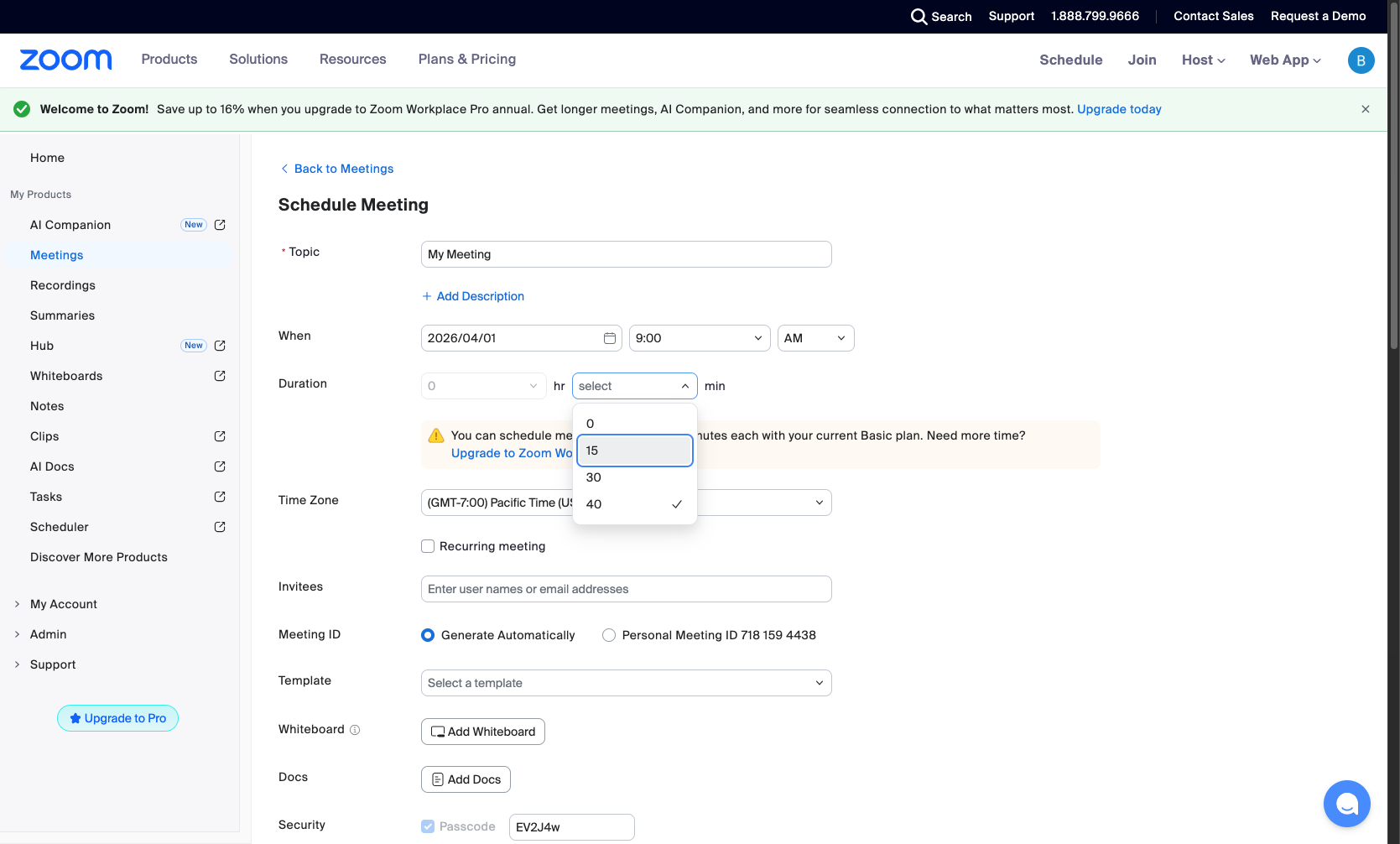
Configure meeting duration
Set the meeting duration
Set the Duration for your meeting by selecting hours and minutes. Available options include: 15, 30, 45, or 60 minutes.
- Step 7 of 16
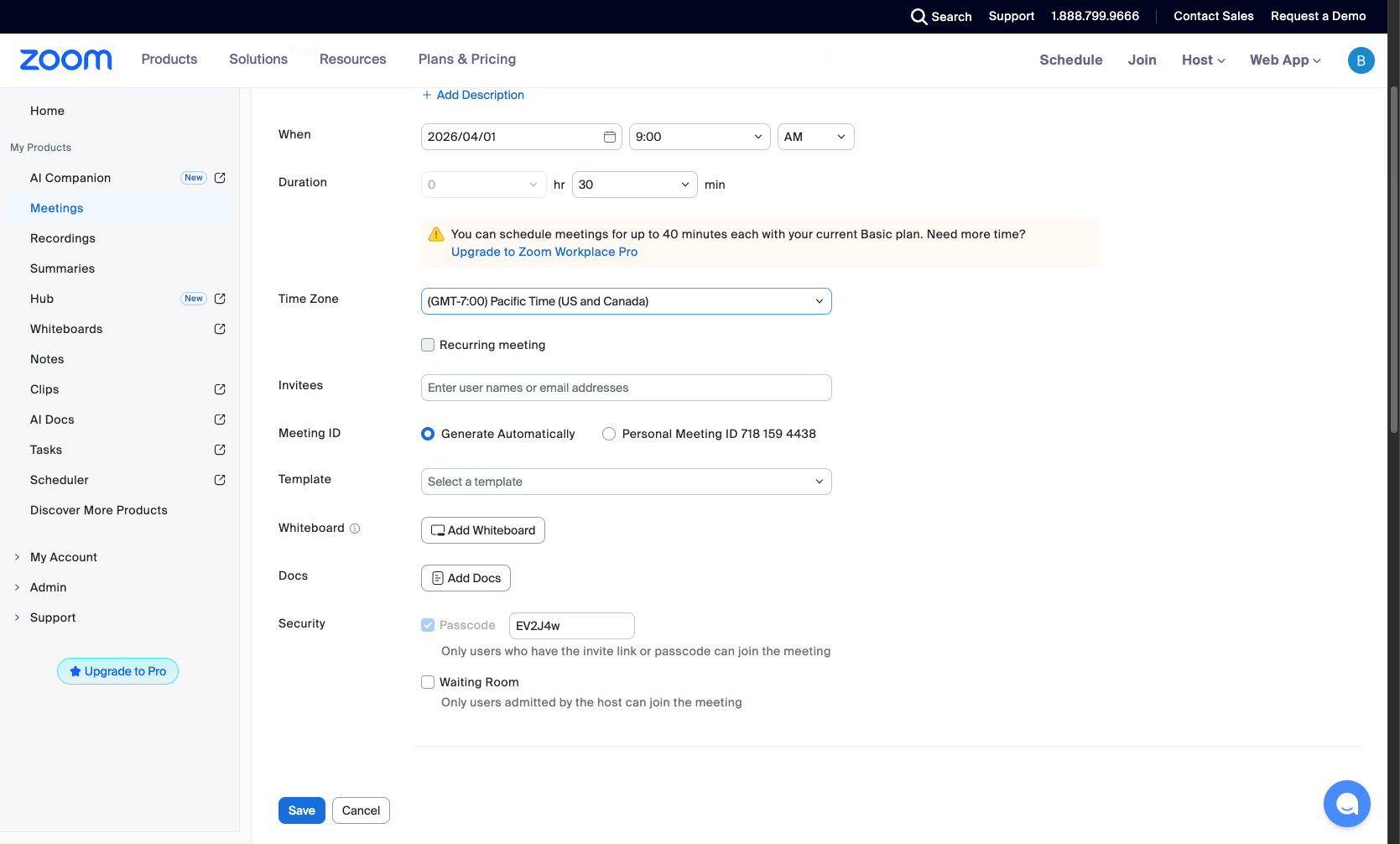
Select time zone
Choose the appropriate time zone
Click the Time Zone dropdown and select your preferred time zone (e.g., (GMT-7:00) Pacific Time (US and Canada)). This ensures all participants see the correct local time.
- Step 8 of 16
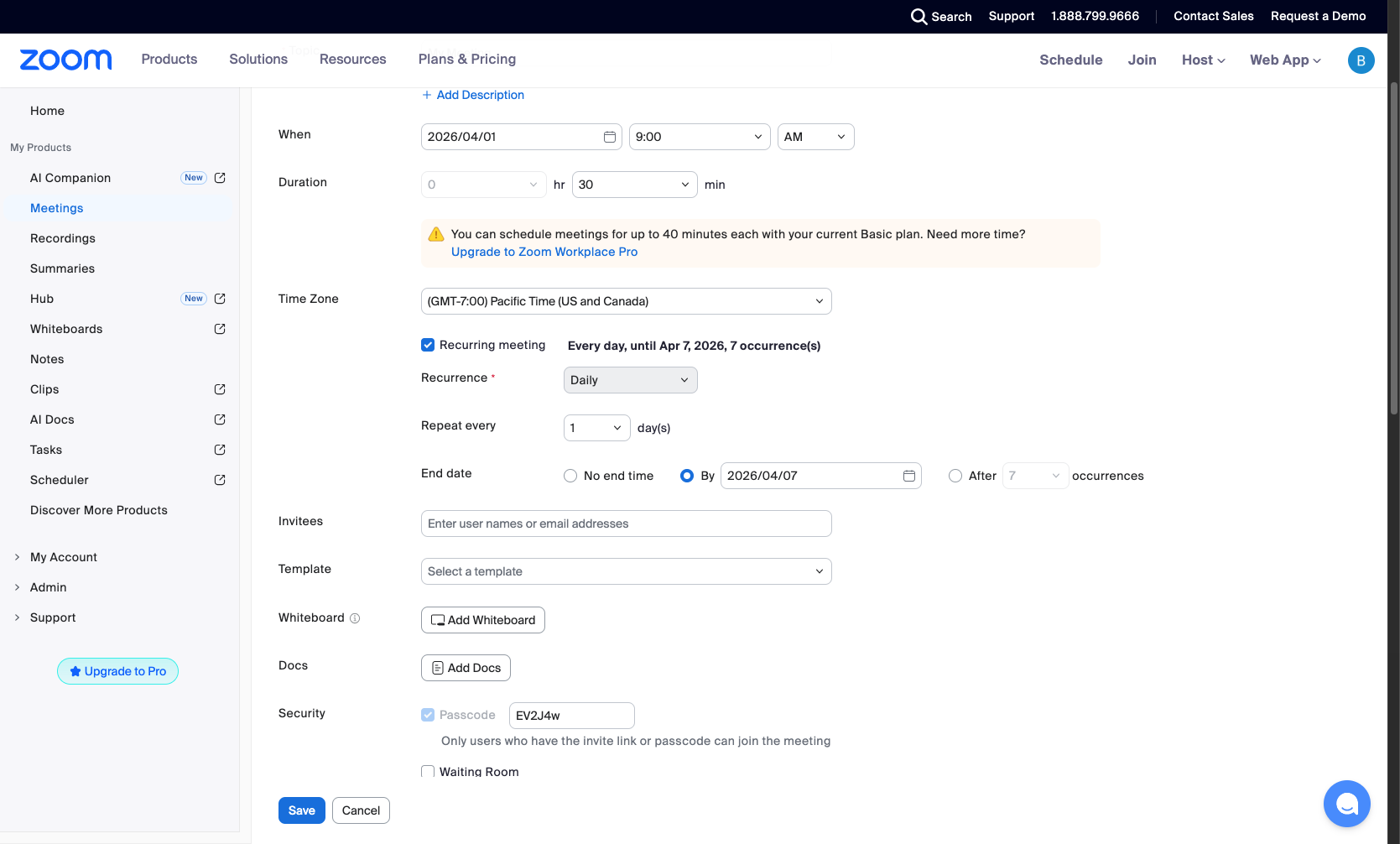
Enable recurring meeting
Check the Recurring meeting checkbox
Check the Recurring meeting checkbox to set up a repeating meeting schedule. This expands additional recurrence options.
- Step 9 of 16
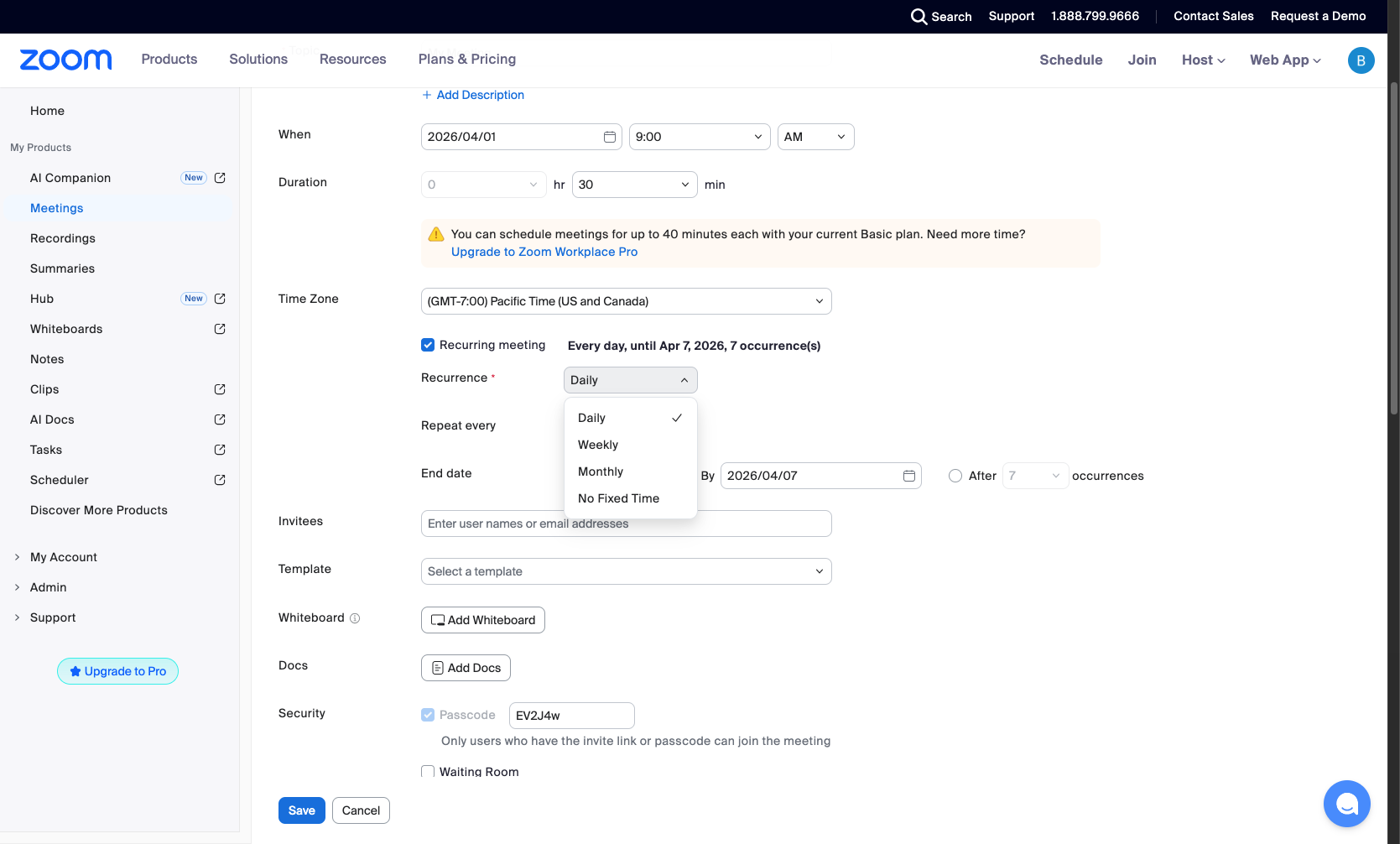
Set recurrence pattern
Choose how often the meeting repeats
Click the Recurrence dropdown and select the frequency:
- Step 10 of 16
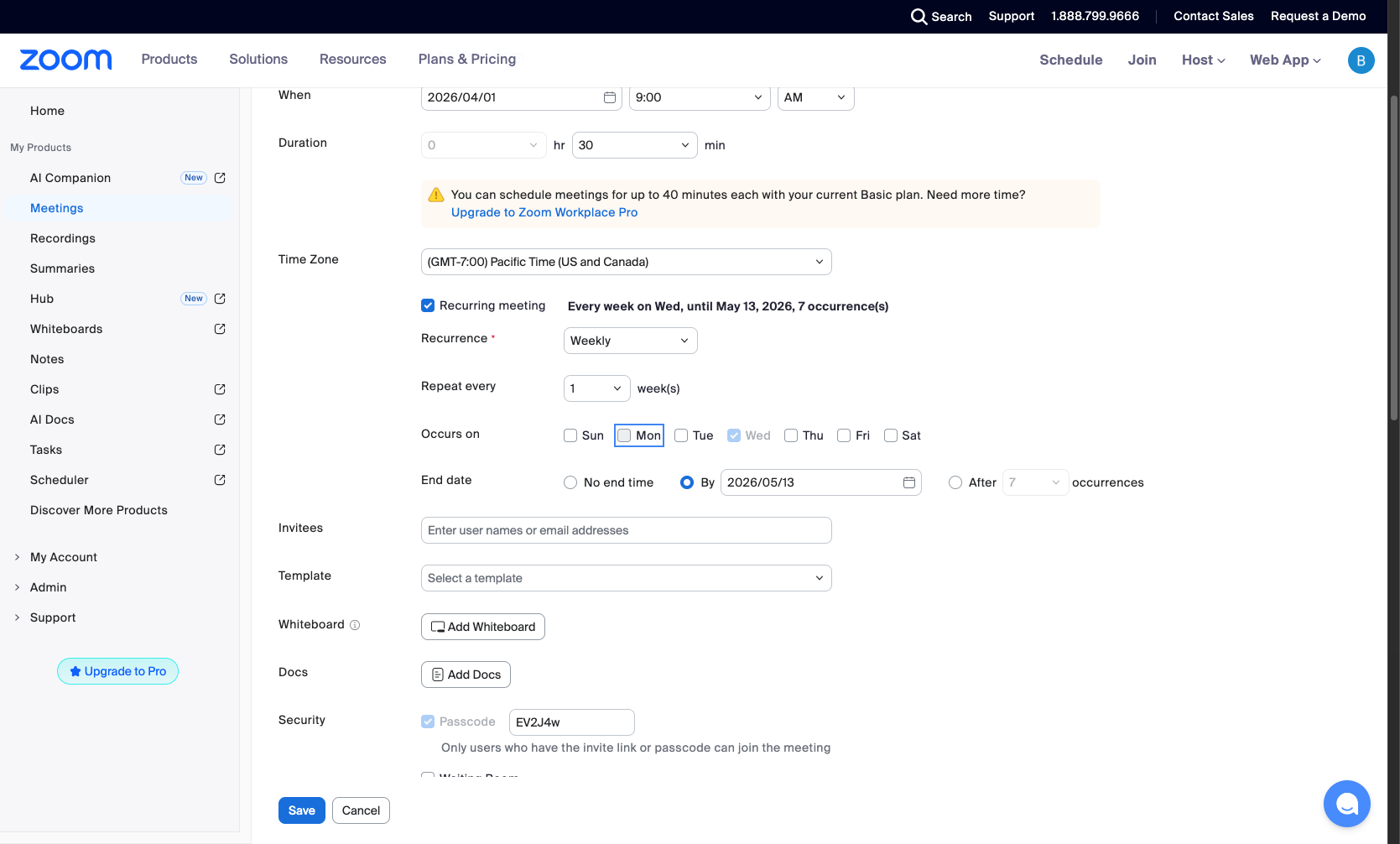
Select meeting days
Choose which days the meeting occurs
Under Occurs on, select the days of the week for your recurring meeting. Click on Mon, Tue, Wed, Thu, Fri, Sat, or Sun to toggle each day. Selected days will be highlighted in blue.
- Step 11 of 16
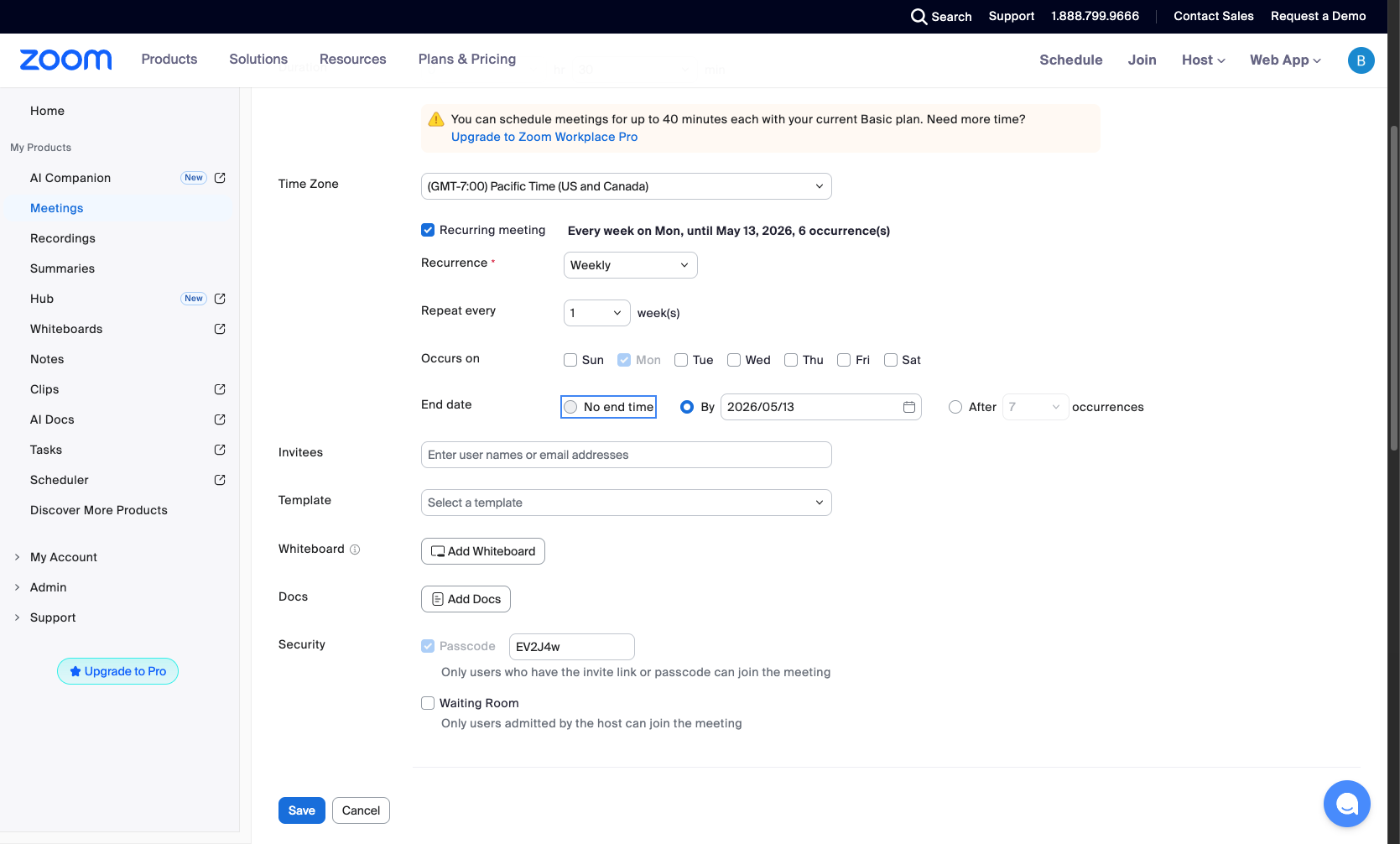
Set end date options
Choose when the recurring meeting ends
Under End date, select one of the following options:
- Step 12 of 16
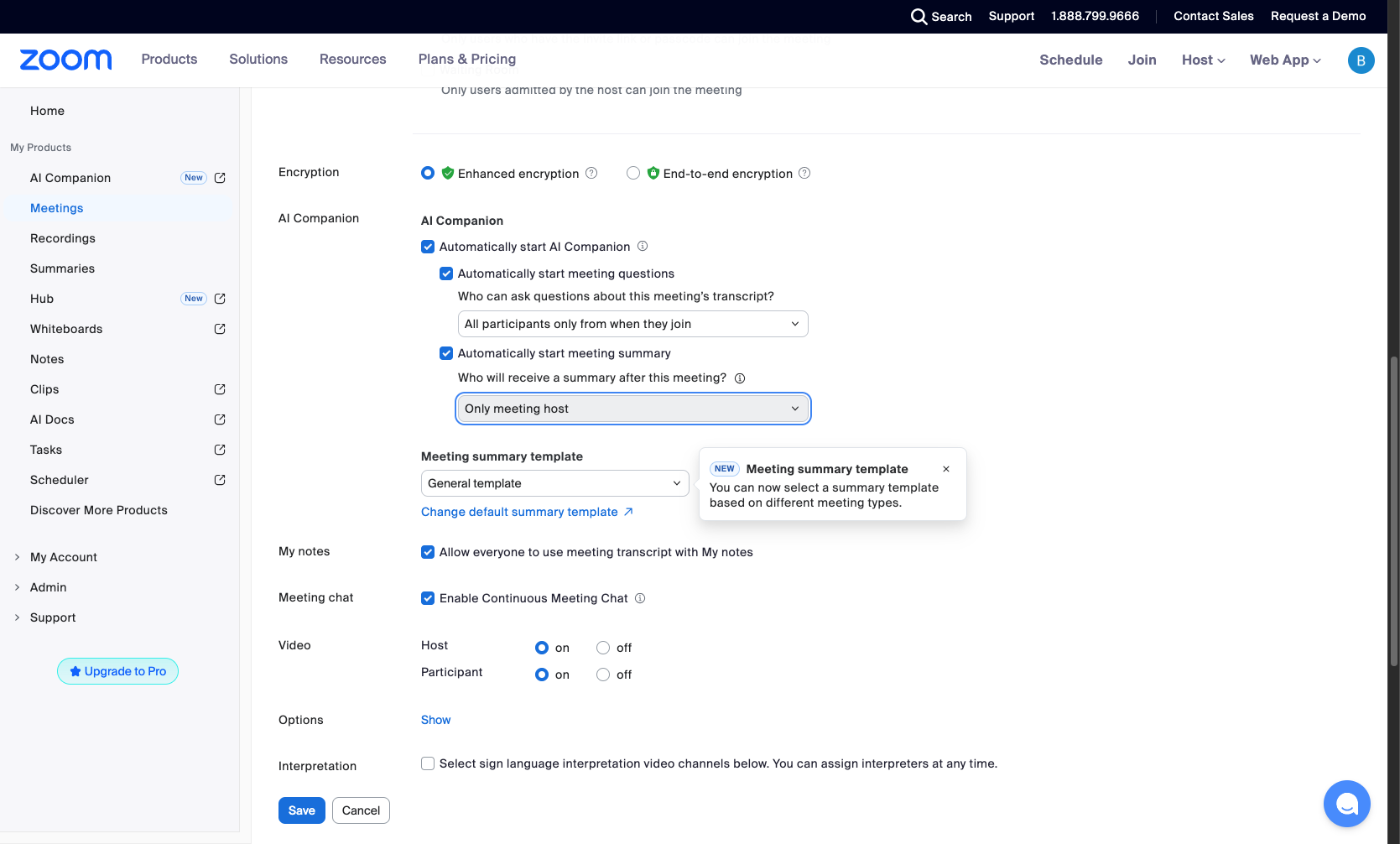
Configure AI Companion settings
Enable AI Companion features
Scroll down to the AI Companion section. Check Automatically start AI Companion to enable AI features for this meeting.
- Step 13 of 16
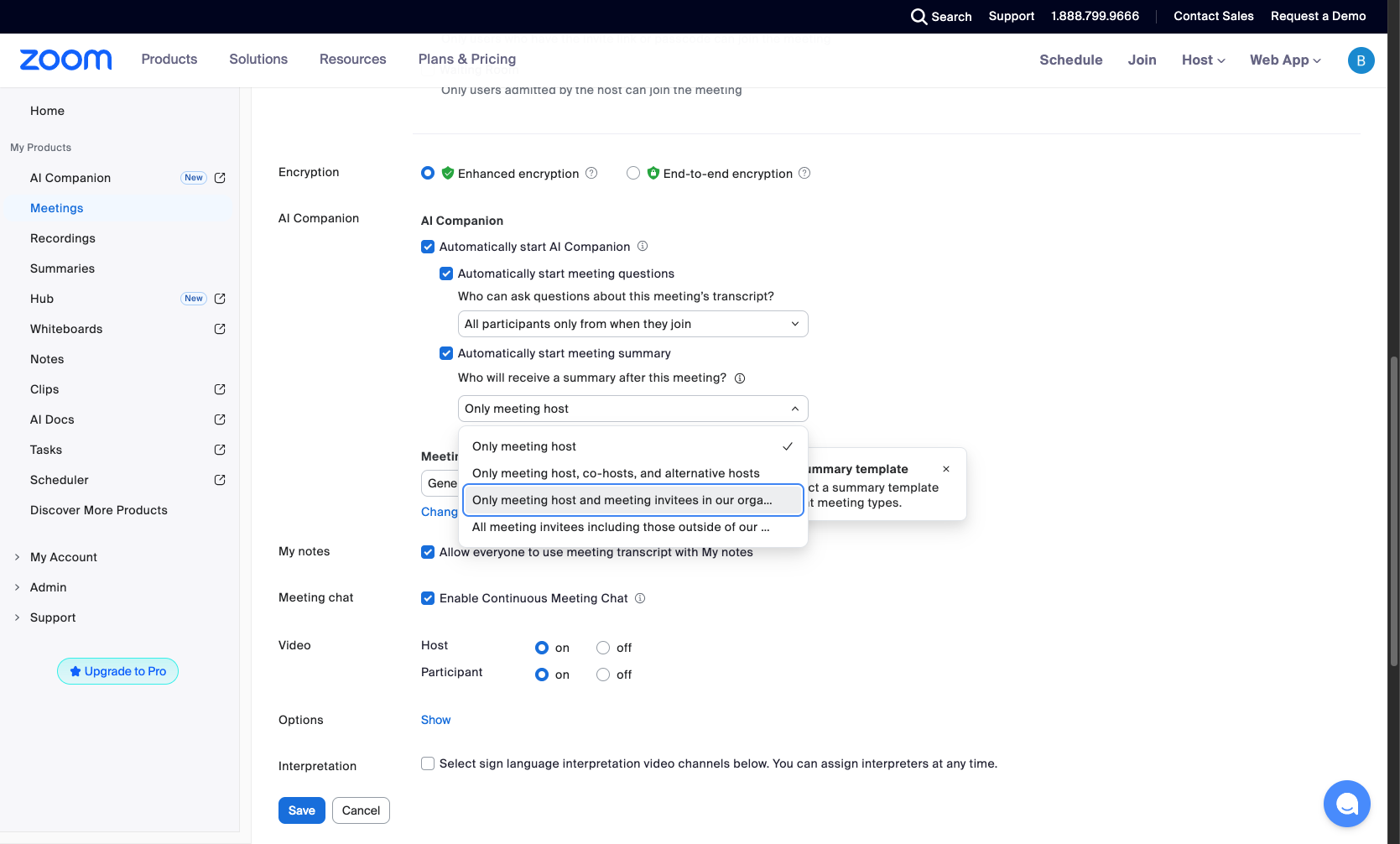
Set meeting questions access
Choose who can ask AI questions
Under Automatically start meeting questions, select who can ask questions about the meeting transcript:
- Step 14 of 16
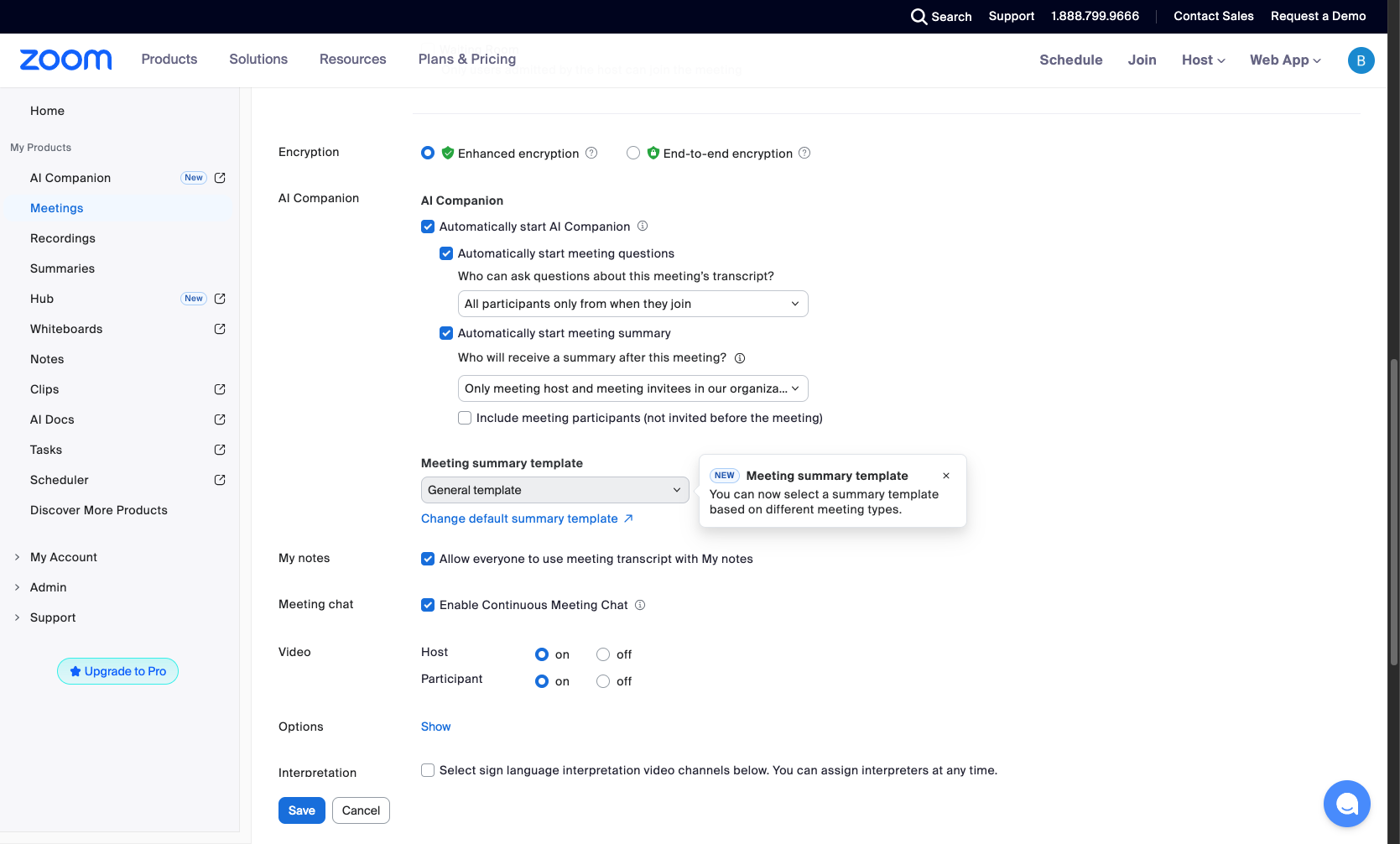
Configure meeting summary recipients
Select who receives the AI summary
Under Automatically start meeting summary, select who will receive the summary email after the meeting:
- Step 15 of 16
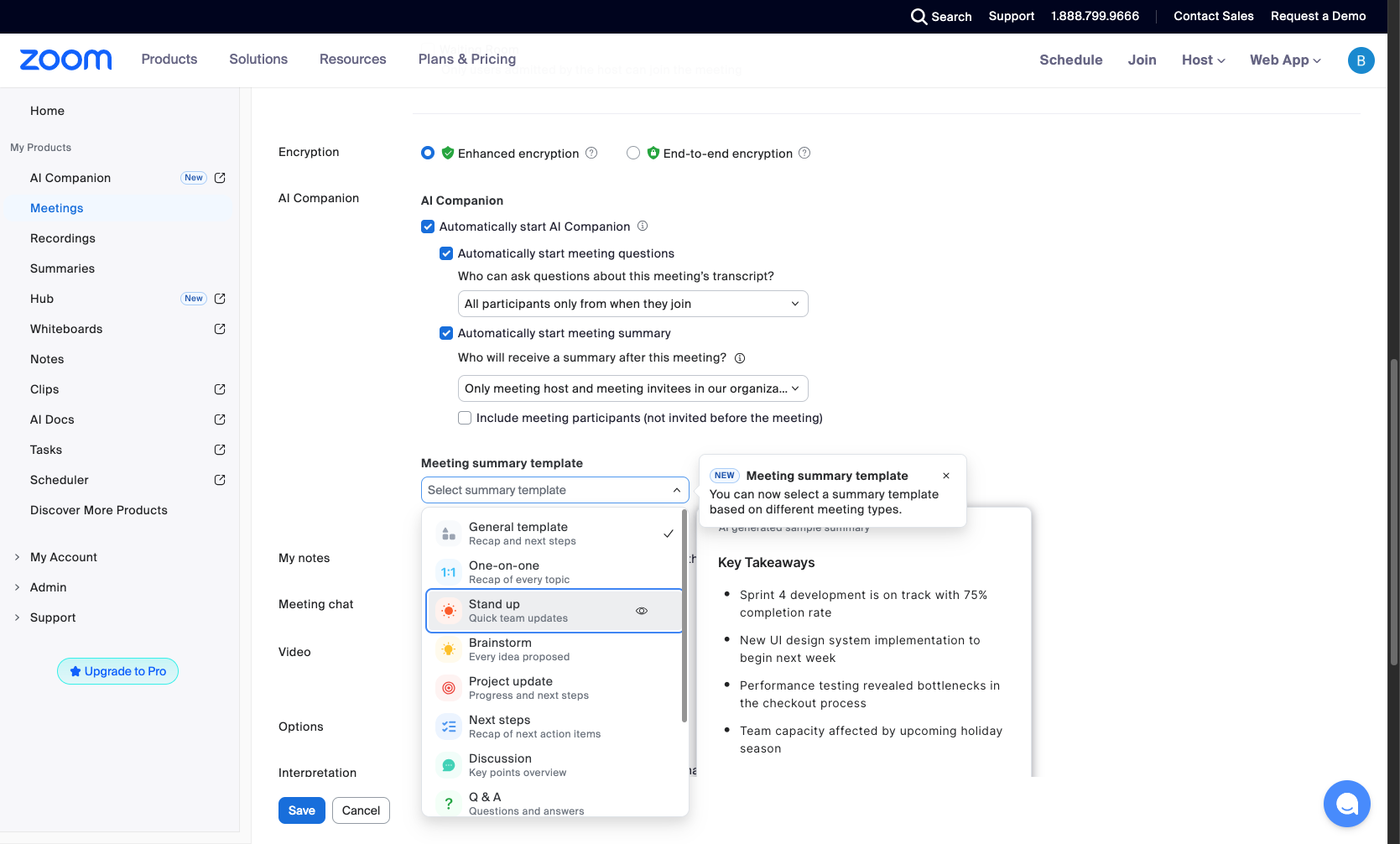
Select meeting summary template
Choose a summary template
Click the Meeting summary template dropdown to select a template based on your meeting type:
- Step 16 of 16
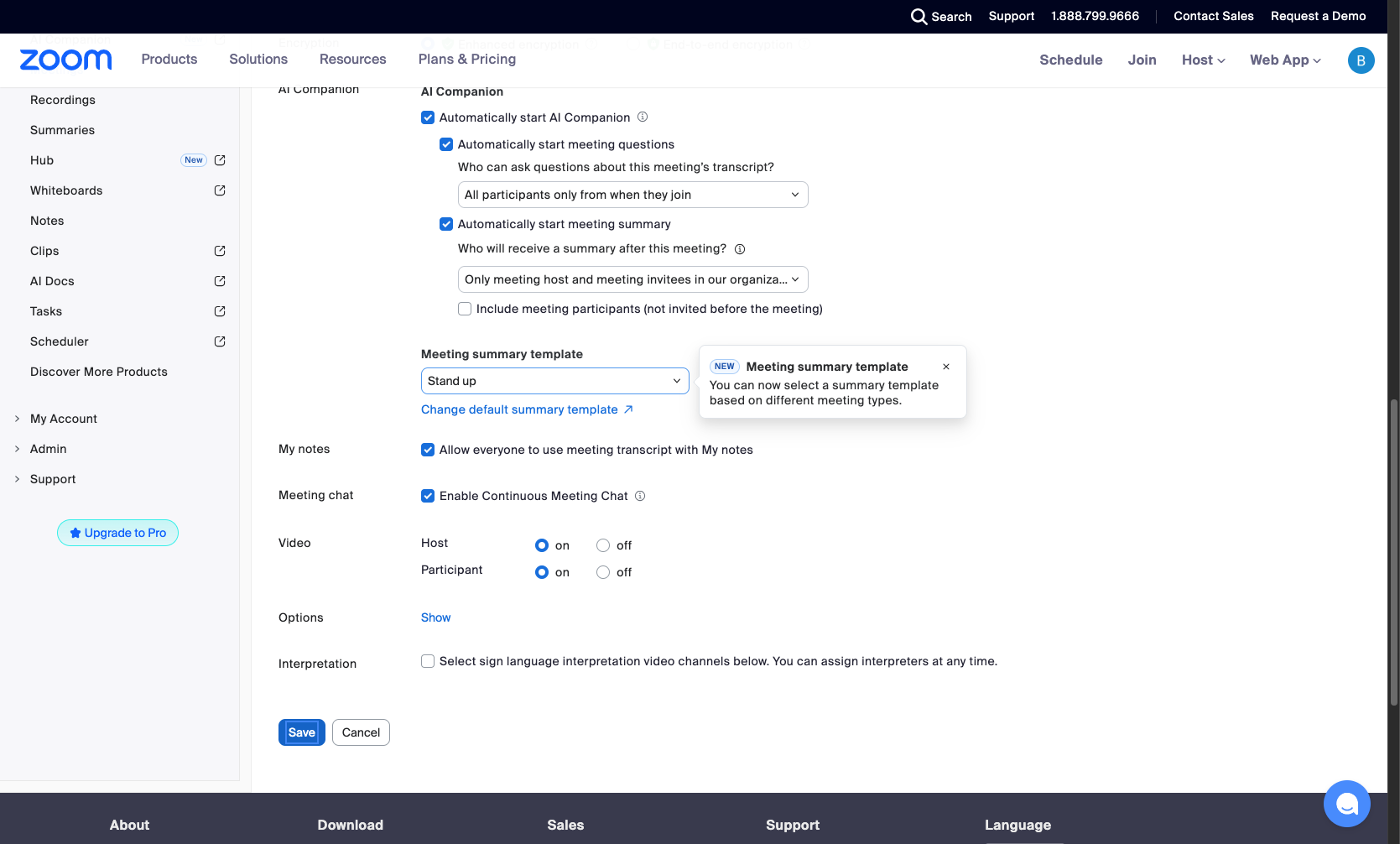
Save the meeting
Click the Save button
Click the Save button at the bottom of the form to create your meeting. You will be redirected to the meeting details page where you can copy the invitation link or add the meeting to your calendar.
Verification
After saving, verify your meeting was created successfully:
The Meeting Information page displays with your meeting details.
Confirm the Topic, Time, and Meeting ID are correct.
For recurring meetings, verify the pattern shows correctly (e.g., "Every week on Mon, Wed").
Check that the invite link is generated and available to copy.
Troubleshooting
Meeting duration is limited to 40 minutes
This is a limitation of the Zoom Basic (free) plan. To host longer meetings, upgrade to Zoom Workplace Pro or higher tier plan.
Cannot select certain days for recurring meeting
When setting Weekly recurrence, ensure you select at least one day of the week under "Occurs on". The selected days will be highlighted in blue.
AI Companion features are not available
AI Companion features require a compatible Zoom plan and may need to be enabled by your account administrator. Contact your IT admin if these options are grayed out.
Conclusion
You have successfully scheduled a Zoom meeting with your preferred settings. The meeting is now available in your account and you can share the invite link with participants or add it directly to your calendar.