

Purpose
This SOP describes how to create a one-off meeting in Zoom Scheduler for scheduling ad-hoc meetings that fall outside of regular booking patterns.
Scope
This procedure is intended for Zoom users with Scheduler access who need to quickly set up individual meetings without creating a permanent booking page. Use this SOP when you need to schedule a single meeting with specific parameters.
Prerequisites
Logged in to Zoom Scheduler with your account
Access to Zoom Scheduler features
Procedure
- Step 1 of 9
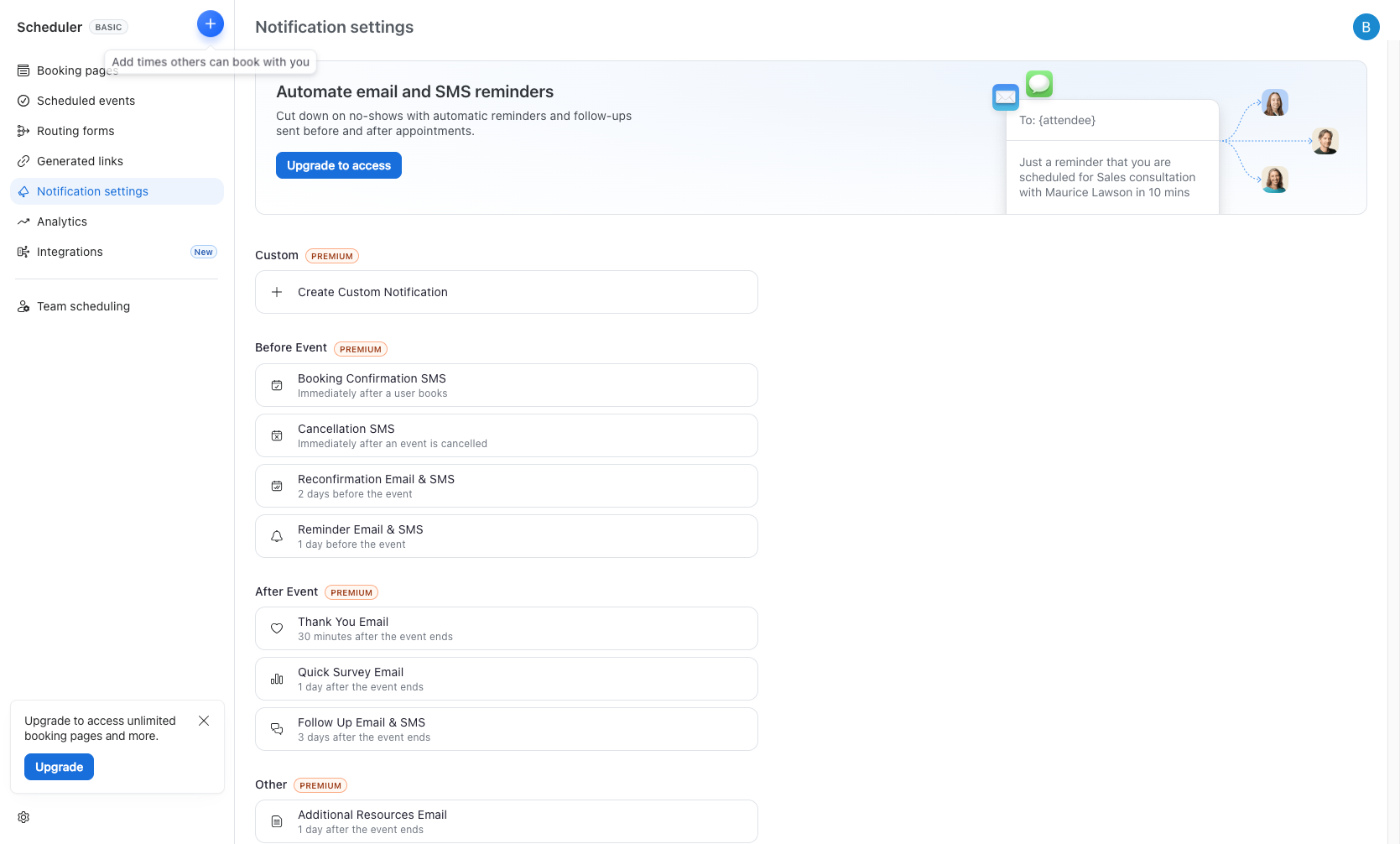
Navigate to scheduler.zoom.us
Open Zoom Scheduler
Navigate to scheduler.zoom.us and sign in with your Zoom account if prompted.
- Step 2 of 9
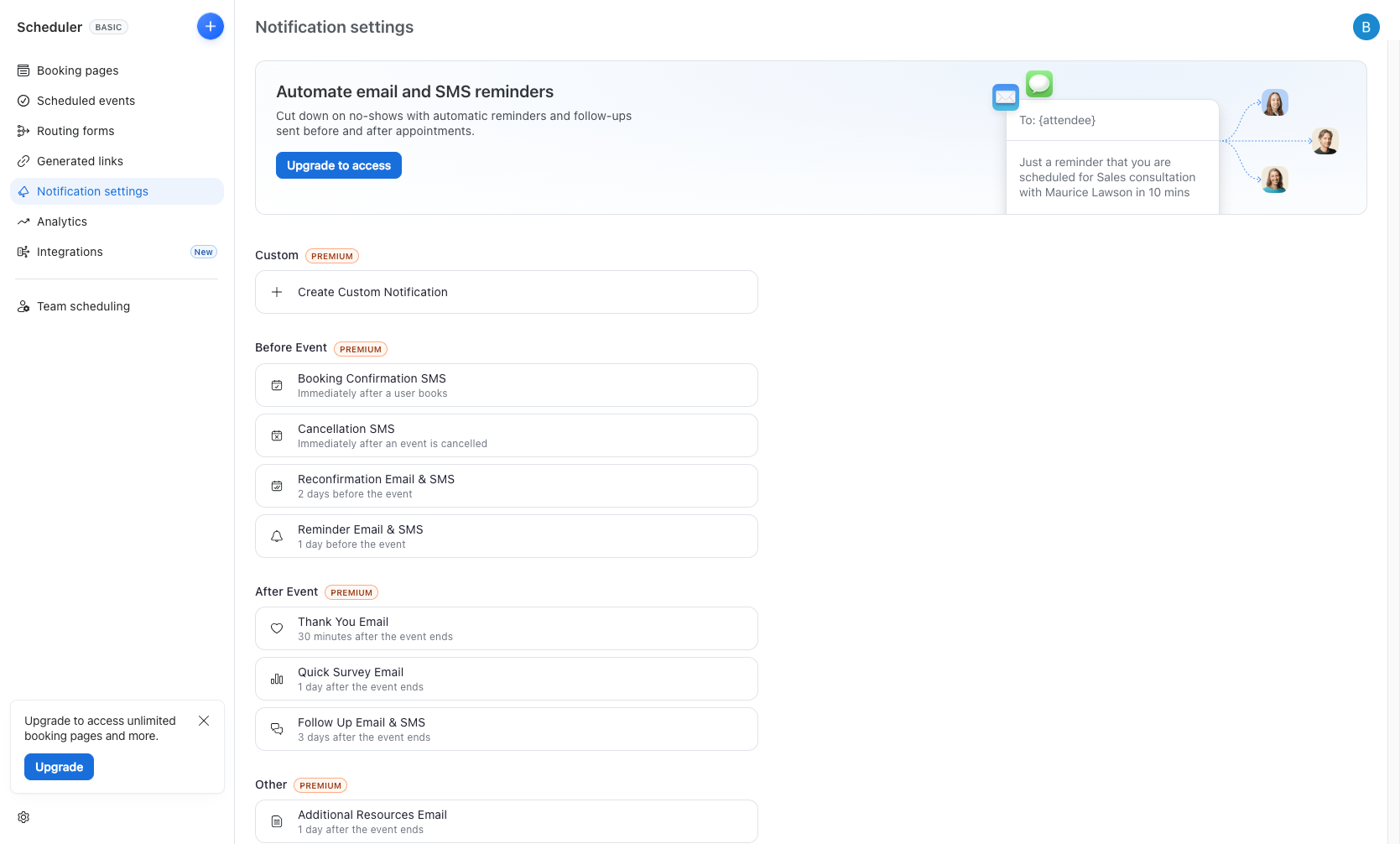
Create a new booking schedule
Click the Create button
Click the Create button in the left sidebar, then select Create Booking Schedule from the dropdown menu.
- Step 3 of 9
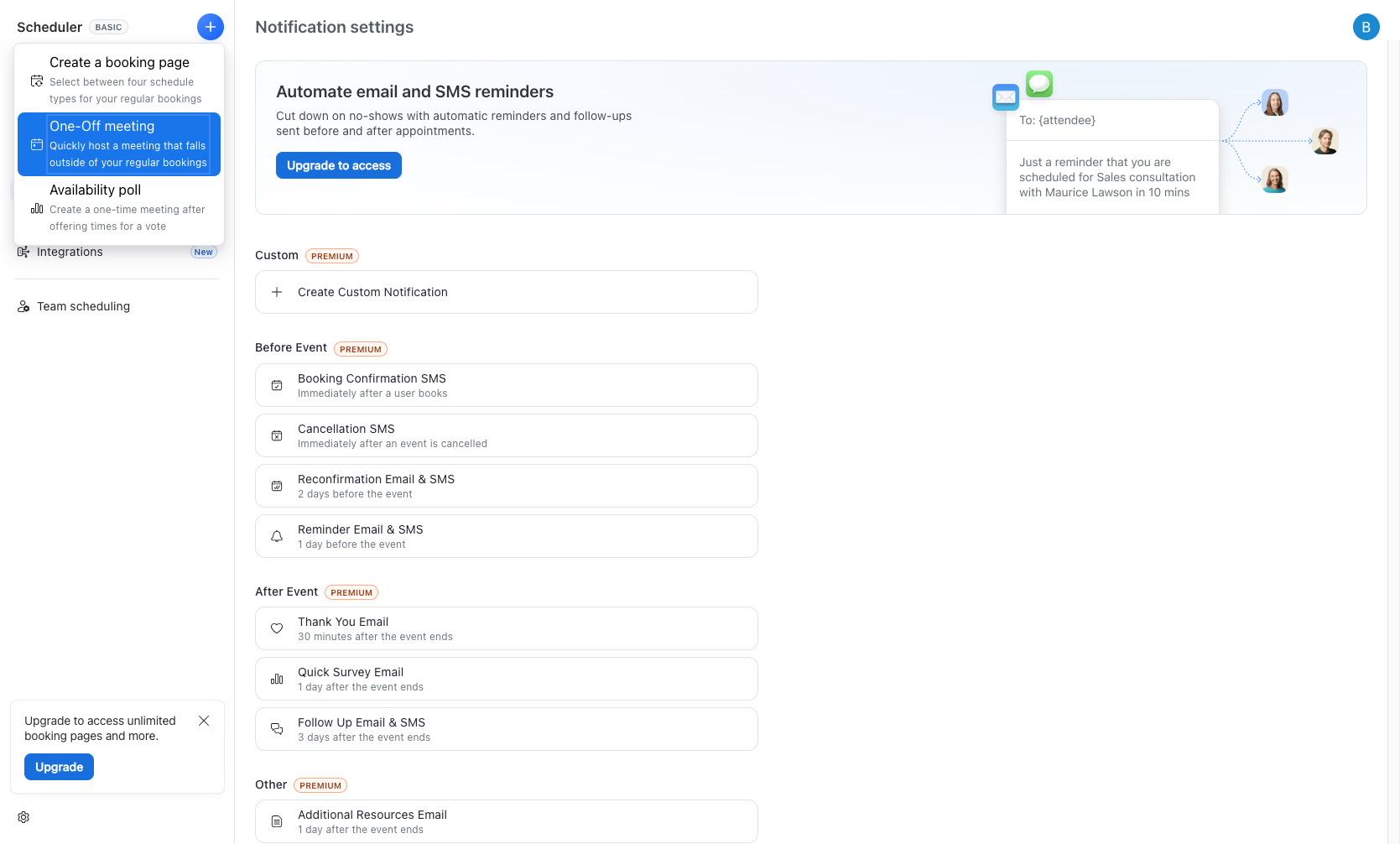
Select One-Off meeting type
Choose One-Off meeting option
In the meeting type selection panel, click One-Off meeting to create a single meeting outside of your regular bookings. This option is described as "Quickly host a meeting that falls outside of your regular bookings."
- Step 4 of 9
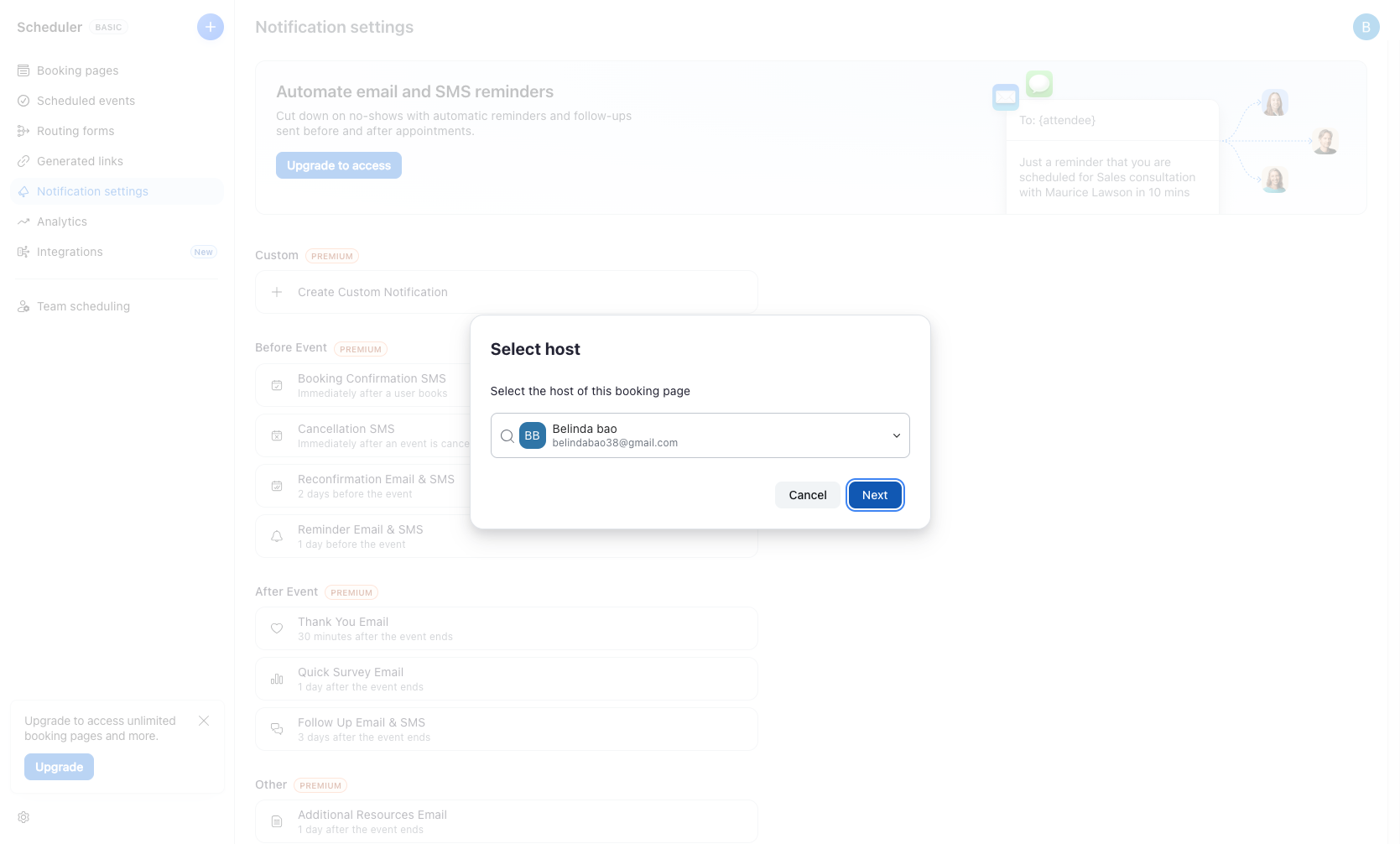
Confirm host selection
Click Next to confirm host
In the Select host dialog, verify the host for this booking page is correct. The dropdown shows available hosts from your account. Click Next to proceed.
- Step 5 of 9
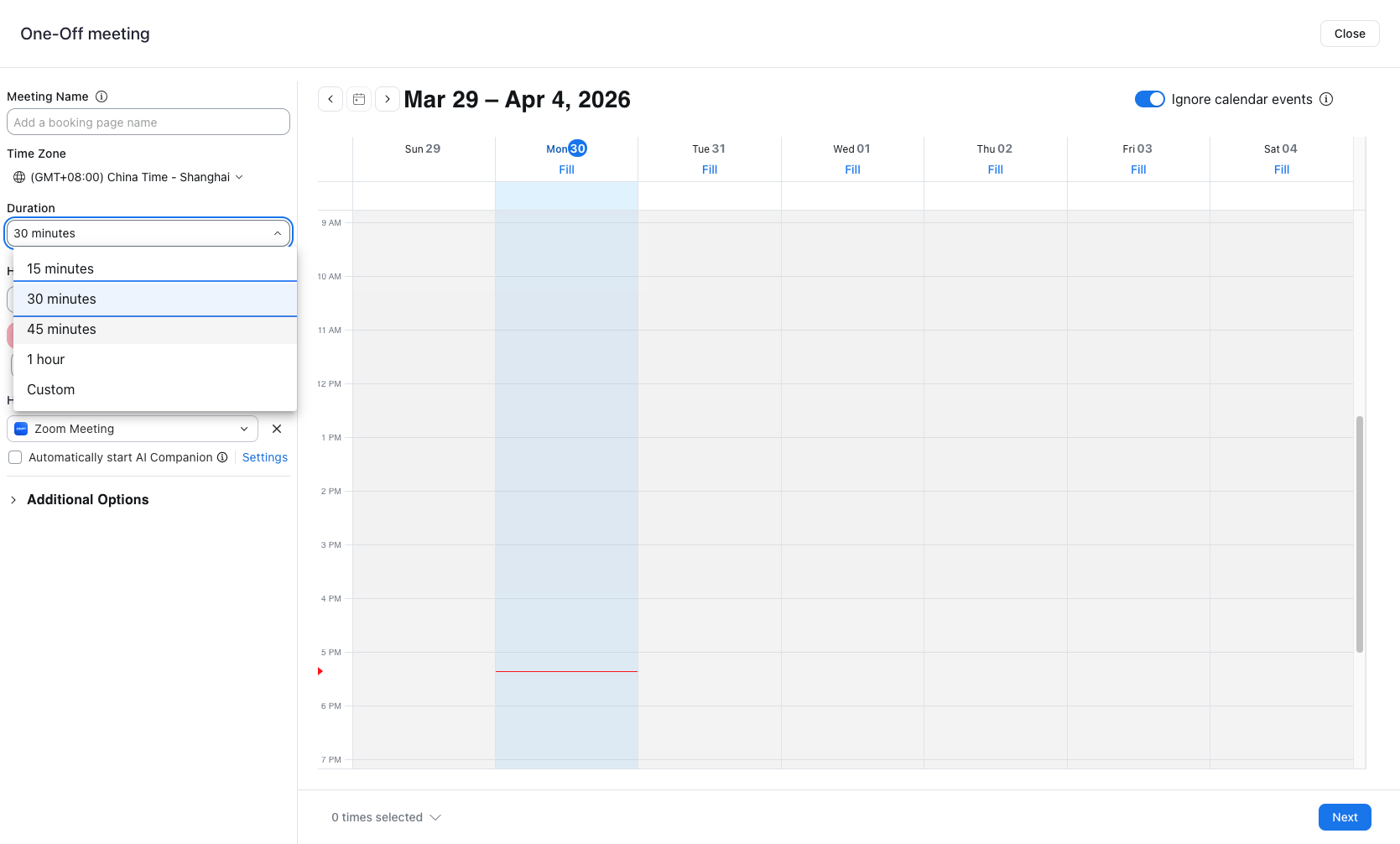
Set meeting duration
Select meeting duration
Click the Duration dropdown (default shows "30 minutes") and select your preferred duration. Available options include:
- Step 6 of 9
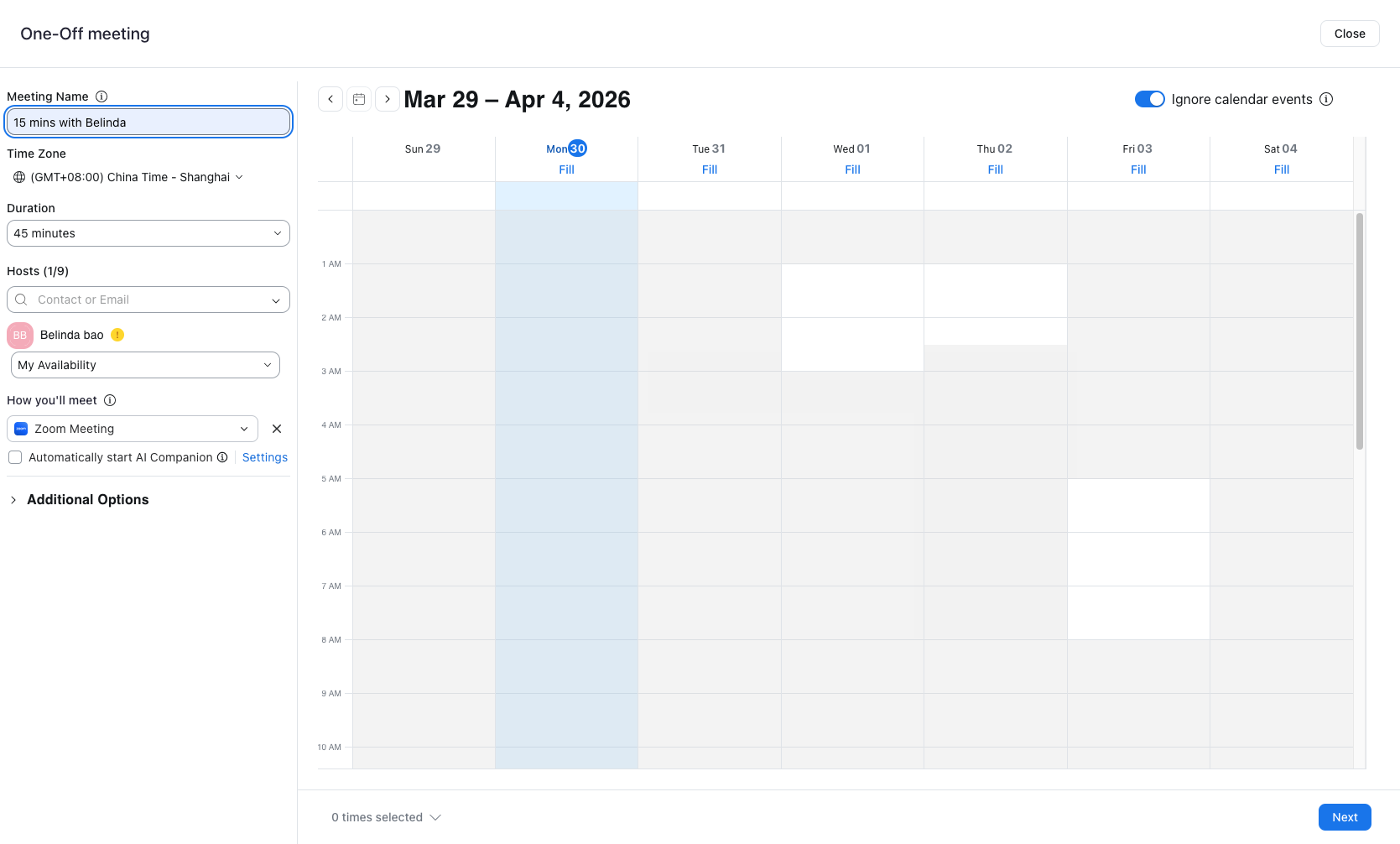
Enter meeting name
Type the meeting name
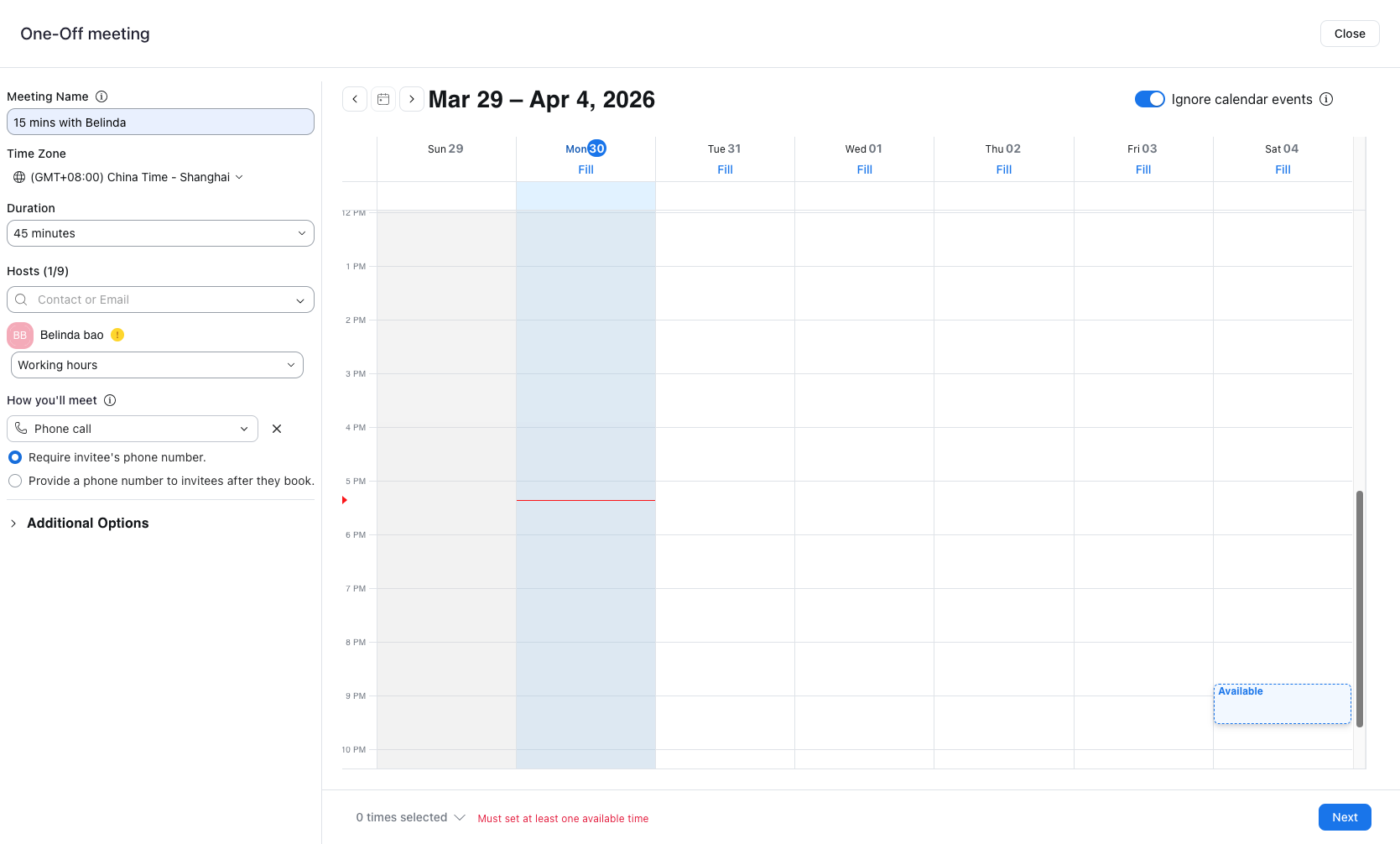
Click the Meeting Name input field and enter a descriptive name for your meeting. This name will be visible to invitees and will help identify the meeting in your calendar.
- Step 7 of 9
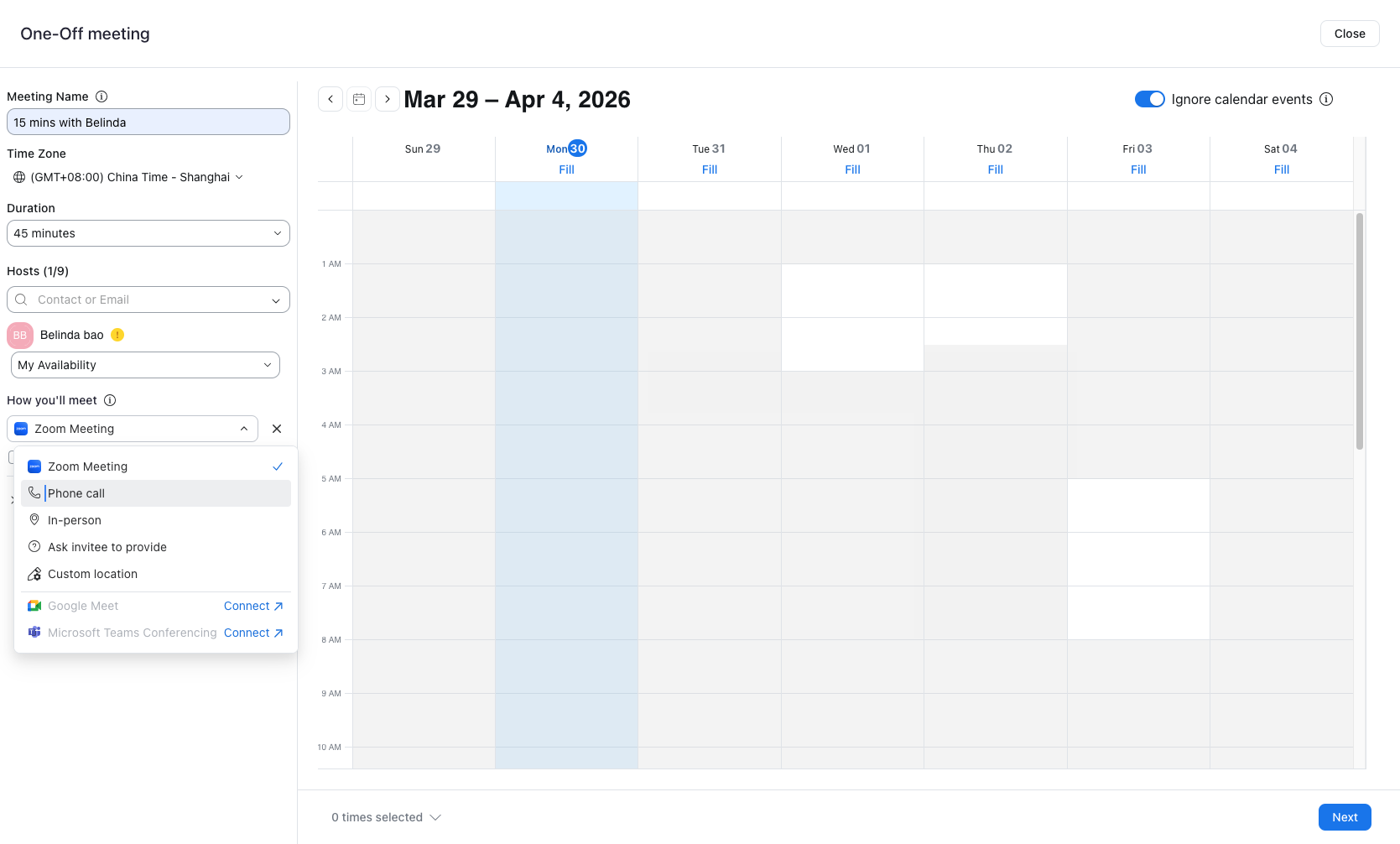
Select meeting format
Choose how you'll meet
Click the How you'll meet dropdown to select your preferred meeting format. Available options include:
- Step 8 of 9
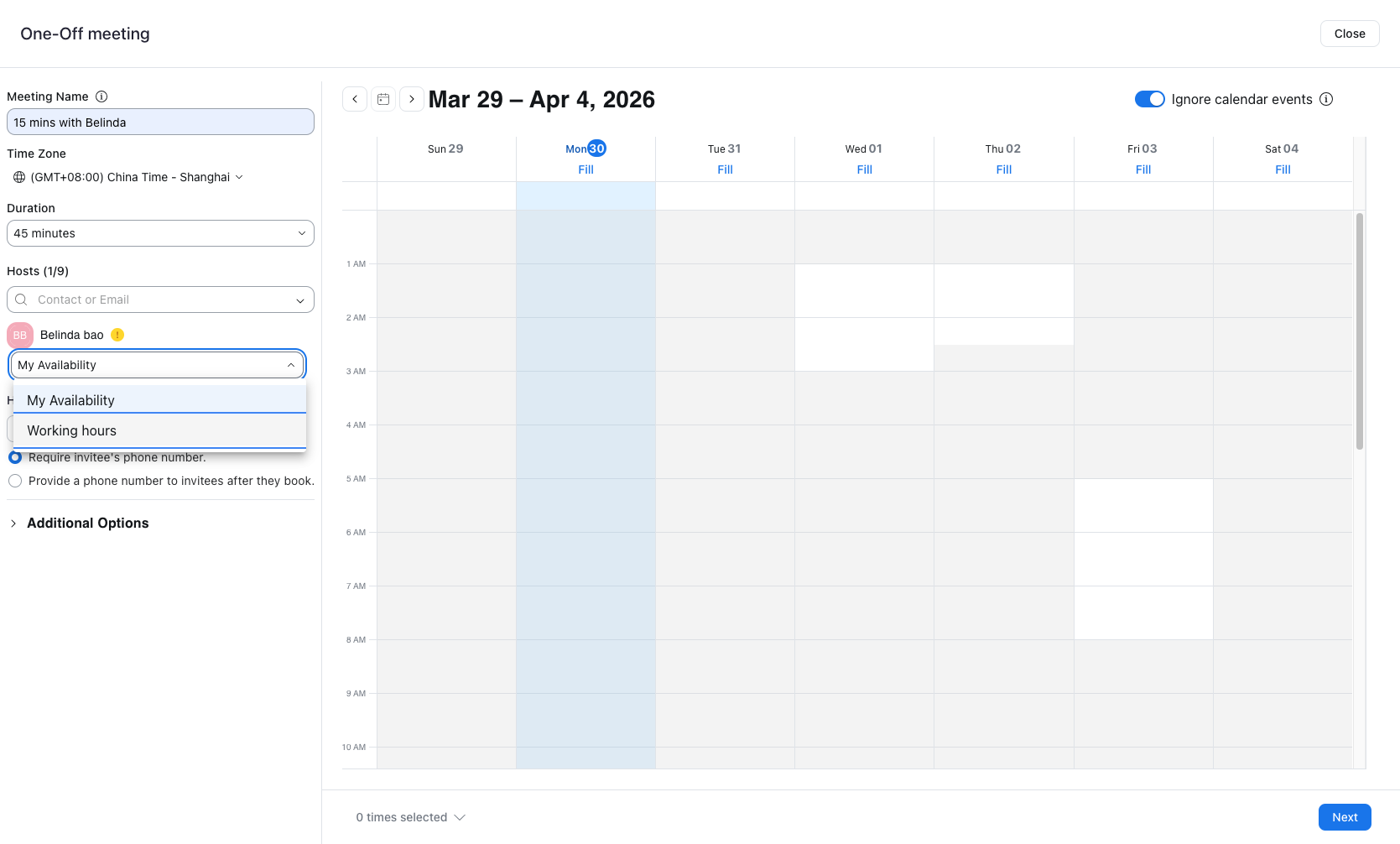
Configure availability settings
Select availability type
Click the availability dropdown below the host selection and choose when invitees can schedule this meeting:
- Step 9 of 9
Proceed to final review
Click Next to continue
Click the Next button at the bottom right to proceed to the final review step. If any required fields are missing, you will see an error message indicating what needs to be completed.
Verification
To confirm your one-off meeting has been successfully created:
After clicking Next on the final step, you should see a confirmation screen with meeting details and a shareable booking link.
Verify the meeting name, duration, and meeting format match what you configured.
Copy the booking link and test it in a new browser window to ensure it loads the correct scheduling page with available time slots.
Troubleshooting
"Must set at least one available time" error
This error appears when no time slots are available for booking. To resolve:
Verify your calendar connection is active and Zoom Scheduler has access to your calendar.
Check that your working hours or availability settings include future dates.
Ensure the "Ignore calendar events" toggle is set appropriately for your needs.
Host dropdown shows "No matching results"
If searching for hosts returns no results:
Clear the search field to see all available hosts.
Verify you have permission to schedule meetings on behalf of the intended host.
Contact your Zoom administrator to confirm your Scheduler permissions.
Phone call option not showing contact fields
When selecting Phone call as the meeting format, ensure you choose one of the phone number options:
Require invitee's phone number - The person booking must provide their number
Provide a phone number to invitees after they book - You will share your number after confirmation
Conclusion
You have successfully created a one-off meeting in Zoom Scheduler. The meeting is now ready for you to share the booking link with invitees, who can select from your available time slots to schedule the meeting.