

Purpose
This SOP describes how to edit a recurring meeting series in Zoom, including modifying the meeting schedule, duration, recurrence pattern, and additional meeting options.
Scope
This procedure is intended for Zoom meeting hosts who need to modify existing recurring meetings. Follow this SOP when you need to update the schedule, duration, or settings for all occurrences of a recurring meeting series.
Prerequisites
Logged in to your Zoom account
Host privileges for the meeting you want to edit
An existing recurring meeting series
Procedure
- Step 1 of 15
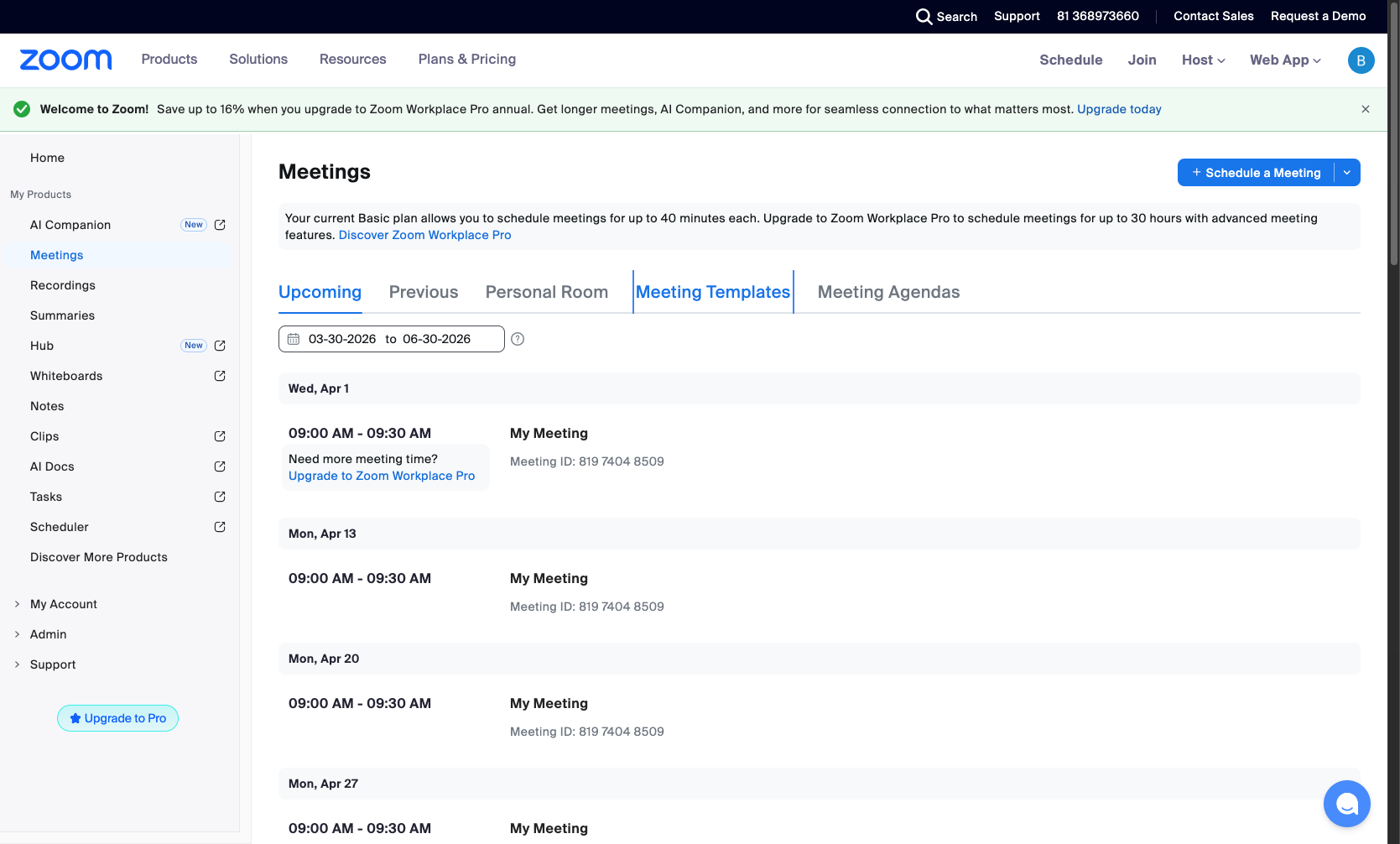
Navigate to zoom.us/meeting#/upcoming
Go to your Zoom meetings page
Navigate to zoom.us/meeting#/upcoming to view your scheduled meetings. Sign in if prompted.
- Step 2 of 15
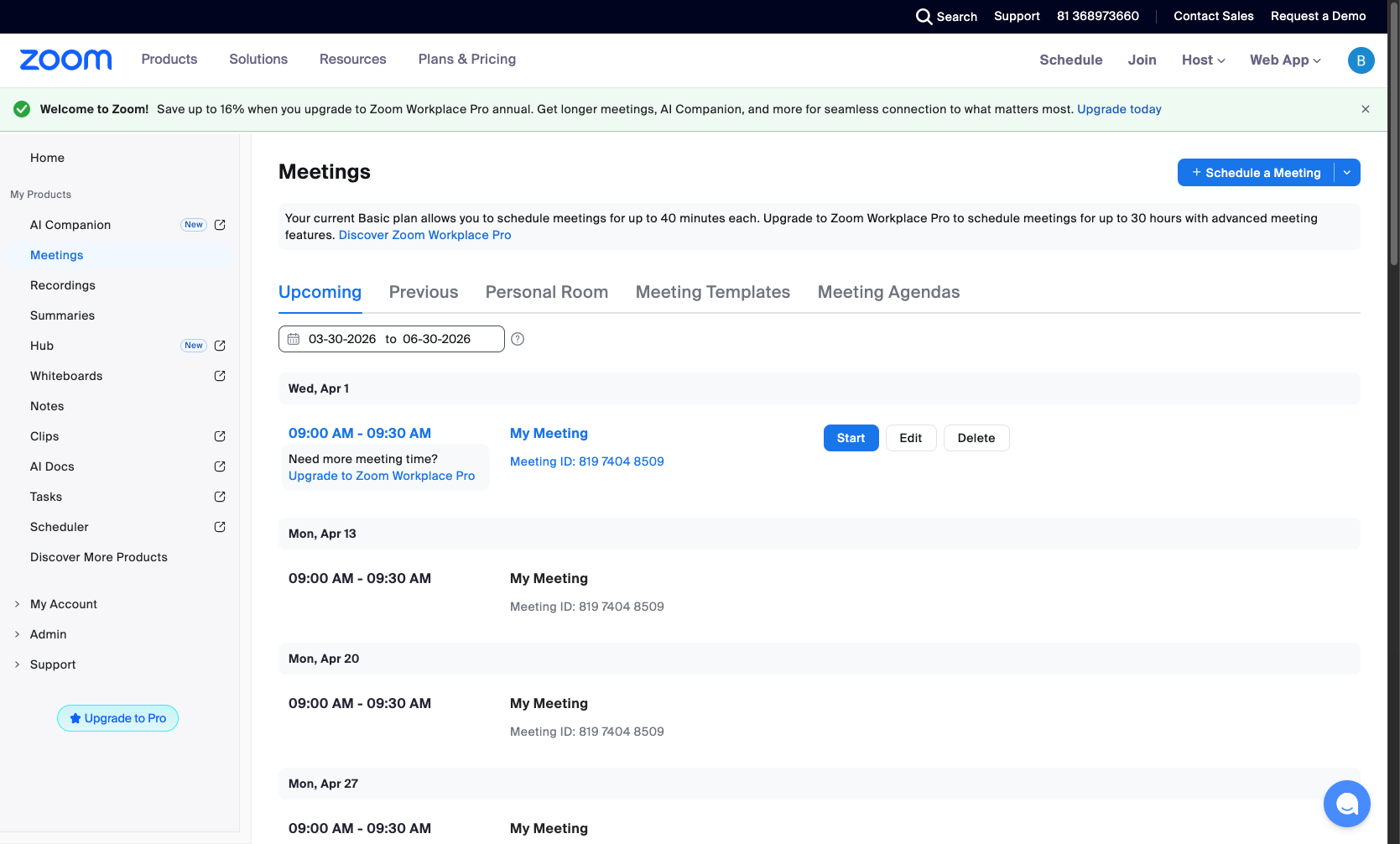
Select meeting to edit
Click the Edit button
Locate the recurring meeting you want to edit. Click the Edit button that appears next to the meeting entry.
- Step 3 of 15
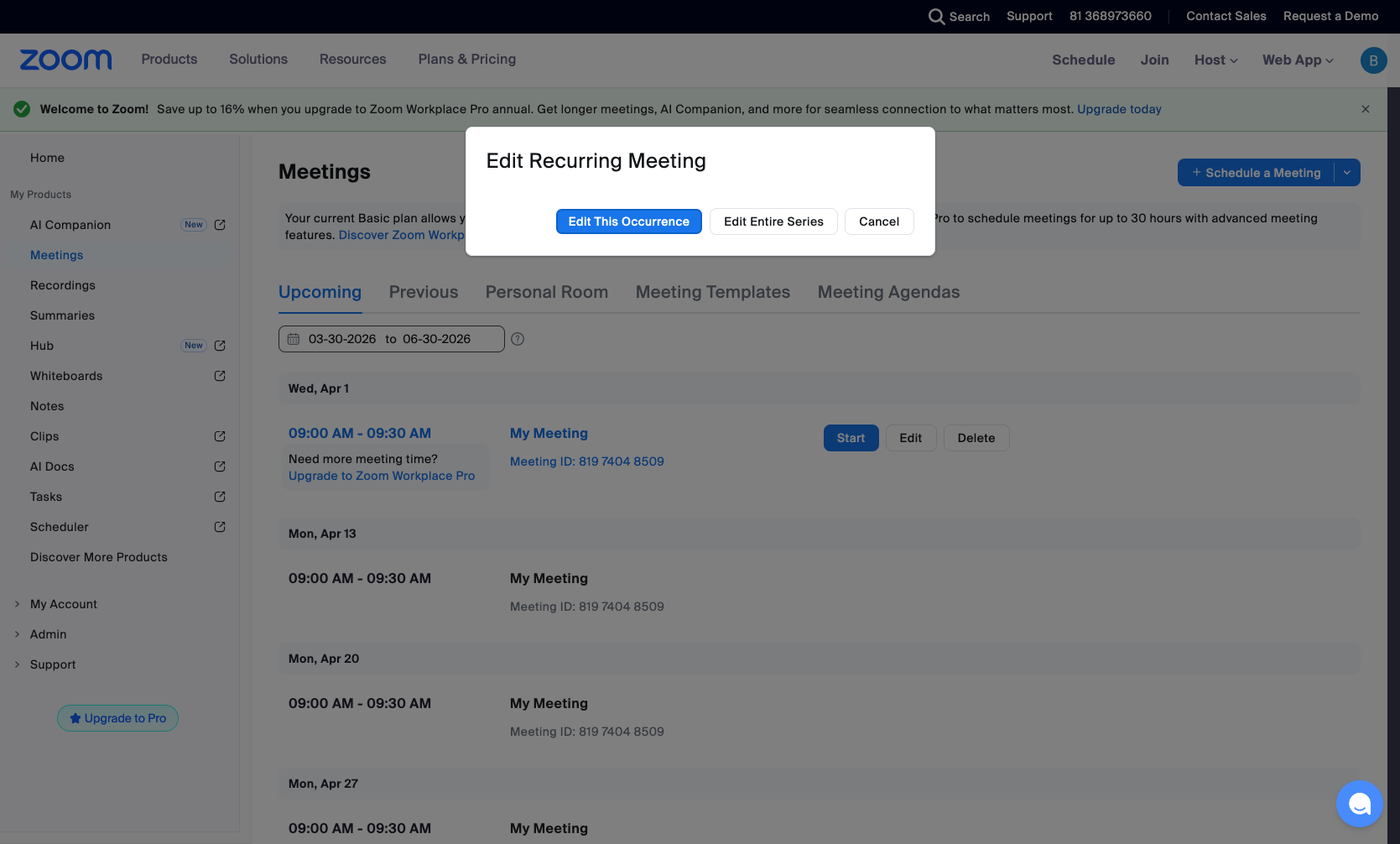
Choose Edit Entire Series
Click Edit Entire Series
In the dialog that appears, select Edit Entire Series to modify all occurrences of the meeting. The alternative option "Edit This Occurrence" would only change the single selected instance.
- Step 4 of 15
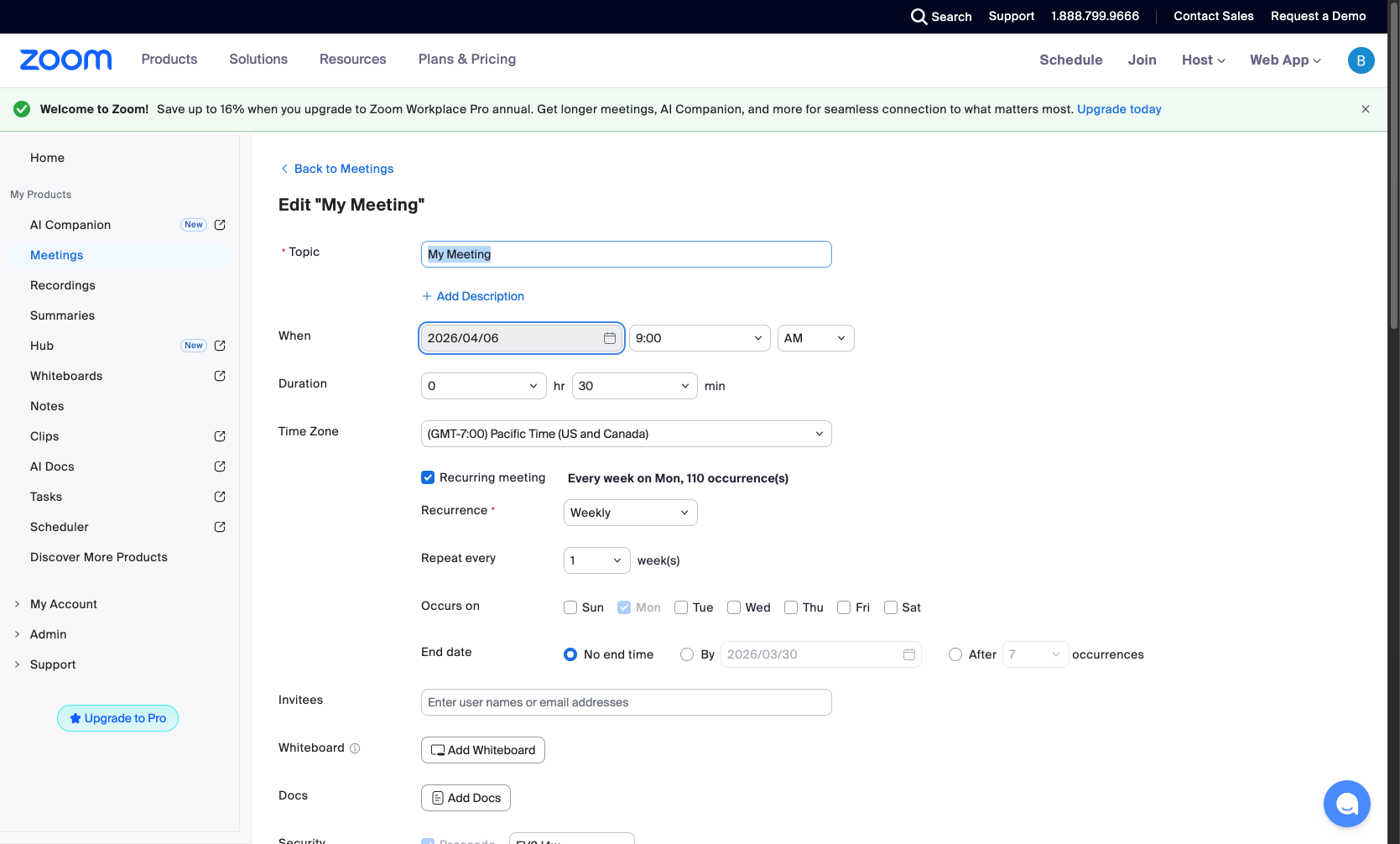
Update meeting topic
Enter the meeting topic
In the Topic field, enter a name for your meeting. This will be the title visible to all participants.
- Step 5 of 15
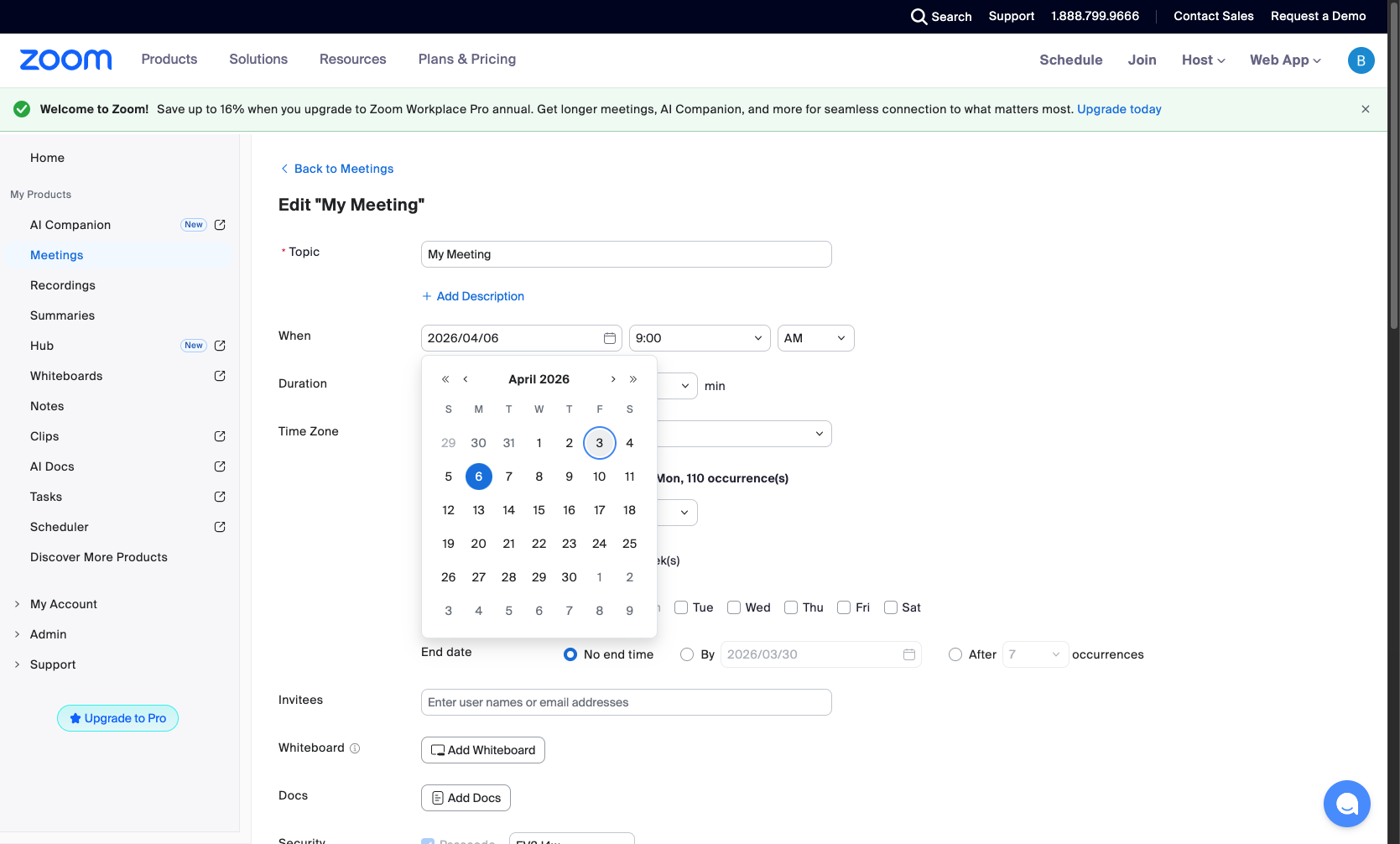
Set meeting date
Select the meeting date
Click the date field to open the calendar picker. Select the desired date for the first occurrence of the meeting.
- Step 6 of 15
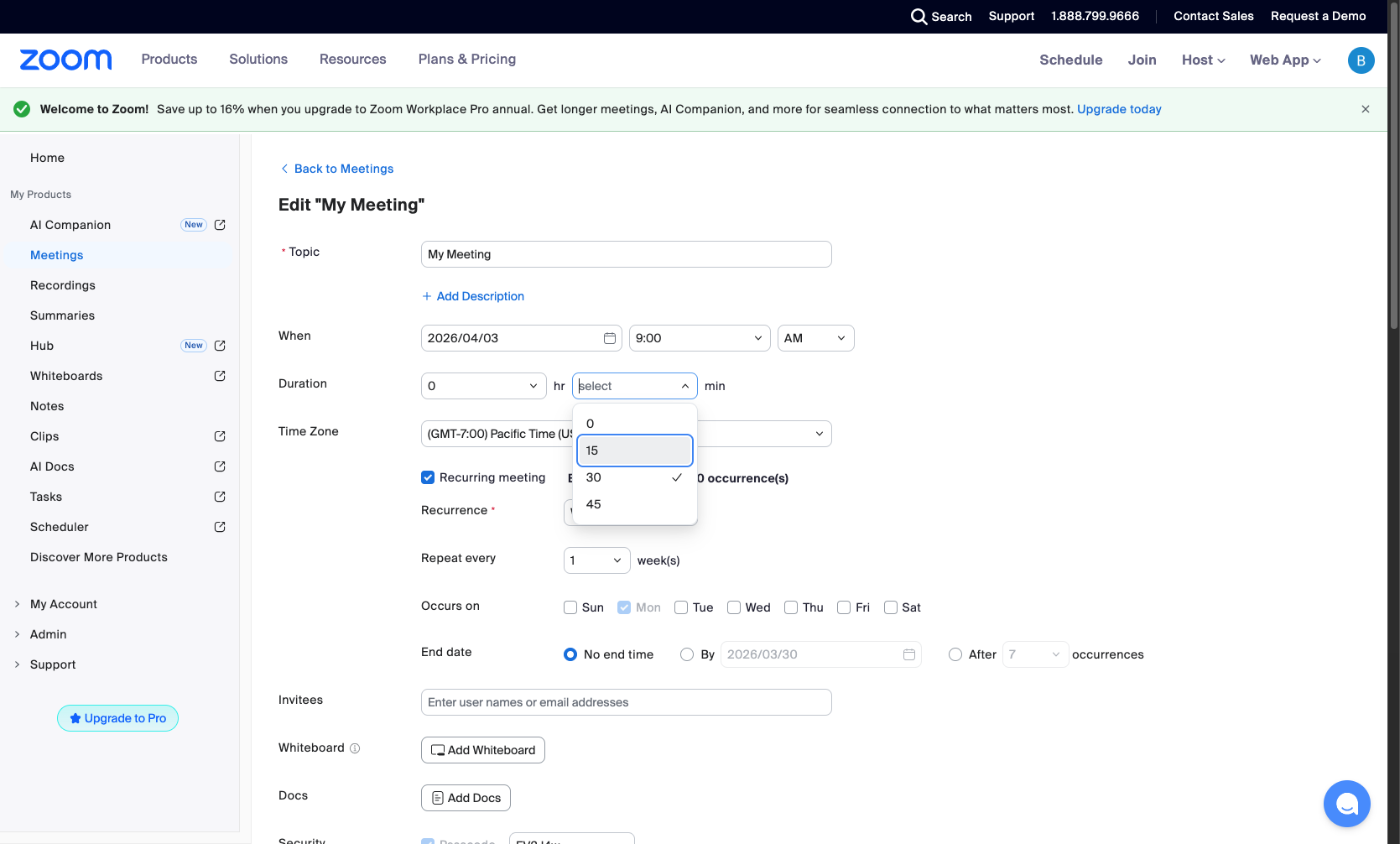
Set meeting duration
Select the duration in minutes
Click the minutes dropdown in the Duration section. Select from the available options: 0, 15, 30, or 45 minutes.
- Step 7 of 15
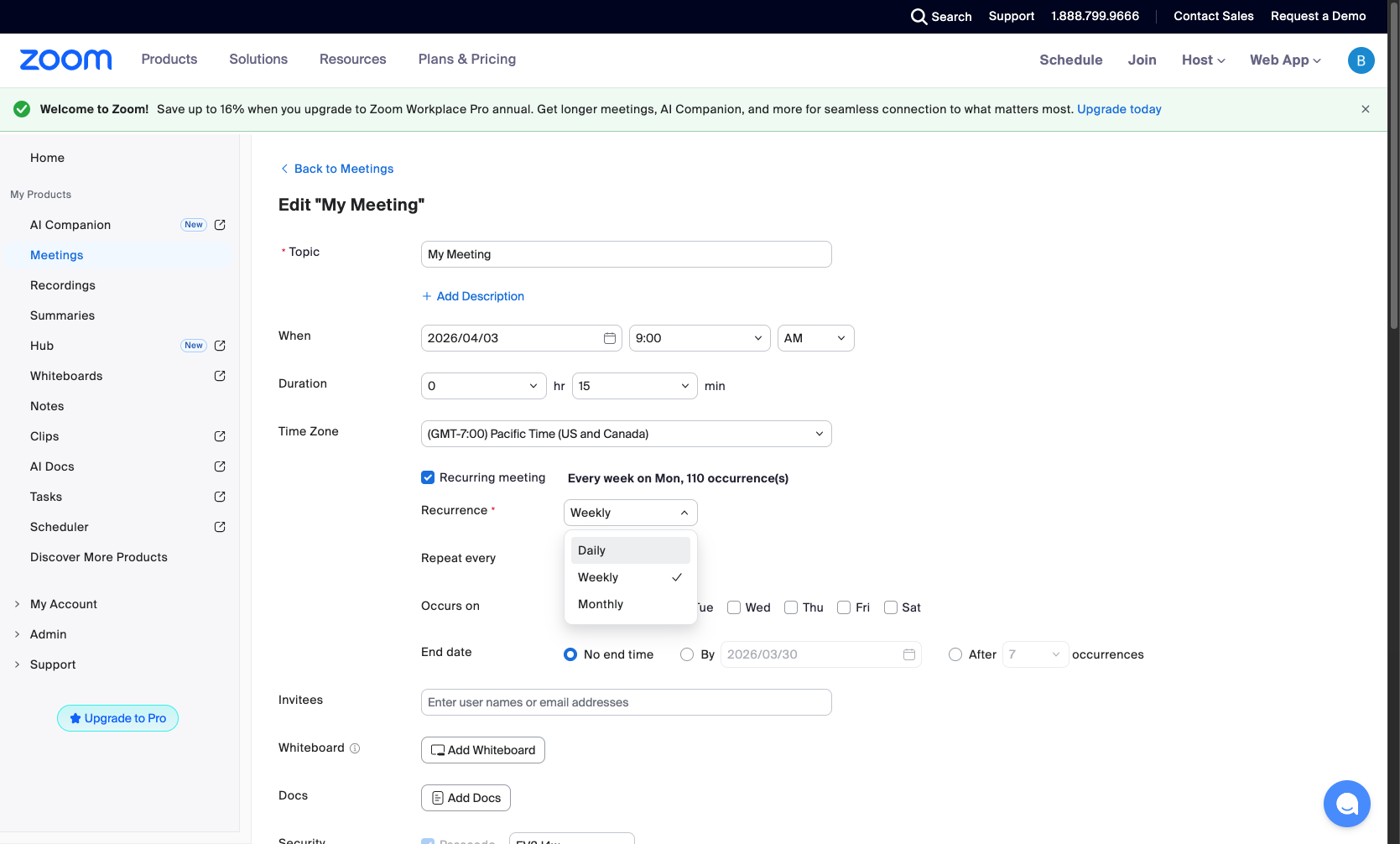
Configure recurrence pattern
Select Monthly recurrence
Click the Recurrence dropdown to change how often the meeting repeats. Available options include:
- Step 8 of 15
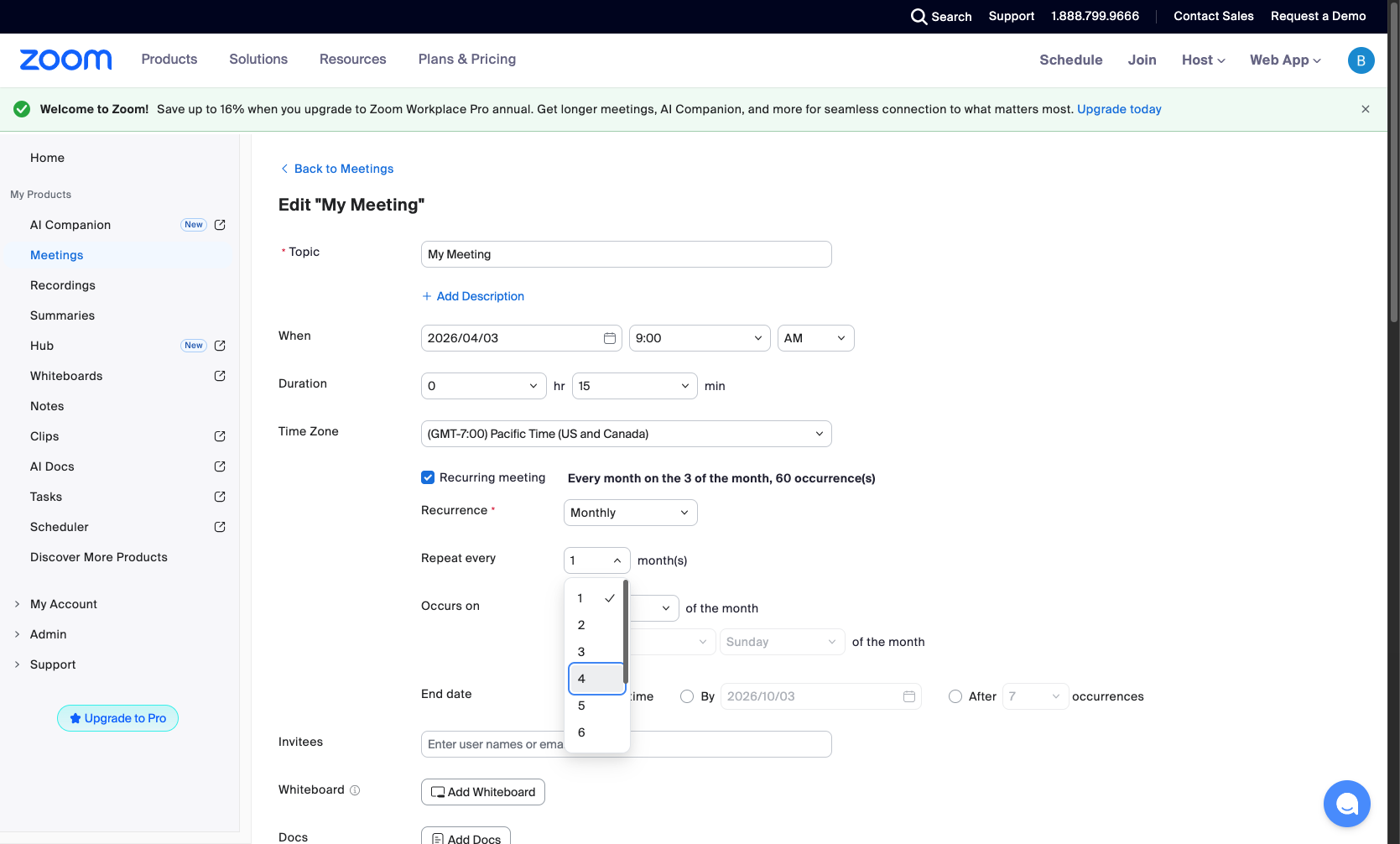
Set repeat interval
Select how often the meeting repeats
In the Repeat every field, specify how many months should pass between occurrences. For example, enter "4" to have the meeting repeat every 4 months.
- Step 9 of 15
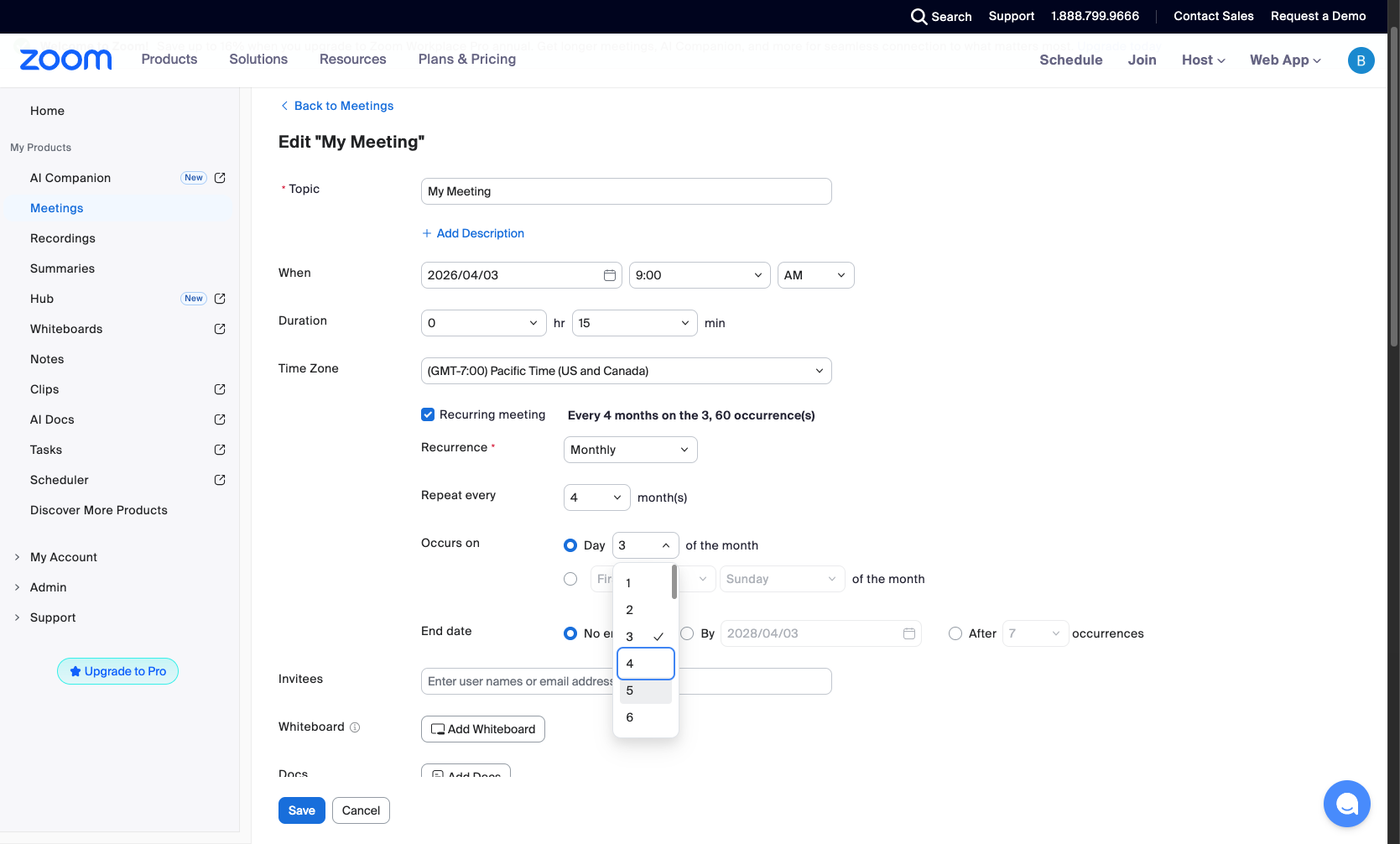
Set day of occurrence
Select the day of the month
In the Occurs on section, select the Day radio button and choose which day of the month the meeting should occur (e.g., the 5th).
- Step 10 of 15
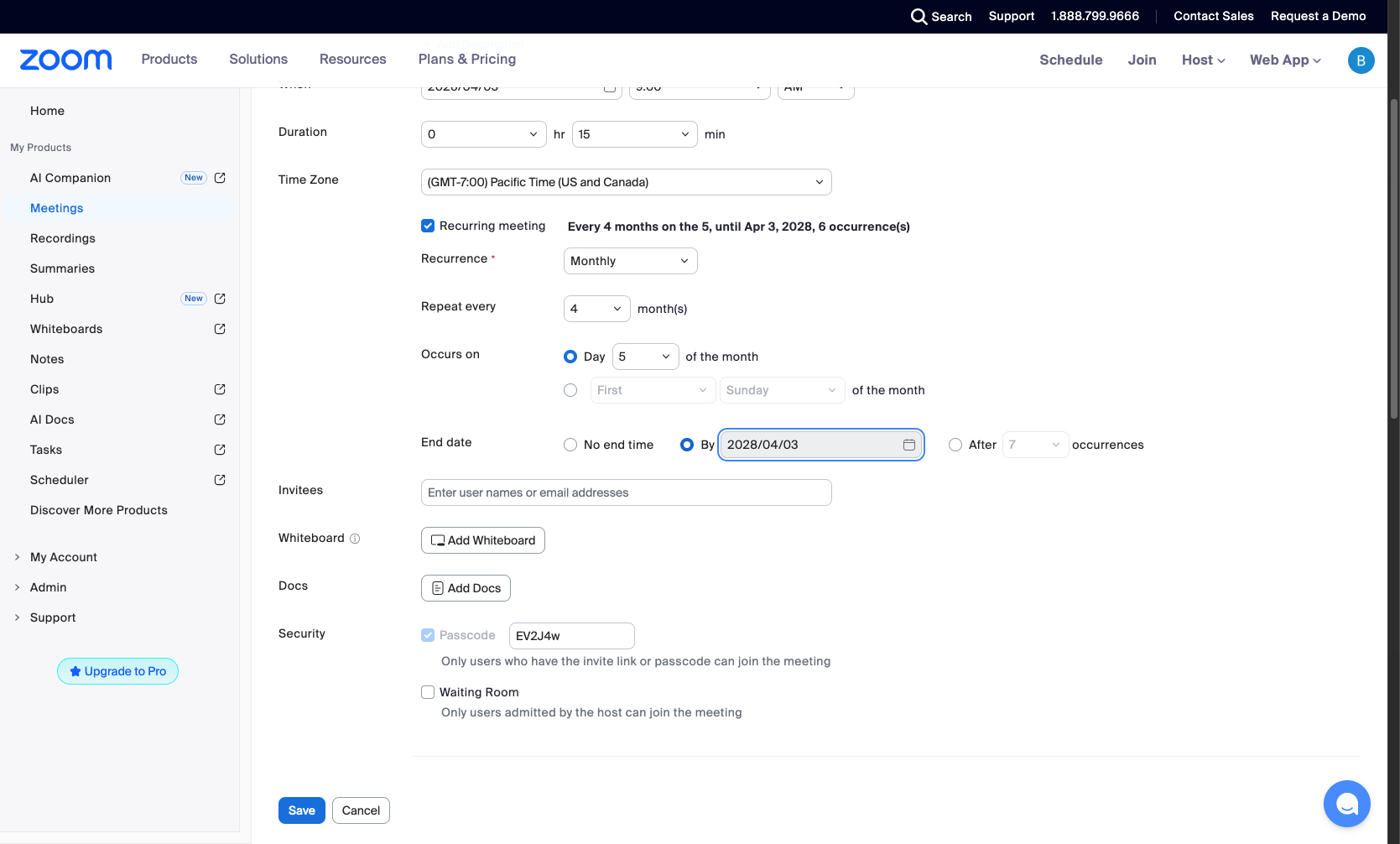
Set end date options
Choose how the series ends
Under End date, choose one of the following options:
- Step 11 of 15
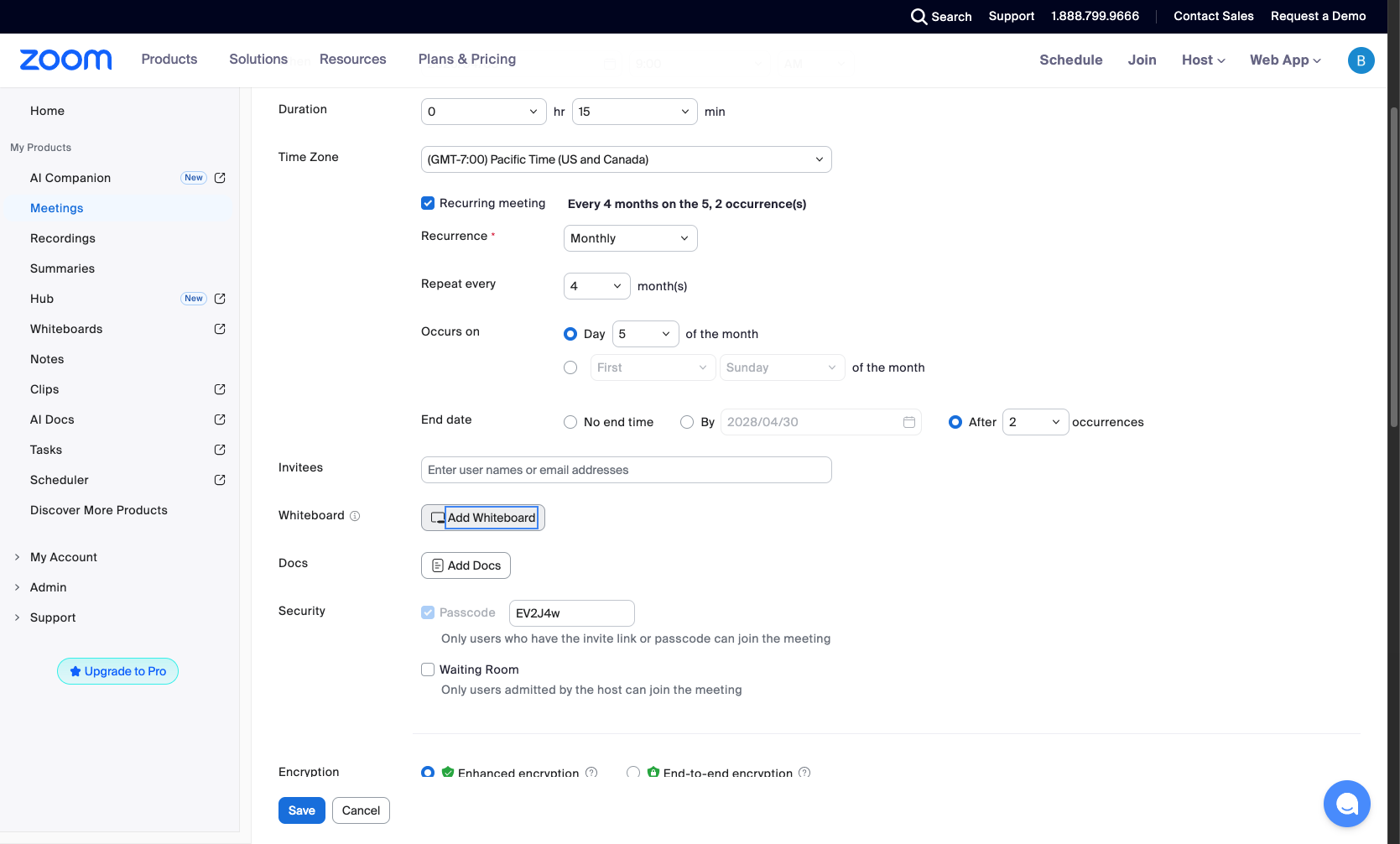
Add whiteboard option
Enable whiteboard feature
Click Add Whiteboard to include a whiteboard in the meeting.
- Step 12 of 15
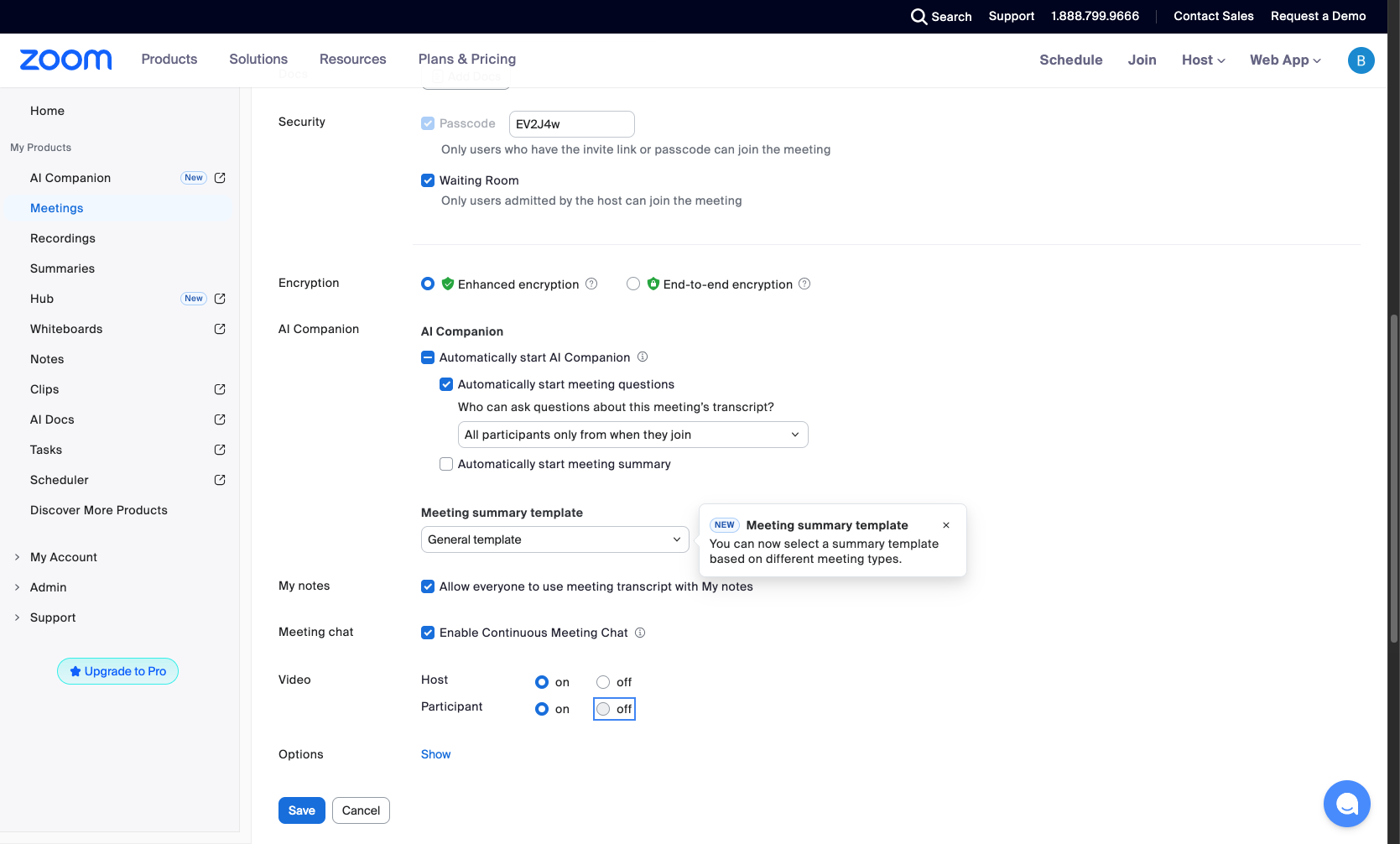
Configure security settings
Toggle Waiting Room setting
Scroll down to the Security section. Toggle the Waiting Room setting on or off as needed. When enabled, participants must wait for the host to admit them.
- Step 13 of 15
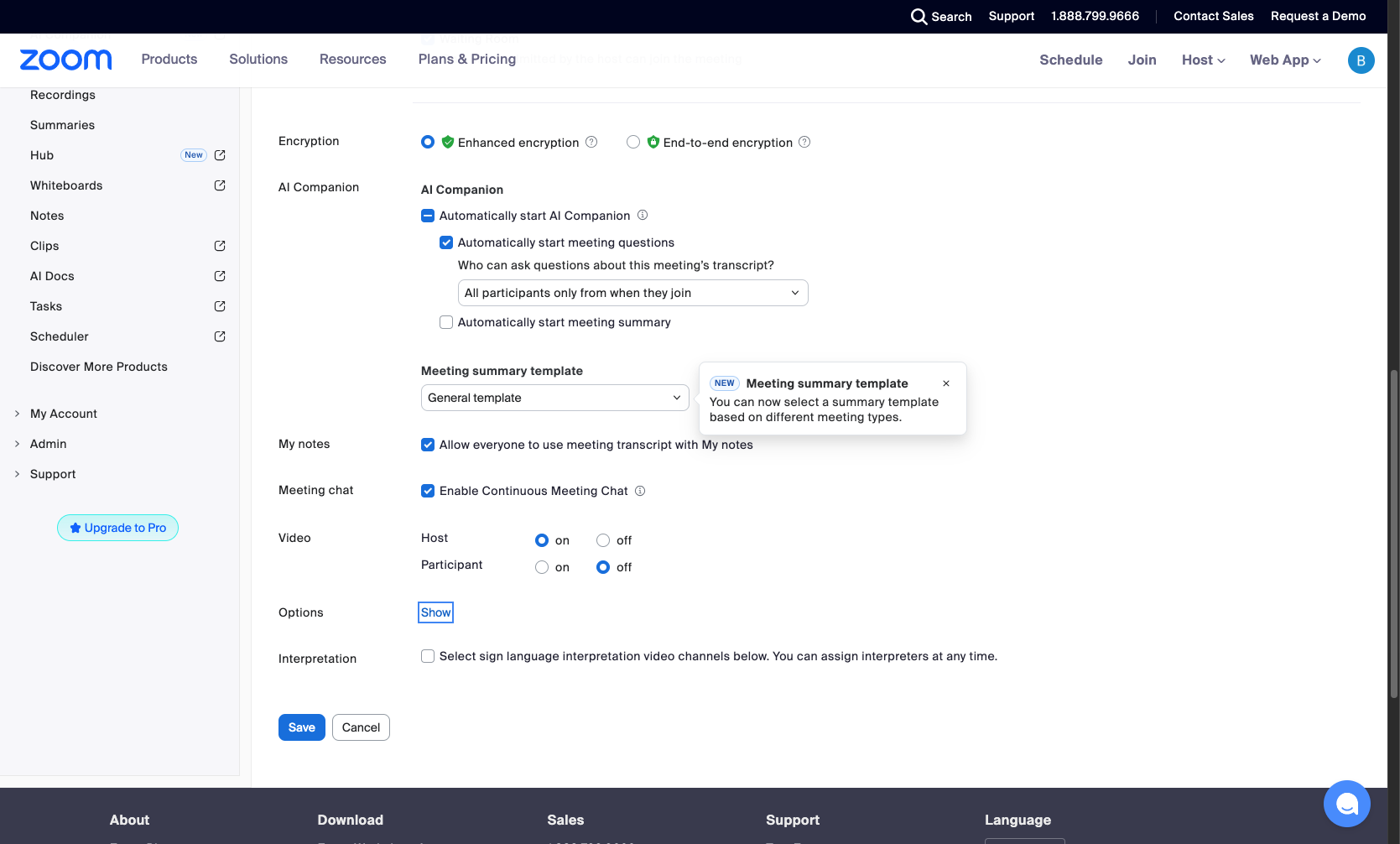
Show additional options
Click Show More Options
Click Show More Options to reveal additional meeting settings such as recording options and regional restrictions.
- Step 14 of 15
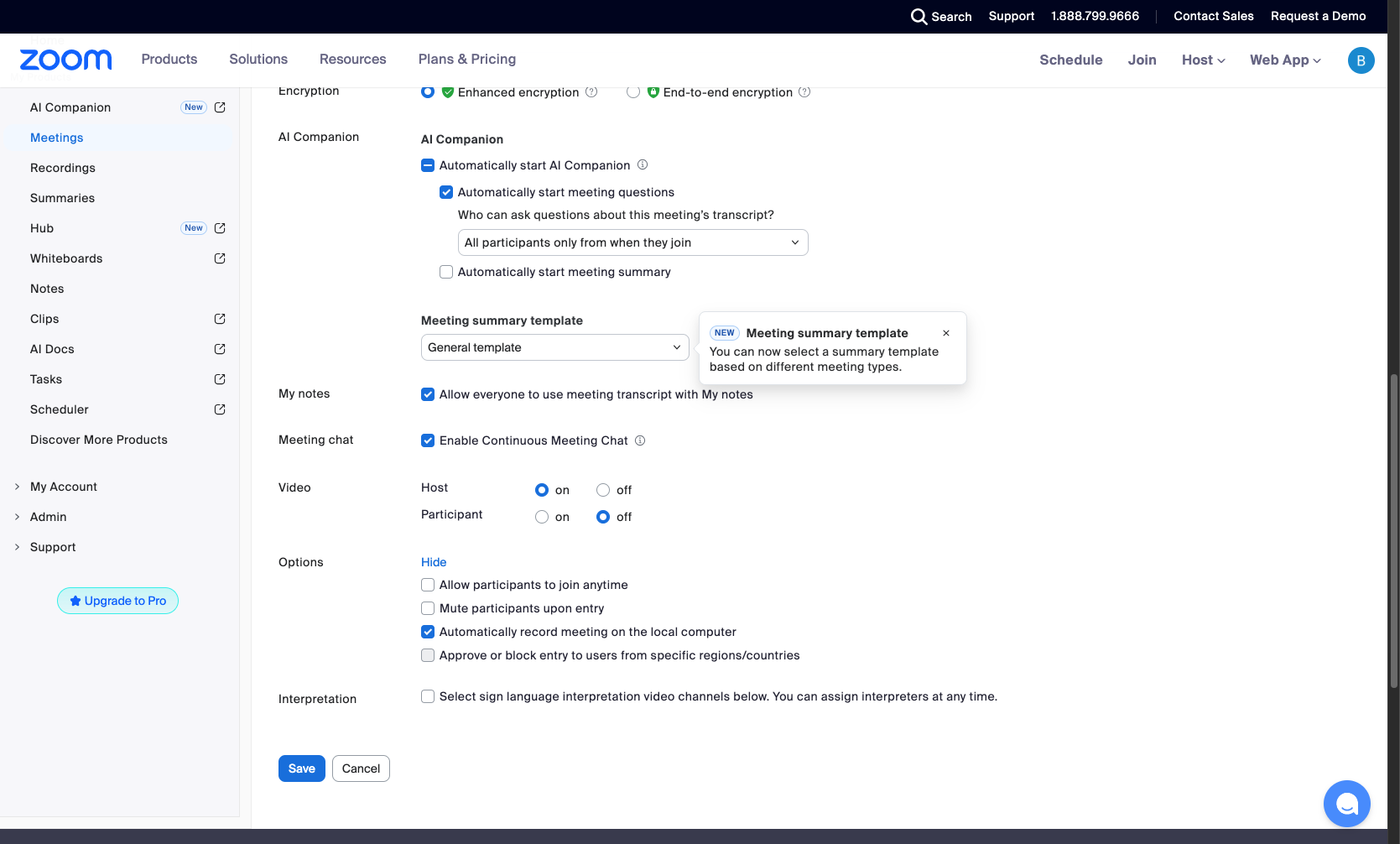
Enable automatic recording
Check the recording option
Under the expanded Options section, check the box for Automatically record meeting on the local computer if you want the meeting to be recorded automatically when it starts.
- Step 15 of 15
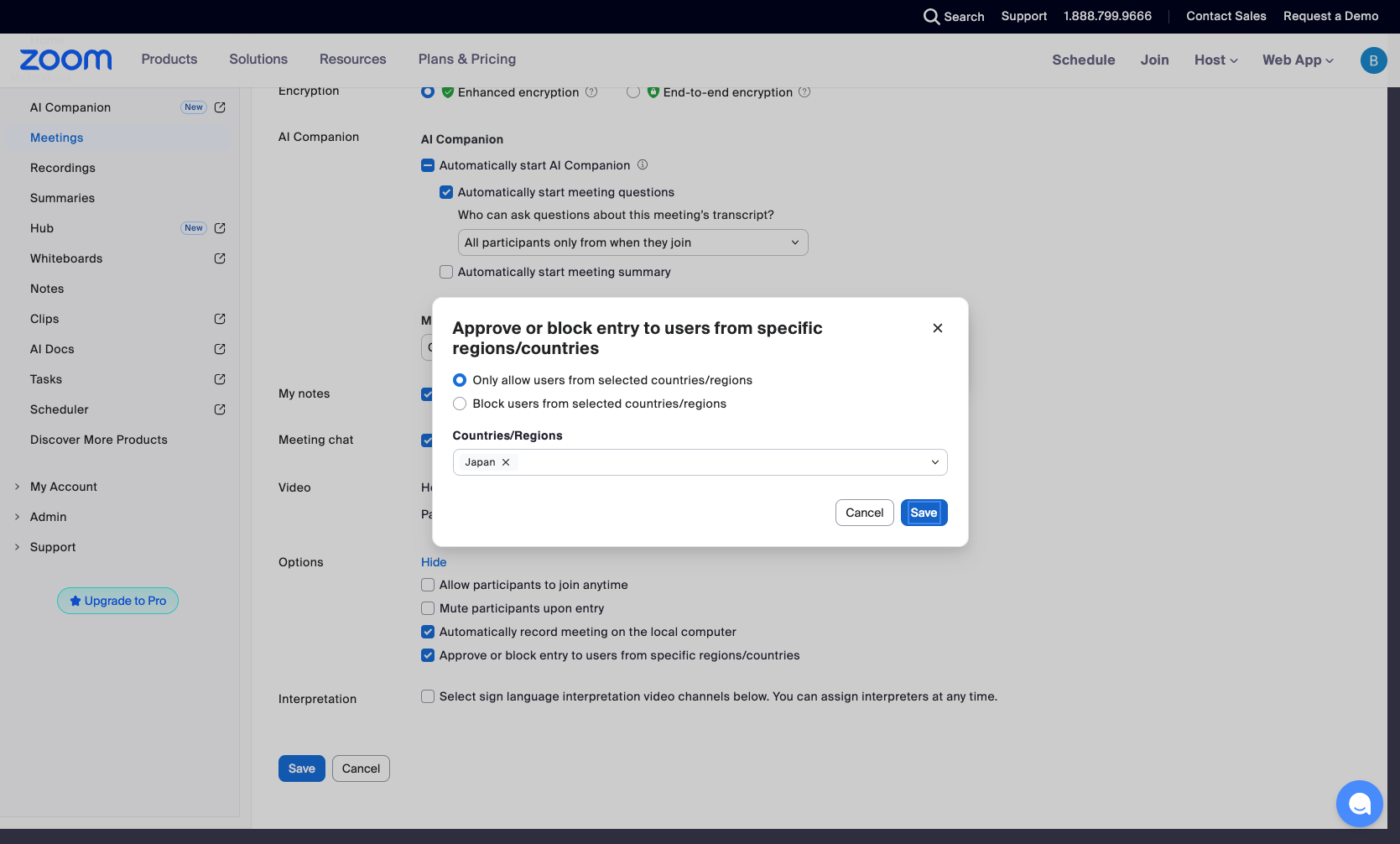
Save changes
Click the Save button
Click the Save button at the bottom of the page to apply all changes. If a confirmation dialog appears, click Save again to confirm.
Verification
To verify the changes were applied successfully:
Return to the Upcoming meetings tab
Verify the meeting displays the updated topic, date, time, and duration
Click Edit again and confirm the recurrence settings reflect your changes
Conclusion
You have successfully edited a recurring Zoom meeting series. All changes have been applied to every occurrence in the series, and participants will be notified of any significant changes to the meeting schedule.