

Purpose
This SOP describes how to edit a single occurrence of a recurring Zoom meeting without affecting other instances in the series. Use this procedure when you need to modify the date, time, topic, or settings for just one specific meeting occurrence.
Scope
This procedure is intended for Zoom users who have scheduled recurring meetings and need to make changes to individual occurrences. Follow this SOP when you need to modify a single instance of a recurring meeting, such as changing the date, time, or meeting options for a specific session.
Prerequisites
Logged in to zoom.us with your Zoom account
An existing recurring meeting scheduled in your account
Host privileges for the meeting you want to edit
Procedure
- Step 1 of 8
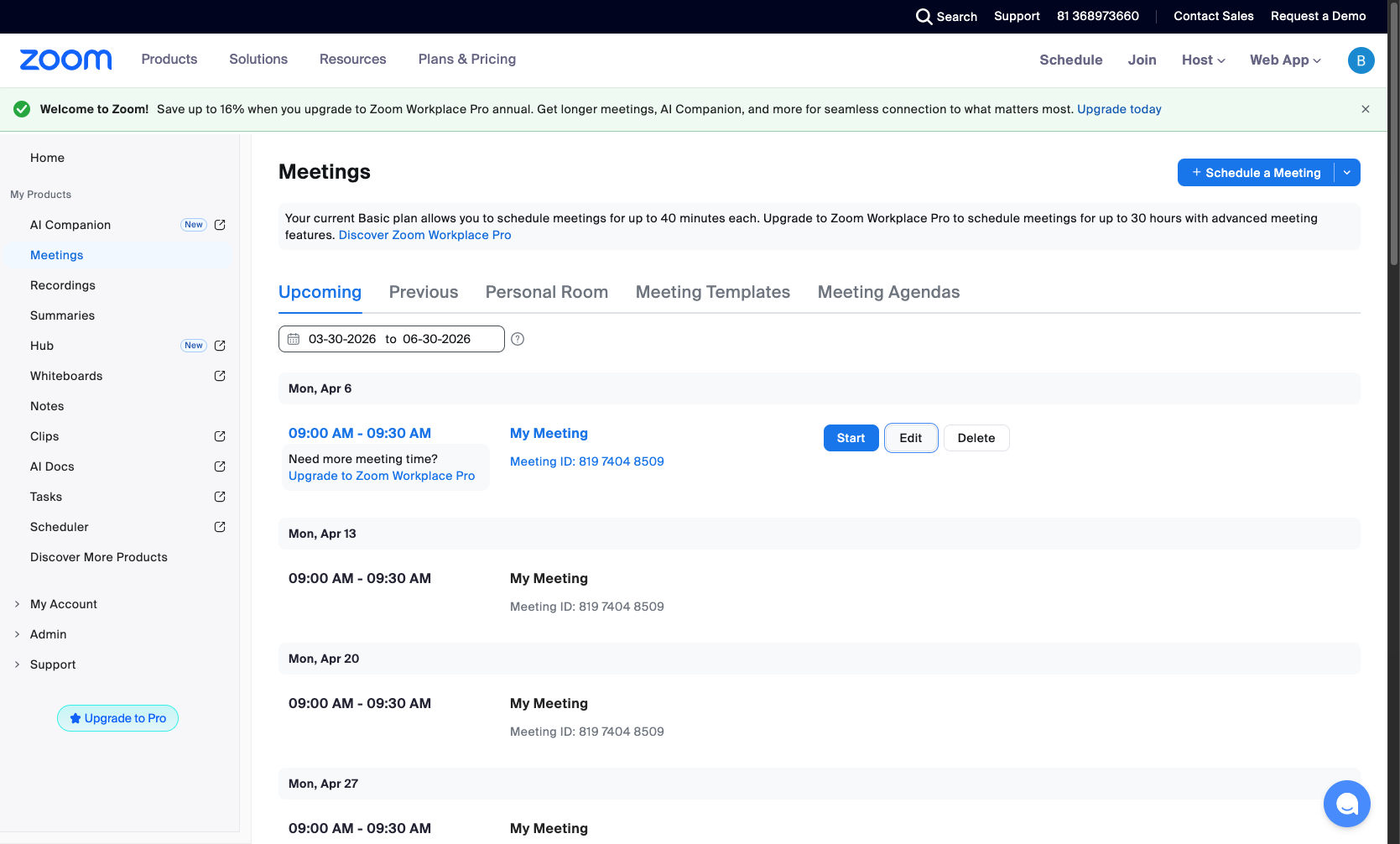
Navigate to zoom.us/meeting#/upcoming
Navigate to the Zoom Meetings page
Navigate to zoom.us/meeting#/upcoming to view your list of upcoming meetings. The page will display all scheduled meetings including recurring meeting instances.
- Step 2 of 8
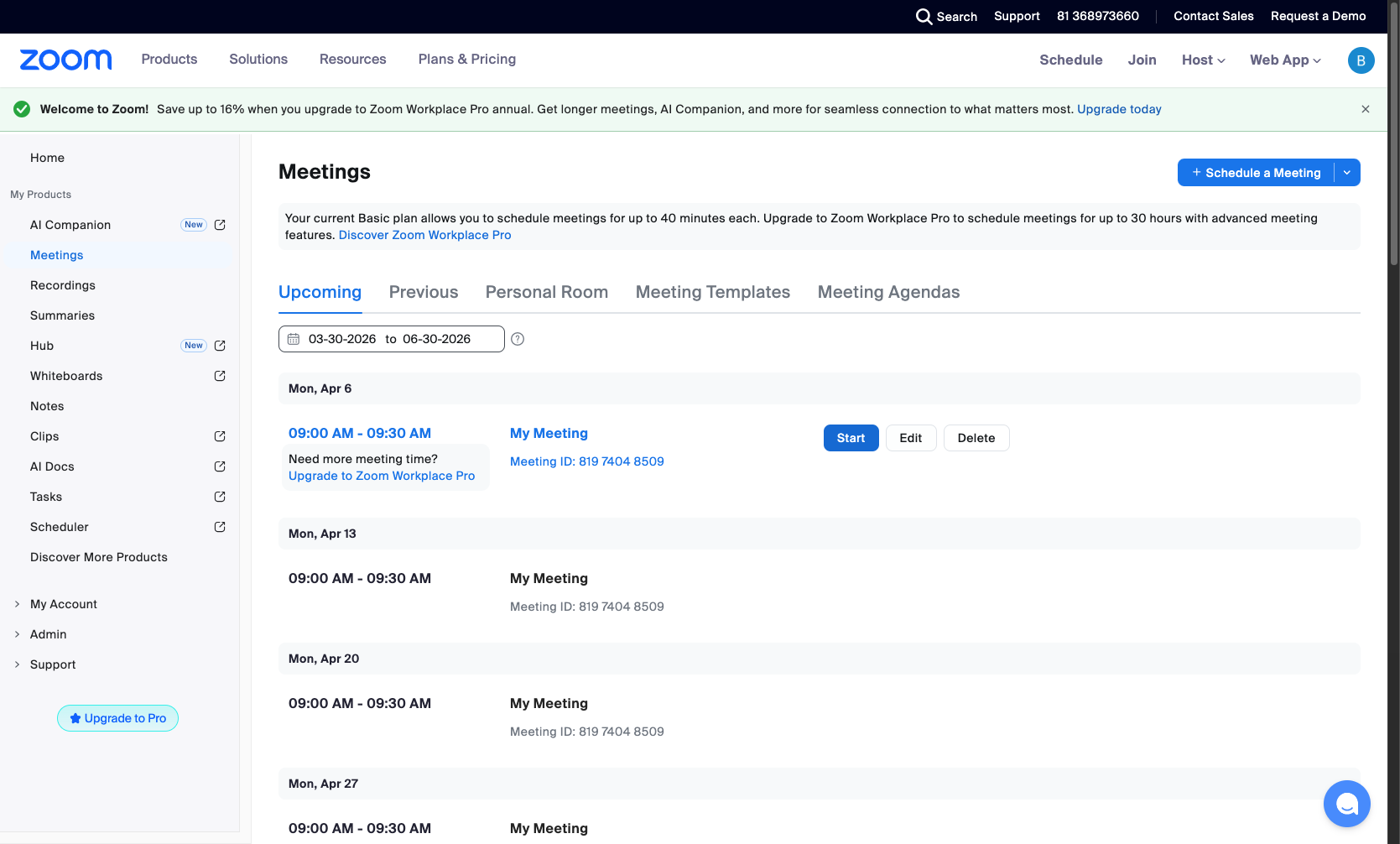
Click the Edit button
Click the Edit button for the meeting you want to modify
Locate the meeting occurrence you want to edit in the list. Click the Edit button to the right of the meeting entry. This will open the editing interface.
- Step 3 of 8
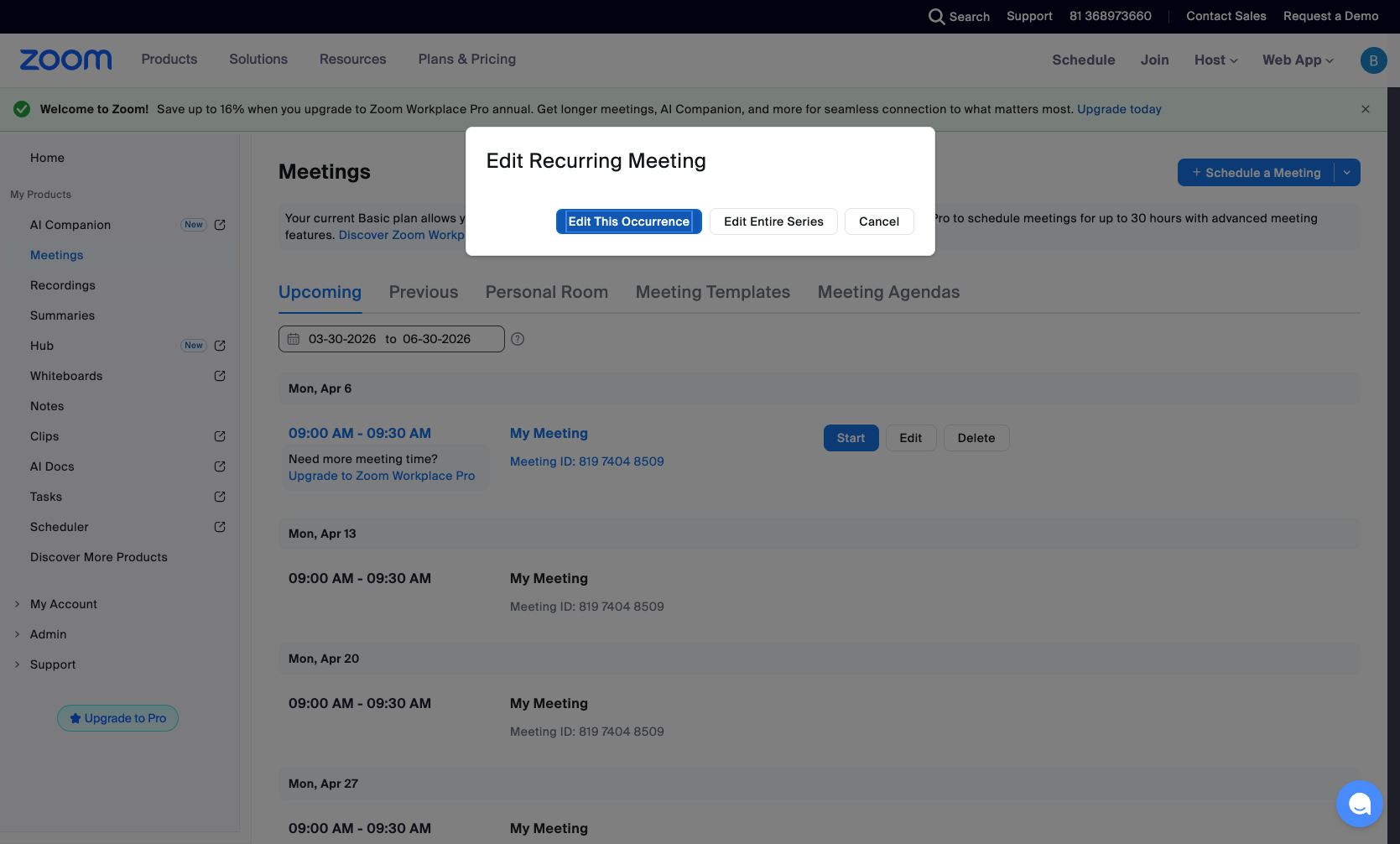
Select Edit This Occurrence
Click the Edit This Occurrence button in the dialog
When the Edit Recurring Meeting dialog appears, click the Edit This Occurrence button. This option allows you to modify only the selected meeting instance.
- Step 4 of 8
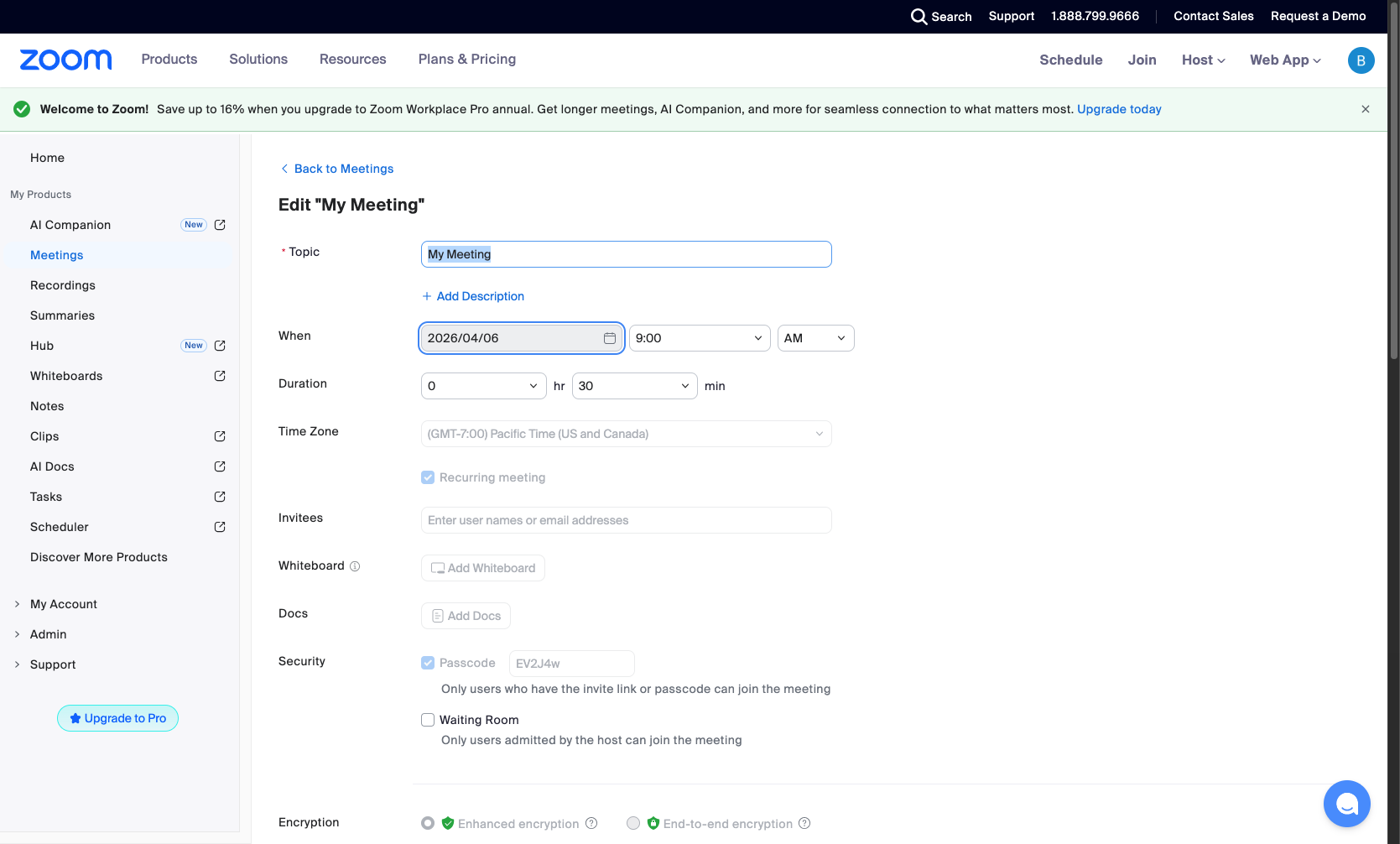
Modify the meeting topic
Edit the Topic field
In the Topic field, enter the new meeting title. The Topic field is located near the top of the form under the Edit Meeting heading. You can optionally click + Add Description to include additional meeting details.
- Step 5 of 8
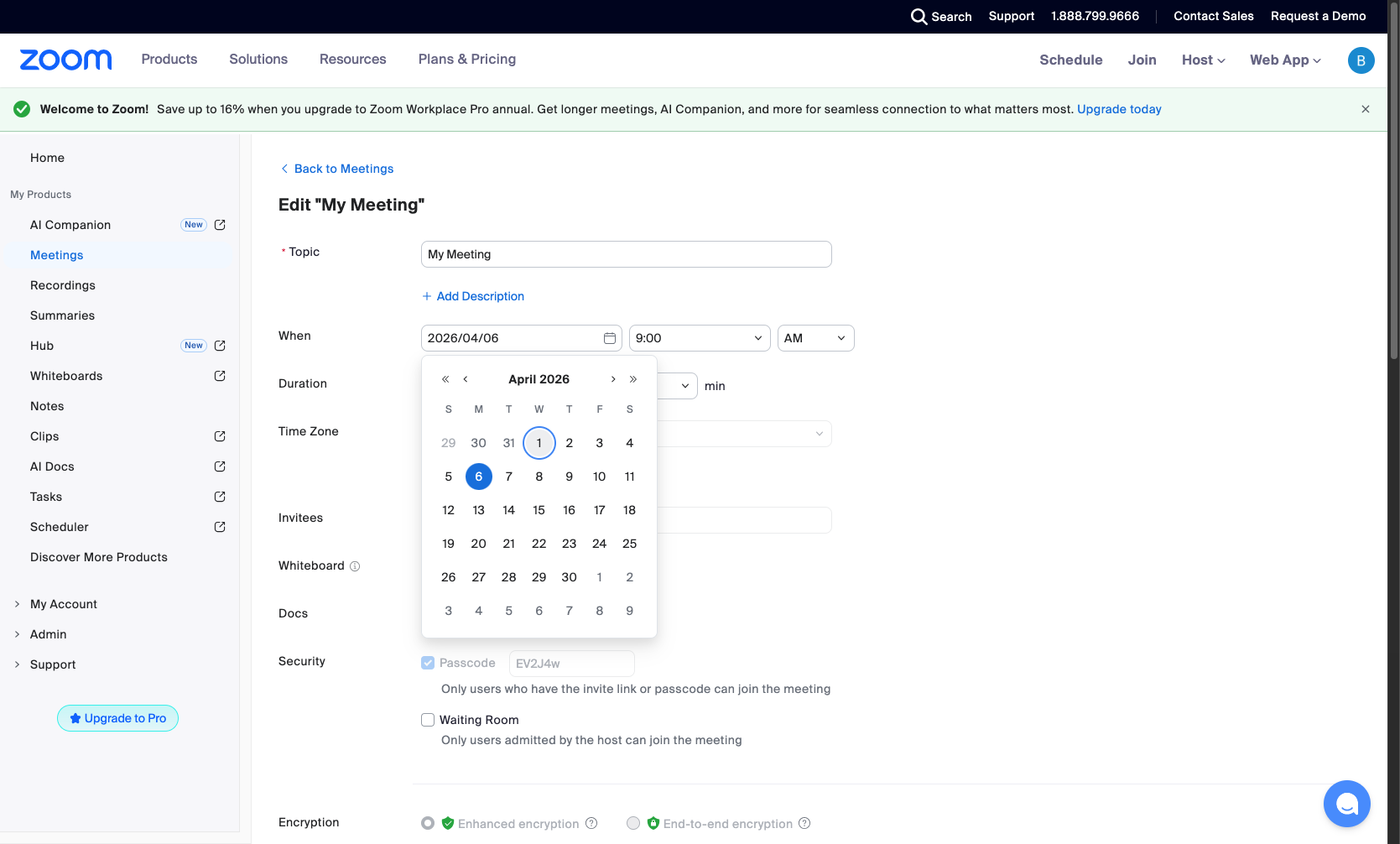
Change the meeting date
Click the date field and select a new date from the calendar
Click the date field in the When section to open the date picker. A calendar popup will appear showing the current month. Click on the desired date to select it. The calendar will close and the date field will update with your selection.
- Step 6 of 8
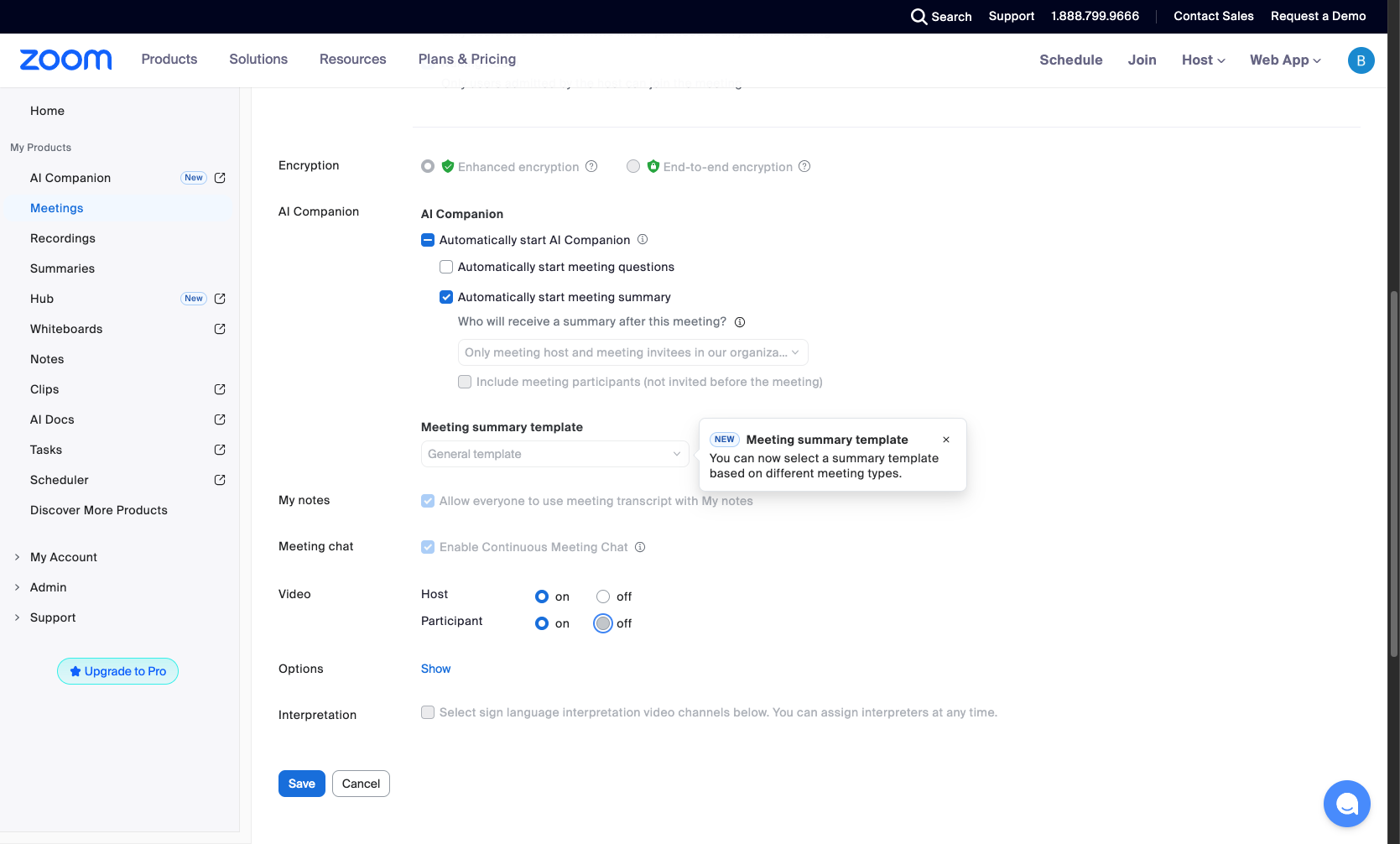
Adjust meeting options
Toggle meeting options as needed
Scroll down to review and modify meeting options. You can configure settings such as:
- Step 7 of 8
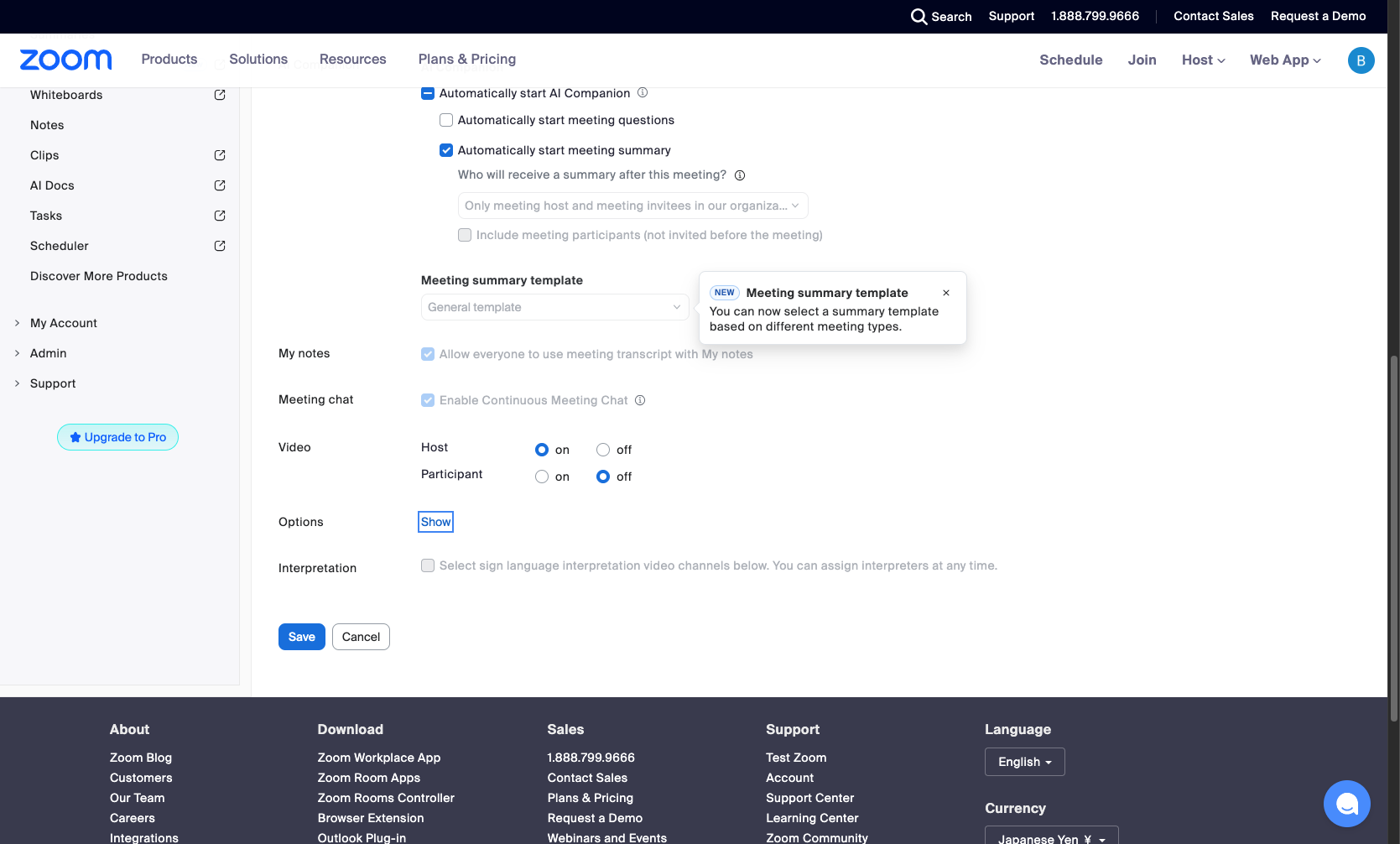
Expand additional options
Click Show More Options to reveal additional settings
Click the Show button next to Options to expand additional meeting settings. This section may include options such as:
- Step 8 of 8
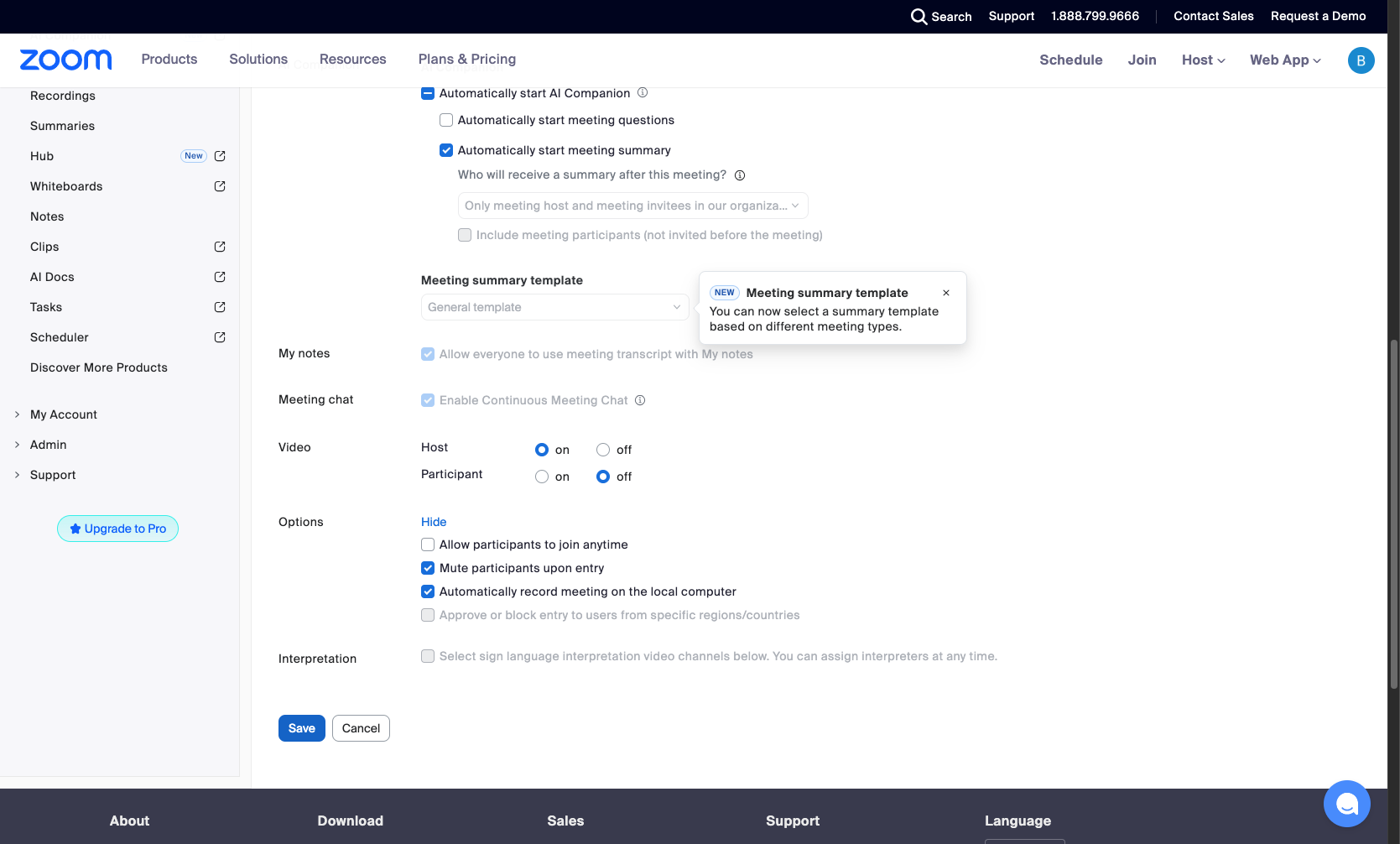
Save your changes
Click the Save button to apply changes
After making all desired changes, click the Save button at the bottom of the page to apply your modifications. The changes will be saved and applied only to this specific occurrence of the meeting.
Verification
To confirm your changes were applied successfully:
Navigate back to the Upcoming meetings list at zoom.us/meeting#/upcoming
Locate the edited meeting occurrence and verify the updated date, time, and topic are displayed correctly
Confirm that other occurrences in the recurring series remain unchanged
Conclusion
You have successfully edited a single occurrence of a recurring Zoom meeting. Your changes have been applied only to the selected instance, while the rest of the recurring series remains unchanged.