

Purpose
This SOP describes how to navigate, review, and manage tasks using Zoom Tasks. It covers accessing different task views, filtering by due dates, updating task statuses, and organizing tasks through lists.
Scope
This procedure is intended for all Zoom users who need to manage their personal tasks or collaborate on shared task lists. Use this SOP when you need to review assigned tasks, check due dates, update task progress, or organize tasks into custom lists.
Prerequisites
Active Zoom account with access to Zoom Tasks
Logged in to Zoom Tasks with your account credentials
Web browser (Chrome, Firefox, Safari, or Edge recommended)
Procedure
- Step 1 of 10
Navigate to Zoom Tasks
Open Zoom Tasks in your browser
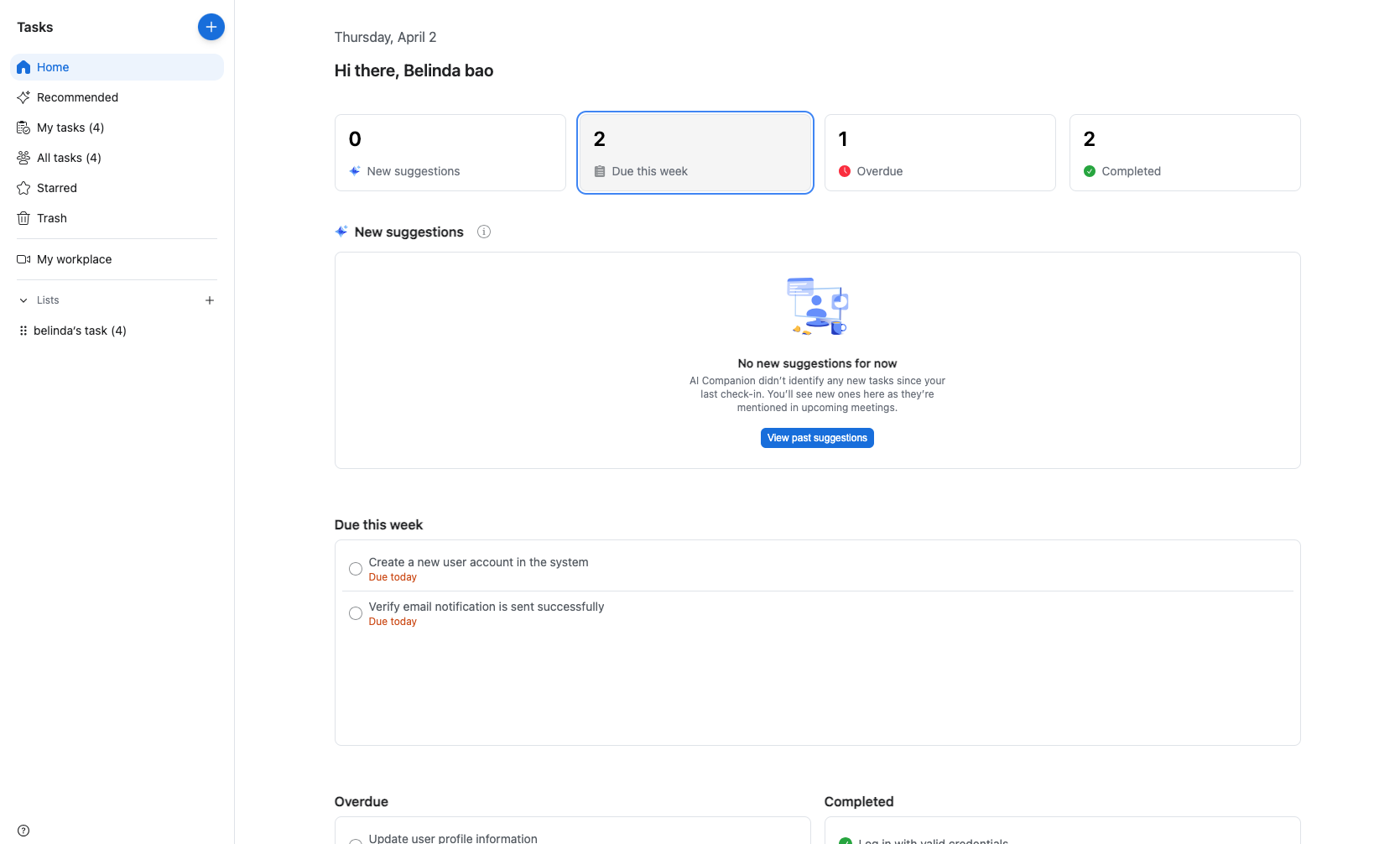
Navigate to us05tasks.zoom.us and sign in with your Zoom account. The Home page displays a dashboard with task summaries including new suggestions, tasks due this week, overdue tasks, and completed tasks.
- Step 2 of 10
View AI-recommended tasks
Click the View my tasks button
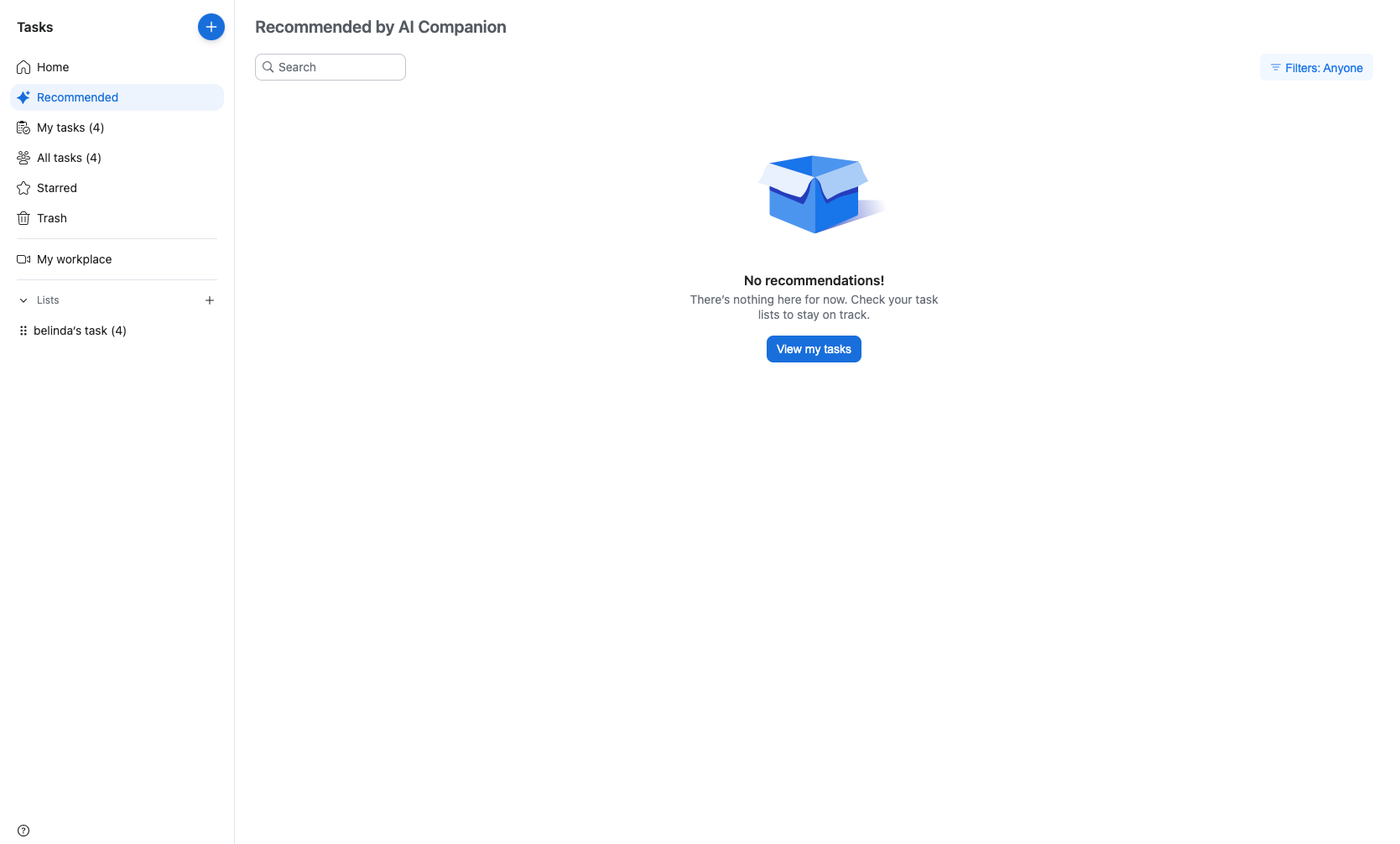
On the Home page, click the View my tasks button in the New suggestions section to see tasks recommended by AI Companion. If no recommendations are available, the page will display a message indicating there are no new suggestions.
- Step 3 of 10
Access My Tasks view
Click My tasks in the left sidebar
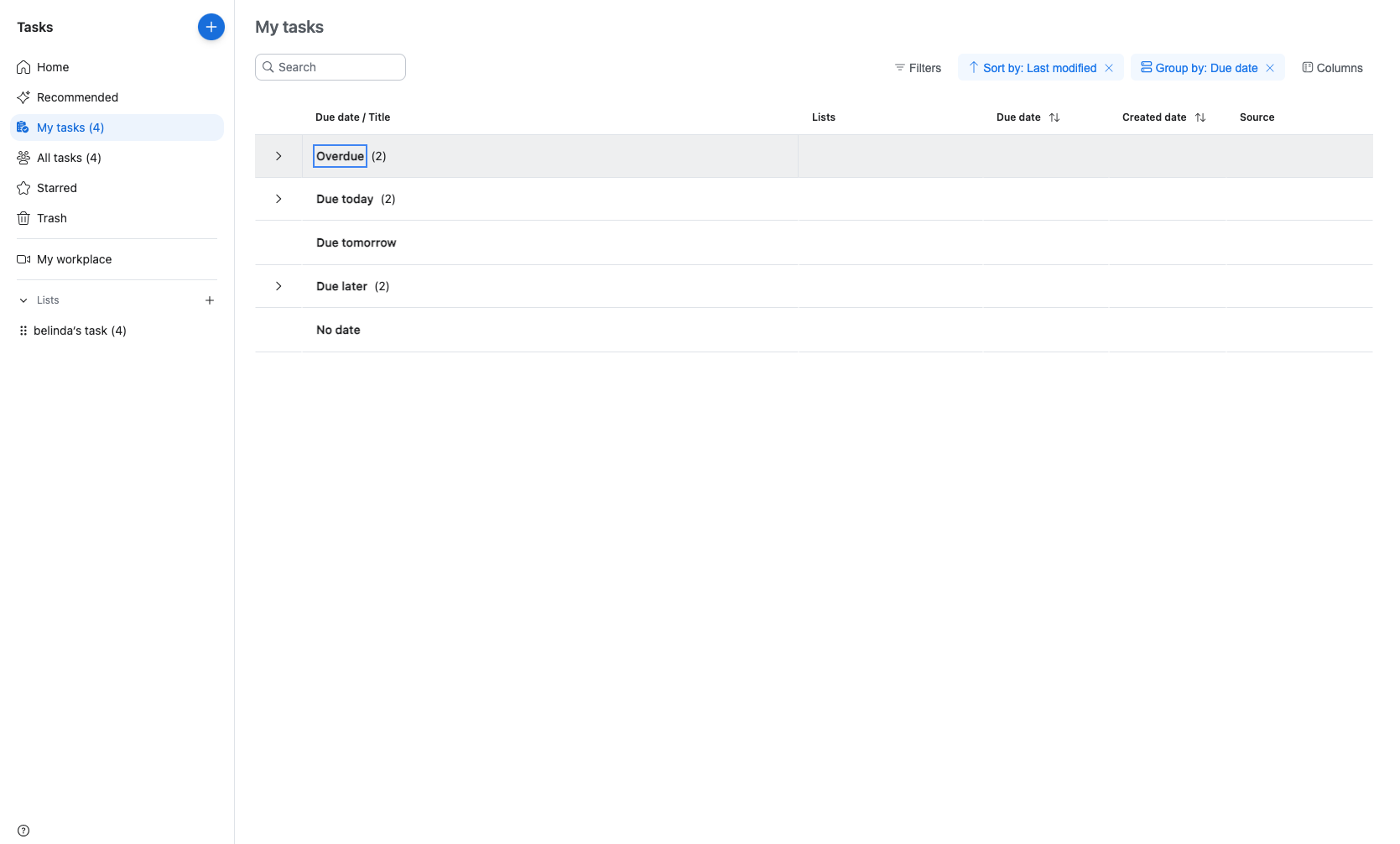
Click My tasks in the left sidebar to view all tasks assigned to you. Tasks are automatically grouped by due date: Overdue, Due today, Due tomorrow, Due later, and No date.
- Step 4 of 10
Expand task groups by due date
Click on a due date group to expand it
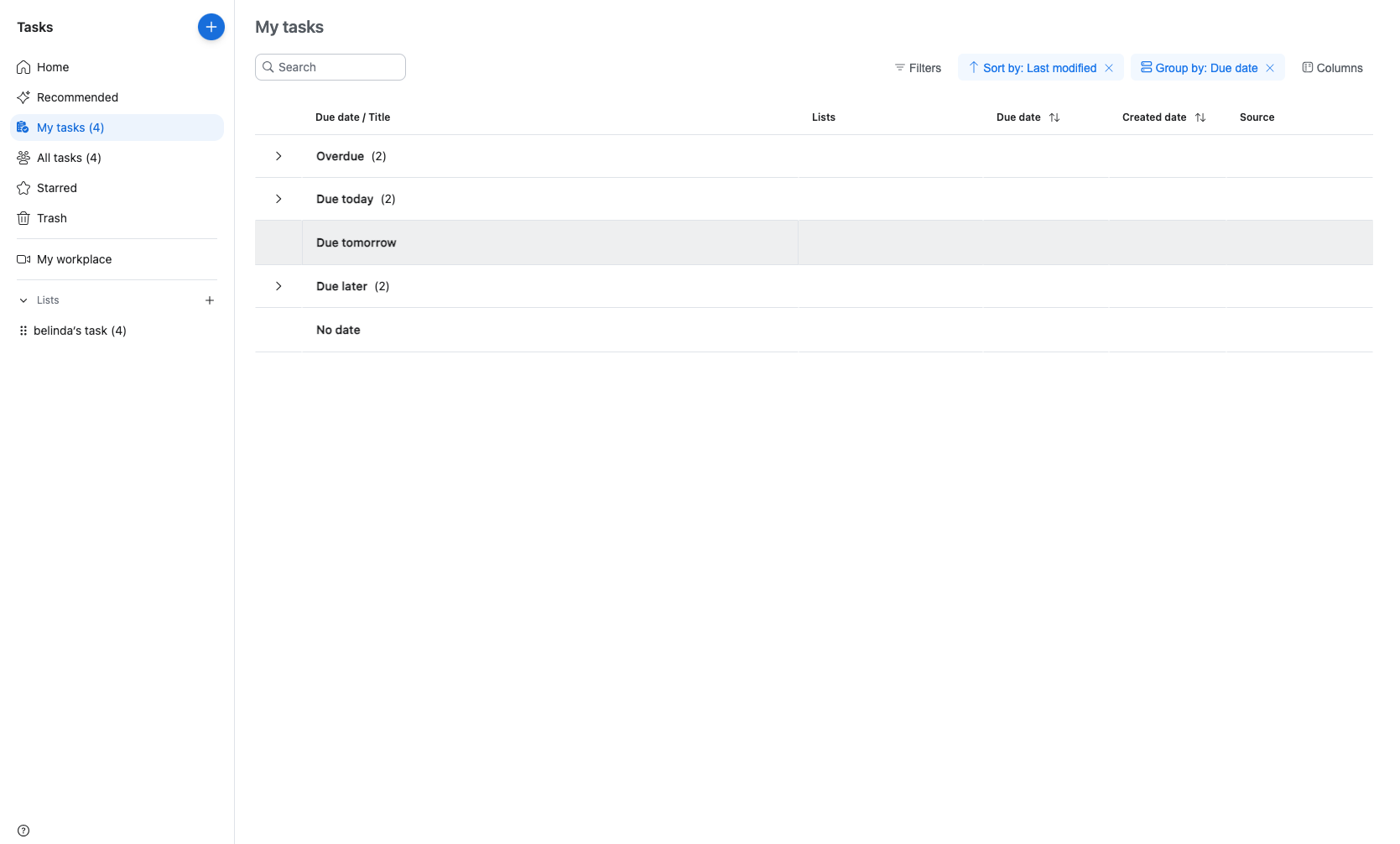
Click on any due date group (such as Due today or Due later) to expand it and view the tasks within that category. Each task displays its title, list assignment, due date, creation date, and source.
- Step 5 of 10
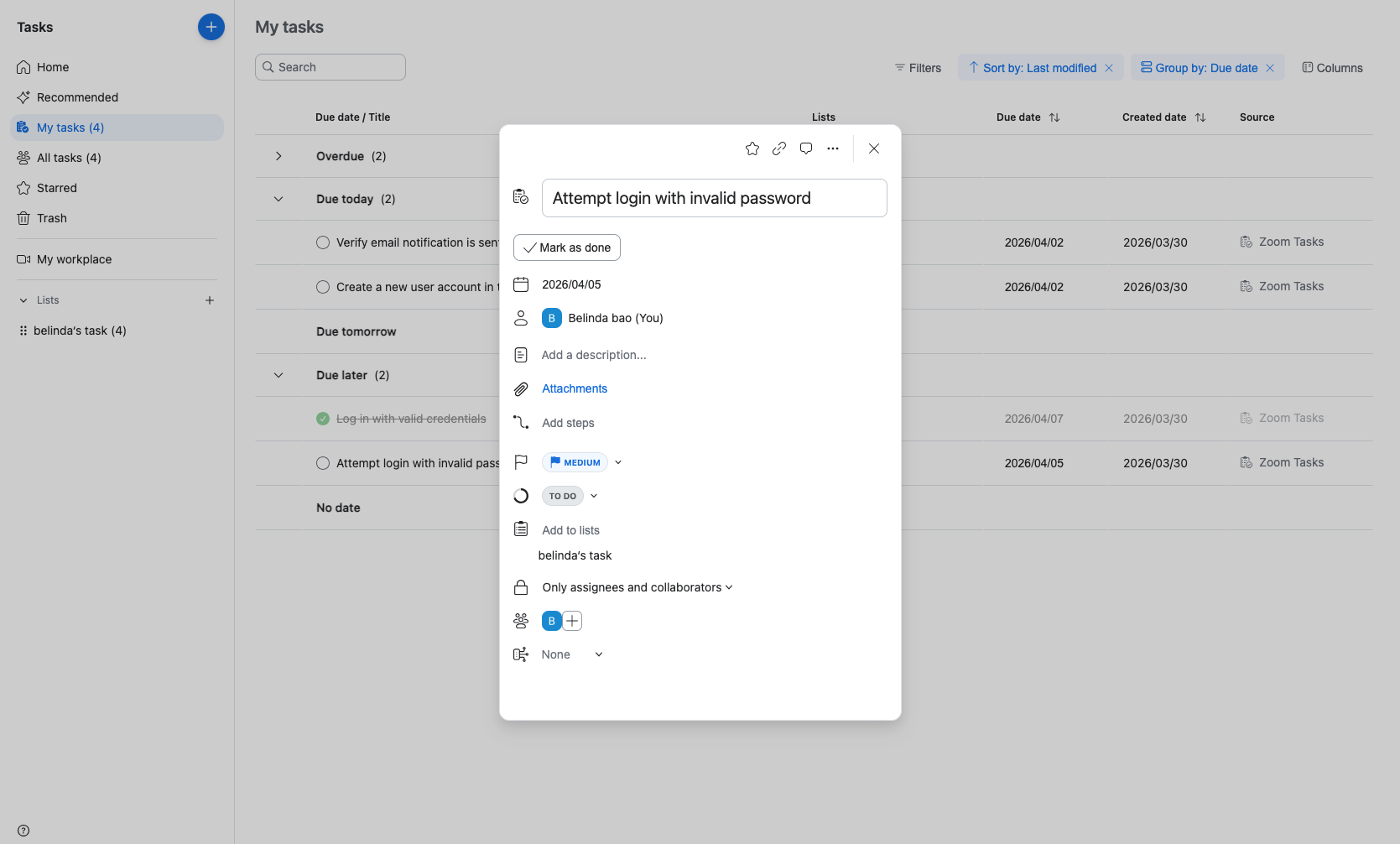
Open task details
Click on a task to open its details
Click on any task title to open the task details panel. The panel displays comprehensive information including the task title, due date, assignee, description field, attachments, subtasks, priority level, status, and tags.
- Step 6 of 10
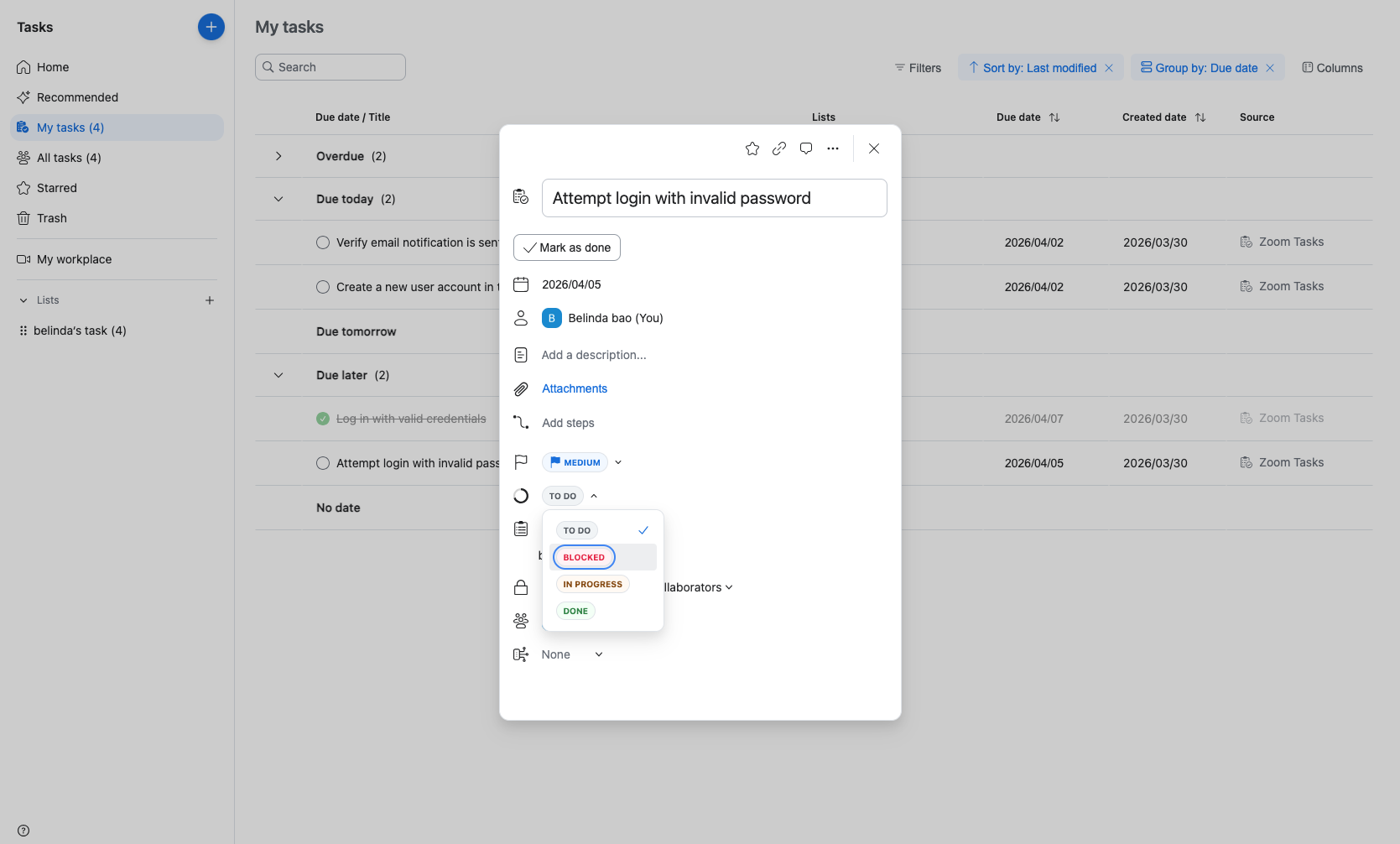
Update task status
Select a new status from the dropdown
In the task details panel, click on the Task status dropdown (currently showing TO DO). Select from available options: TO DO for tasks not yet started, IN PROGRESS for active work, BLOCKED for tasks that cannot proceed due to dependencies, or DONE for completed tasks. After selecting the status, click the Close button to return to the task list.
- Step 7 of 10
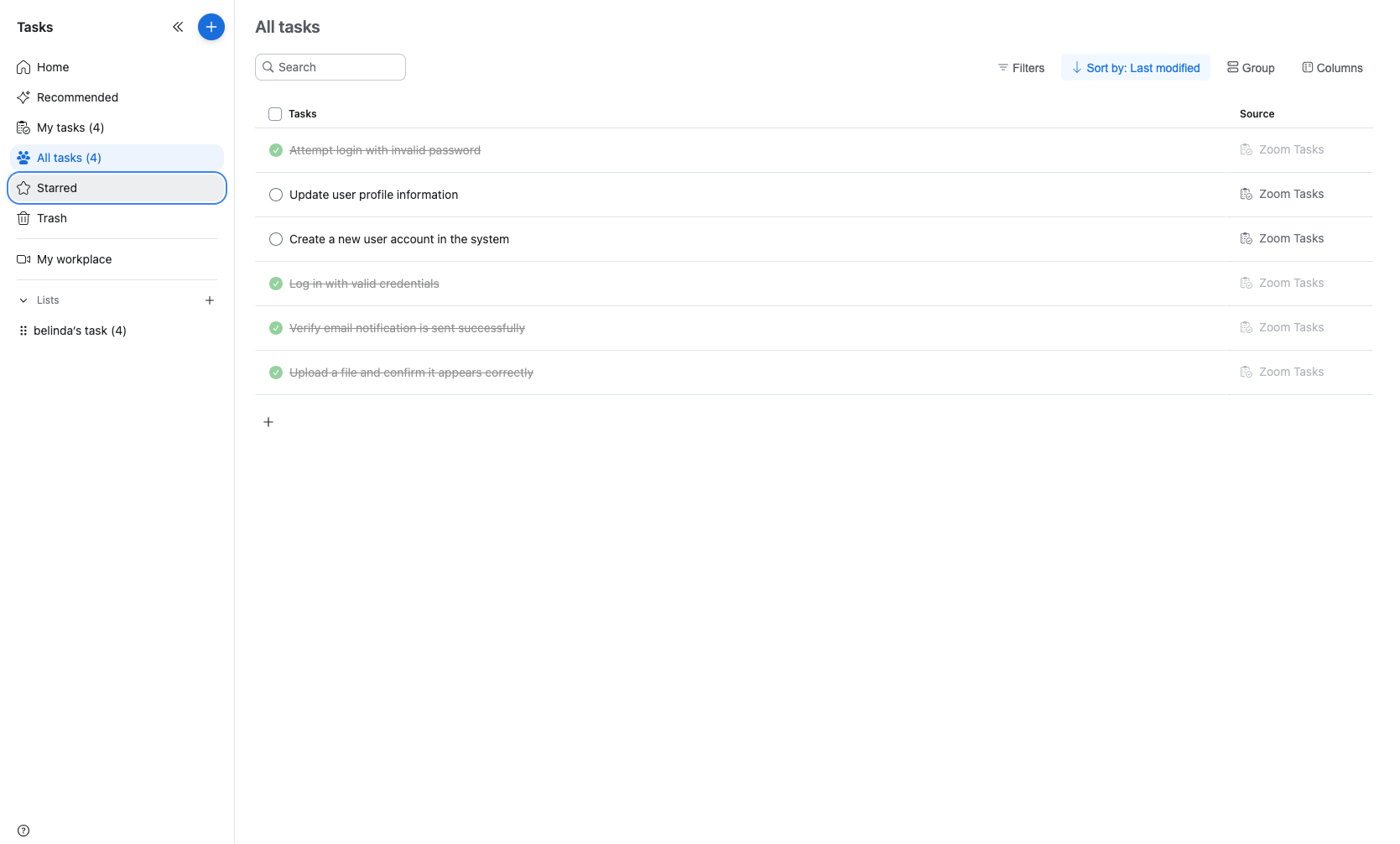
View all tasks
Click All tasks in the left sidebar
Click All tasks in the left sidebar to view a comprehensive list of all tasks across all categories. This view includes tasks with various statuses and due dates in a flat list format.
- Step 8 of 10
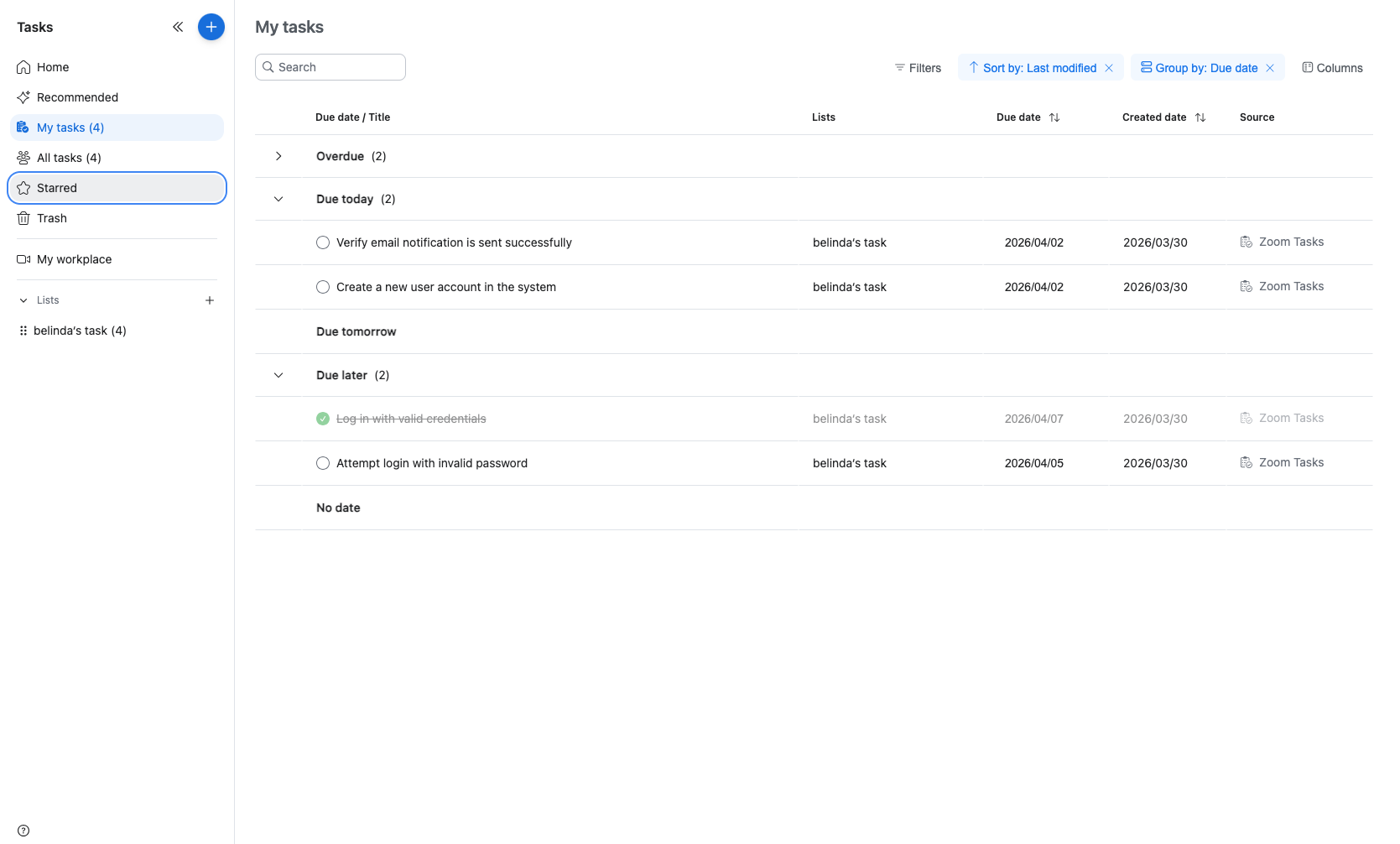
View starred tasks
Click Starred in the left sidebar
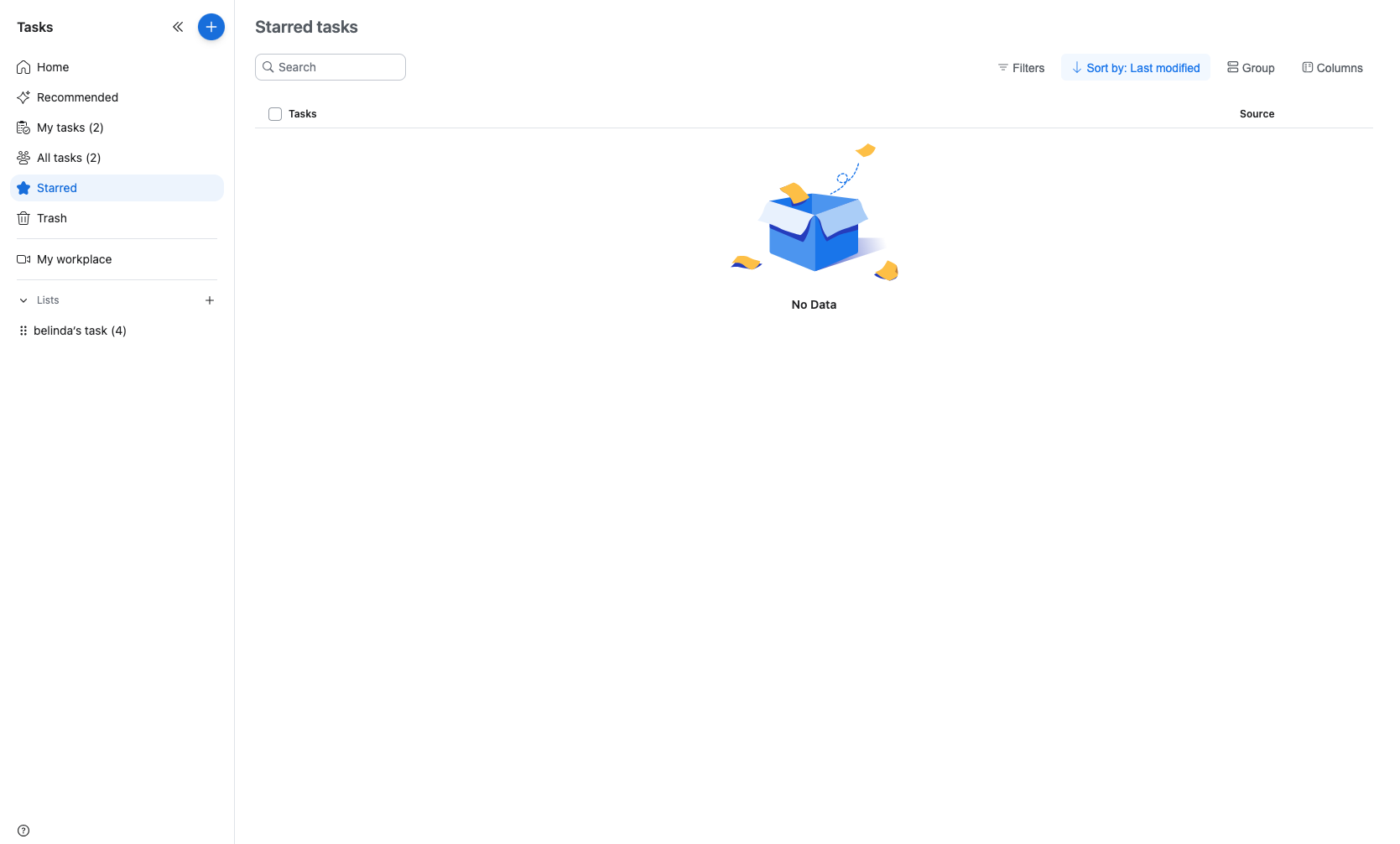
Click Starred in the left sidebar to view tasks you have marked as important. Starred tasks provide quick access to high-priority items regardless of their due date or list assignment.
- Step 9 of 10
Access Trash
Click Trash in the left sidebar
Click Trash in the left sidebar to view deleted tasks. Tasks in trash are permanently deleted after 30 days. You can restore tasks from trash or permanently delete them before the automatic cleanup.
- Step 10 of 10
Access custom lists
Click on a list name under Lists
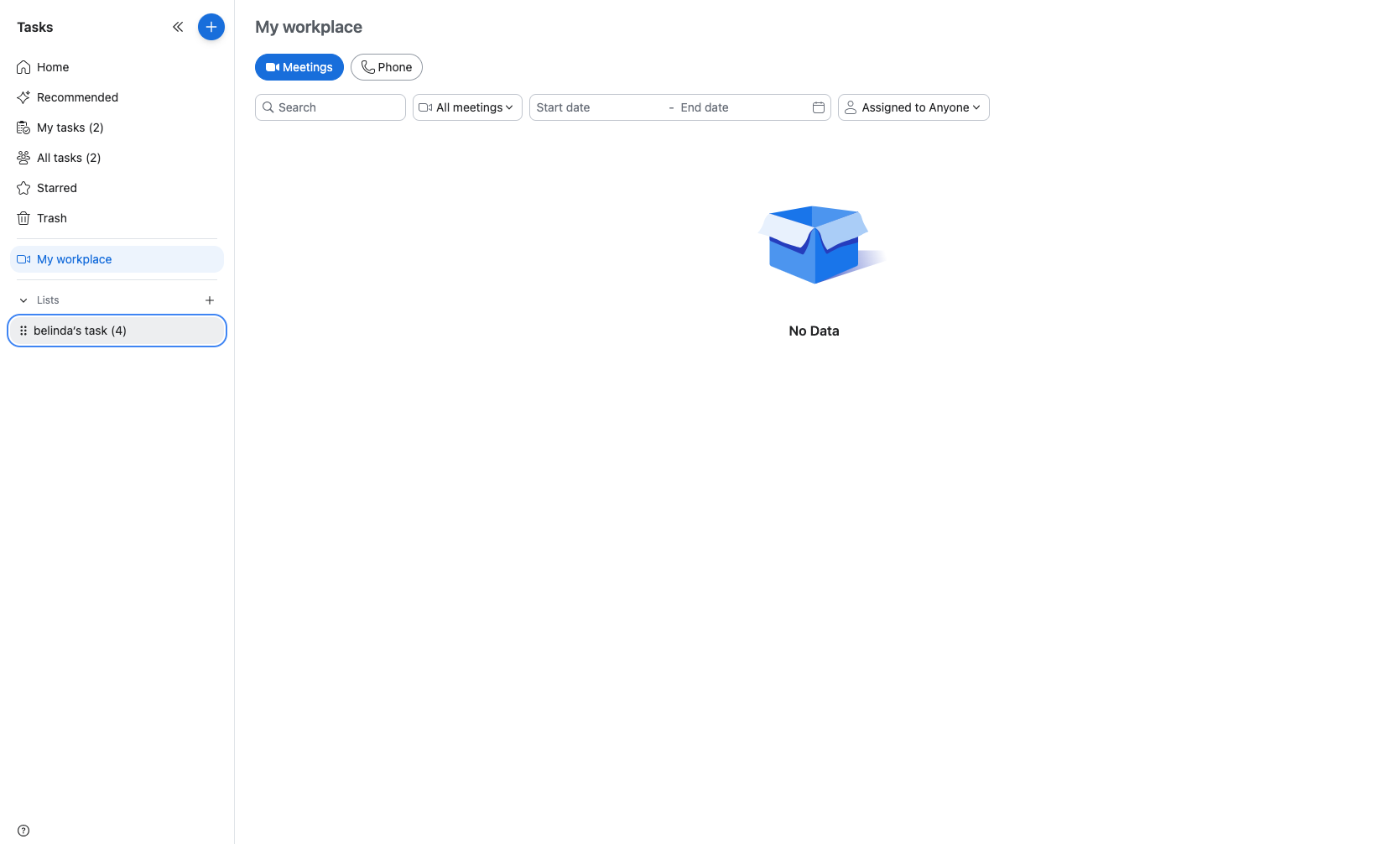
Under the Lists section in the left sidebar, click on any custom list name (such as belinda's task) to view tasks organized within that specific list. Custom lists help categorize and organize tasks by project, team, or personal preference.
Verification
To verify you have successfully reviewed and managed your Zoom Tasks:
Confirm you can see your tasks organized by due date in the My tasks view
Verify that task status updates are saved and reflected in the task list
Check that you can access All tasks, Starred, and custom lists from the sidebar
Ensure the Trash folder is accessible for managing deleted tasks
Troubleshooting
Tasks not appearing in My tasks view
If tasks are not visible:
Check the All tasks view to see if tasks are assigned to you
Verify you are logged in with the correct Zoom account
Clear your browser cache and refresh the page
Cannot change task status
If the status dropdown does not respond:
Ensure you have the proper permissions to edit the task (check if you are the assignee or have collaborator access)
Click directly on the task title to fully open the details panel before attempting to change status
Try refreshing the page and attempting the status change again
Conclusion
You have successfully learned how to navigate and manage tasks in Zoom Tasks. You can now review tasks by due date, update task statuses, organize tasks using custom lists, and manage deleted items through the Trash folder.