

Purpose
This SOP describes how to review meeting assets, summaries, and recordings in Zoom Hub, including accessing whiteboards, meeting summaries, and cloud recordings.
Scope
This procedure is intended for all Zoom users who need to access meeting-related content after meetings have concluded. Follow this SOP when you need to review whiteboards, meeting summaries, or recordings from past meetings.
Prerequisites
Logged in to your Zoom account
Access to Zoom Hub (available with Zoom One or Zoom Docs subscriptions)
Meetings must have been recorded or had whiteboards created to view assets
Procedure
- Step 1 of 10
Navigate to Zoom Hub
Access the Zoom Hub home page
Navigate to hub.zoom.us to access the Zoom Hub dashboard. This is your central workspace for all Zoom assets including documents, whiteboards, and meeting content.
- Step 2 of 10
Open a recent meeting whiteboard
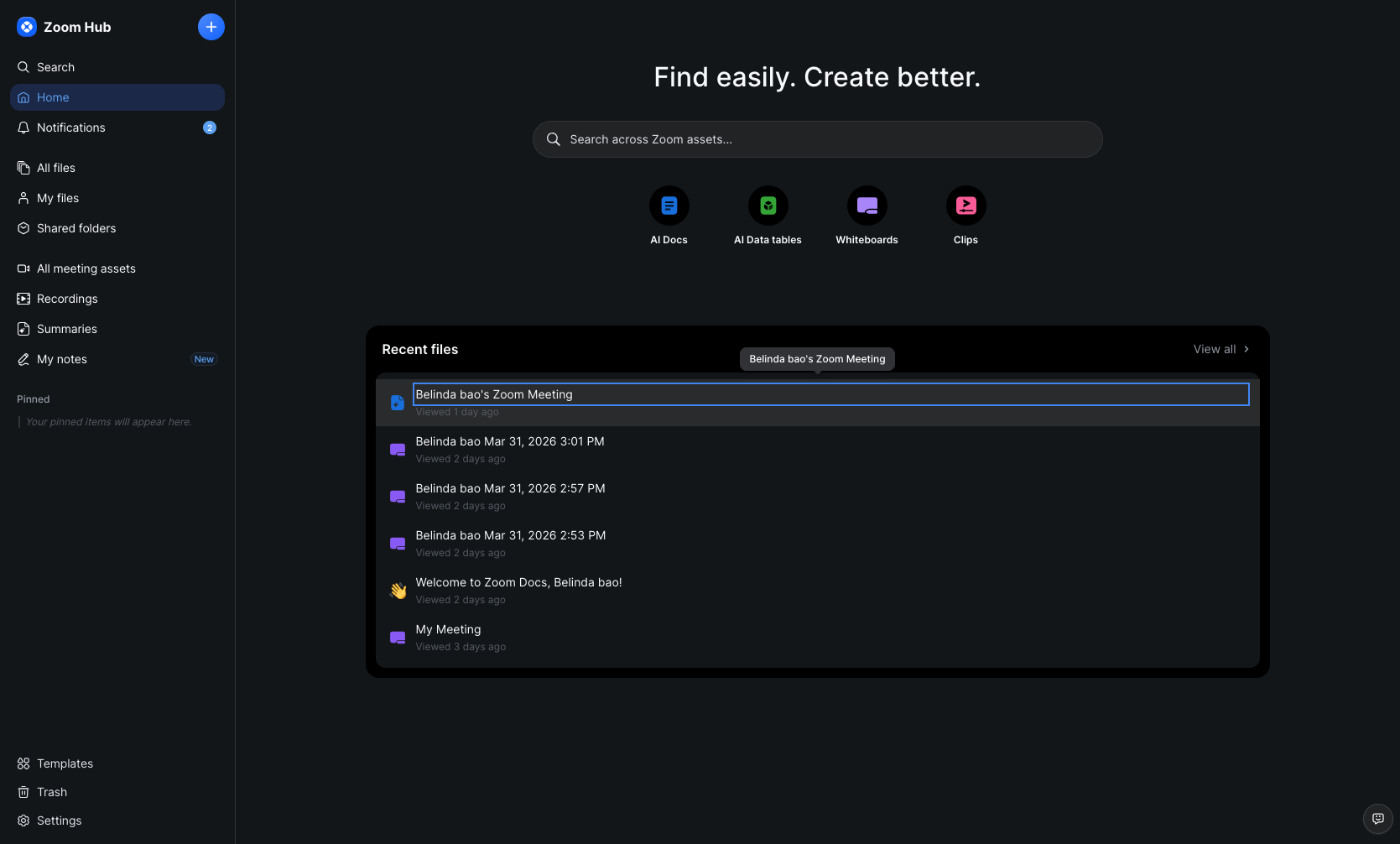
Click on a recent meeting file from the list
In the Recent files section, locate and click on the meeting you want to review. This will open the whiteboard or document associated with that meeting.
- Step 3 of 10
View whiteboard pages
Click the Pages button to see all whiteboard pages
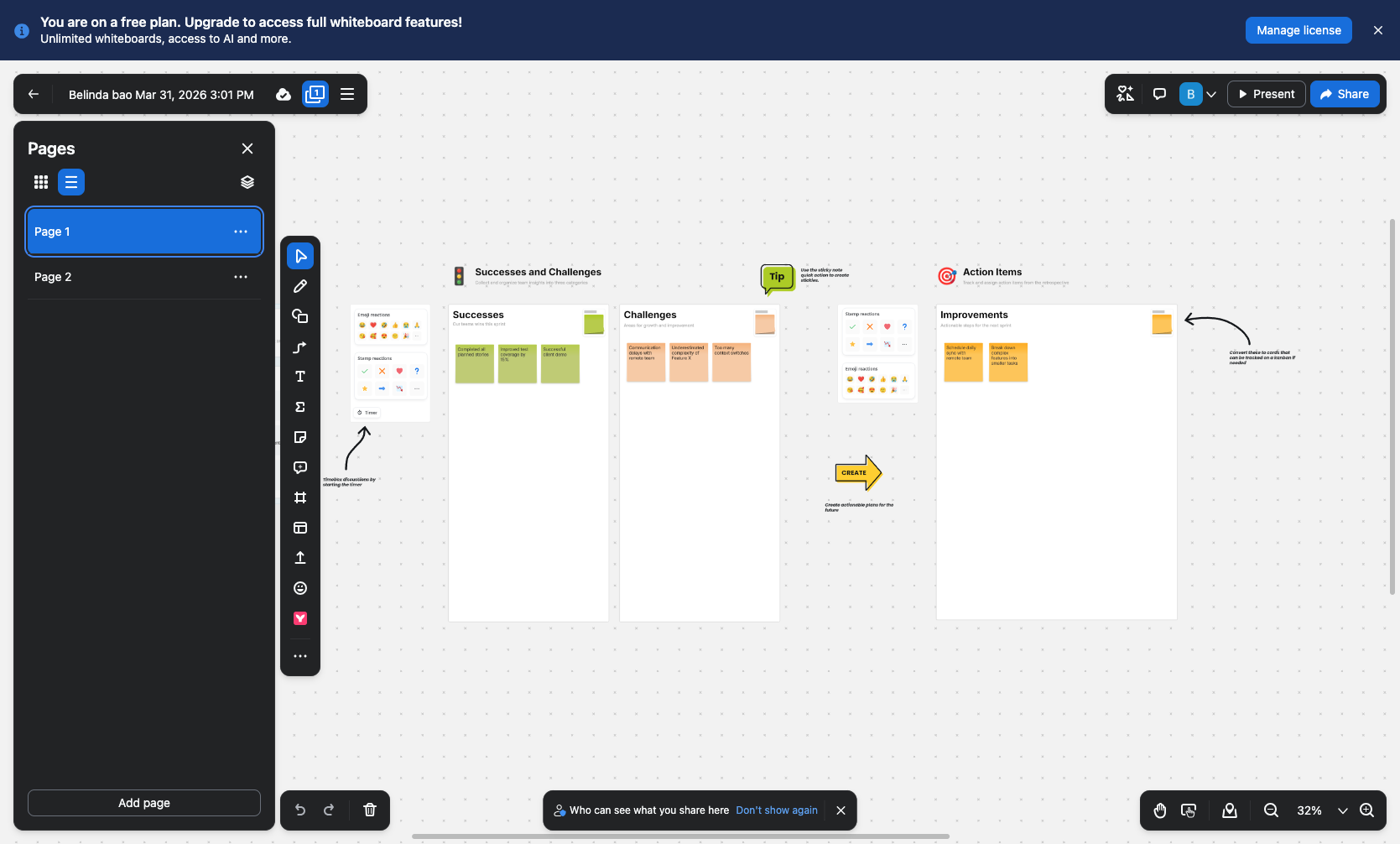
Once the whiteboard loads, click the Pages button (showing the current page number) in the top toolbar to open the pages panel. This displays all pages within the whiteboard for easy navigation.
- Step 4 of 10
Navigate to a specific page
Select the page you want to view
In the pages panel, click on Page 2 or any other page you want to review. The whiteboard view will switch to display the selected page content.
- Step 5 of 10
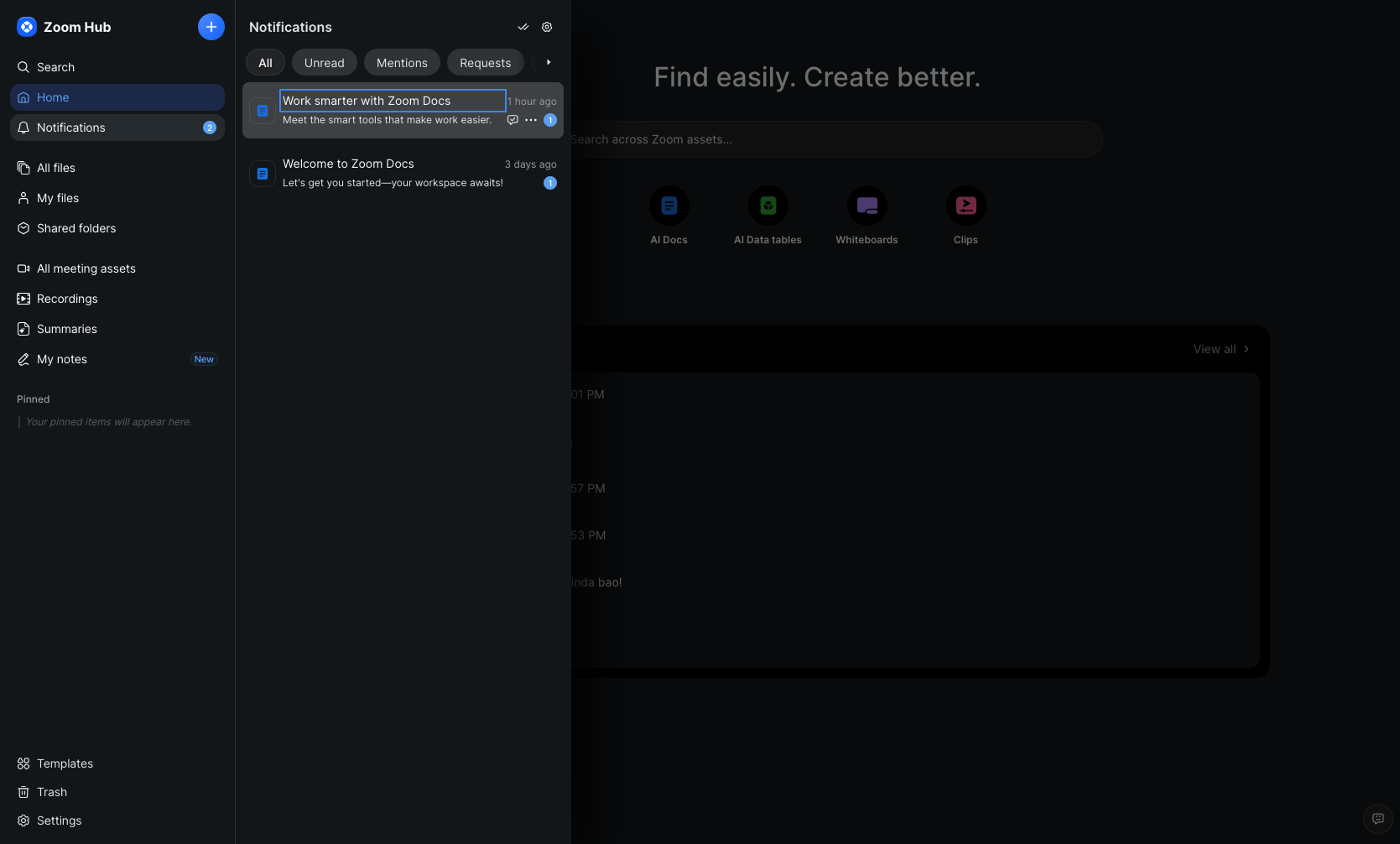
Check notifications for new documents
Click on a notification to view shared documents
Return to the Zoom Hub and click the Notifications icon in the left sidebar. Review any notifications about shared documents, such as Work smarter with Zoom Docs, and click to open them.
- Step 6 of 10
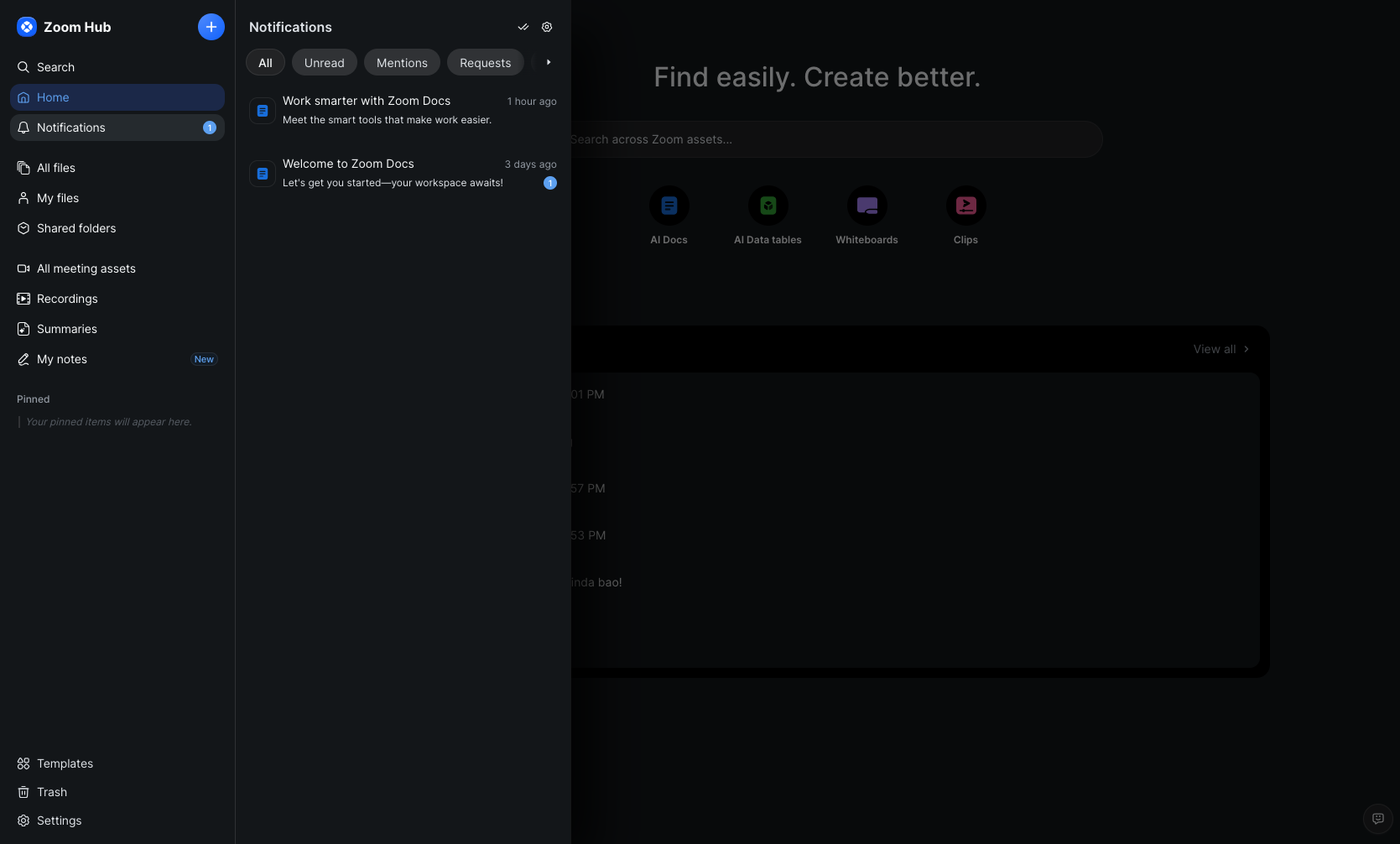
Open welcome and guide documents
Click on the Welcome to Zoom Docs notification
From the notifications panel, click on Welcome to Zoom Docs to view onboarding documentation and learn about Zoom Docs features and capabilities.
- Step 7 of 10
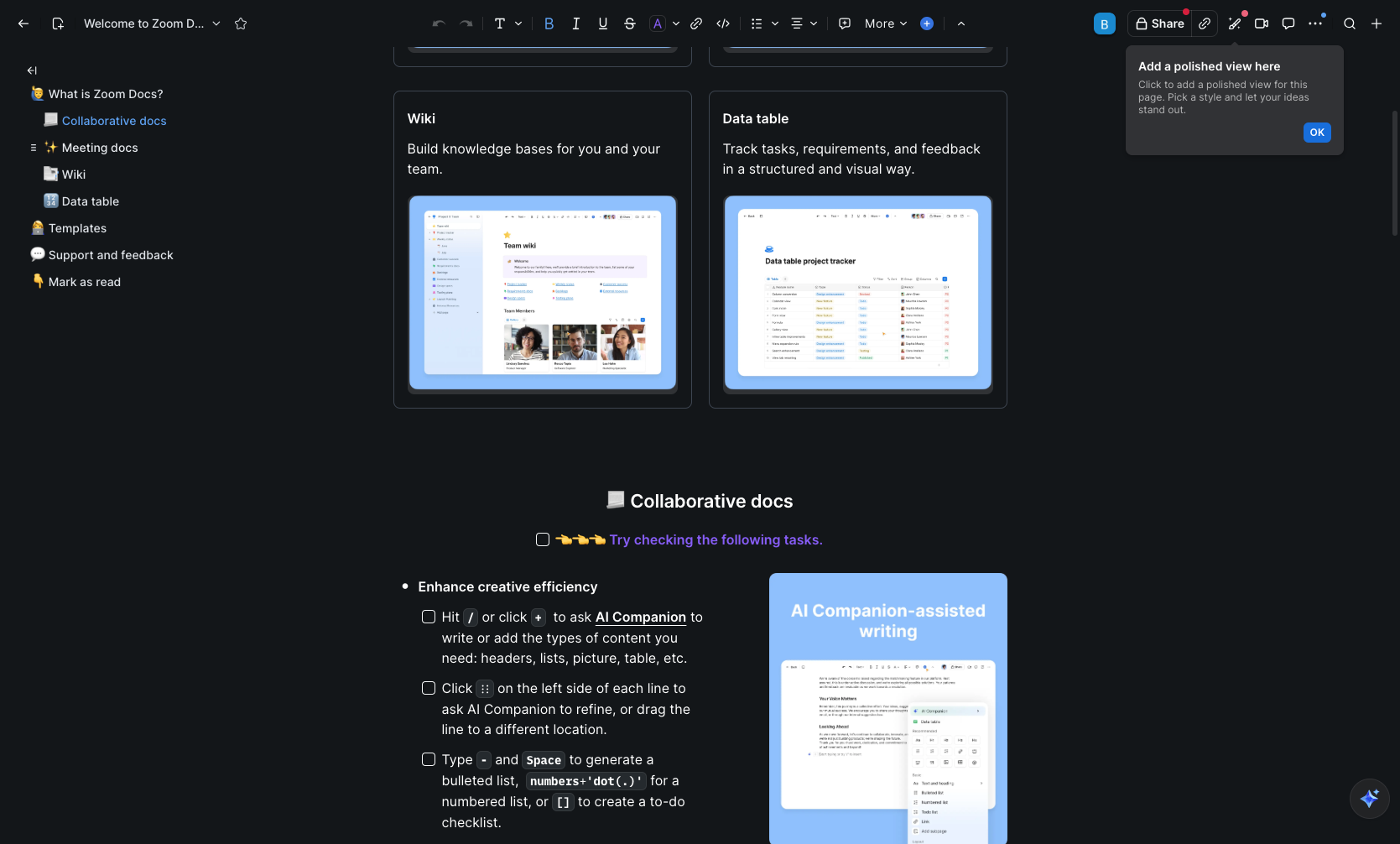
Access meeting documentation sections
Click on the Meeting docs section
In the document navigation, click on level 2: ✨ Meeting docs to expand or navigate to the meeting documentation section. This provides access to meeting-related templates and documentation features.
- Step 8 of 10
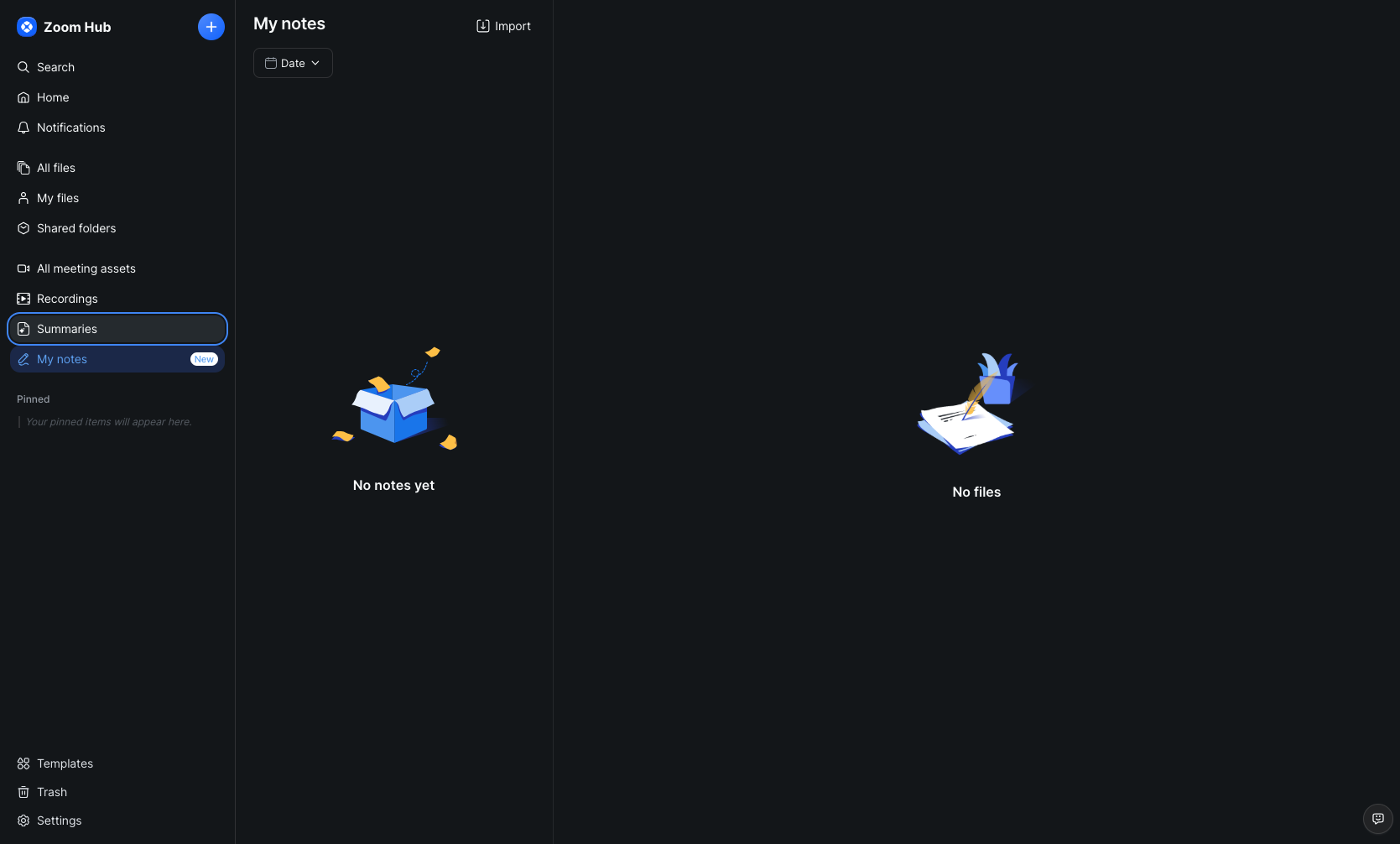
Navigate to My notes section
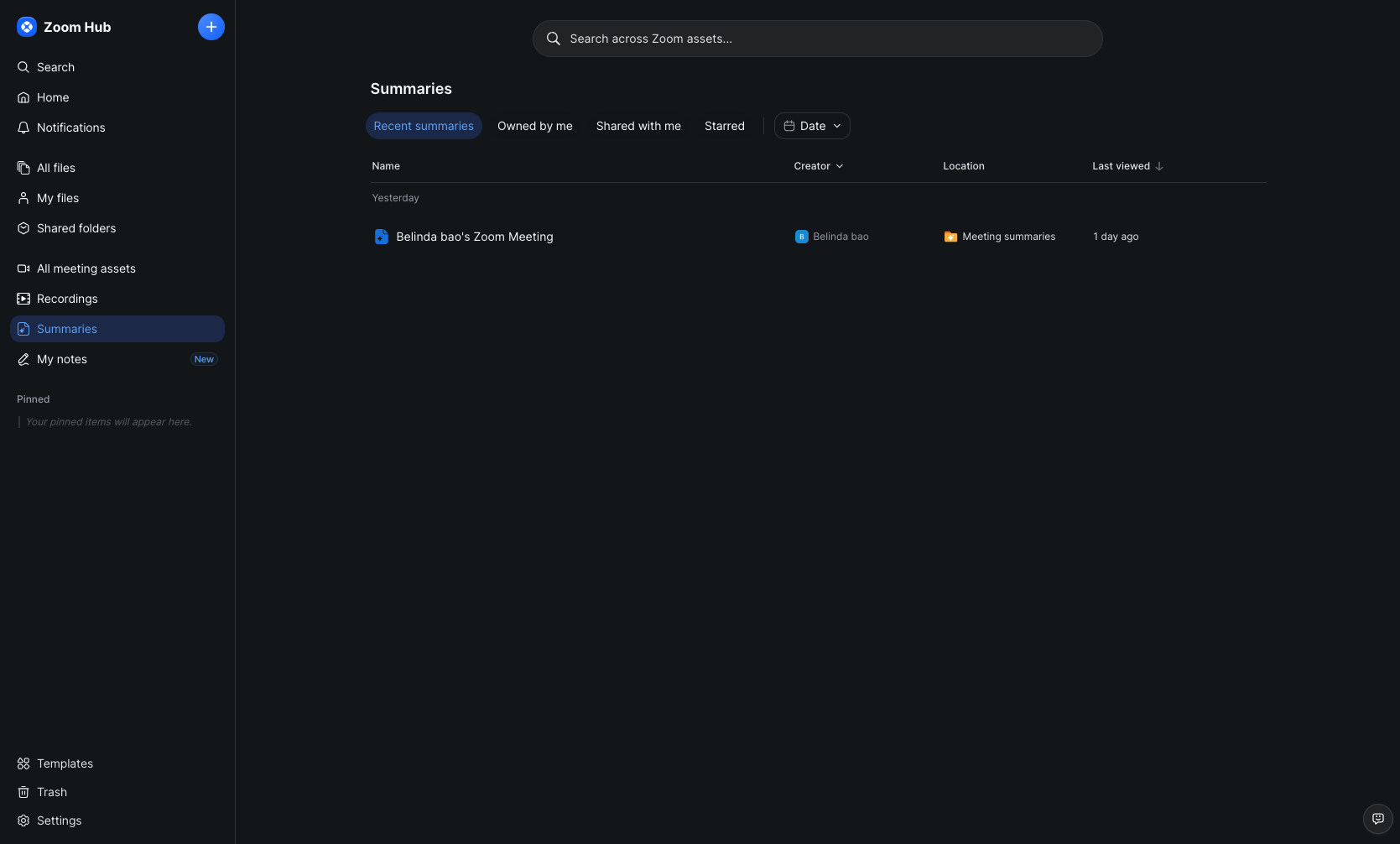
Click on Summaries in the left sidebar
Click on Summaries in the left sidebar under the My notes section. This displays all AI-generated meeting summaries from your recorded meetings.
- Step 9 of 10
Access cloud recordings
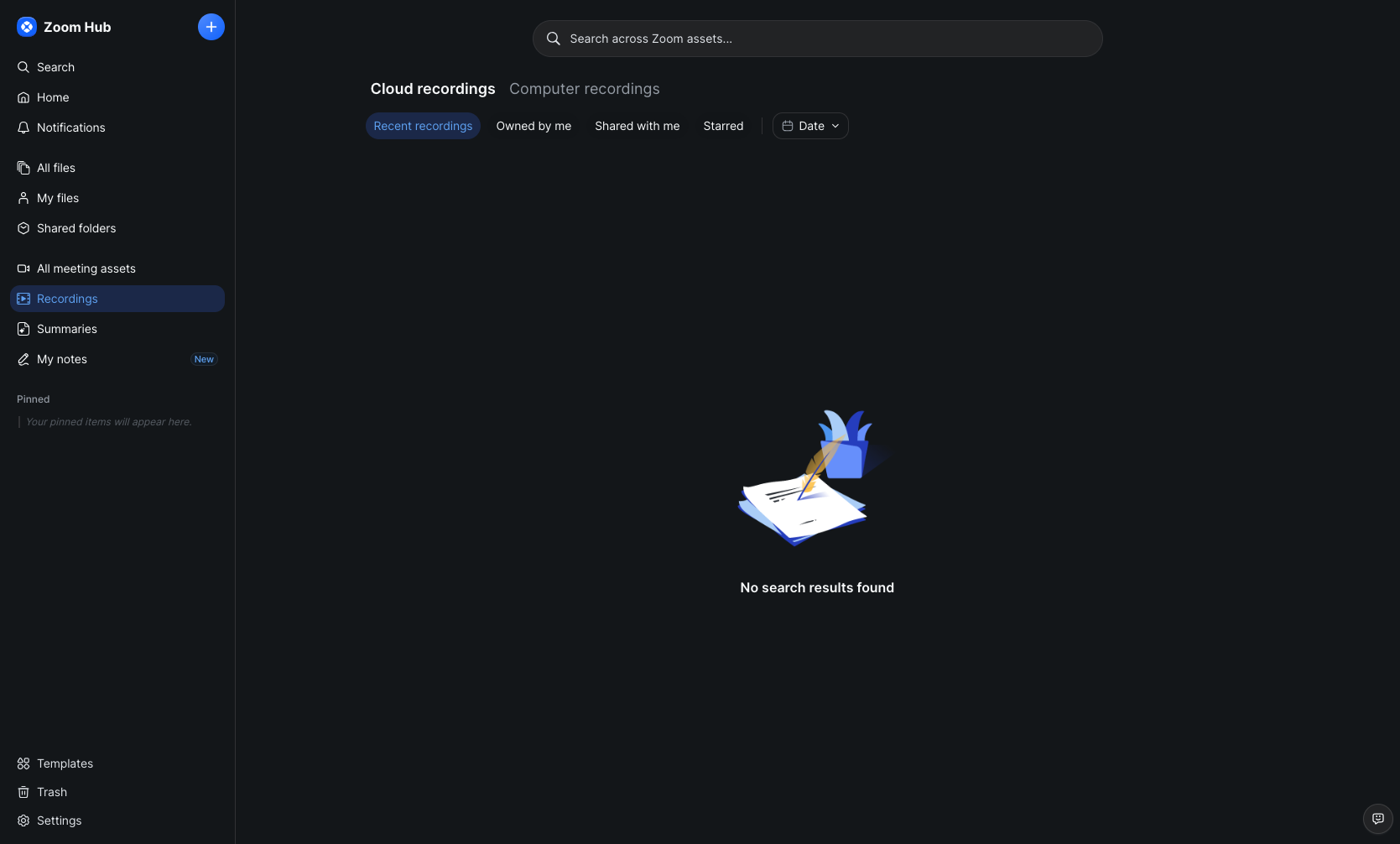
Click on Recordings in the left sidebar
Click on Recordings in the left sidebar. This shows your cloud recordings and allows you to filter by Recent recordings, Owned by me, Shared with me, or Starred.
- Step 10 of 10
View all meeting assets
Click on All meeting assets
Click on All meeting assets in the left sidebar to see a comprehensive view of all assets associated with your meetings, including recordings, whiteboards, and shared files.
Verification
After completing the procedure, verify you can successfully access:
Meeting whiteboards with all pages visible
AI-generated meeting summaries in the Summaries section
Cloud recordings in the Recordings section
All related meeting assets consolidated in one view
Conclusion
You have successfully navigated through Zoom Hub to review meeting assets, summaries, and recordings. All your meeting-related content is now accessible from the centralized Zoom Hub interface.