

Purpose
This SOP describes how to assign a GitHub issue to yourself and add it to a project board for better task tracking and milestone management.
Scope
This procedure is intended for GitHub repository contributors and maintainers. Follow this SOP when you need to take ownership of an issue and organize it within a project board for workflow management.
Prerequisites
Logged in to GitHub with your account
Write access to the repository (to assign issues and add to projects)
An existing project board in the repository or organization
Procedure
- Step 1 of 6
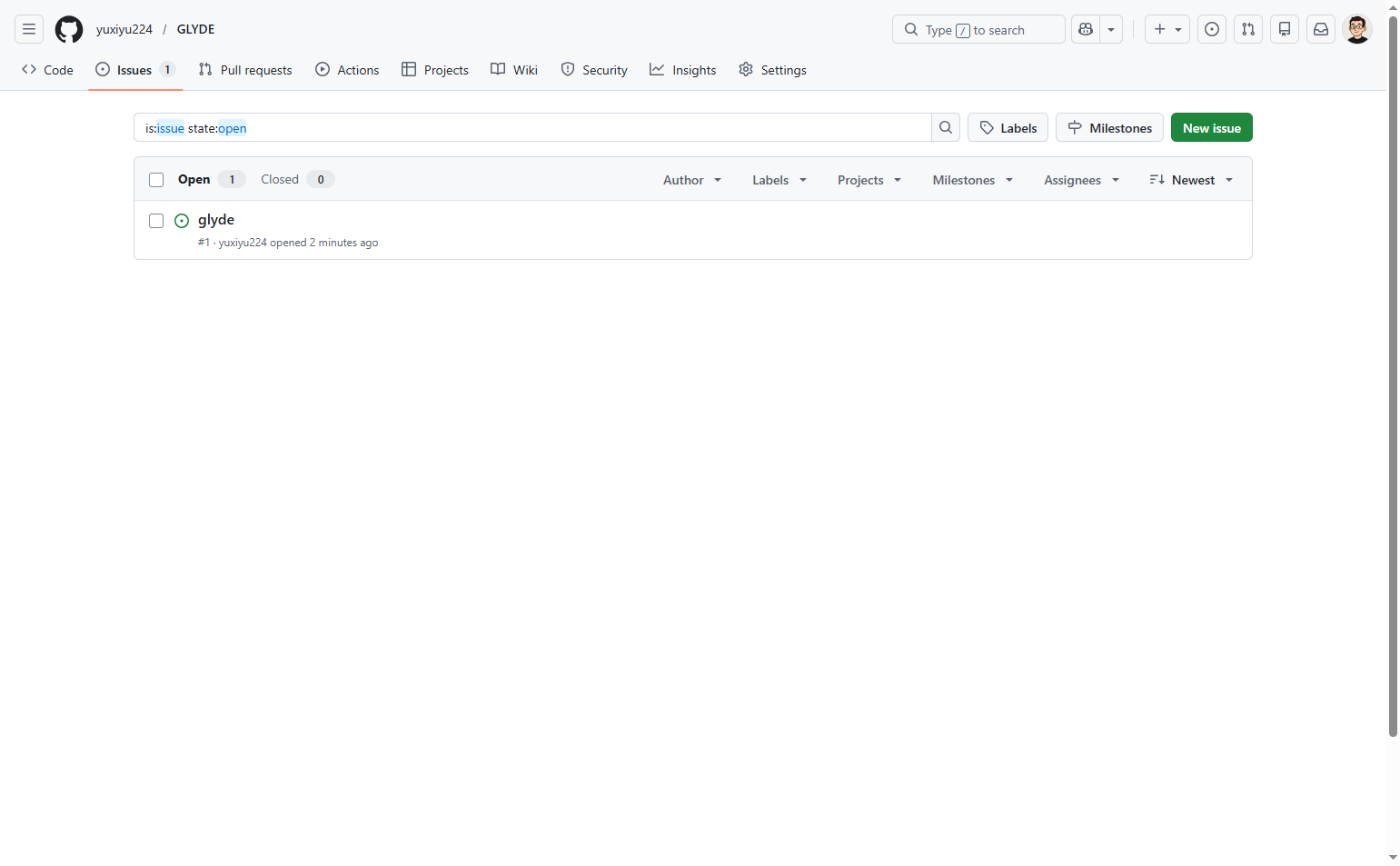
Navigate to the repository issues page
Open the repository issues page
Navigate to github.com and ensure you are viewing the Issues tab of the target repository.
- Step 2 of 6
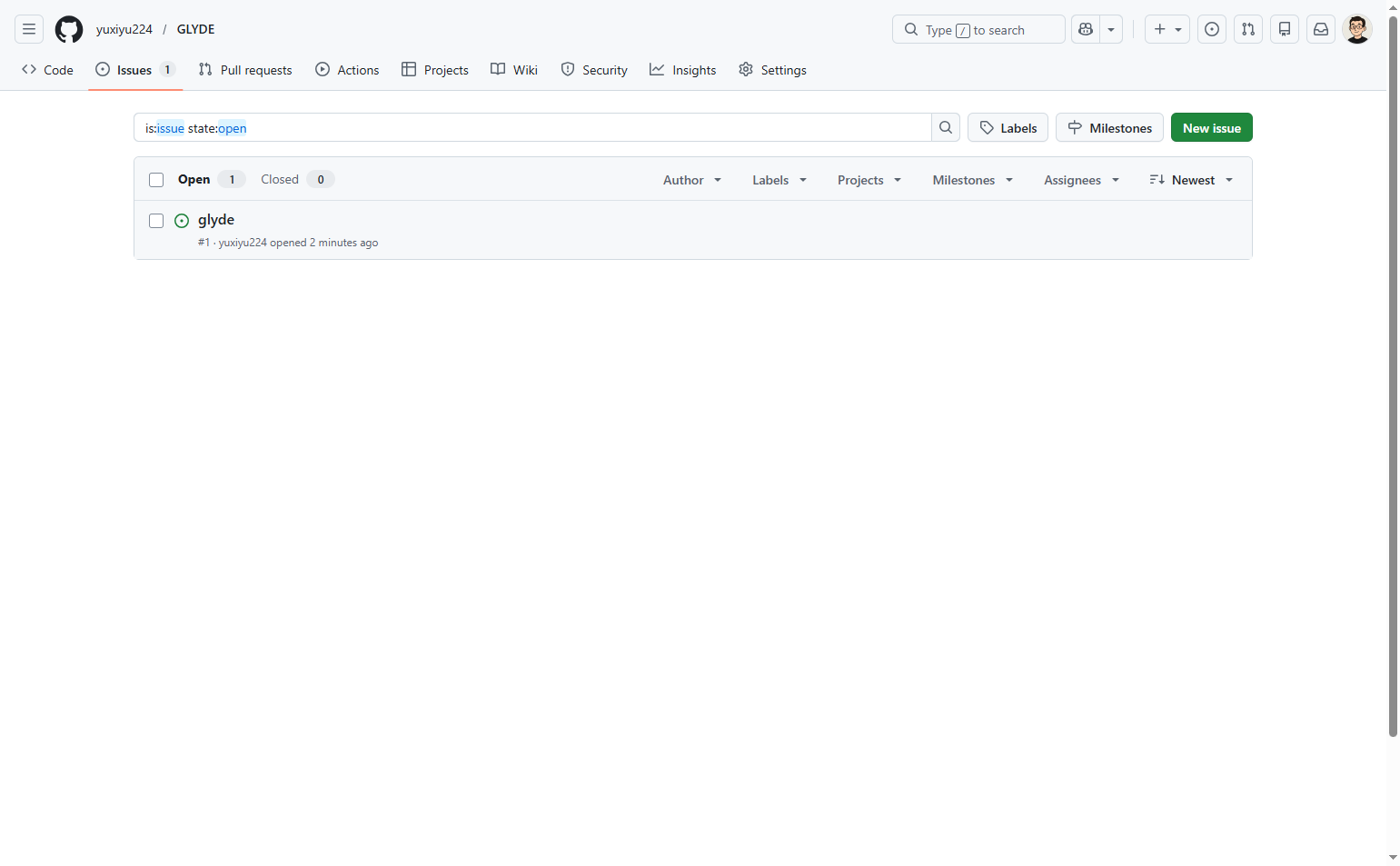
Select the issue to manage
Click the issue title to open the issue detail page
Click on the issue title in the issues list to open the detailed issue view. This will display the issue page with all management options in the right sidebar.
- Step 3 of 6
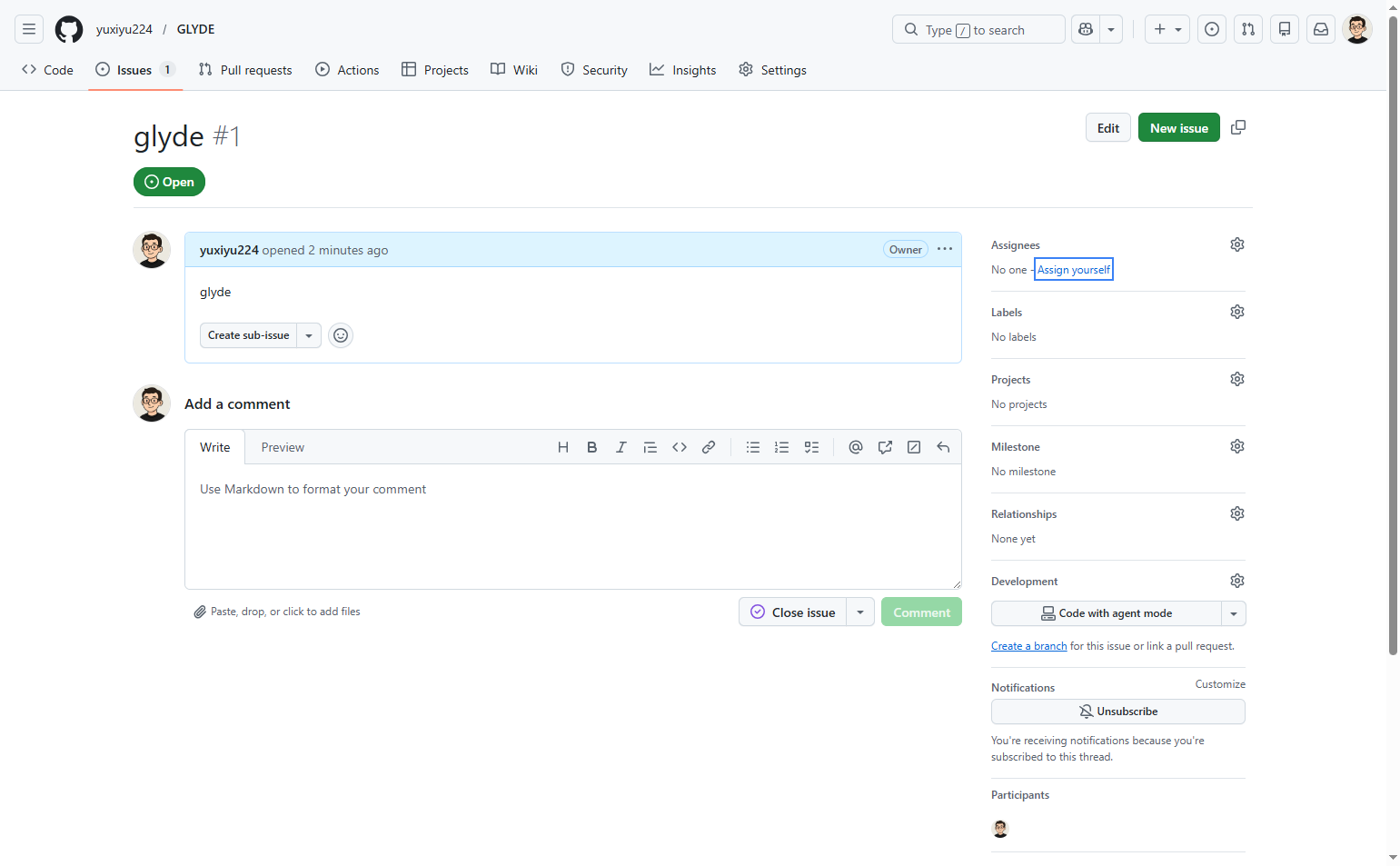
Assign the issue to yourself
Click the Assign yourself button in the right sidebar
In the right sidebar, locate the Assignees section. Click the Assign yourself button to take ownership of the issue.
- Step 4 of 6
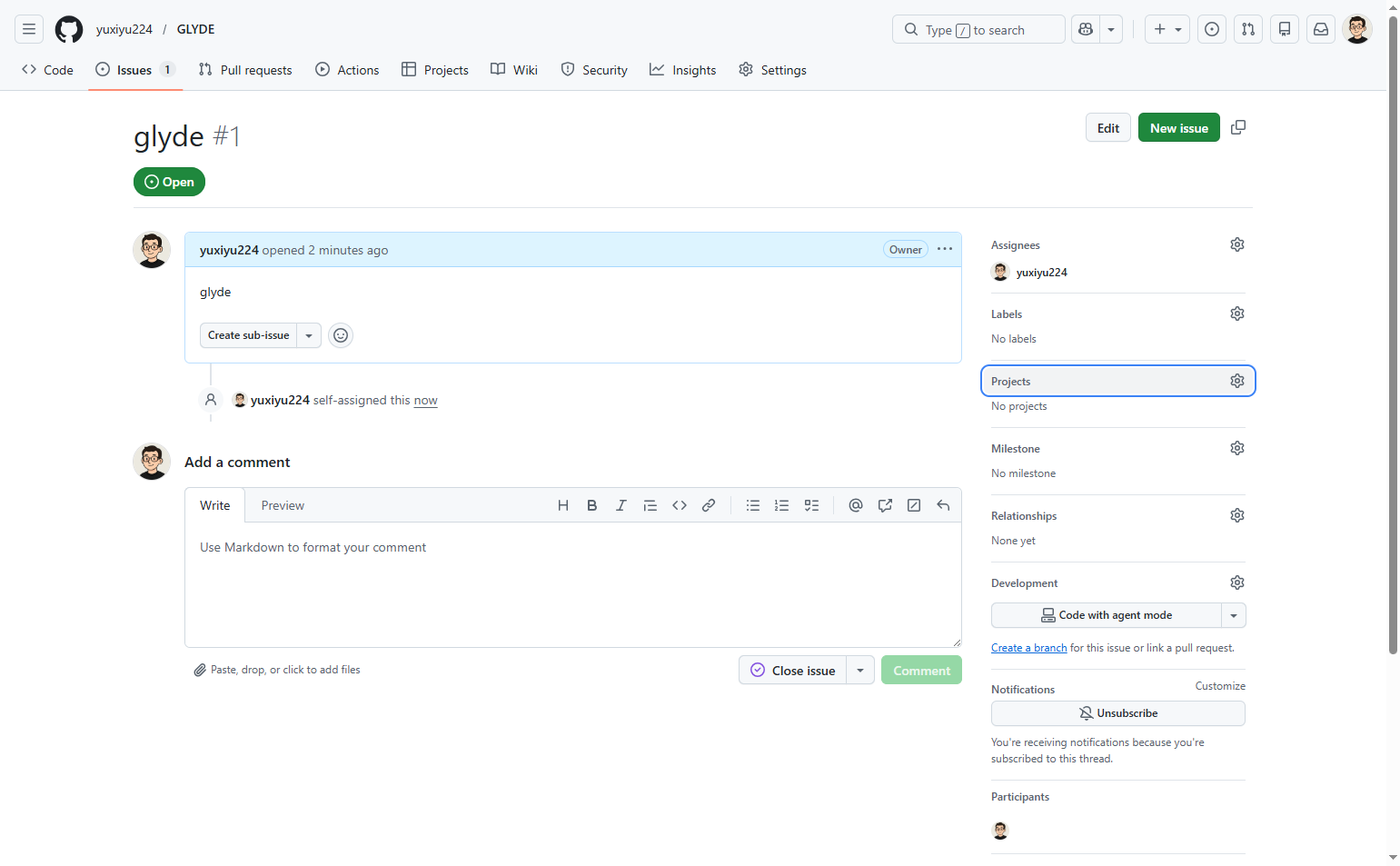
Open the Projects selection dropdown
Click Edit Projects in the right sidebar
In the right sidebar, locate the Projects section. Click Edit Projects to open the project selection dropdown.
- Step 5 of 6
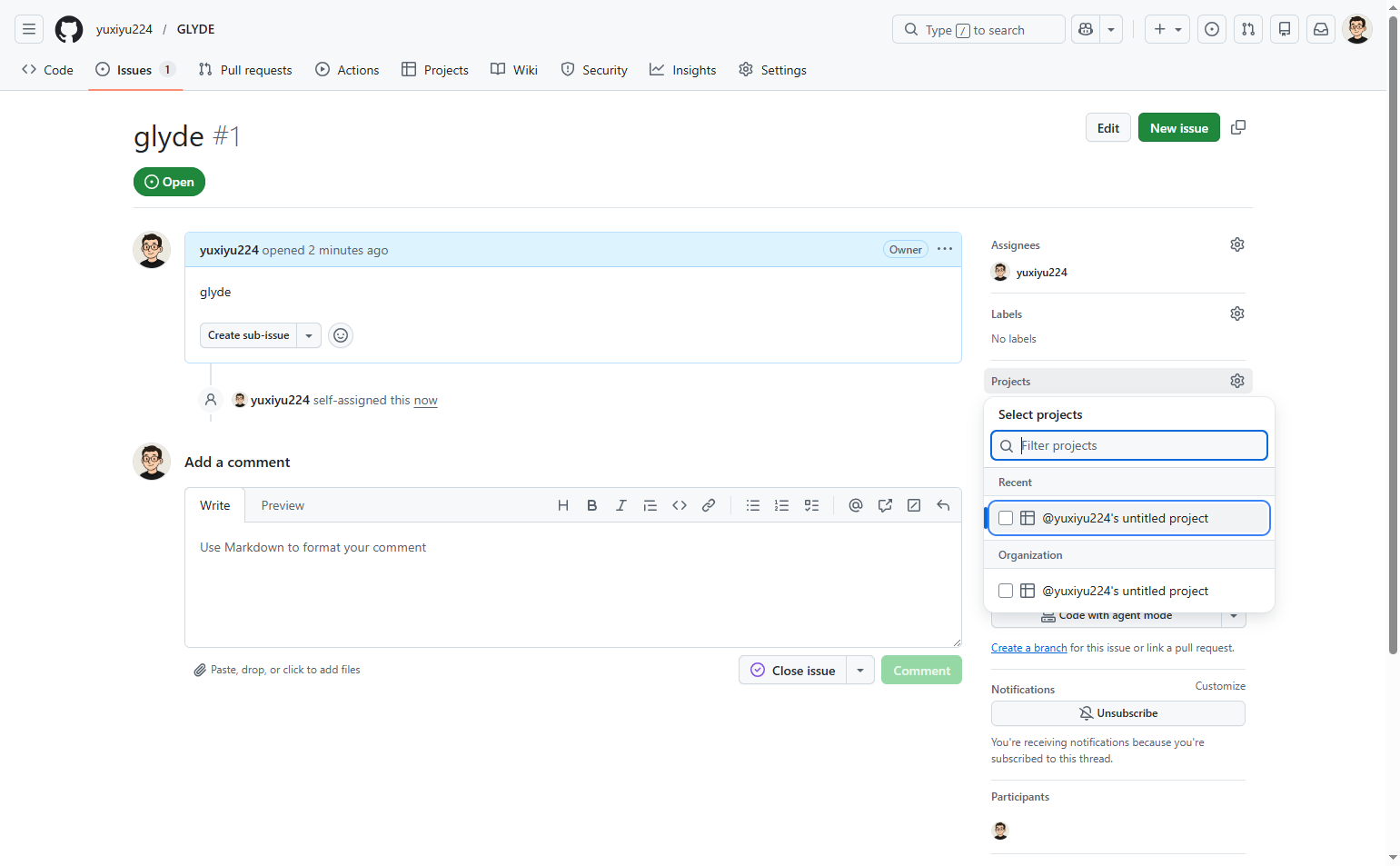
Select the target project
Click the project name to add the issue to the project board
From the dropdown menu, select the project board where you want to track this issue. The dropdown will display available projects including:
- Step 6 of 6
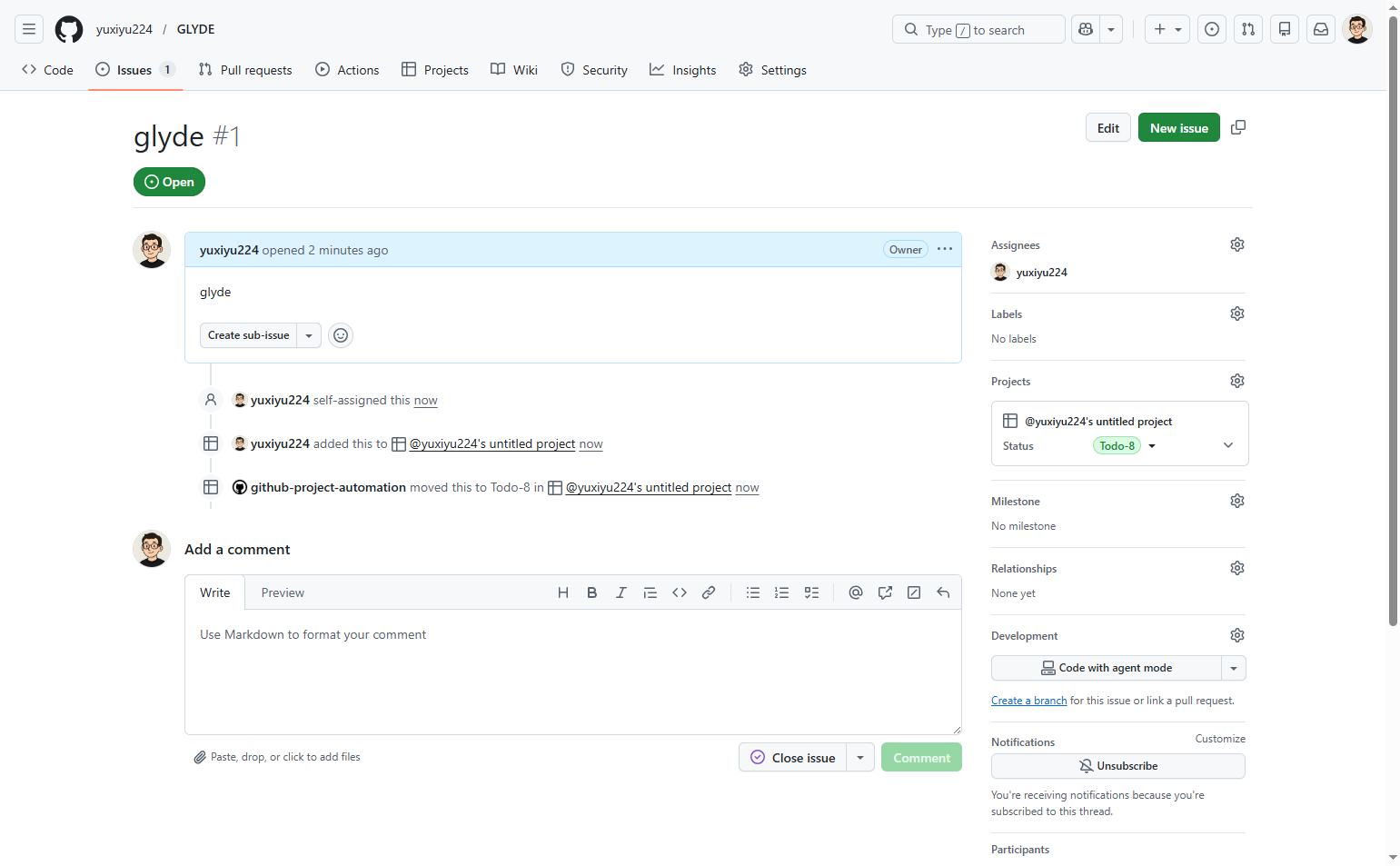
Confirm the assignment and project association
Review the right sidebar to verify the issue assignment
Verify that the right sidebar now shows:
Verification
Confirm the issue has been successfully configured:
Your avatar appears in the Assignees section of the issue page.
The selected project appears in the Projects section with the current status.
The issue appears in the project board view when you navigate to the Projects tab.
Conclusion
You have successfully assigned the GitHub issue to yourself and added it to a project board. The issue is now tracked in your workflow and visible in the project's task management view.