

Purpose
This SOP describes how to create a new portfolio in Asana, add projects to it, and update the project status report with summary information and next steps.
Scope
This procedure is intended for project managers, team leads, and any team members responsible for tracking and reporting project progress across multiple initiatives. Use this SOP when creating a new portfolio to monitor related projects or when updating stakeholders on project status.
Prerequisites
Active Asana account with access to the workspace
At least one existing project to add to the portfolio
Permission to create portfolios and update project status
Procedure
- Step 1 of 15
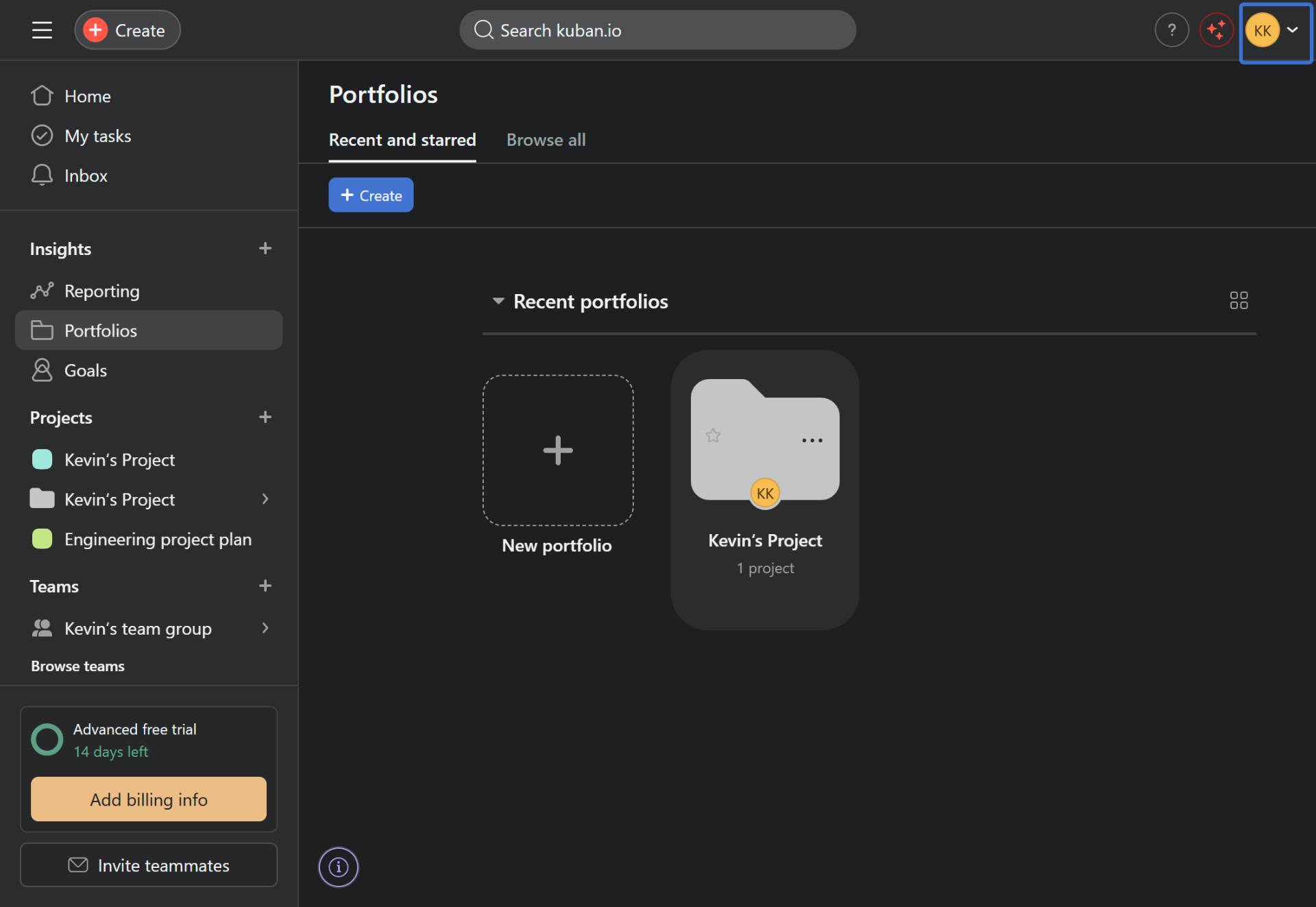
Navigate to Asana Portfolios
Open the Portfolios section in Asana
Navigate to app.asana.com and sign in to your Asana account.
- Step 2 of 15
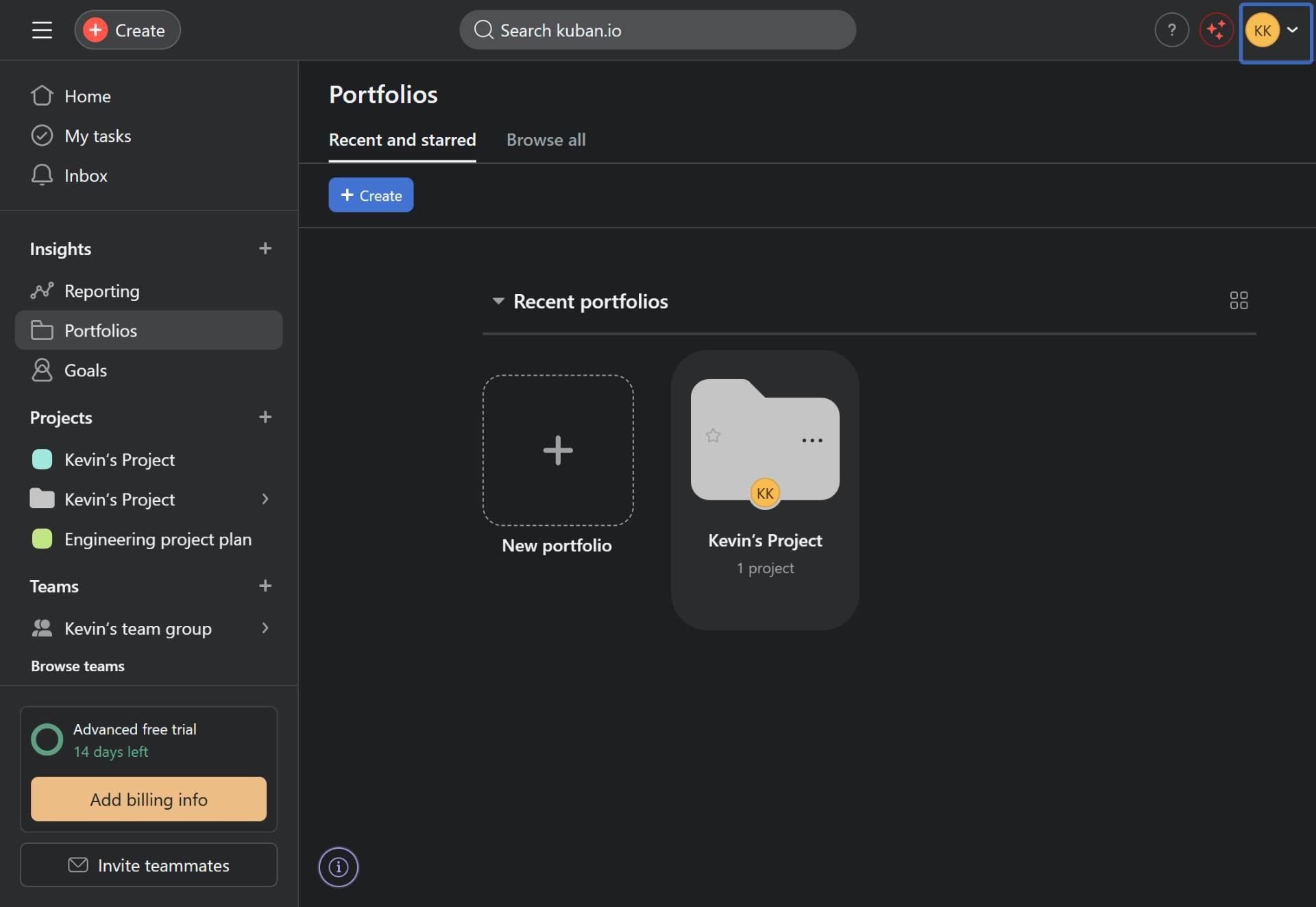
Create a new portfolio
Click the New portfolio button
On the Portfolios page, click the New portfolio tile (the card with a plus icon) to start creating a new portfolio.
- Step 3 of 15
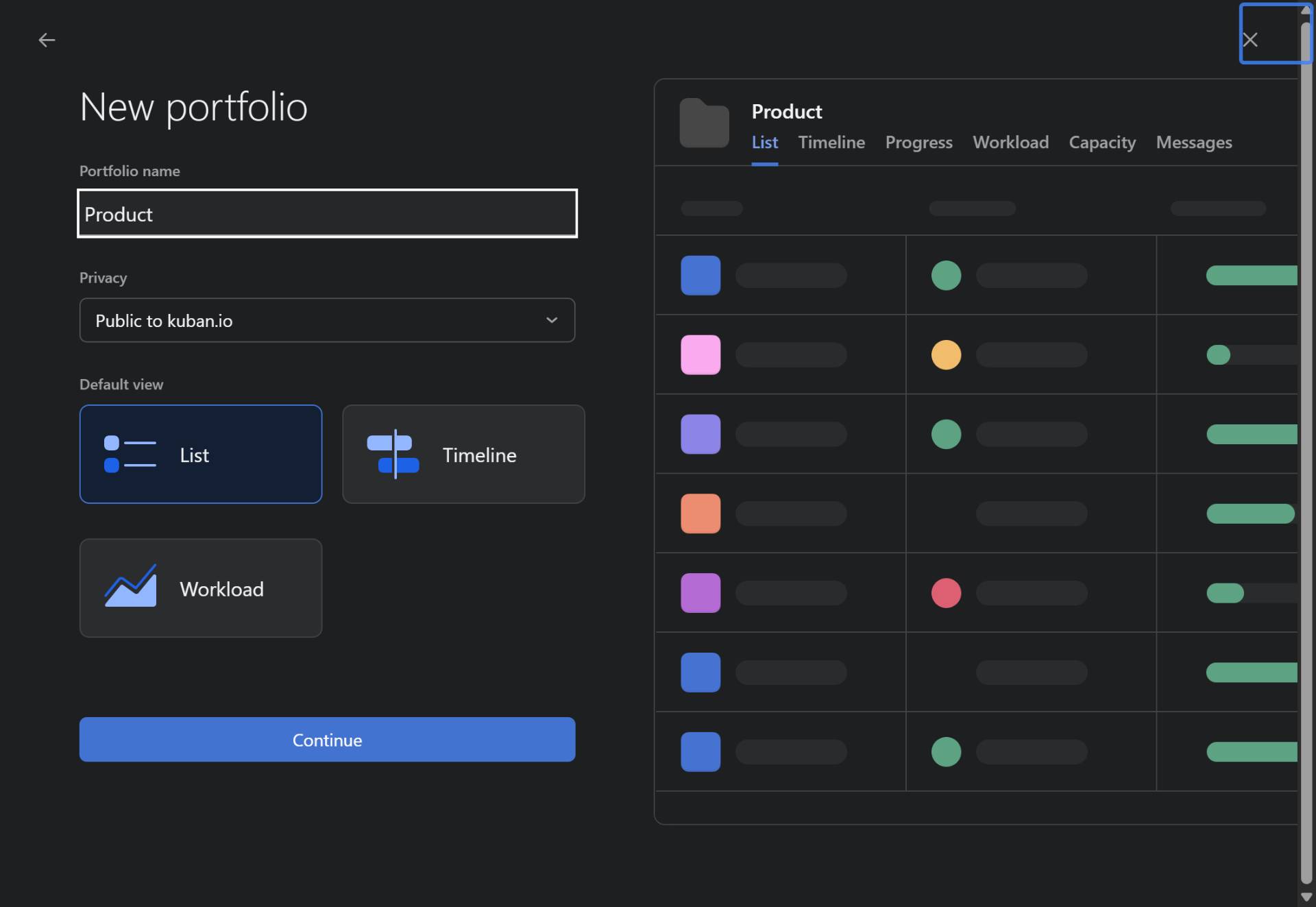
Enter portfolio name
Type the portfolio name
In the Portfolio name field, enter a descriptive name for your portfolio (for example, Product).
- Step 4 of 15
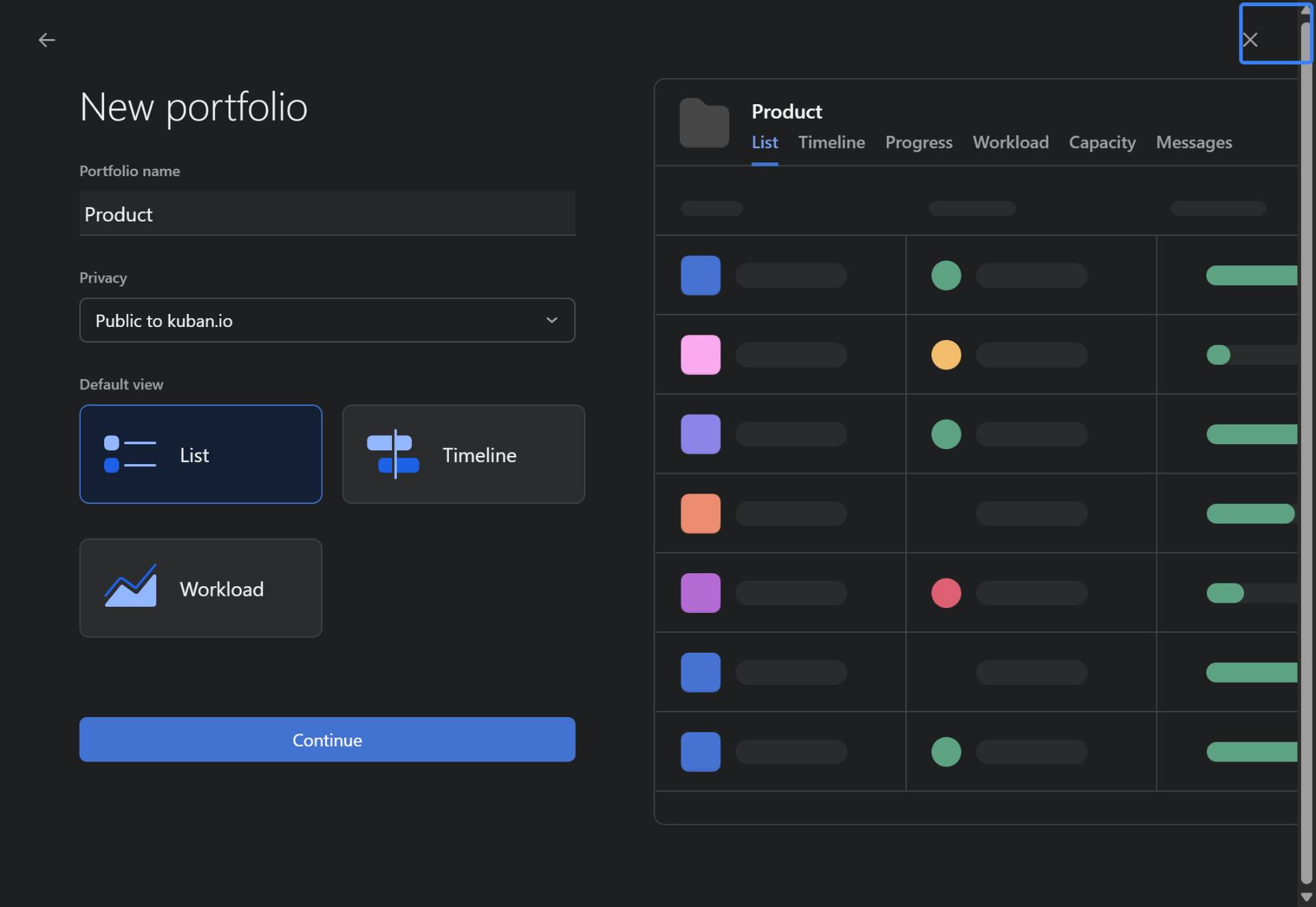
Continue to create the portfolio
Click the Continue button
Click the Continue button to proceed with creating the portfolio.
- Step 5 of 15
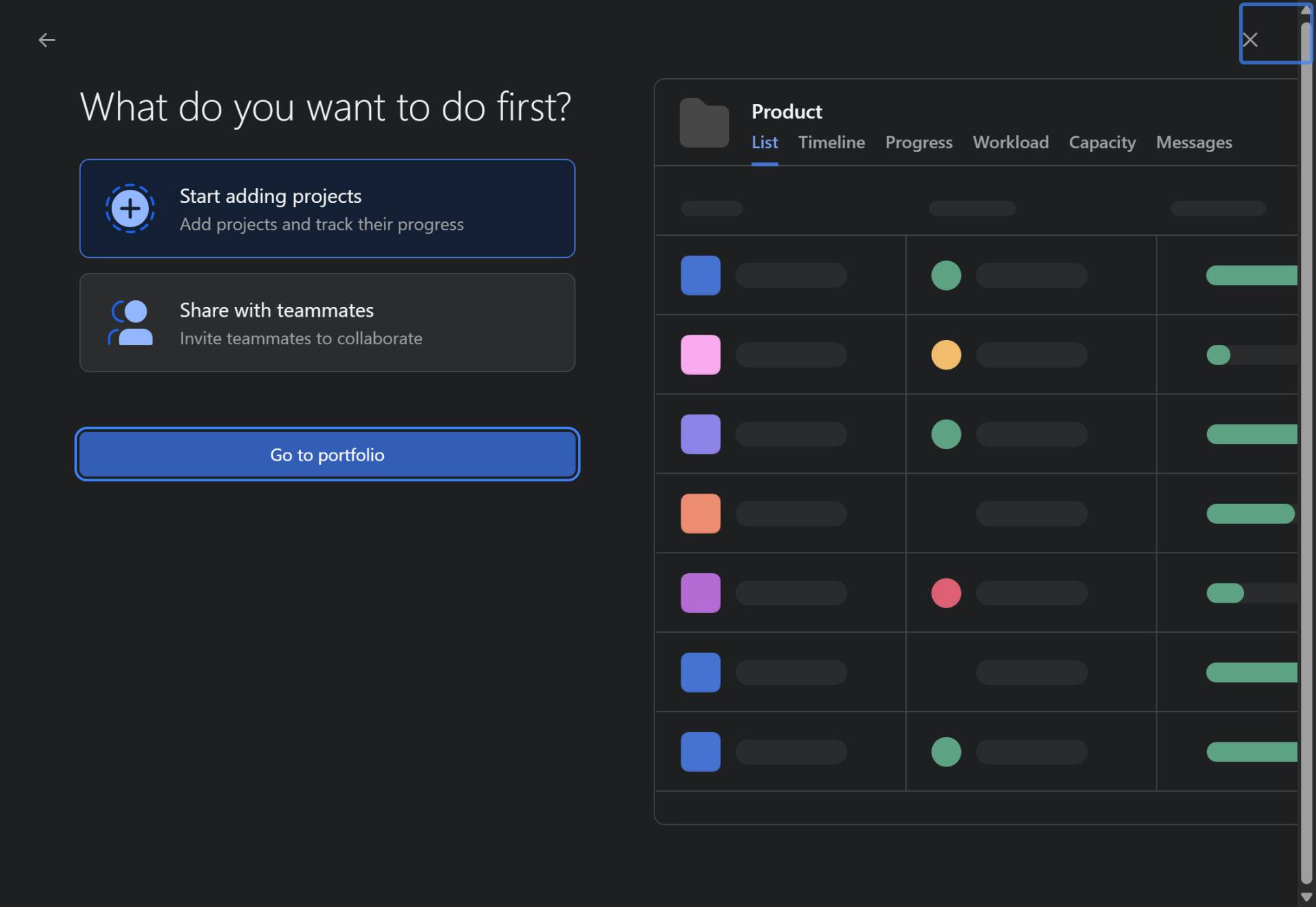
Go to the portfolio
Click Go to portfolio
After the portfolio is created, you will see options to either Start adding projects or Share with teammates.
- Step 6 of 15
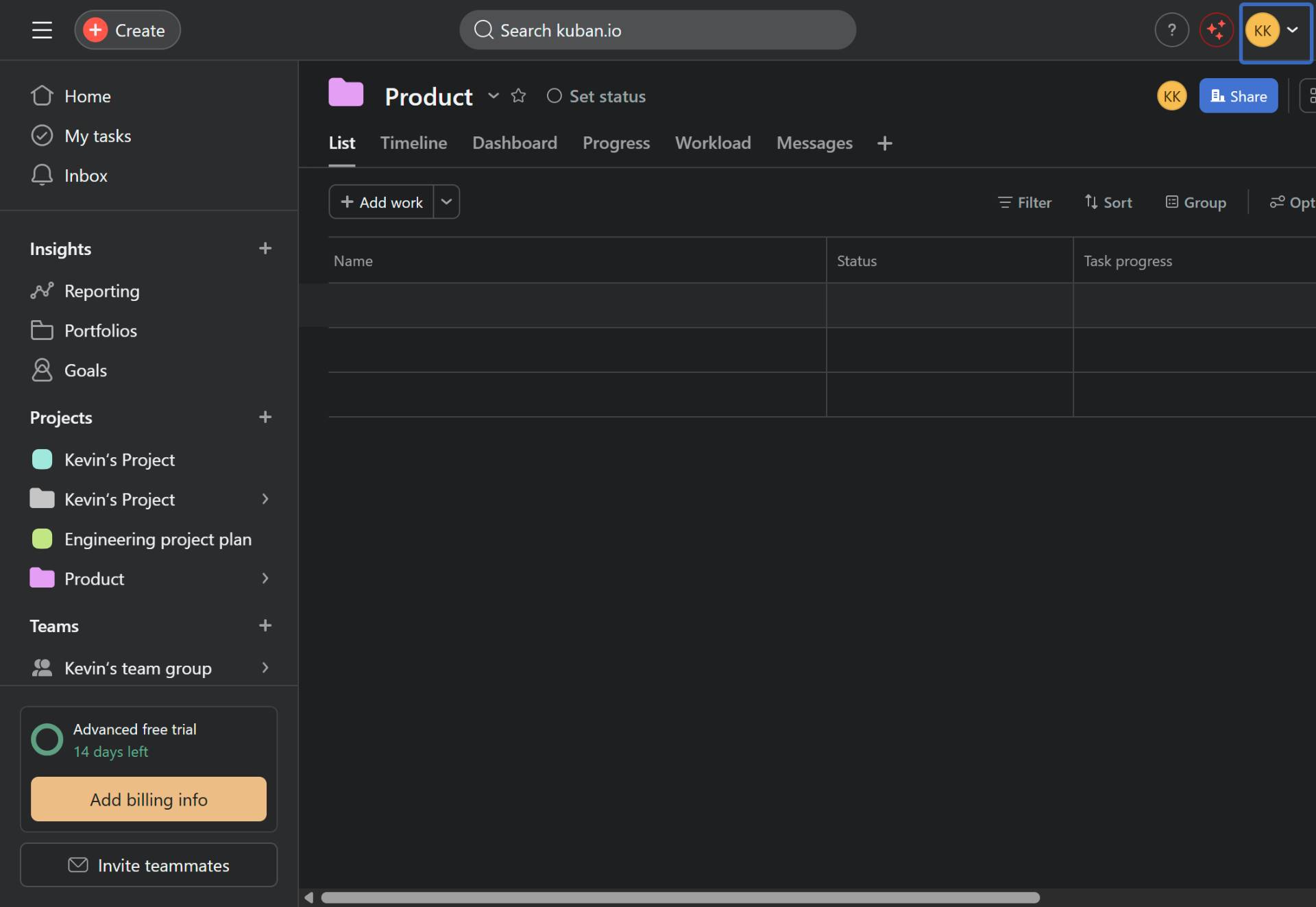
Add work to the portfolio
Click the Add work button
In your portfolio, click the Add work button to begin adding projects.
- Step 7 of 15
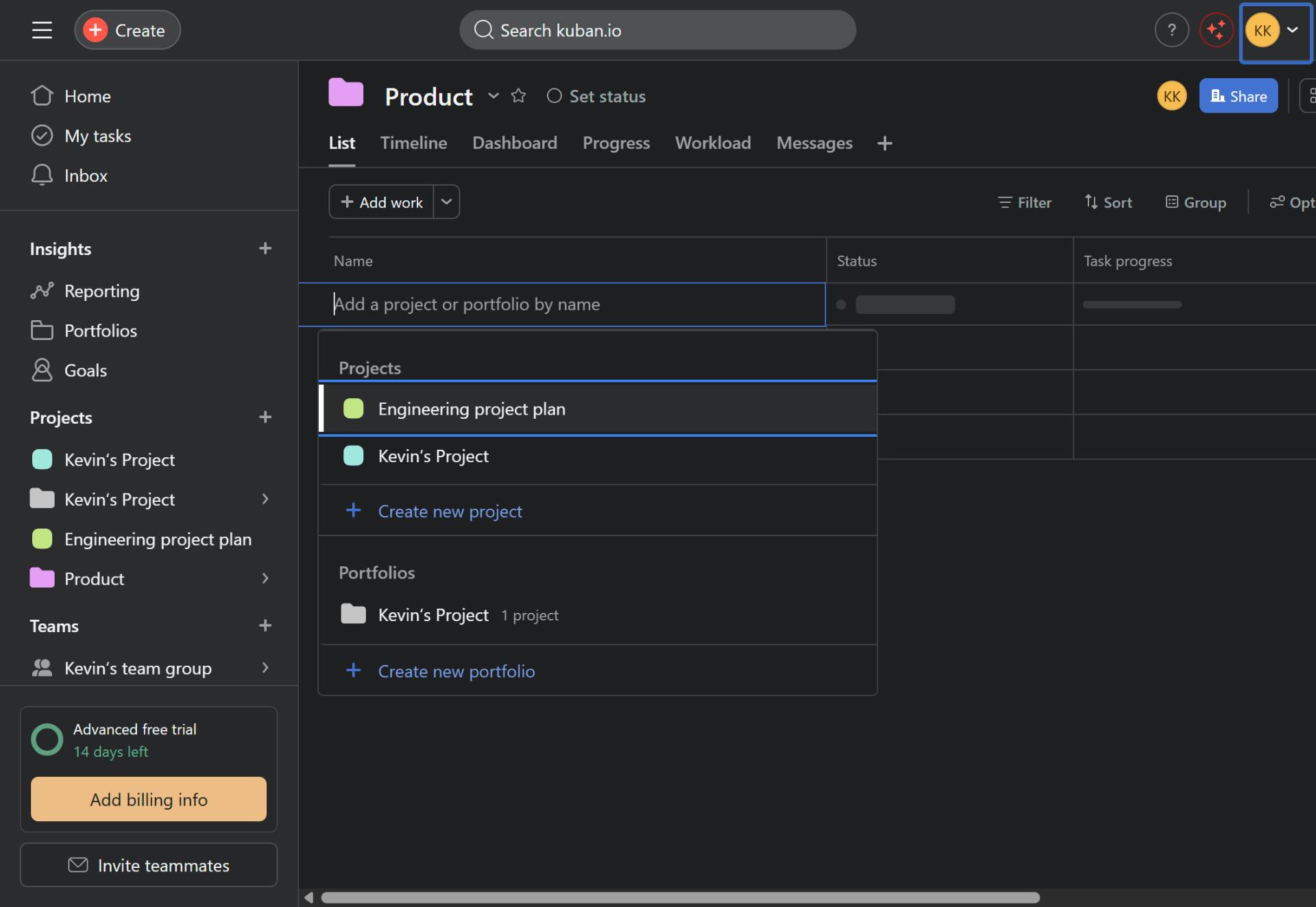
Select a project to add
Select the project from the dropdown
From the dropdown list, click on the project you want to add to the portfolio (for example, Engineering project plan).
- Step 8 of 15
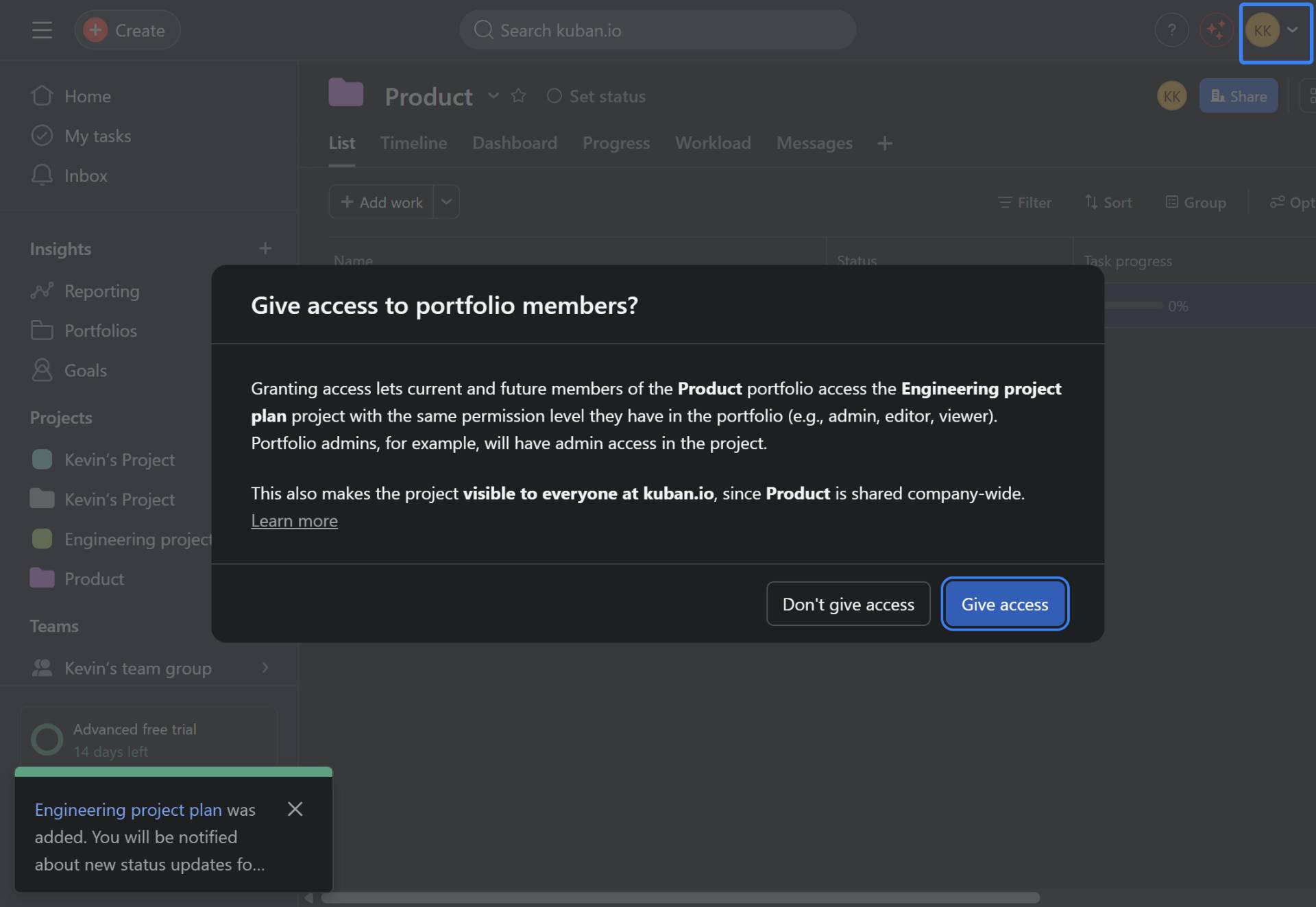
Grant access to portfolio members
Click Give access to grant permissions
A dialog will appear asking if you want to give portfolio members access to the project. This allows current and future members of the portfolio to access the added project with the same permission level they have in the portfolio.
- Step 9 of 15
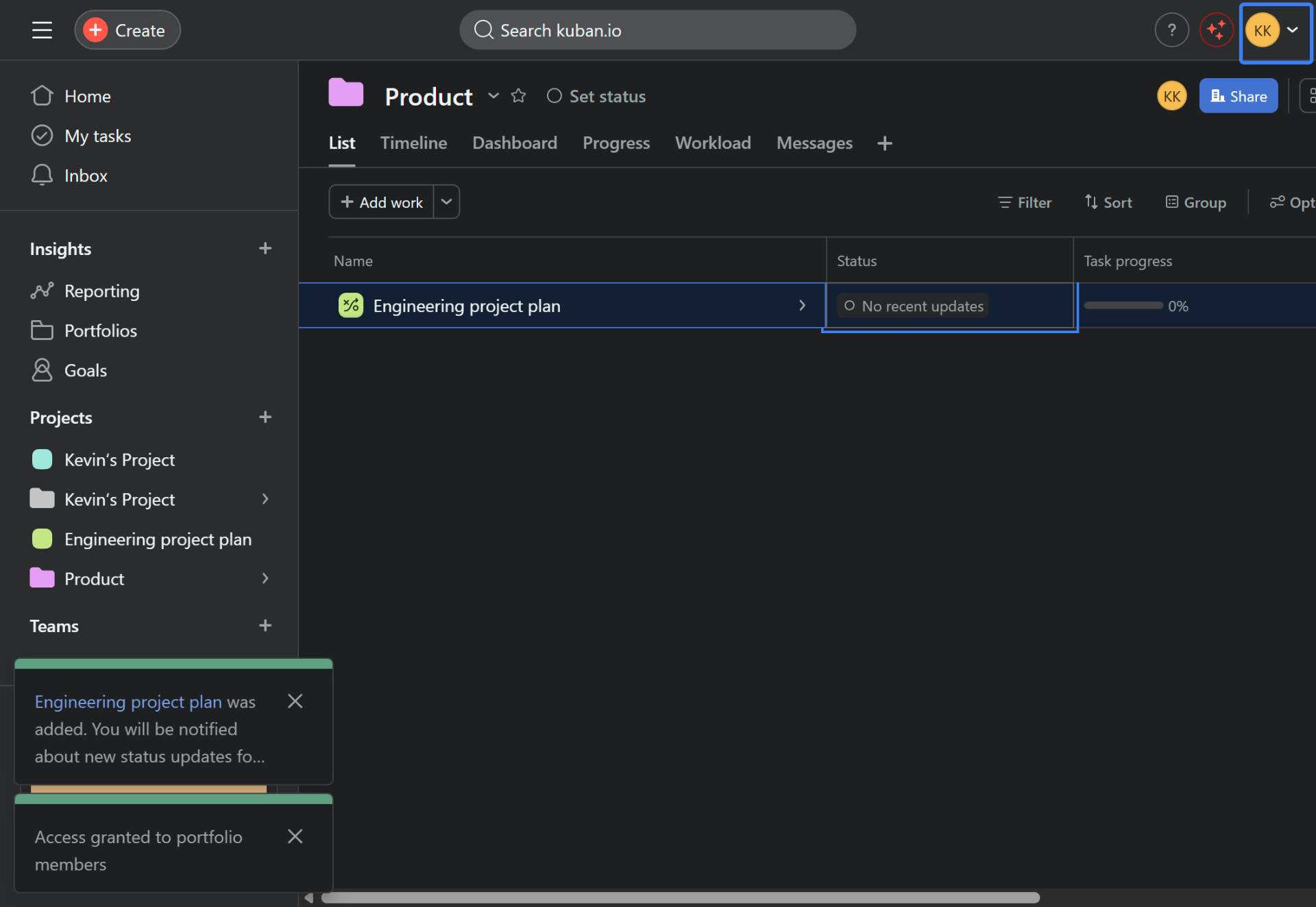
Click on the project status area
Click No recent updates to update status
Once the project is added to your portfolio, click on the No recent updates text in the Status column for the project.
- Step 10 of 15
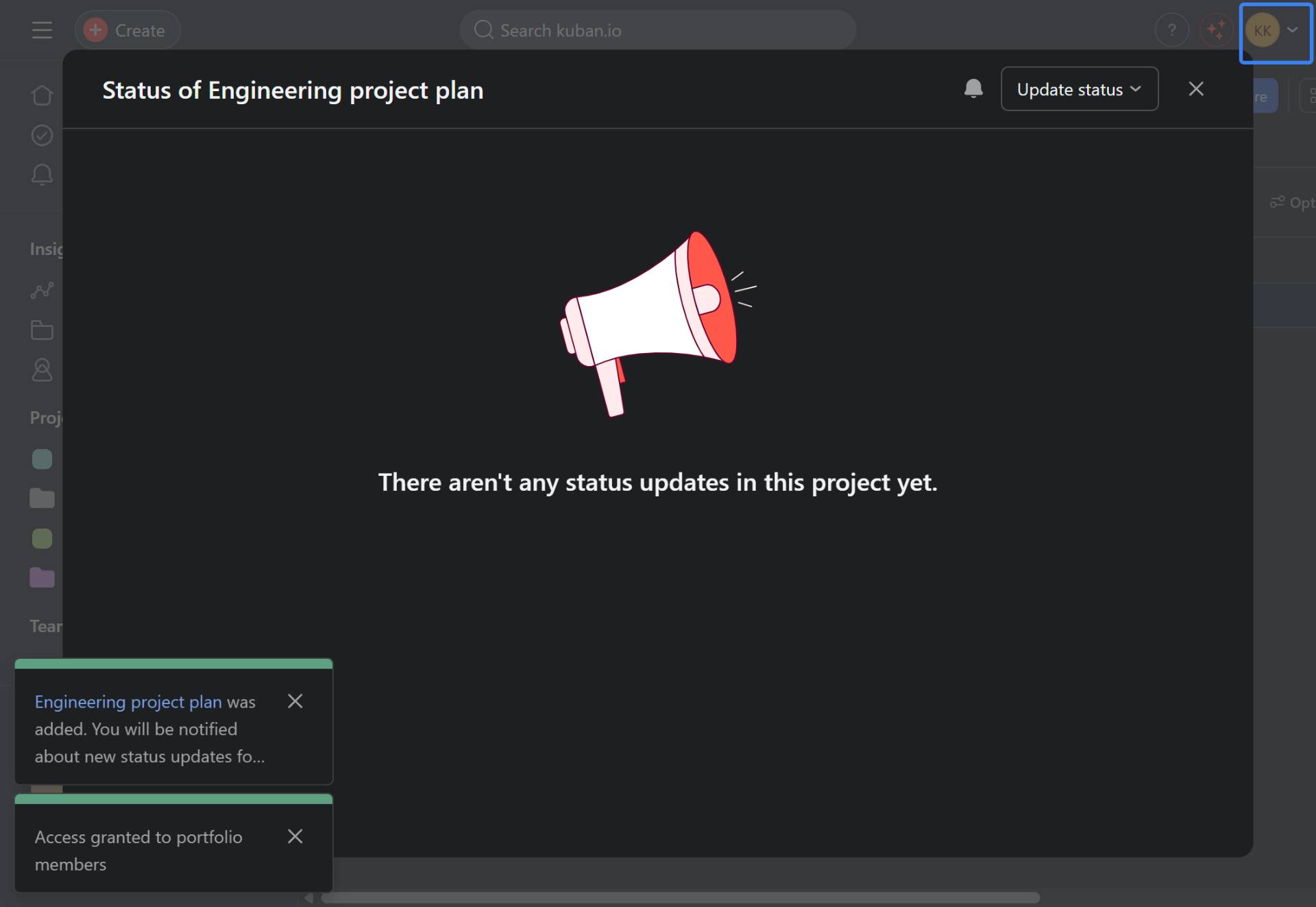
Open the status update dialog
Click Update status
Click the Update status button to begin creating a status update.
- Step 11 of 15
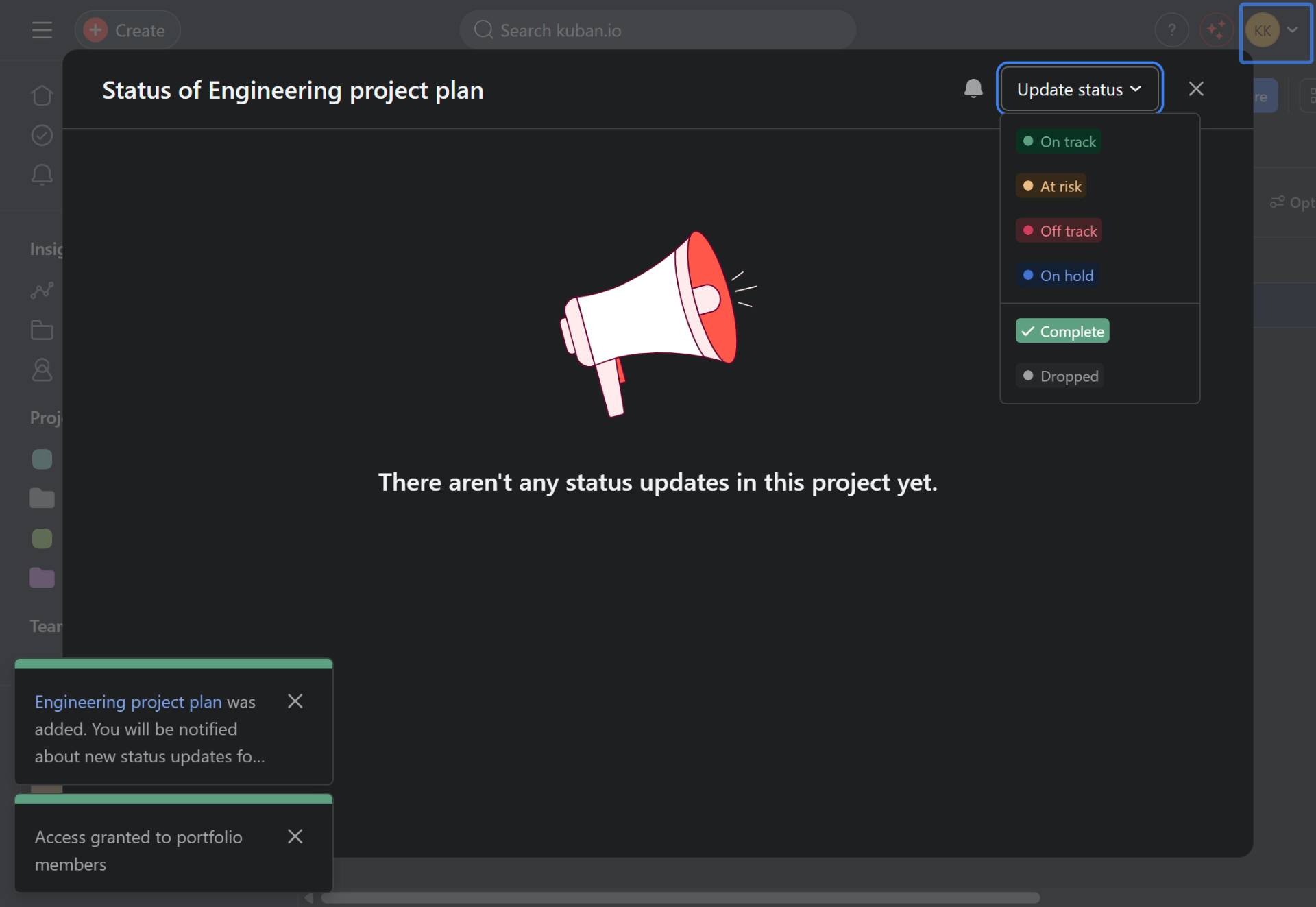
Select the project status
Choose a status from the dropdown
Click on the status dropdown to reveal the available status options:
- Step 12 of 15
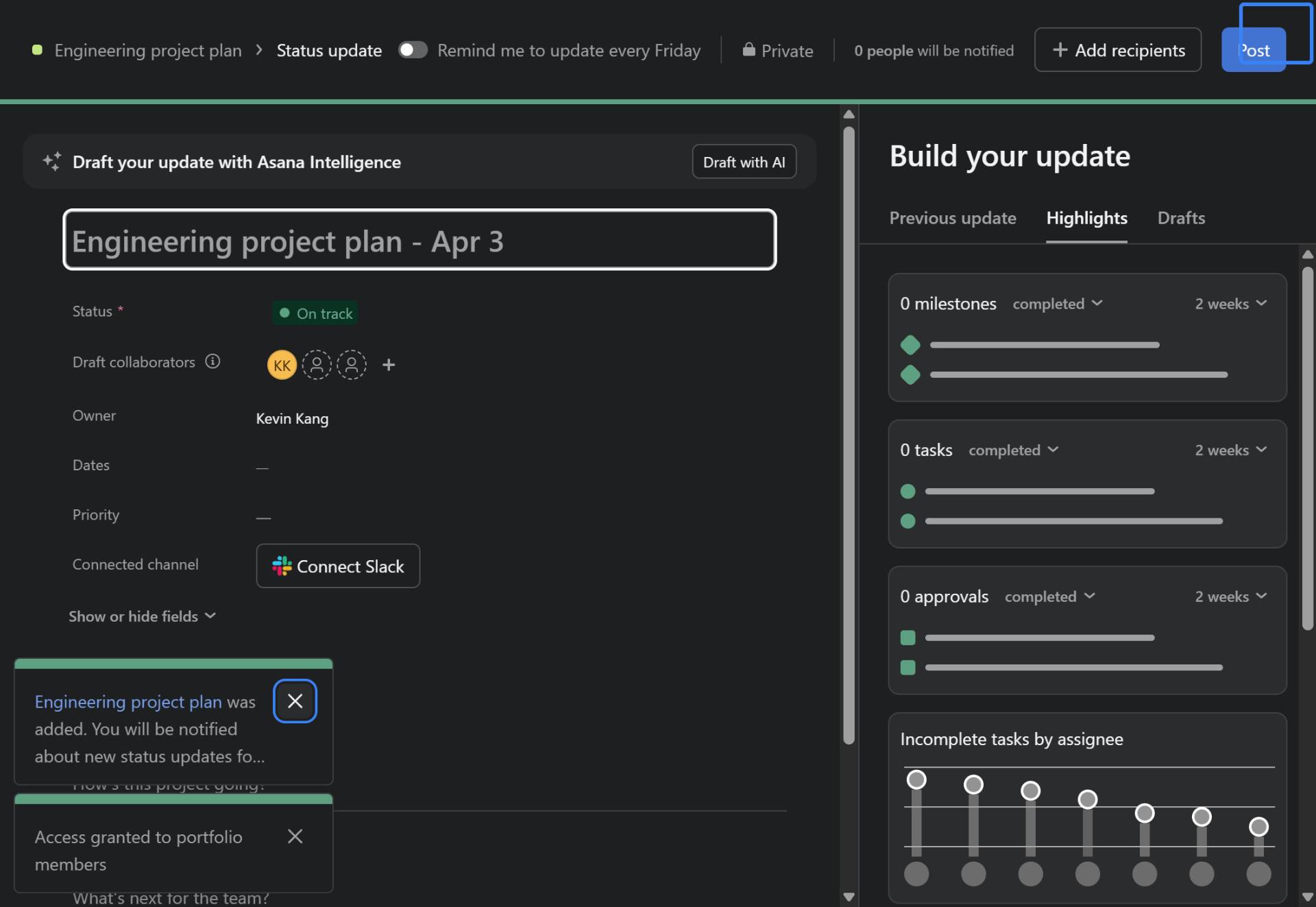
Close the status dialog and open the editor
Close the initial dialog to access the full editor
Click Close on the status dialog to proceed to the full status update editor.
- Step 13 of 15
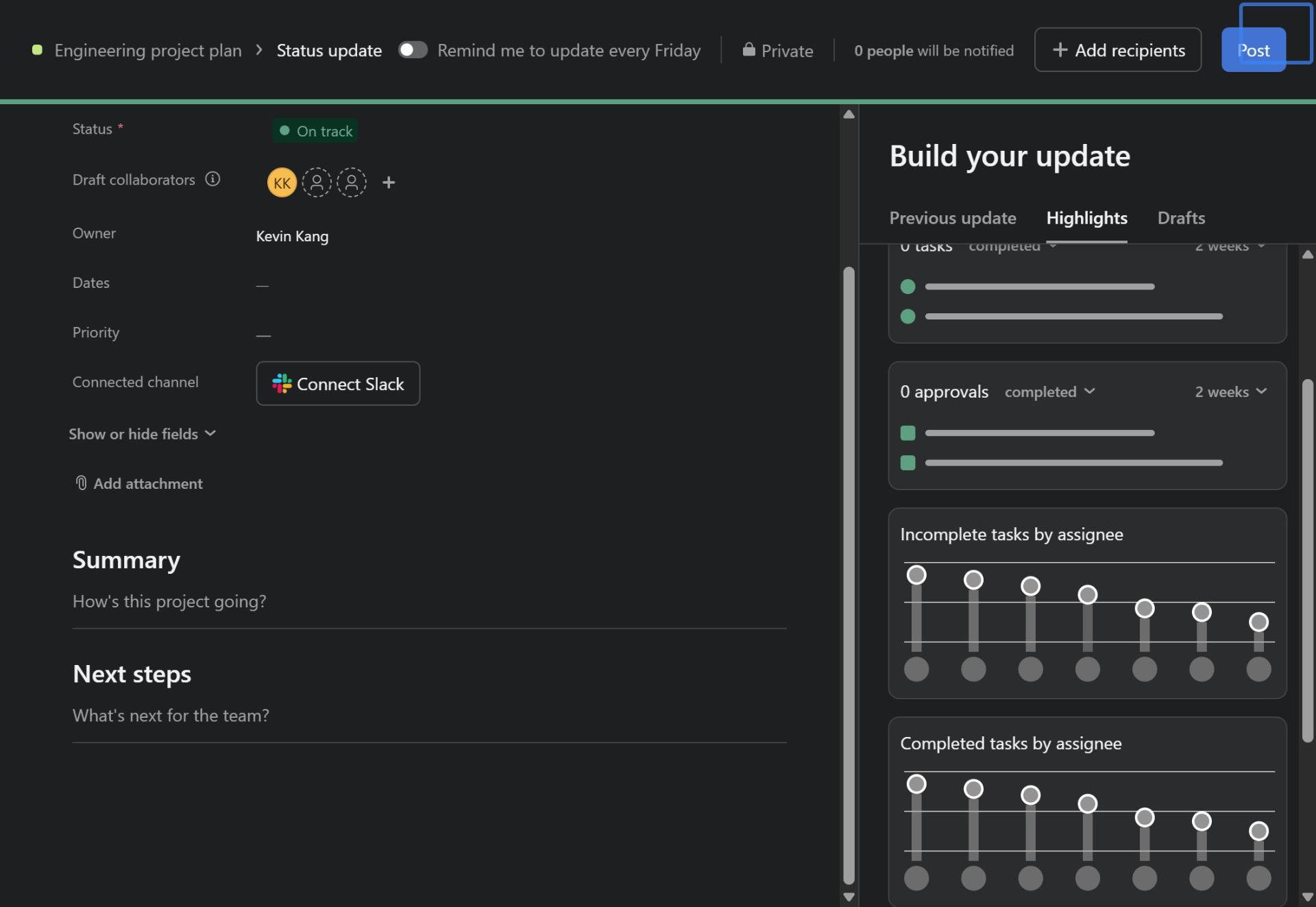
Edit the status report details
Click on the Summary section to add content
Click on the status report editor area to expand the editable sections. You will see fields for Summary and Next steps.
- Step 14 of 15
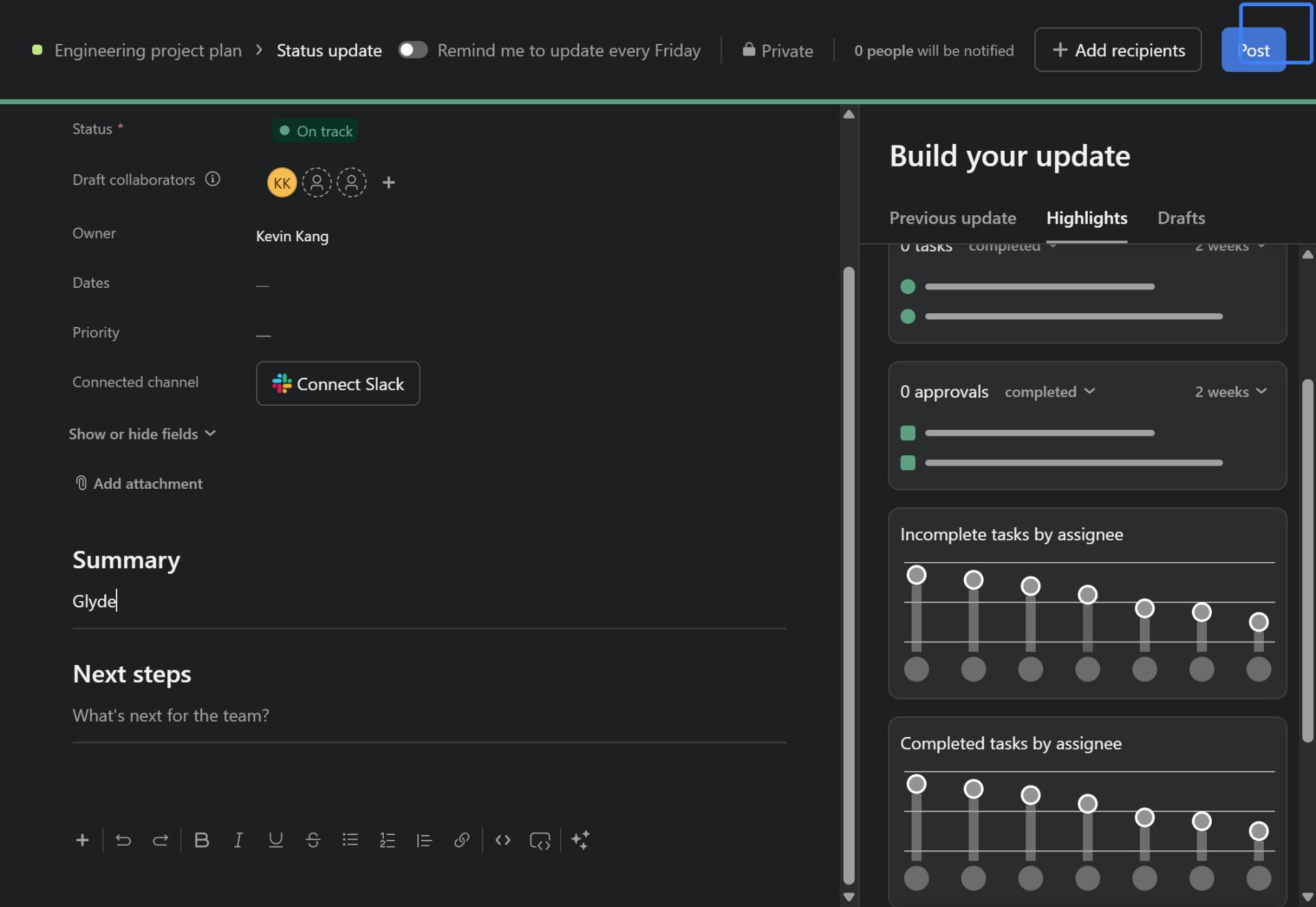
Add summary information
Enter text in the Summary field
Click in the Summary section under How's this project going? and enter a brief summary of the current project status.
- Step 15 of 15
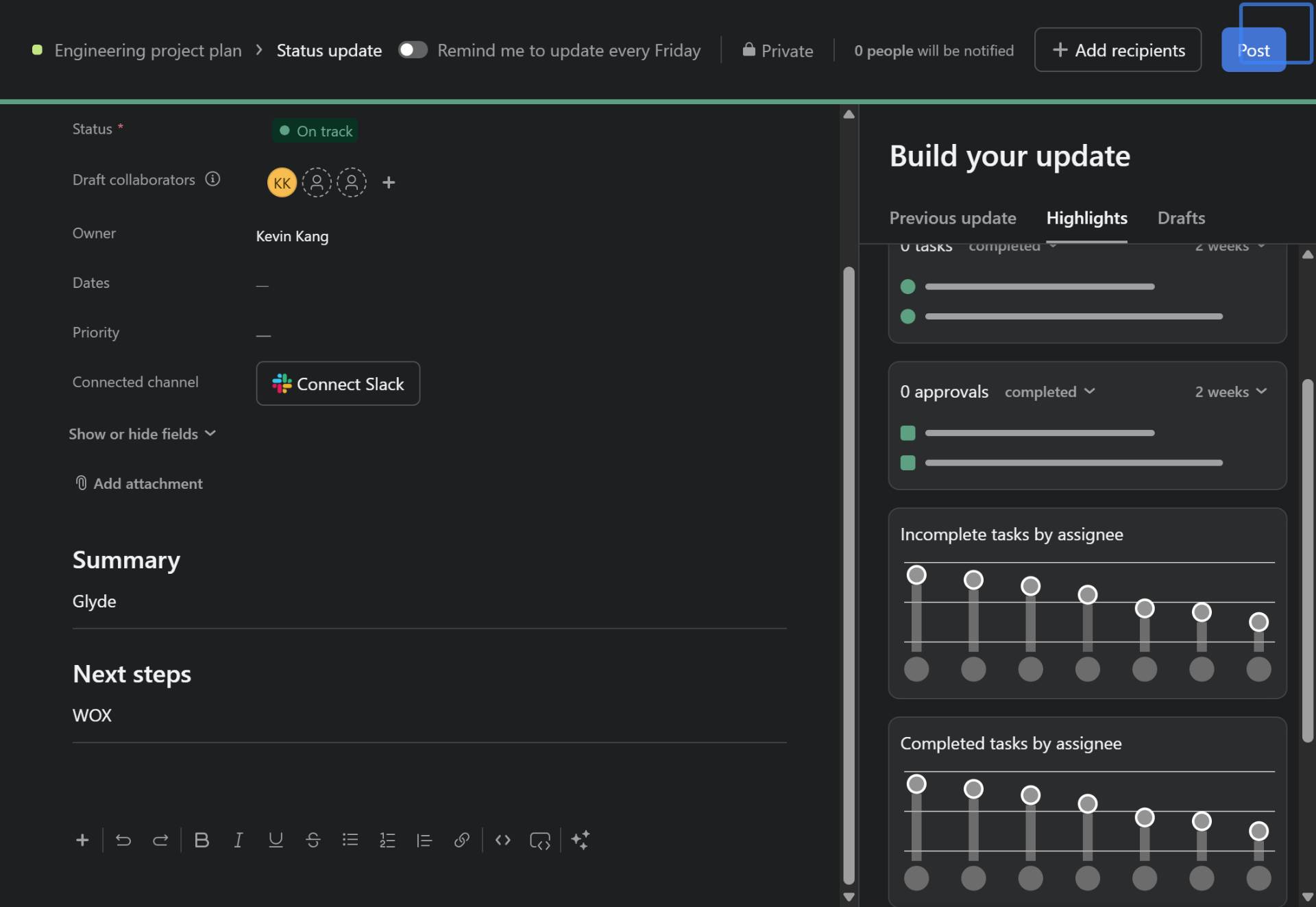
Add next steps
Enter text in the Next steps field
Click in the Next steps section under What's next for the team? and enter the planned upcoming actions or milestones.
Verification
To confirm the procedure was completed successfully:
Navigate back to the Portfolios page and verify your new portfolio appears in the list.
Open the portfolio and confirm the added project is visible with the correct status indicator.
Click on the project status to verify your summary and next steps were saved.
Conclusion
You have successfully created a new portfolio in Asana, added a project to it, and updated the project status report with summary information and next steps. Stakeholders can now view this portfolio to track project progress and stay informed about status updates.