

Purpose
This SOP describes how to invite teammates to collaborate on a project or task view in Asana, allowing them to view, edit, and organize shared work.
Scope
This procedure is intended for Asana users who need to share project access with teammates. Follow this SOP when you need to grant others permission to collaborate on your tasks or project views.
Prerequisites
Active Asana account with login credentials
Access to the project or task view you want to share
Appropriate permissions to invite members to the workspace
Procedure
- Step 1 of 6
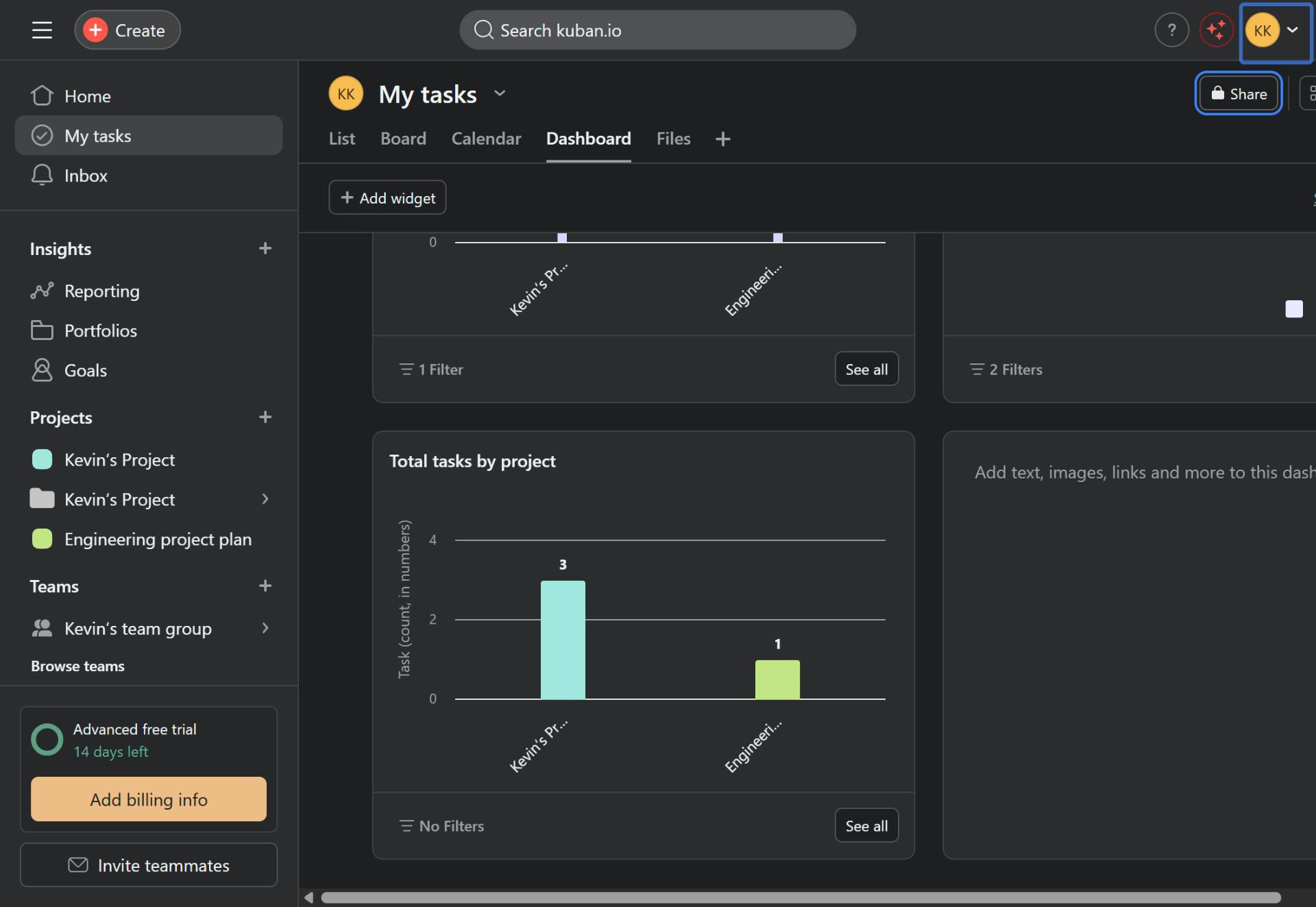
Navigate to app.asana.com
Open the Asana web application
Navigate to app.asana.com and sign in to your Asana account. Ensure you are viewing the project or task dashboard you want to share.
- Step 2 of 6
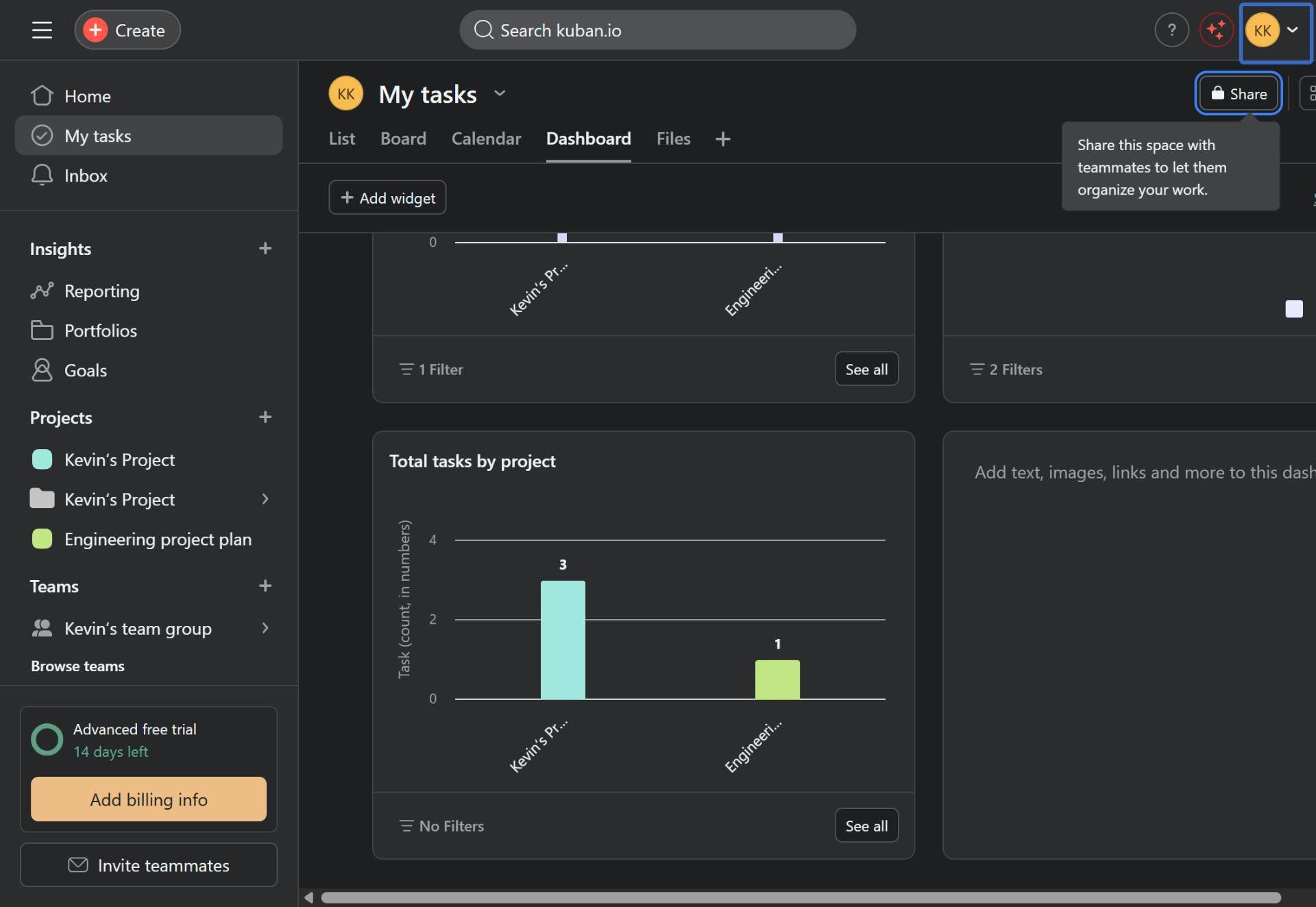
Click the Share button
Click the Share button in the top-right corner
Click the Share button located in the top-right corner of the screen. This button allows you to share the current space with teammates.
- Step 3 of 6
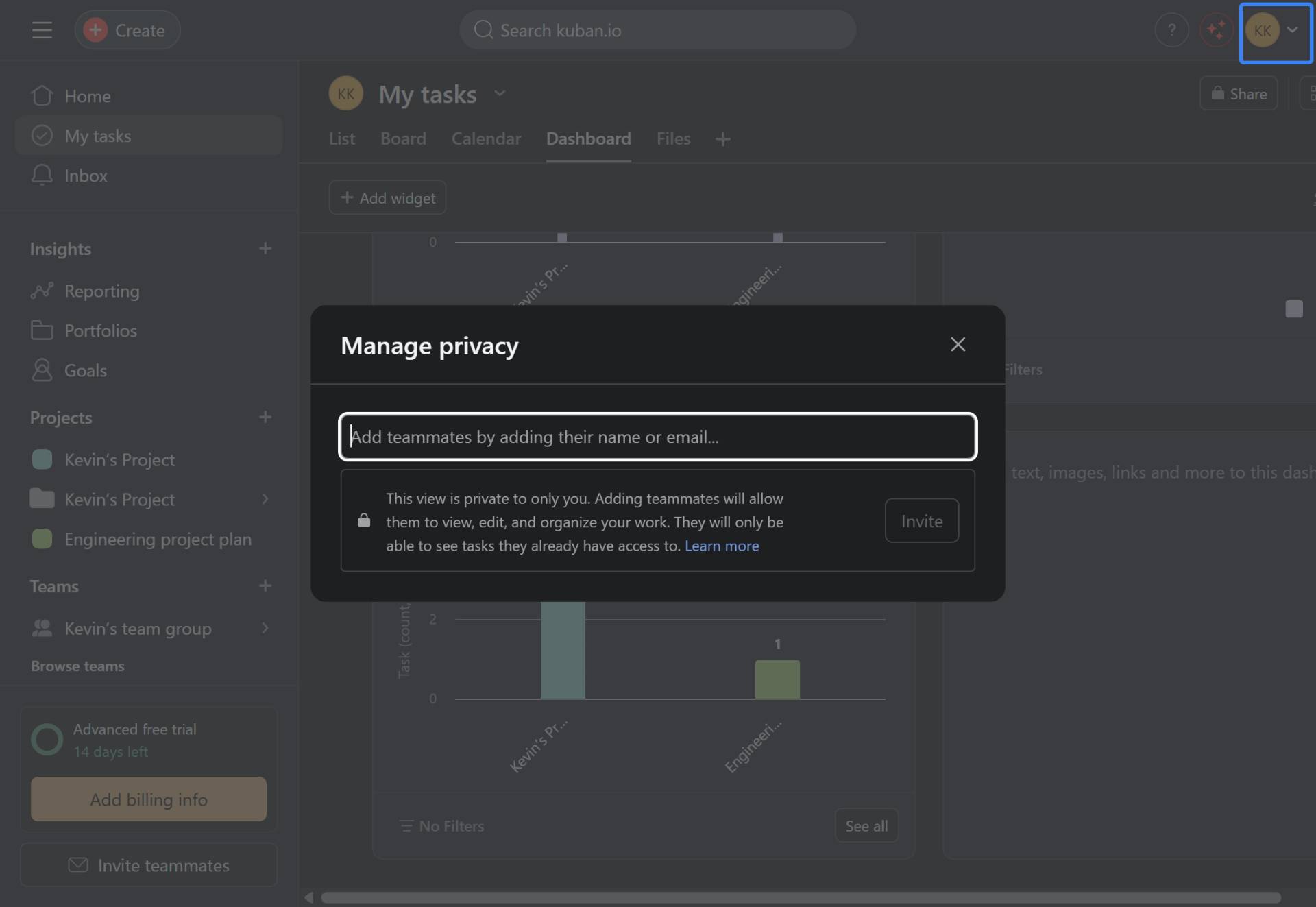
Open the privacy management dialog
Click the input field to add teammates
The Manage privacy dialog will open. Click the input field labeled Add teammates by adding their name or email... to begin adding users.
- Step 4 of 6
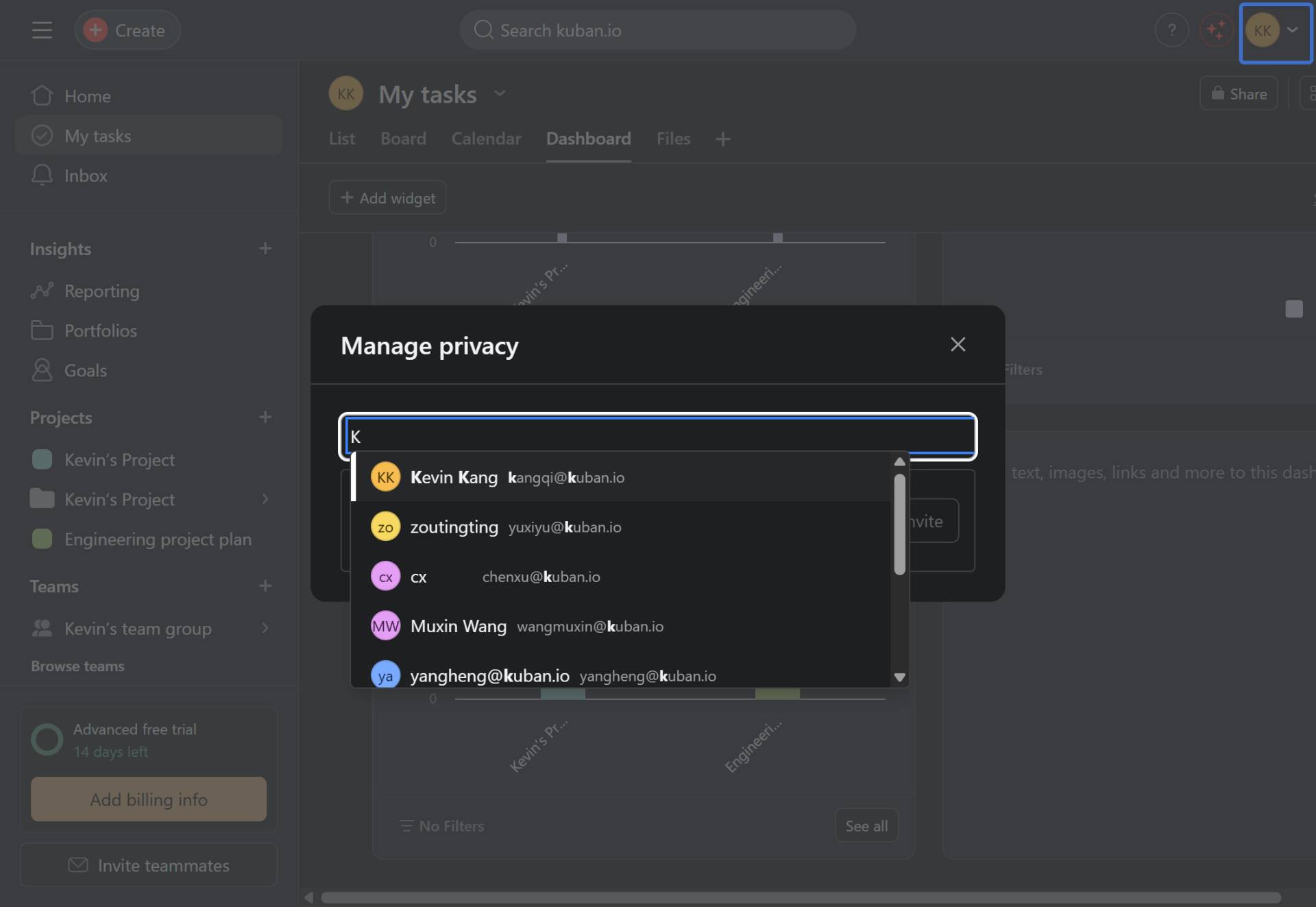
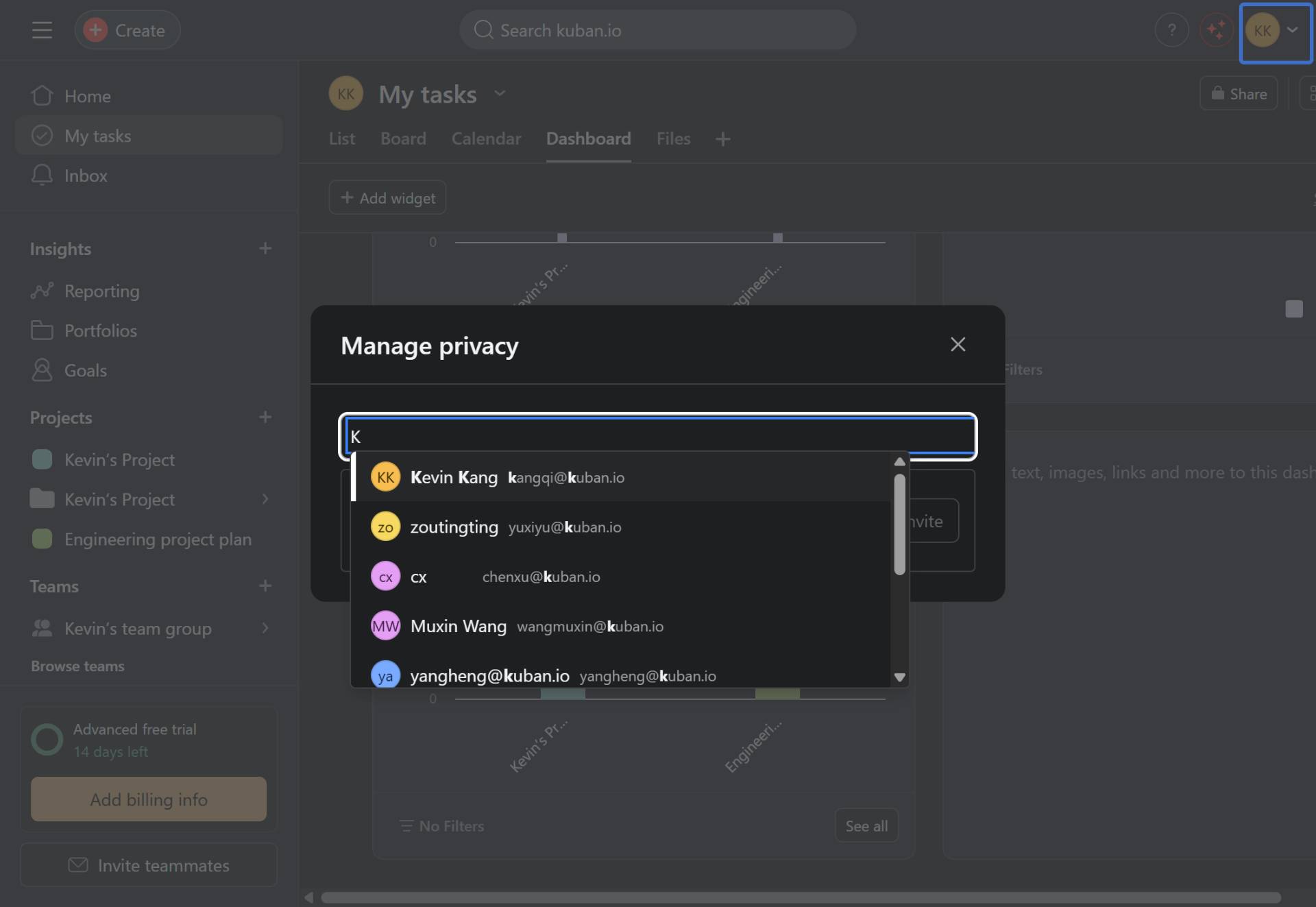
Search for the teammate
Type the name or email of the teammate
Type the name or email address of the teammate you want to invite. As you type, Asana will display a dropdown list of matching users from your workspace.
- Step 5 of 6
Select the teammate from the dropdown
Click on the desired user from the search results
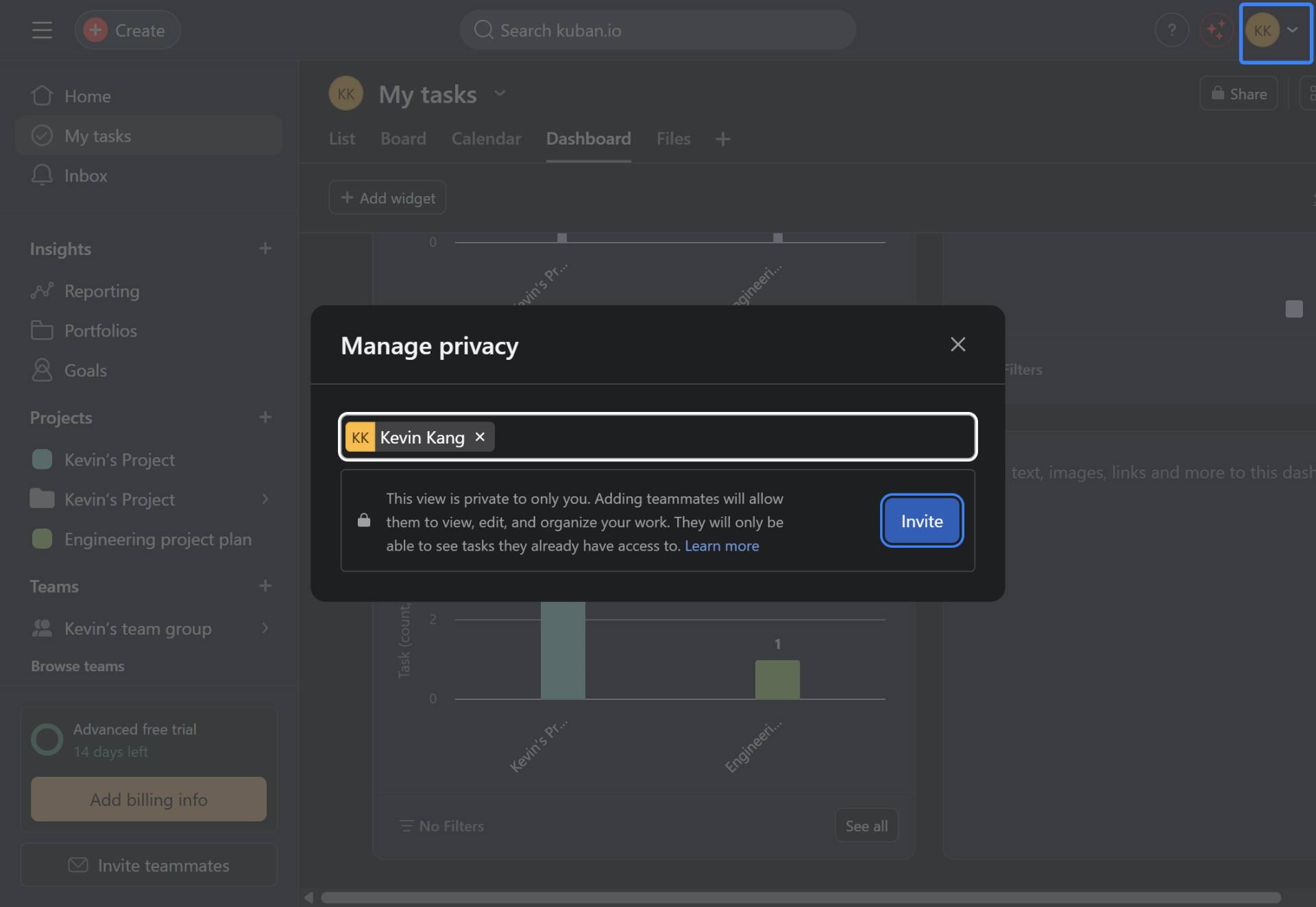
Click on the desired user from the dropdown list to select them. The selected user will appear as a tag in the input field.
- Step 6 of 6
Send the invitation
Click the Invite button
Click the Invite button to send the invitation. The dialog will close and the selected teammate(s) will receive access to the shared view.
Verification
After completing the invitation process:
Confirm the Manage privacy dialog closes successfully
The invited teammate should receive a notification of their new access
The teammate will now be able to view and collaborate on tasks they have access to within the shared project
Conclusion
You have successfully invited a teammate to collaborate in Asana. The invited user now has access to view, edit, and organize work within the shared project space, enabling effective team collaboration.