

Purpose
This SOP describes how to view, filter, and manage your tasks in Asana across different view formats including List, Board, Calendar, and Dashboard views.
Scope
This procedure is intended for all Asana users who need to organize and filter their personal tasks. Follow this SOP when you want to switch between different task views, apply filters, or add collaborators to tasks.
Prerequisites
An active Asana account
Logged in to Asana
Existing tasks assigned to you in My tasks
Procedure
- Step 1 of 8
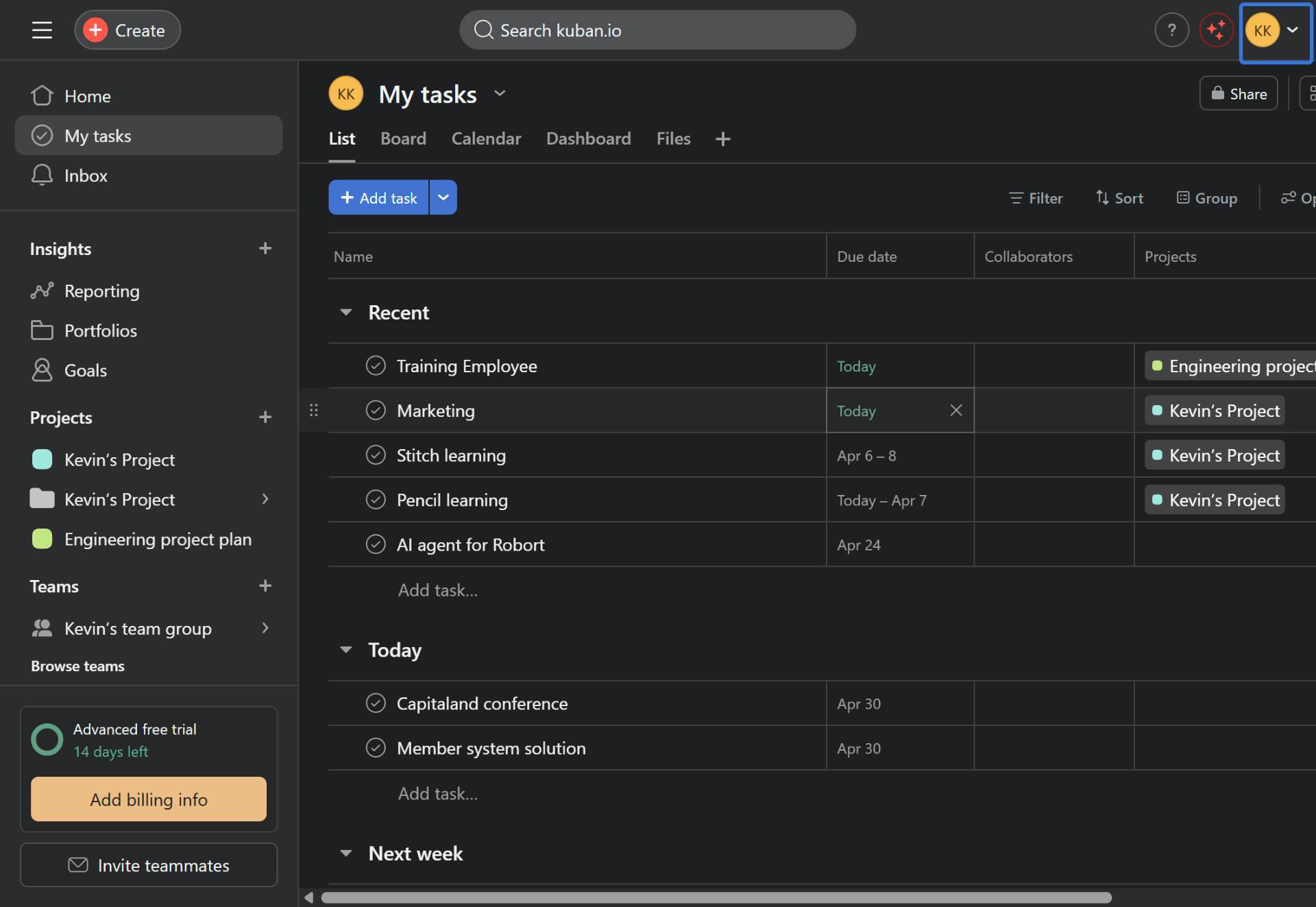
Navigate to app.asana.com
Open Asana and access My tasks
Navigate to app.asana.com and ensure you are signed in to your account.
- Step 2 of 8
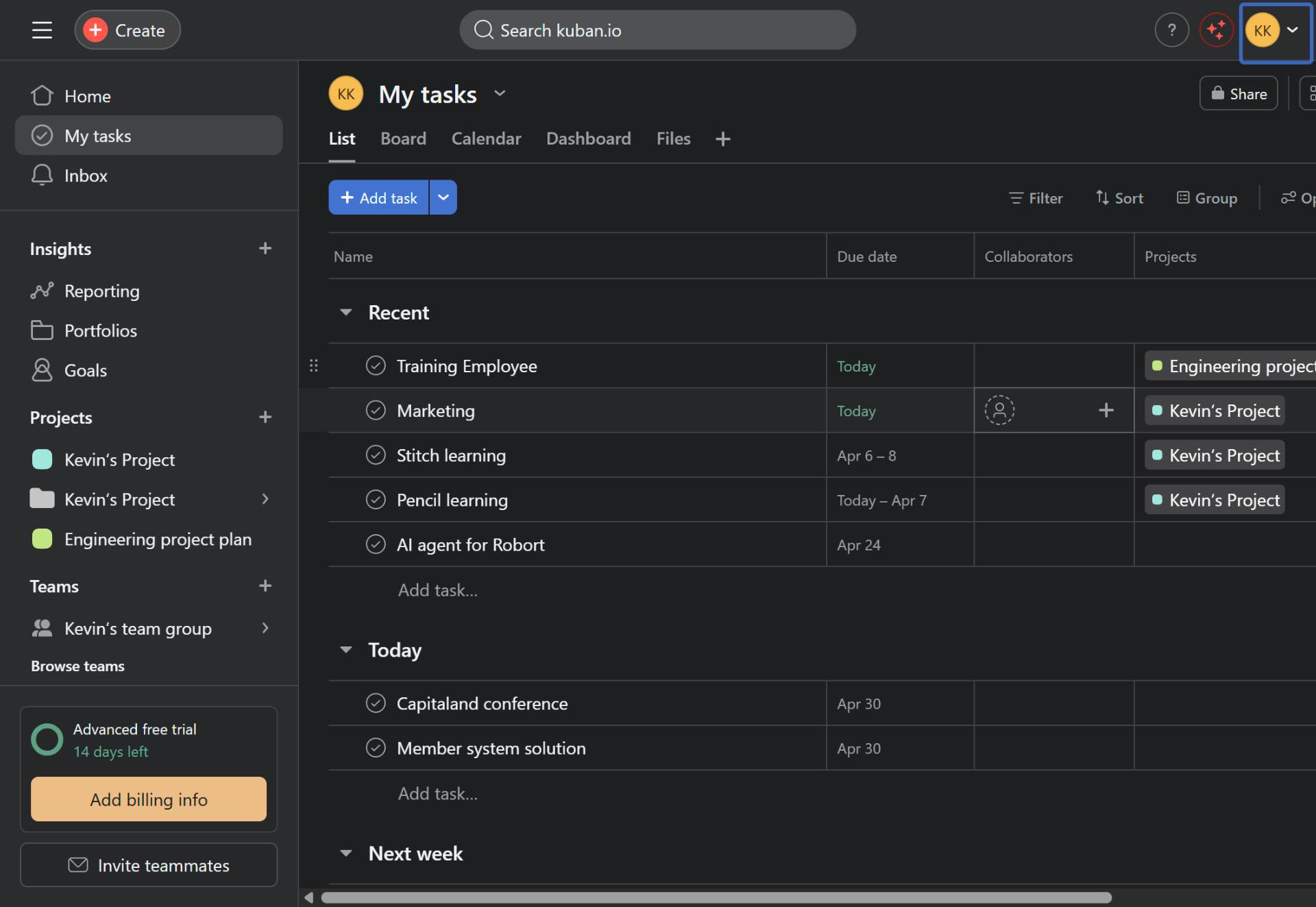
Add a collaborator to a task
Click the collaborator icon on a task
To add a collaborator to a task, hover over the task row and click the placeholder user icon in the Collaborators column. This opens a dropdown menu showing available team members.
- Step 3 of 8
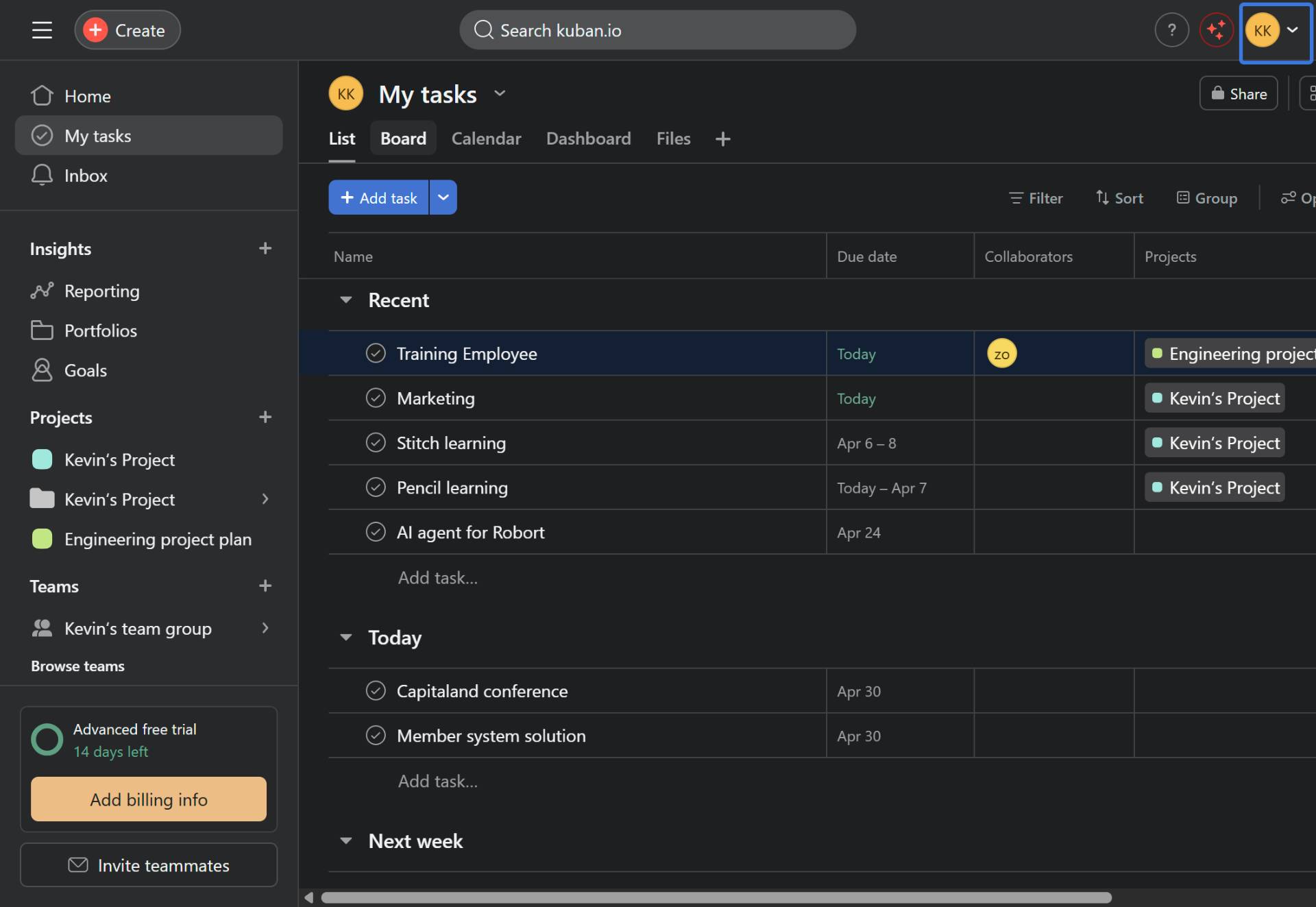
Switch to Board view
Click the Board tab
Click the Board tab located in the view navigation bar at the top of the task list. This switches the display from a list format to a kanban-style board with columns for each section.
- Step 4 of 8
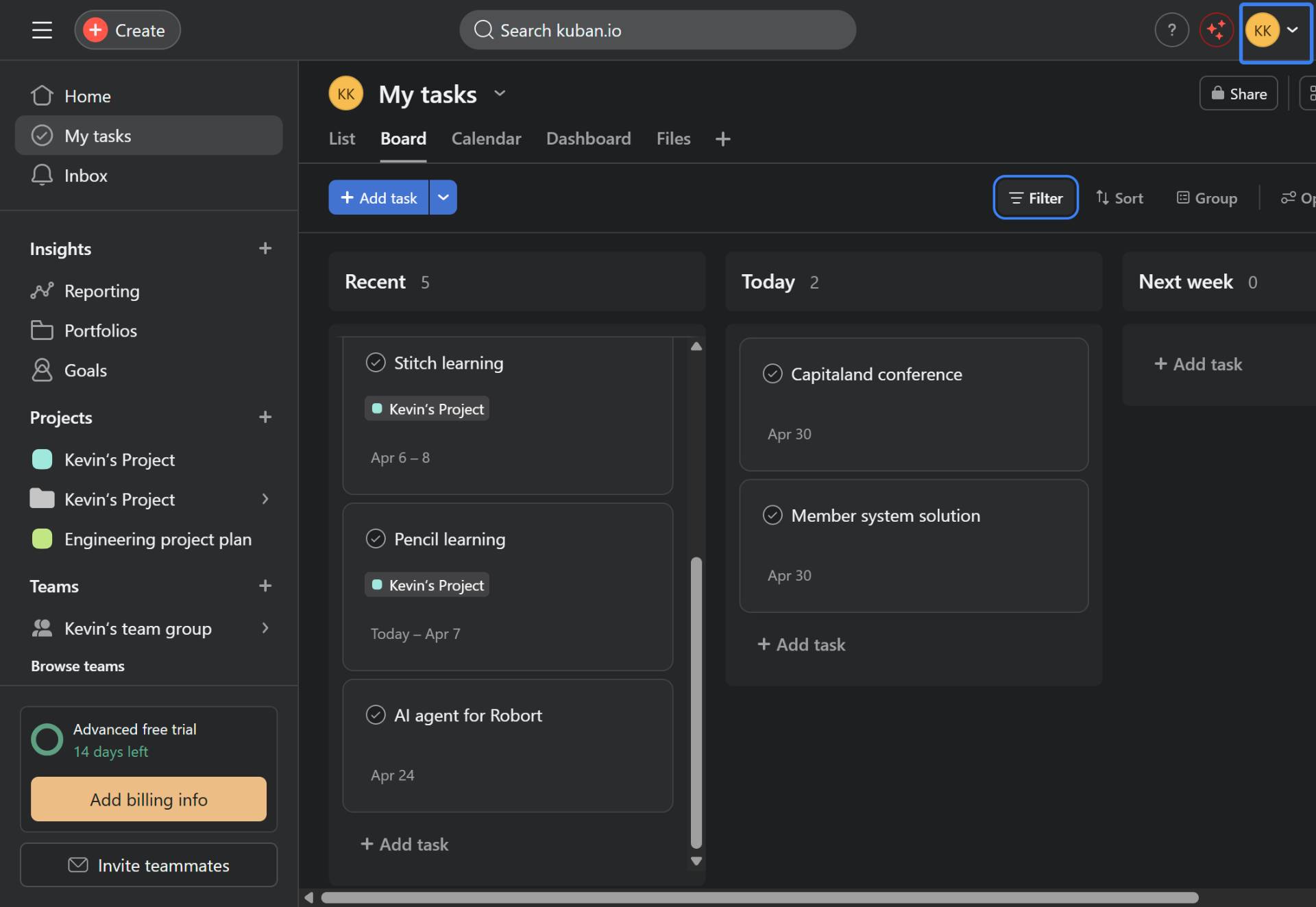
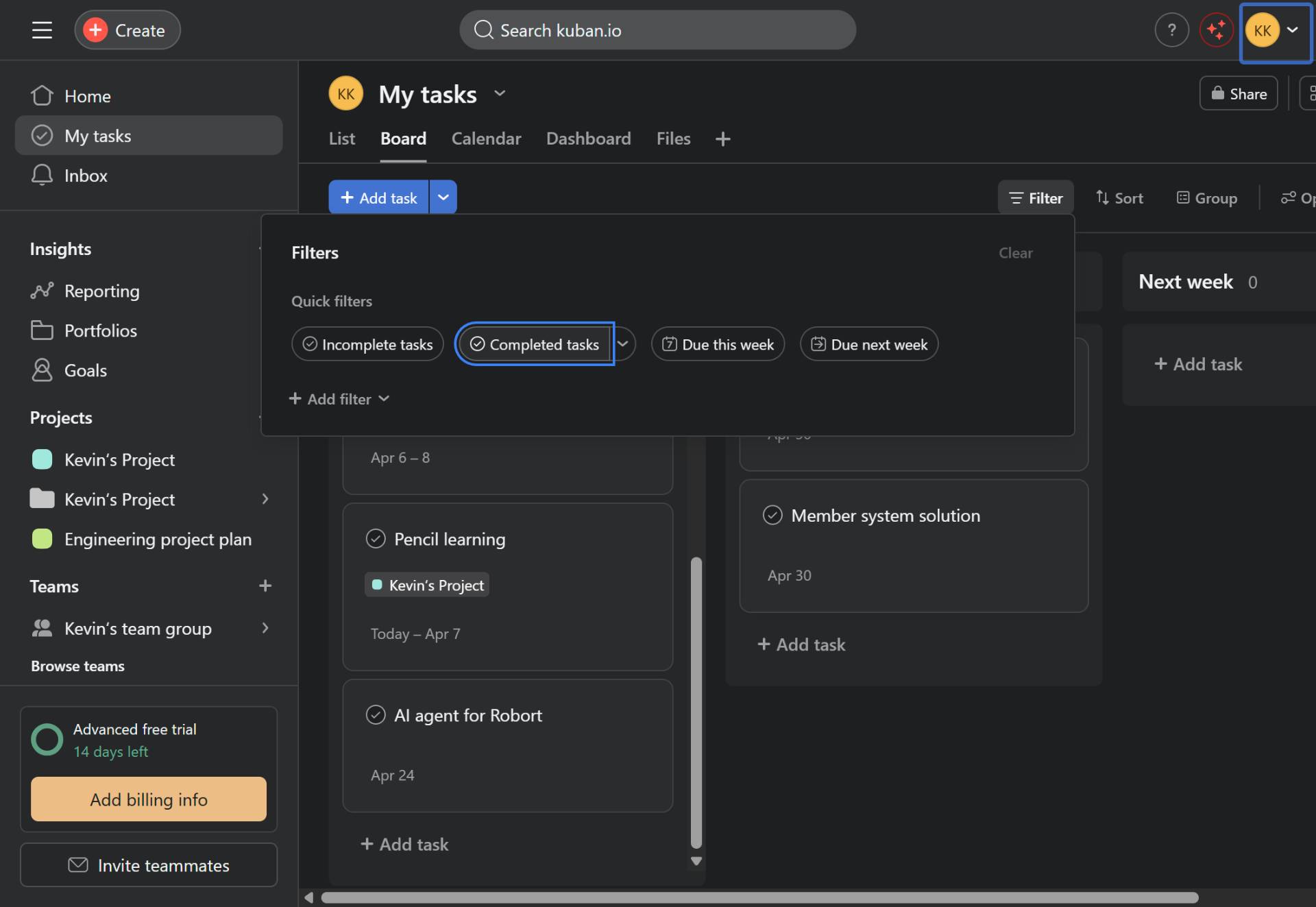
Open the filter panel
Click the Filter button
Click the Filter button located in the top toolbar. This opens a filter panel displaying Quick filters and All filters sections.
- Step 5 of 8
Filter by task completion status
Select a completion status filter
In the filter panel, click on Completed tasks under Quick filters to show only completed tasks. The board will refresh to display only tasks marked as complete.
- Step 6 of 8
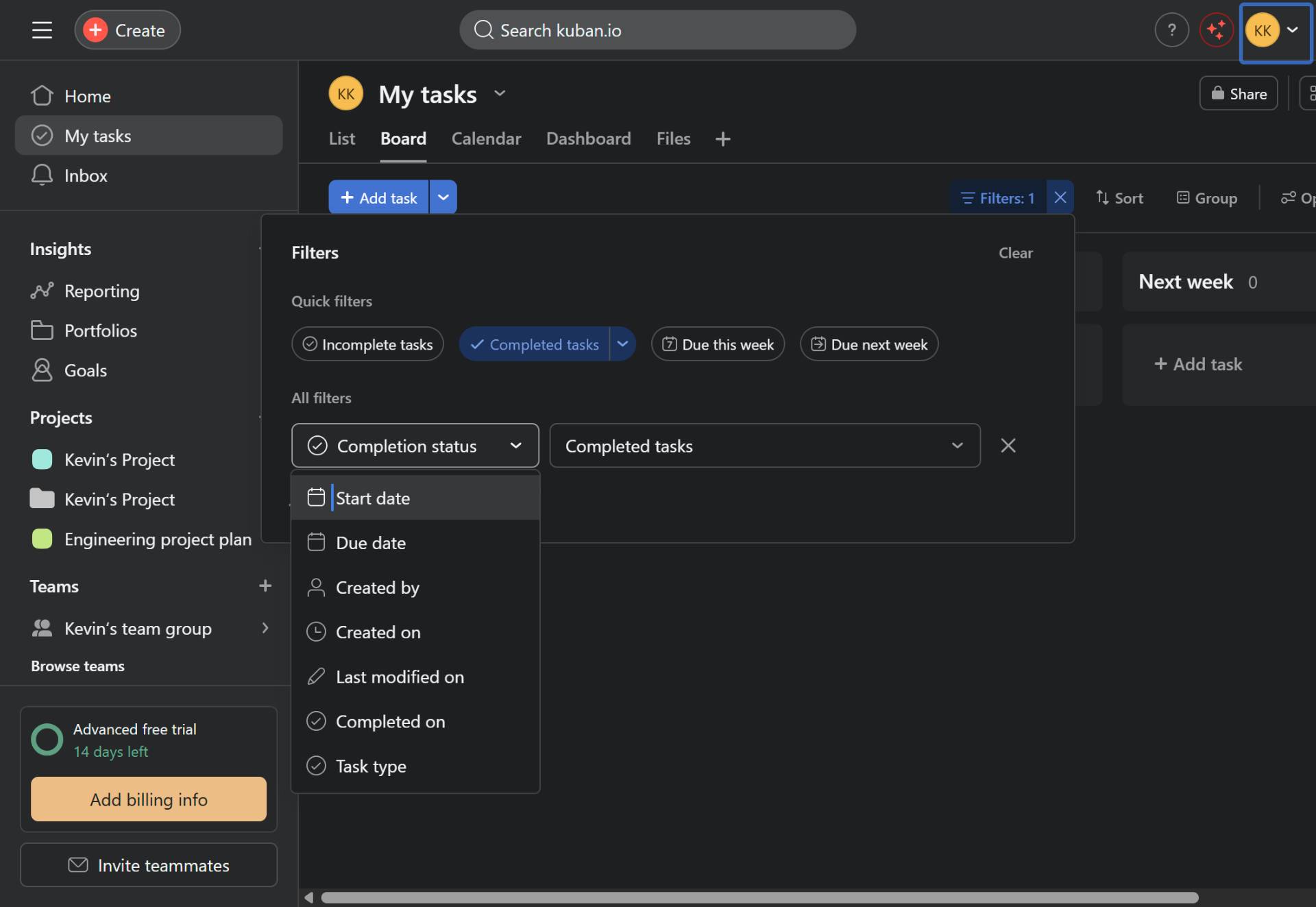
Add additional filters
Click Add filter
Click Add filter in the All filters section to access additional filtering options. Available filter types include:
- Step 7 of 8
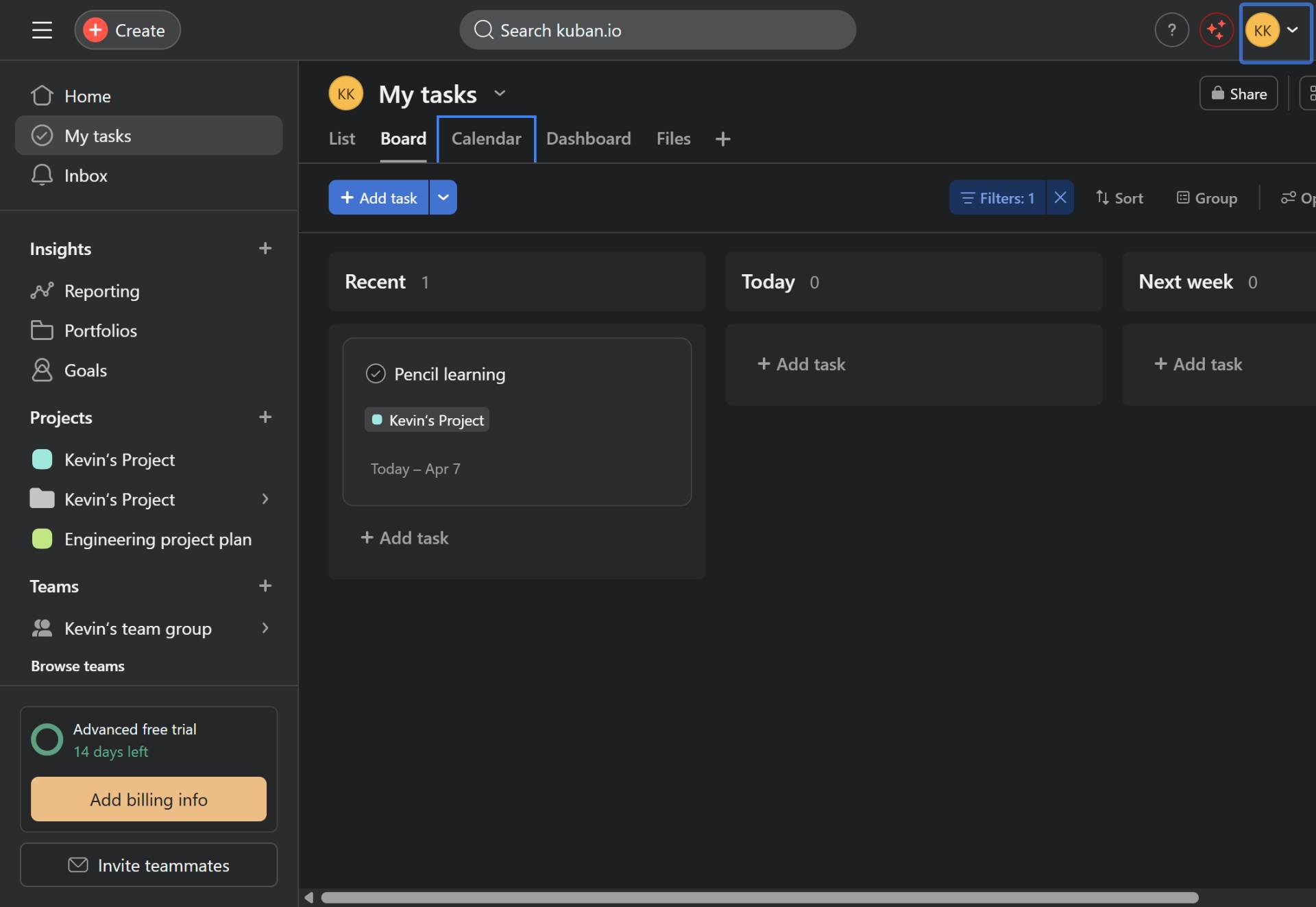
Switch to Calendar view
Click the Calendar tab
Click the Calendar tab to switch to a calendar layout. This view displays your tasks on a monthly calendar grid, with each task appearing on its due date.
- Step 8 of 8
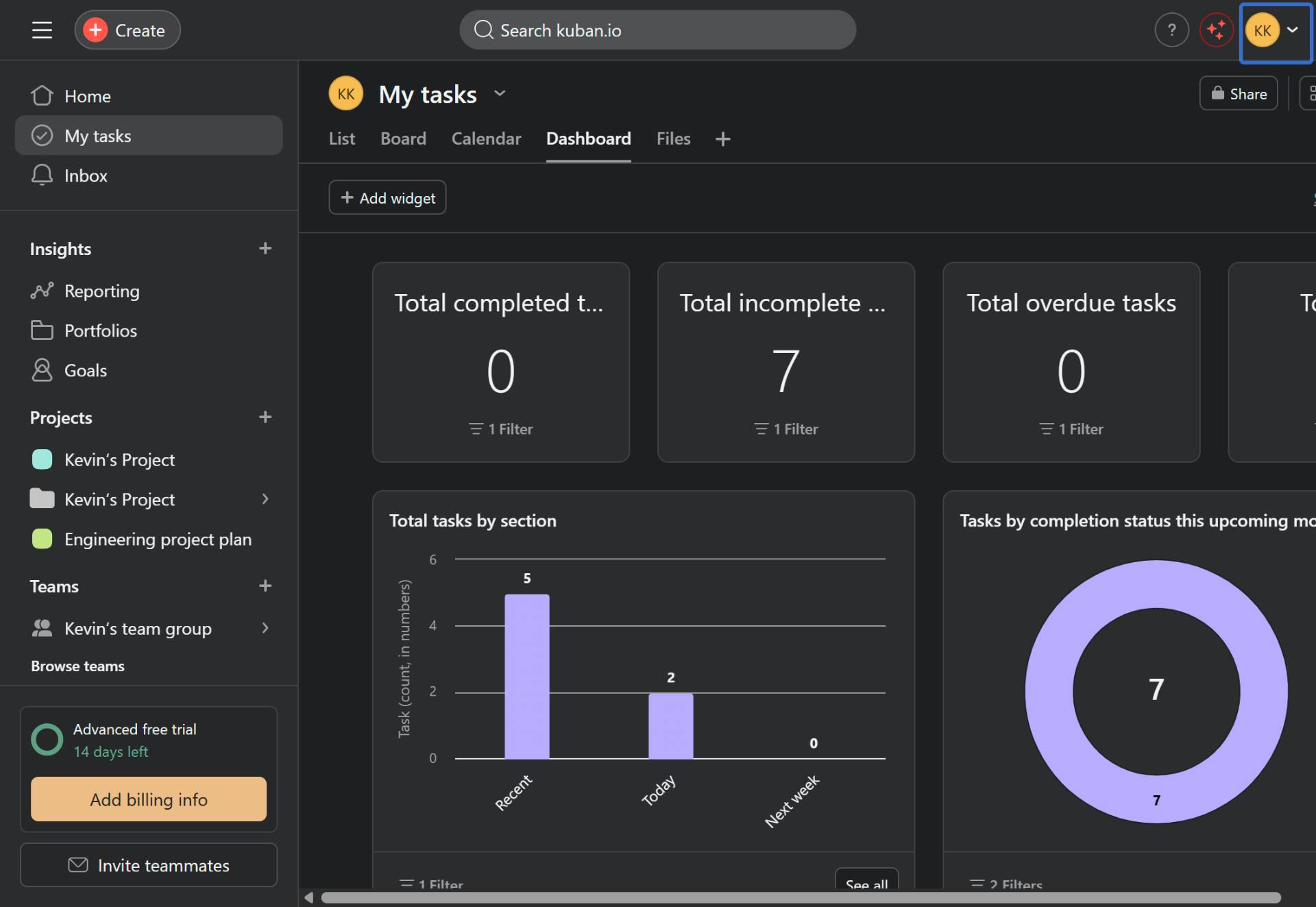
Switch to Dashboard view
Click the Dashboard tab
Click the Dashboard tab to access visual analytics and statistics about your tasks. The Dashboard displays widgets showing key metrics such as:
Conclusion
You have successfully learned how to navigate and filter your tasks in Asana across multiple view formats. You can now switch between List, Board, Calendar, and Dashboard views, apply filters to focus on specific task subsets, and add collaborators to share task visibility with your team.