

Purpose
This SOP describes how to create an Engineering Project Plan in Asana using a pre-built template, including setting up project details and adding tasks with priority, due dates, and assignees.
Scope
This procedure is intended for project managers, team leads, and team members who need to create and manage engineering projects in Asana. Follow this SOP when setting up a new engineering project with structured task organization.
Prerequisites
An active Asana account
Logged in to Asana with your credentials
Access to a team or workspace in Asana
Procedure
- Step 1 of 12
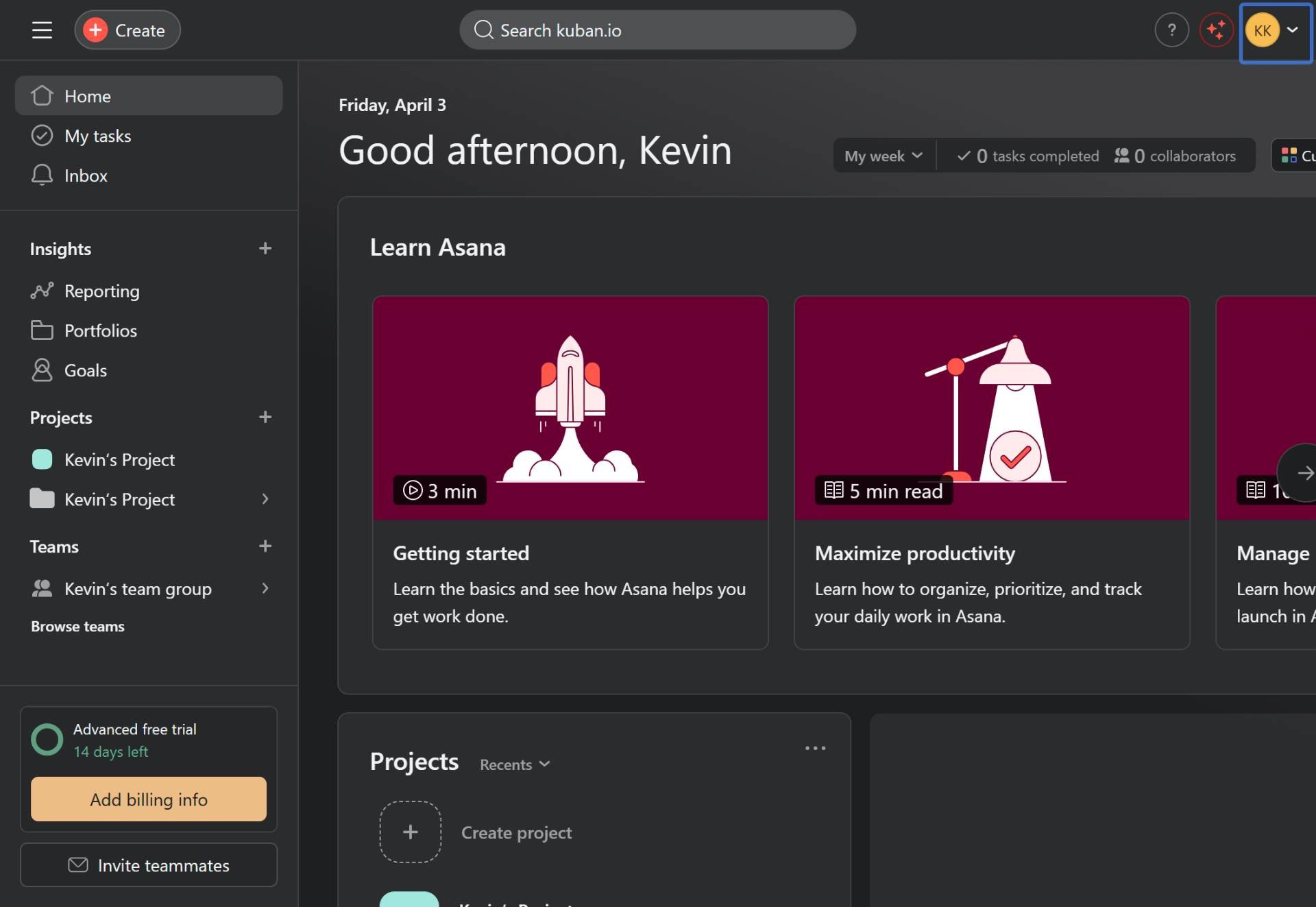
Navigate to Asana
Open Asana in your browser
Navigate to app.asana.com and sign in to your Asana account.
- Step 2 of 12
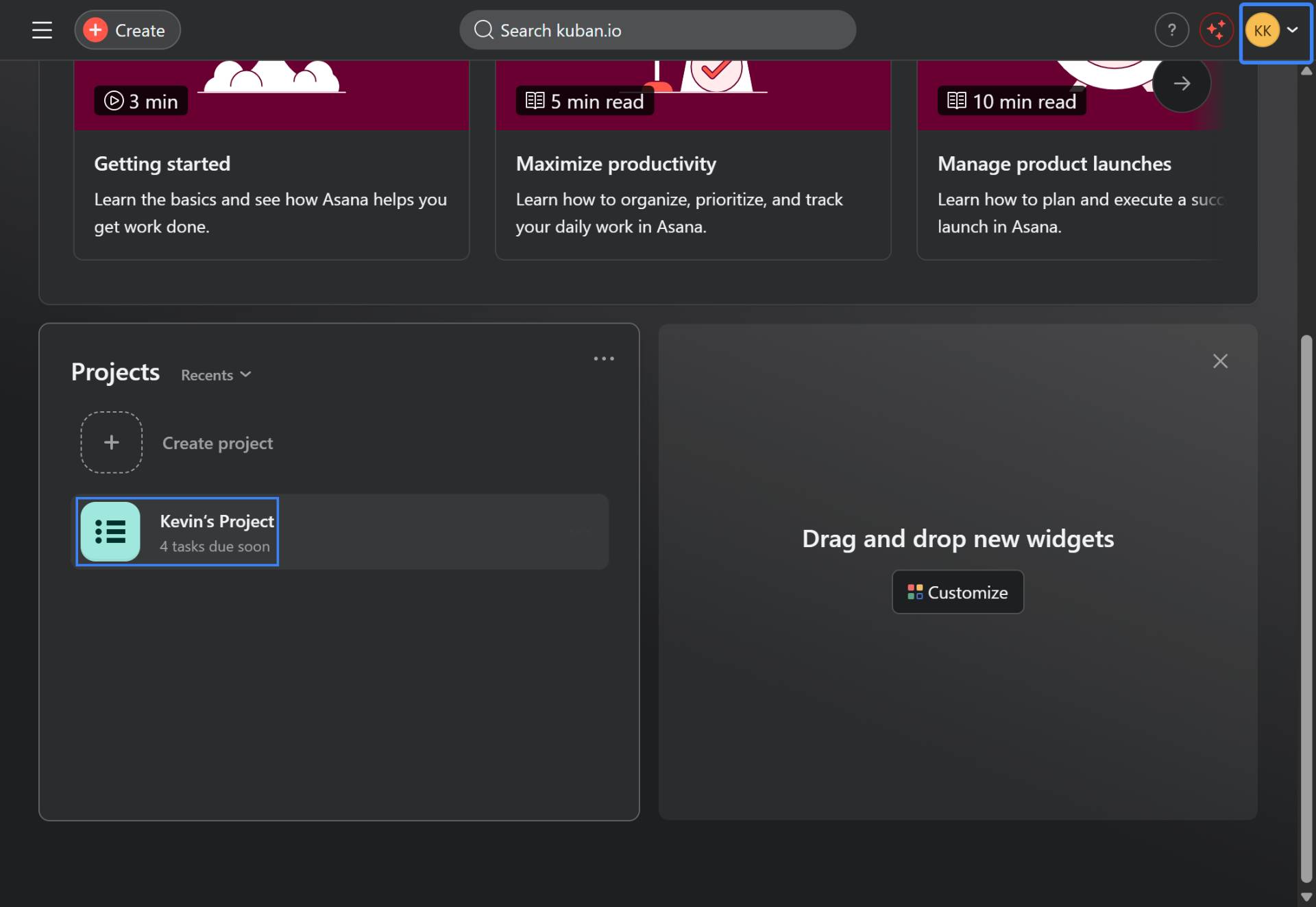
Create a new project
Click Create project
Click the Create project button located in the Projects section of your Asana home dashboard.
- Step 3 of 12
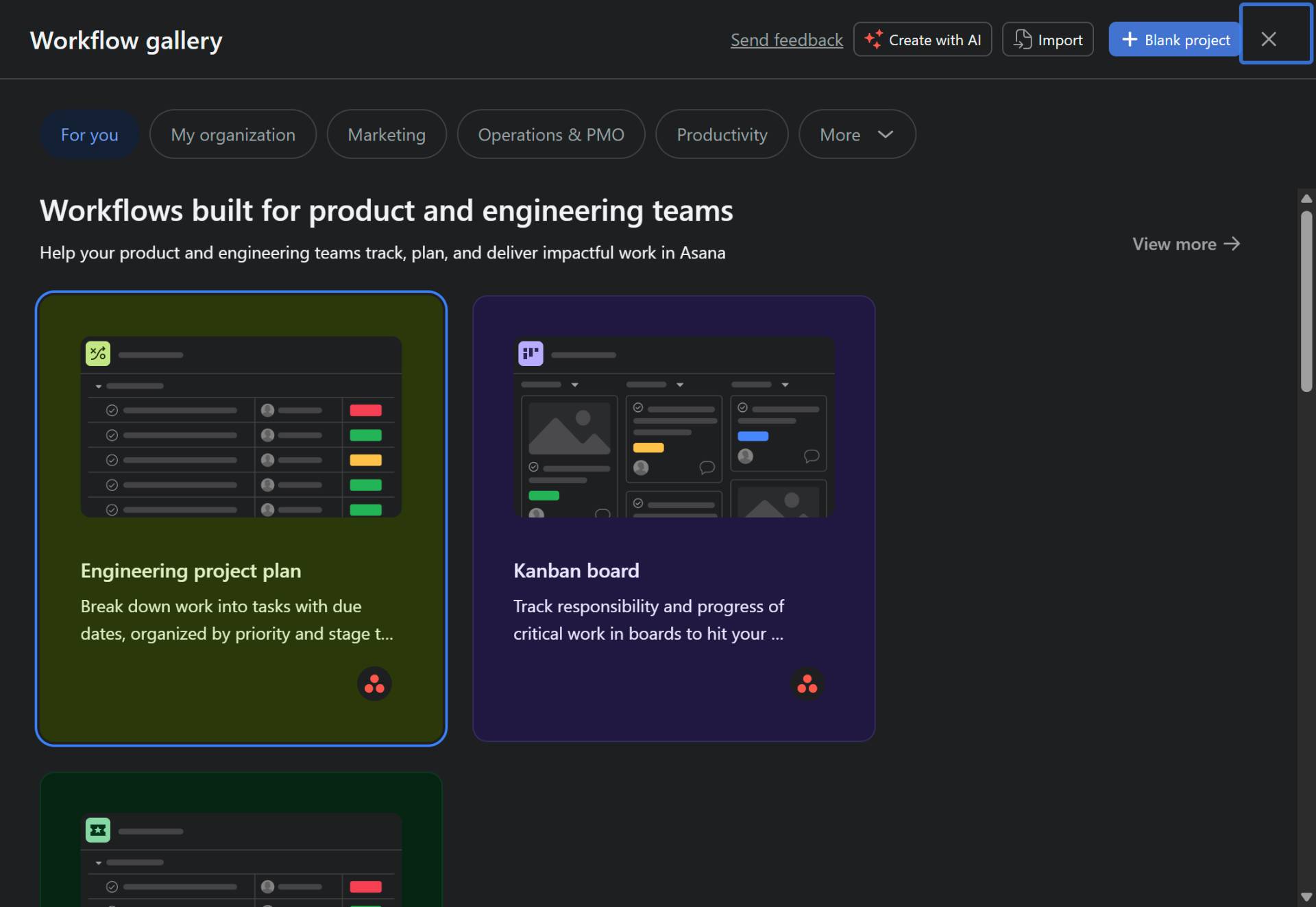
Select Engineering project plan template
Click the Engineering project plan template
In the Workflow gallery, locate and click on the Engineering project plan template. This template helps break down work into tasks with due dates, organized by priority and stage.
- Step 4 of 12
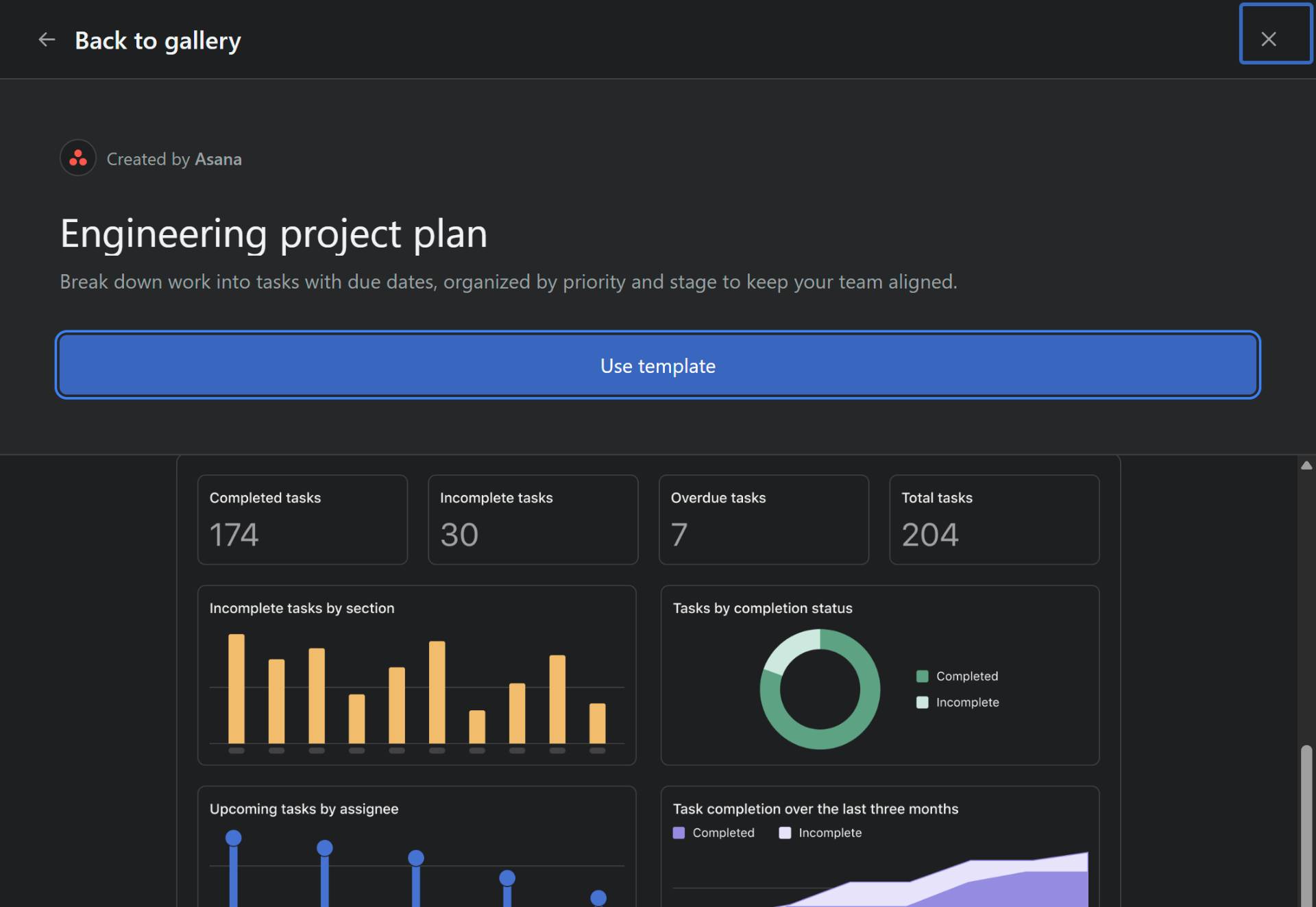
Use the template
Click Use template
Review the template preview showing task statistics and charts. Click the Use template button to proceed with creating your project.
- Step 5 of 12
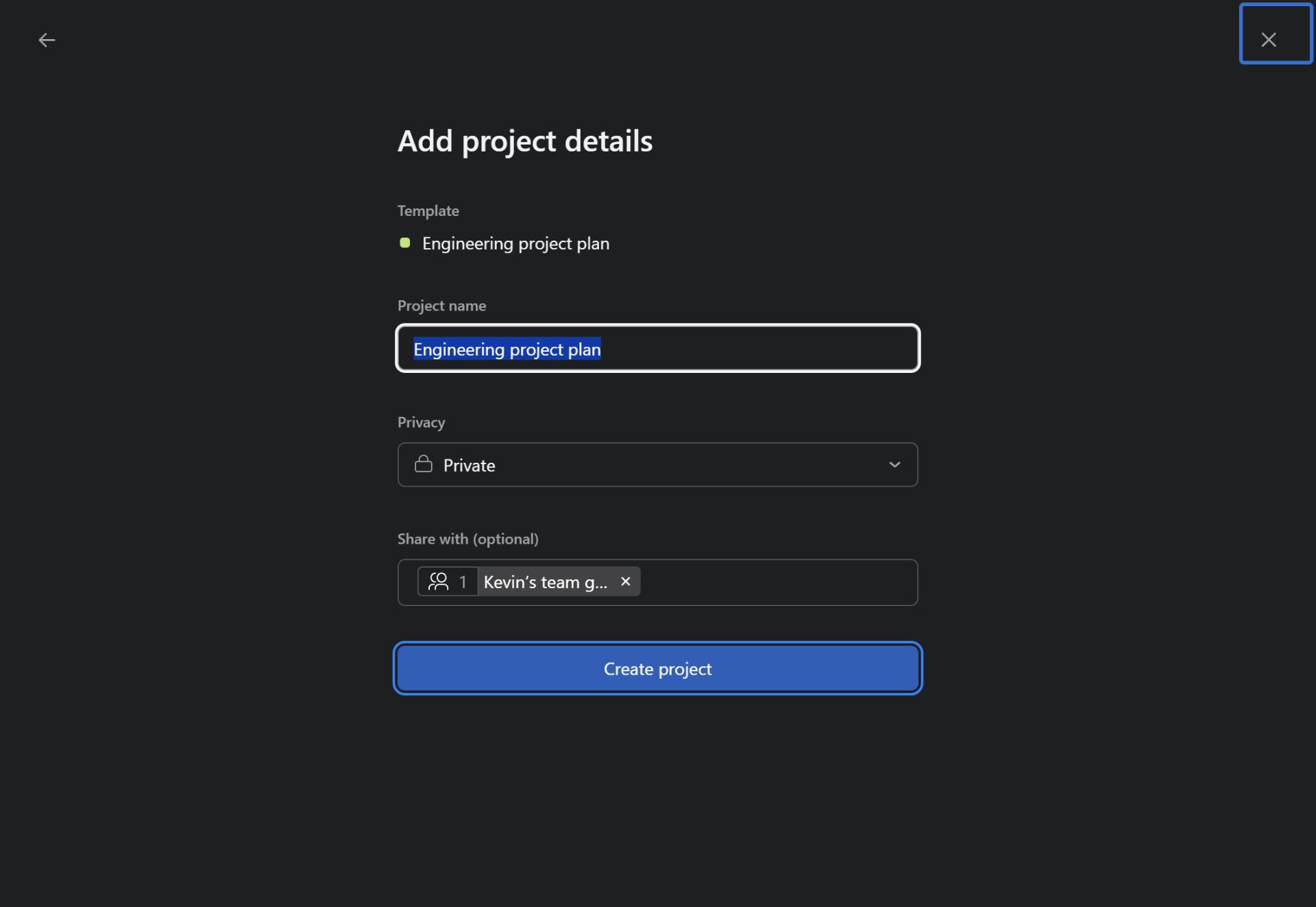
Configure project details
Enter project name and configure settings
In the Add project details dialog, configure the following settings:
- Step 6 of 12
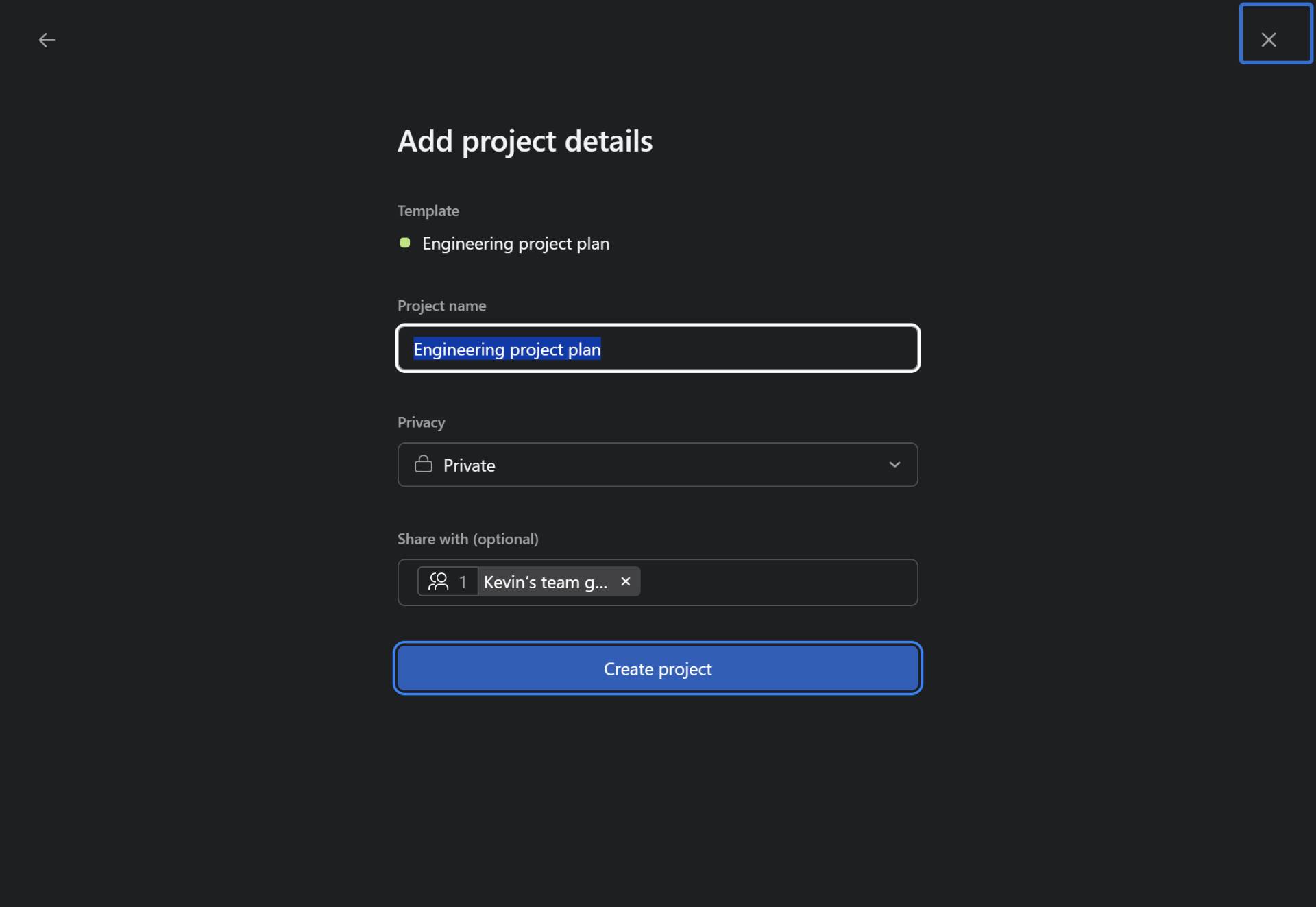
Create the project
Click Create project
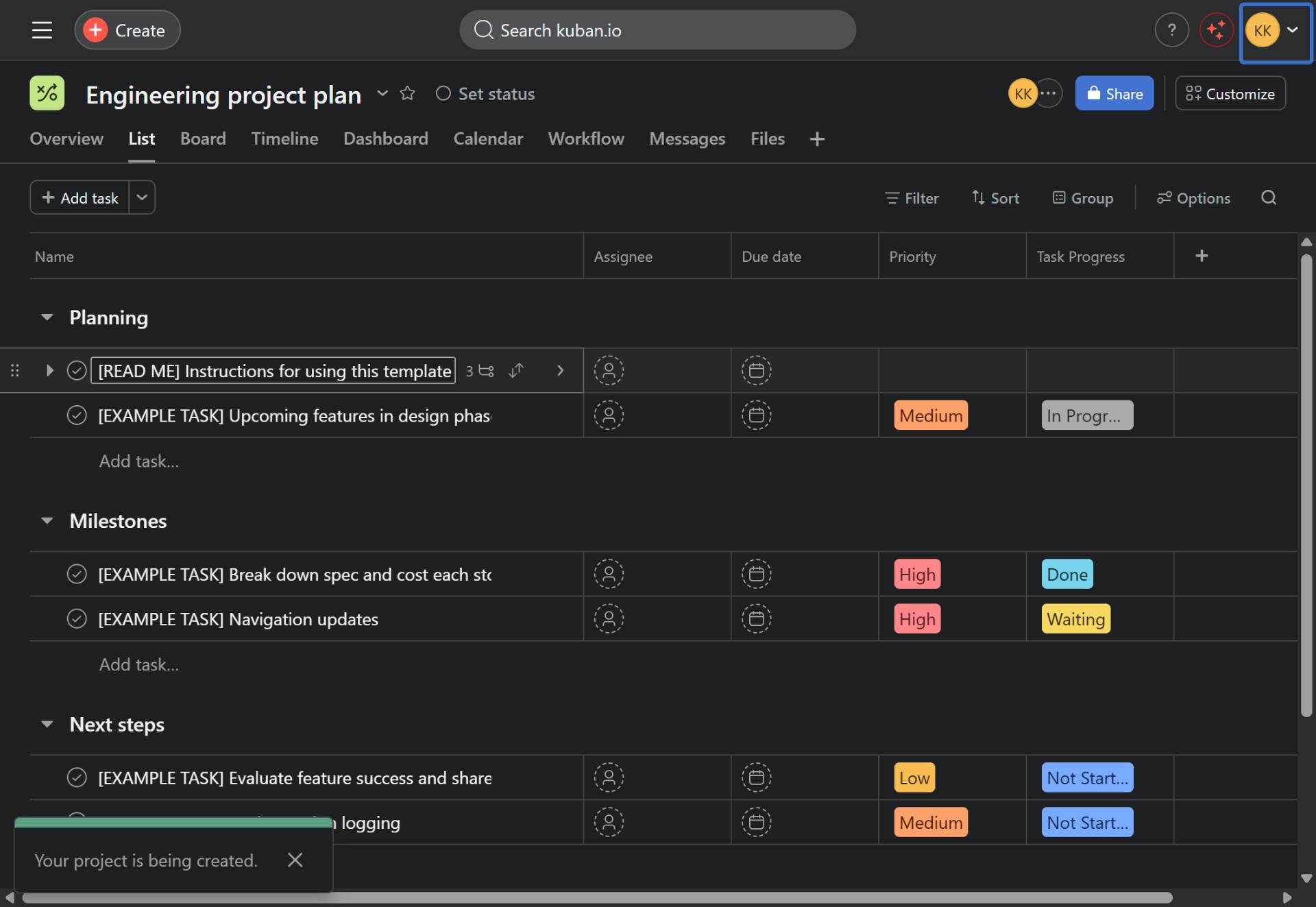
Click the Create project button to generate your engineering project plan. The project will be created with pre-populated sections including Planning, Milestones, and Next steps.
- Step 7 of 12
Add a new task
Click Add task
In your newly created project, locate the section where you want to add a task (such as Planning, Milestones, or Next steps). Click the Add task... text at the bottom of the desired section.
- Step 8 of 12
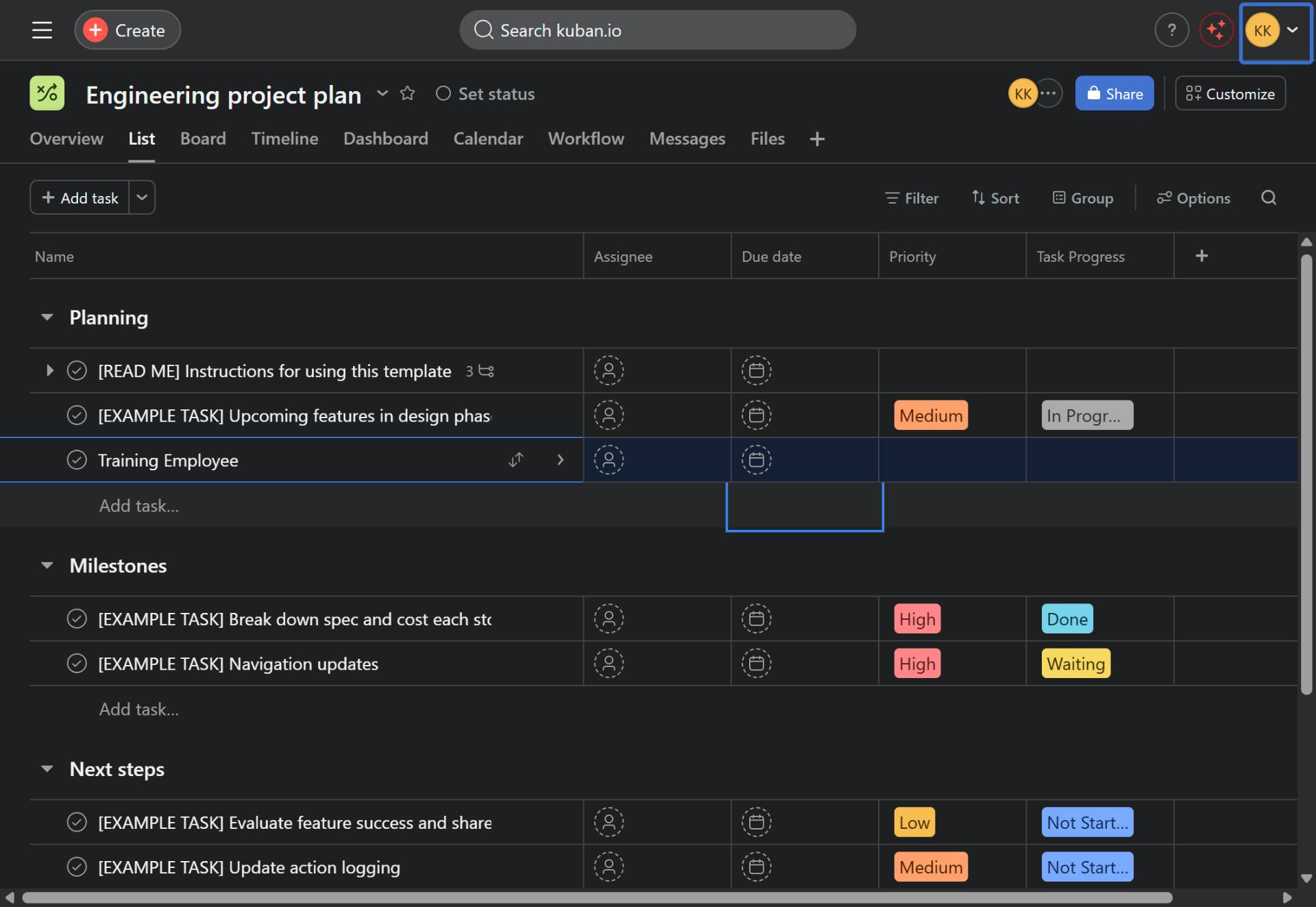
Enter task name
Type the task name
Type a descriptive name for your task in the task name field. For example, enter a task like "Training Employee" or any other task relevant to your project.
- Step 9 of 12
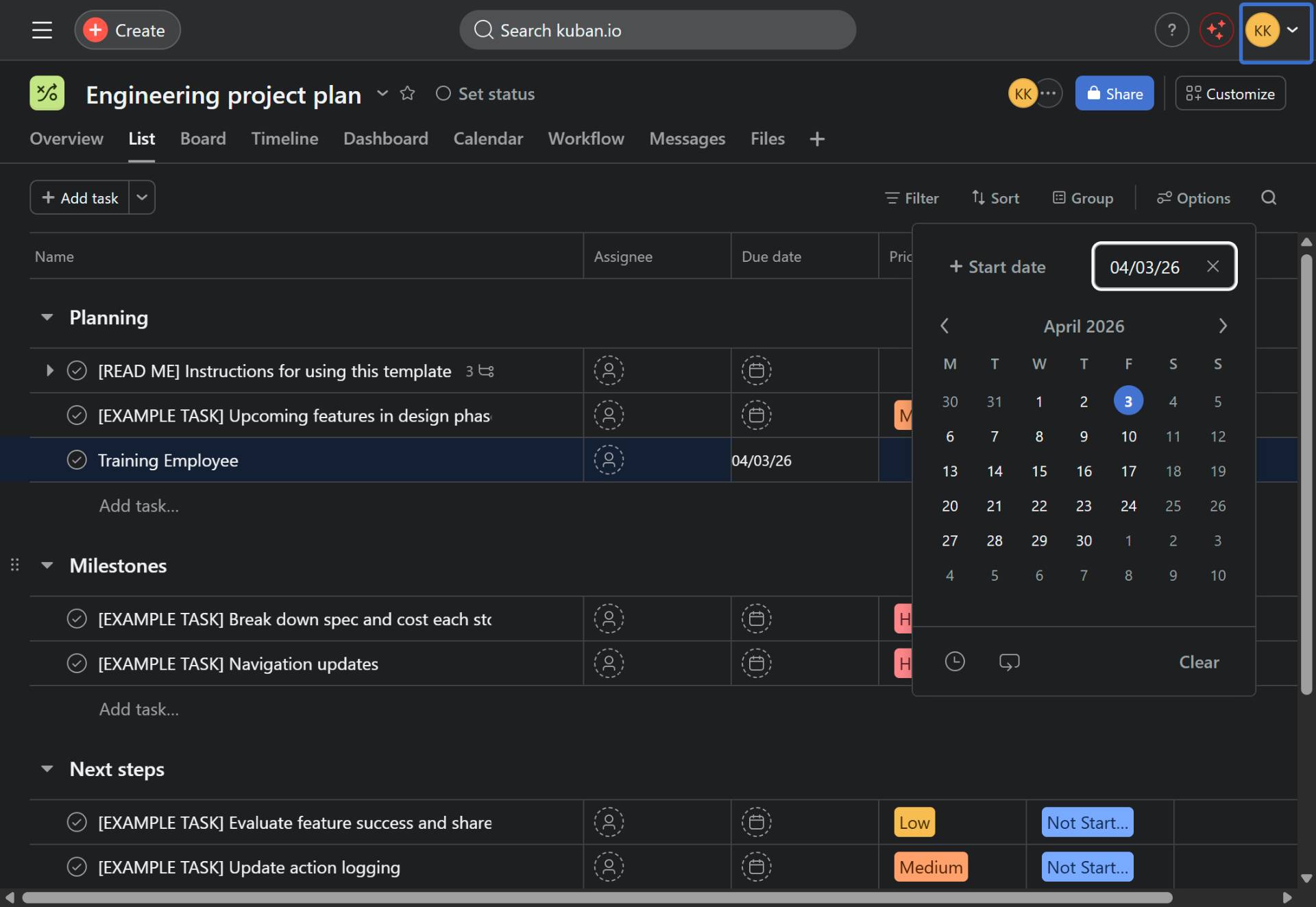
Set due date
Click the due date field and enter a date
Click on the Due date column for your task. A date picker calendar will appear. Select a date by clicking on the calendar, or type the date directly in the format MM/DD/YY (for example, 04/03/26 for April 3, 2026).
- Step 10 of 12
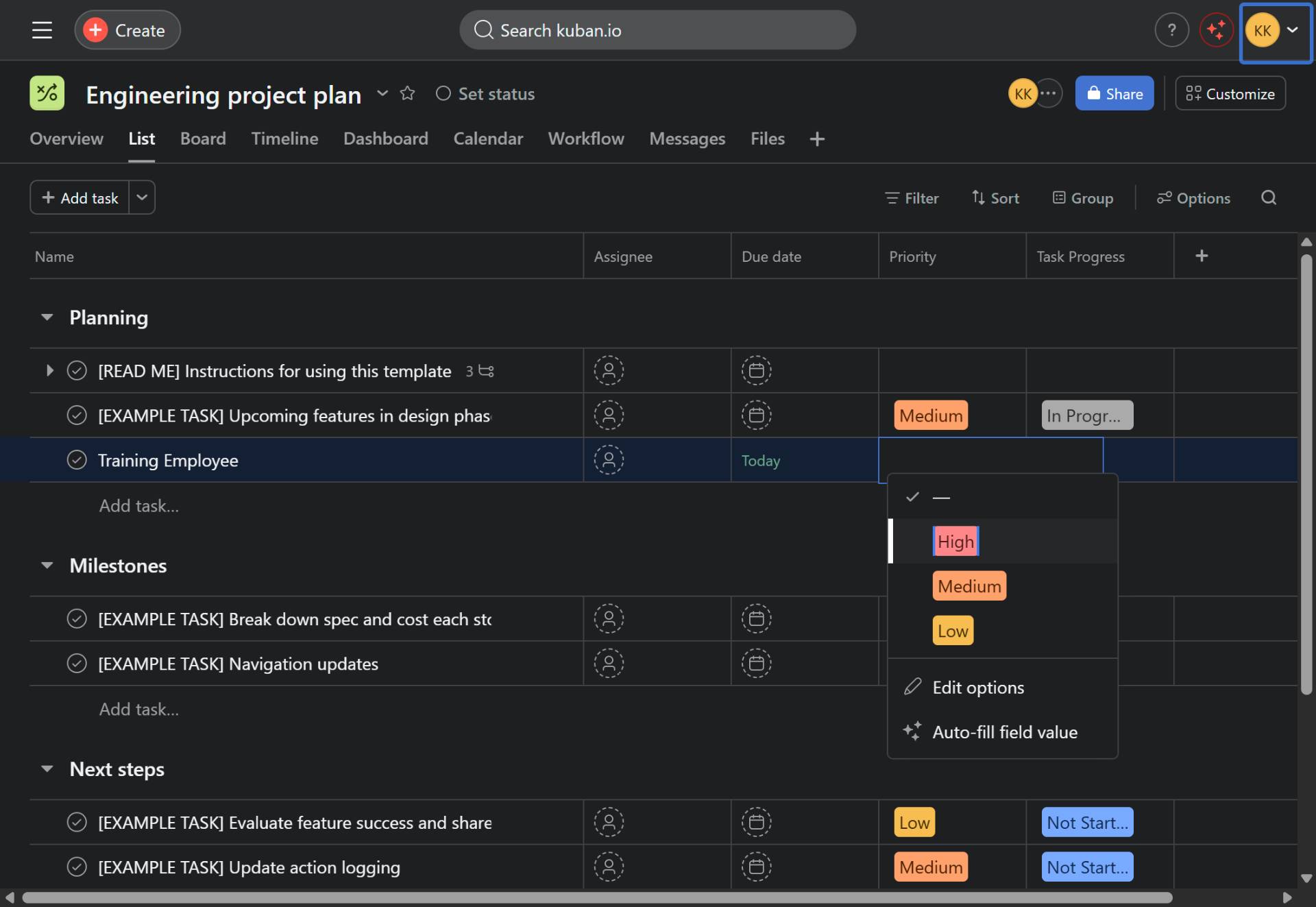
Set priority level
Select the priority from the dropdown
Click on the Priority field for your task. Select the appropriate priority level from the dropdown menu:
- Step 11 of 12
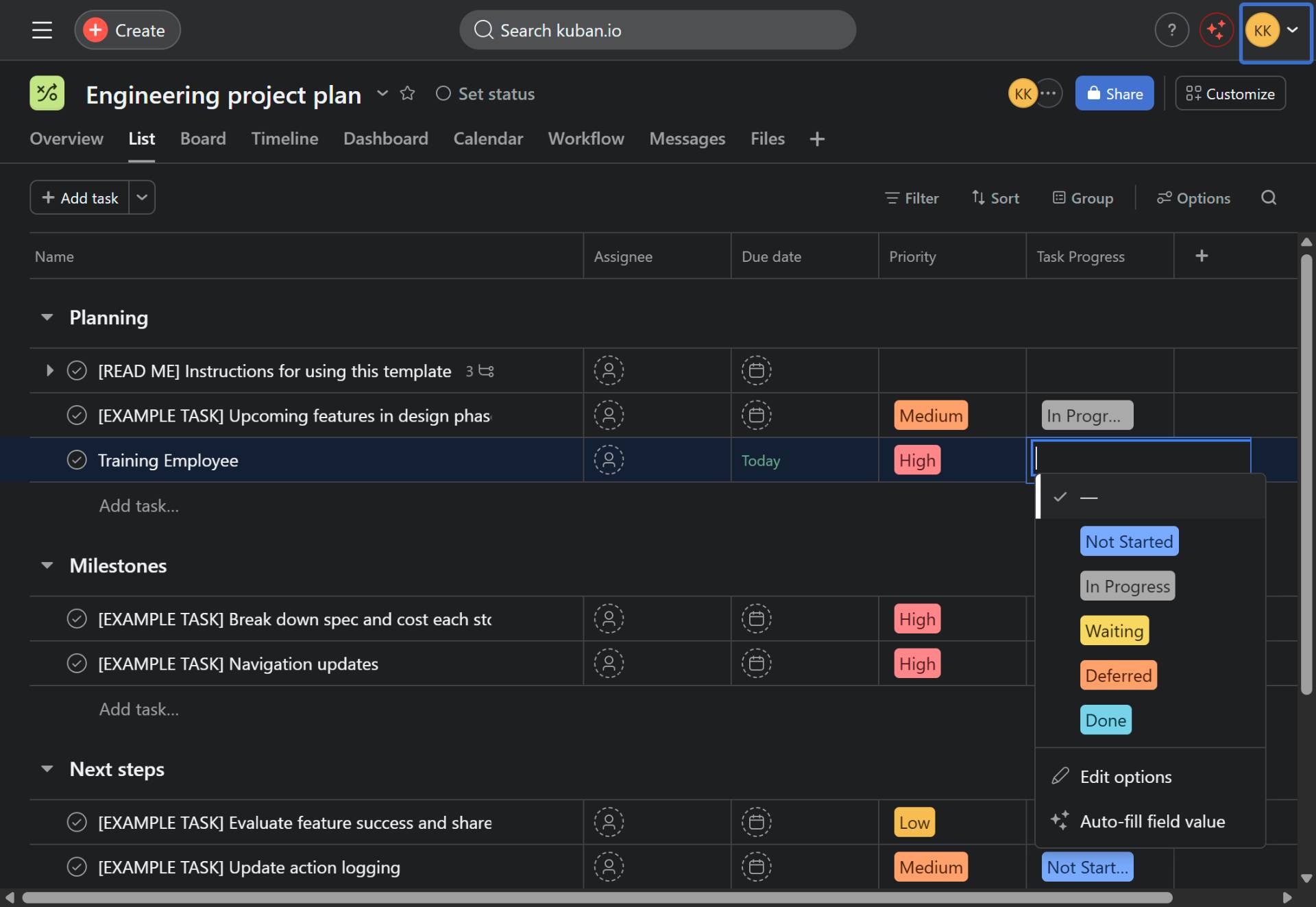
Set task progress status
Select the task progress from the dropdown
Click on the Task Progress field for your task. Select the current status from the dropdown options:
- Step 12 of 12
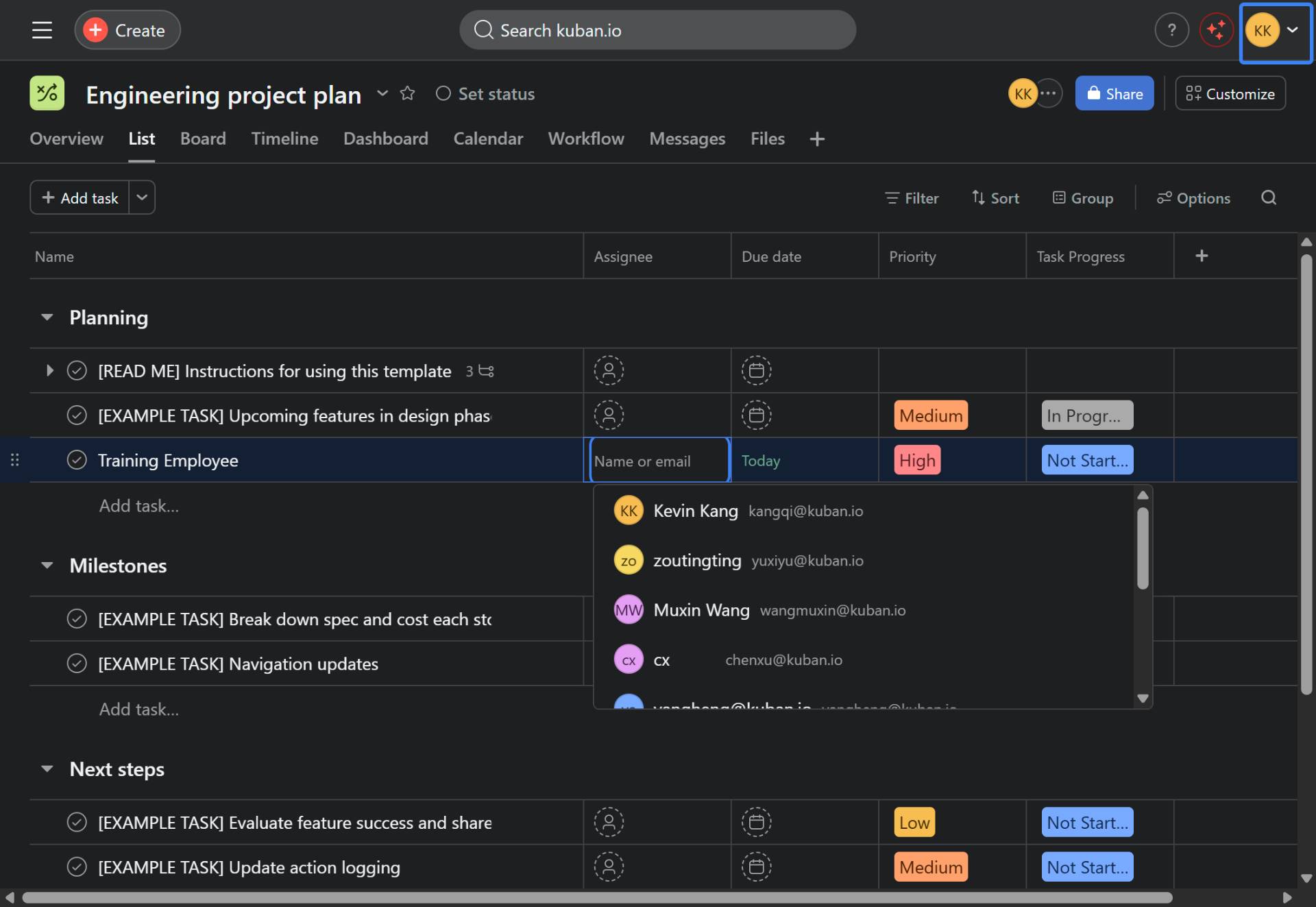
Assign the task
Select an assignee from the dropdown
Click on the Assignee field (the circular icon with initials) for your task. A dropdown list of team members will appear. Select the person who will be responsible for completing this task.
Verification
Confirm your Engineering Project Plan was created successfully:
Verify the project appears in your Asana home dashboard under the Projects section
Confirm the project contains the expected sections: Planning, Milestones, and Next steps
Check that your new task displays with the correct due date, priority level, task progress status, and assignee
Navigate between the List, Board, Timeline, and Calendar views to ensure all project data is accessible
Troubleshooting
Cannot find the Engineering project plan template
If you don't see the Engineering project plan template in the gallery, click on the Productivity or More tabs to browse additional templates. You can also use the search functionality to find engineering-related templates.
Team member not appearing in assignee list
If a team member doesn't appear in the assignee dropdown, ensure they have been added to the project. Click Share in the top-right corner of the project and invite the team member by email address.
Project privacy settings need to be changed
To change project privacy after creation, click on the Share button in the project header and adjust the visibility settings to Private or Public to team as needed.
Conclusion
You have successfully created an Engineering Project Plan in Asana using a template, complete with organized sections and configured tasks. Your project is now ready for team collaboration and task tracking.