

Purpose
This SOP describes how to edit goals, add comments, and connect parent goals in Asana to establish goal hierarchies and track progress across your organization.
Scope
This procedure is intended for Asana users with access to the Goals feature. Follow this SOP when you need to update goal details, add comments to goals, or establish parent-child relationships between goals.
Prerequisites
An active Asana account with access to the Goals feature
Goals already created in your Asana workspace
Permission to edit the goals you want to modify
Procedure
- Step 1 of 11
Navigate to Asana Goals
Navigate to the Asana Goals page
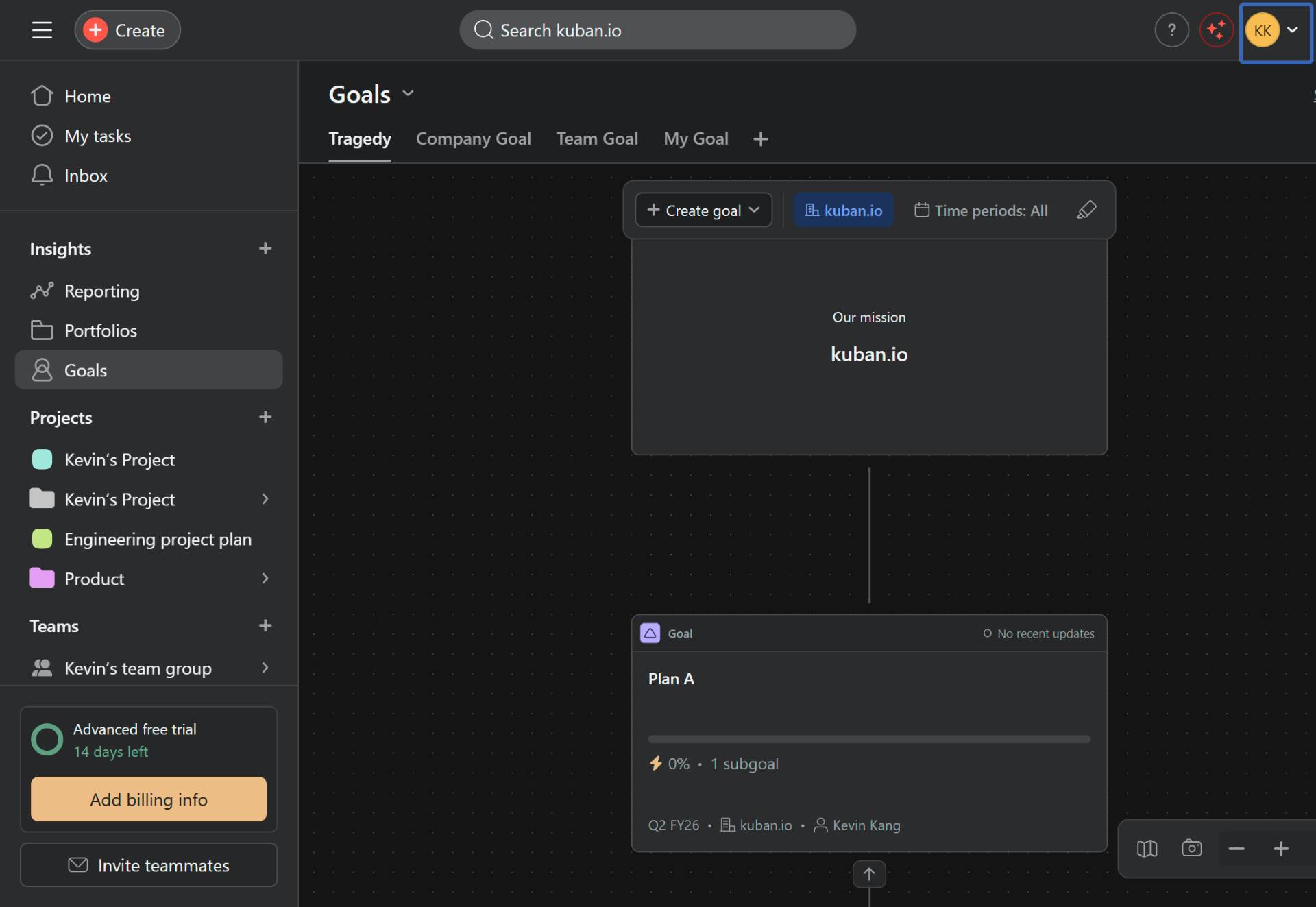
Navigate to app.asana.com and ensure you are logged in to your Asana account. Click on Goals in the left sidebar to access the Goals section.
- Step 2 of 11
Select a goal to edit
Click on the goal card
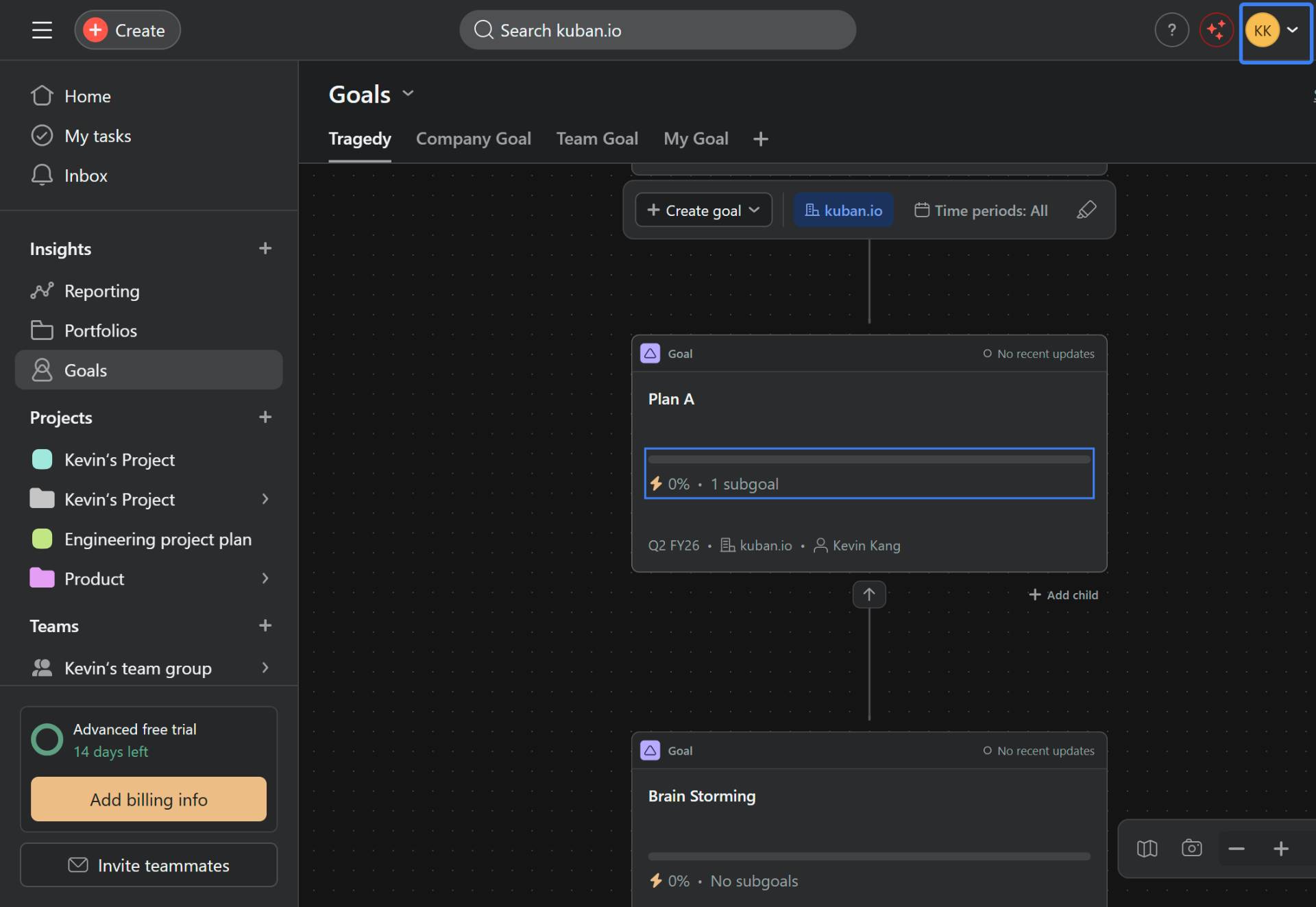
Click on the goal you want to edit, such as Plan A, to open its details.
- Step 3 of 11
Add a comment to the goal
Click the comment field and type your comment
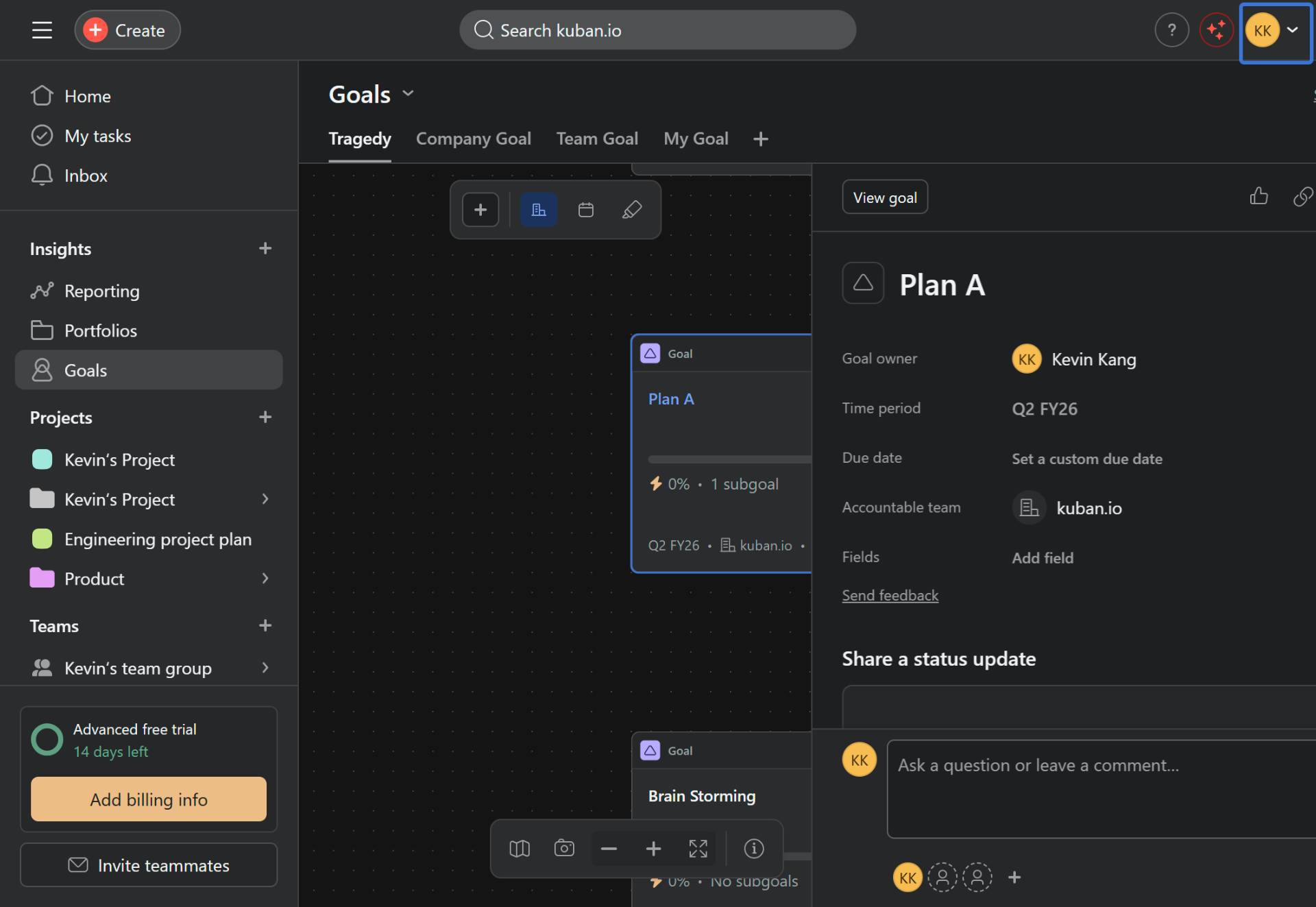
Click on the Ask a question or leave a comment field at the bottom of the goal details panel. Type your comment or question, then click the Comment button to post it.
- Step 4 of 11
Select another goal
Click on another goal card
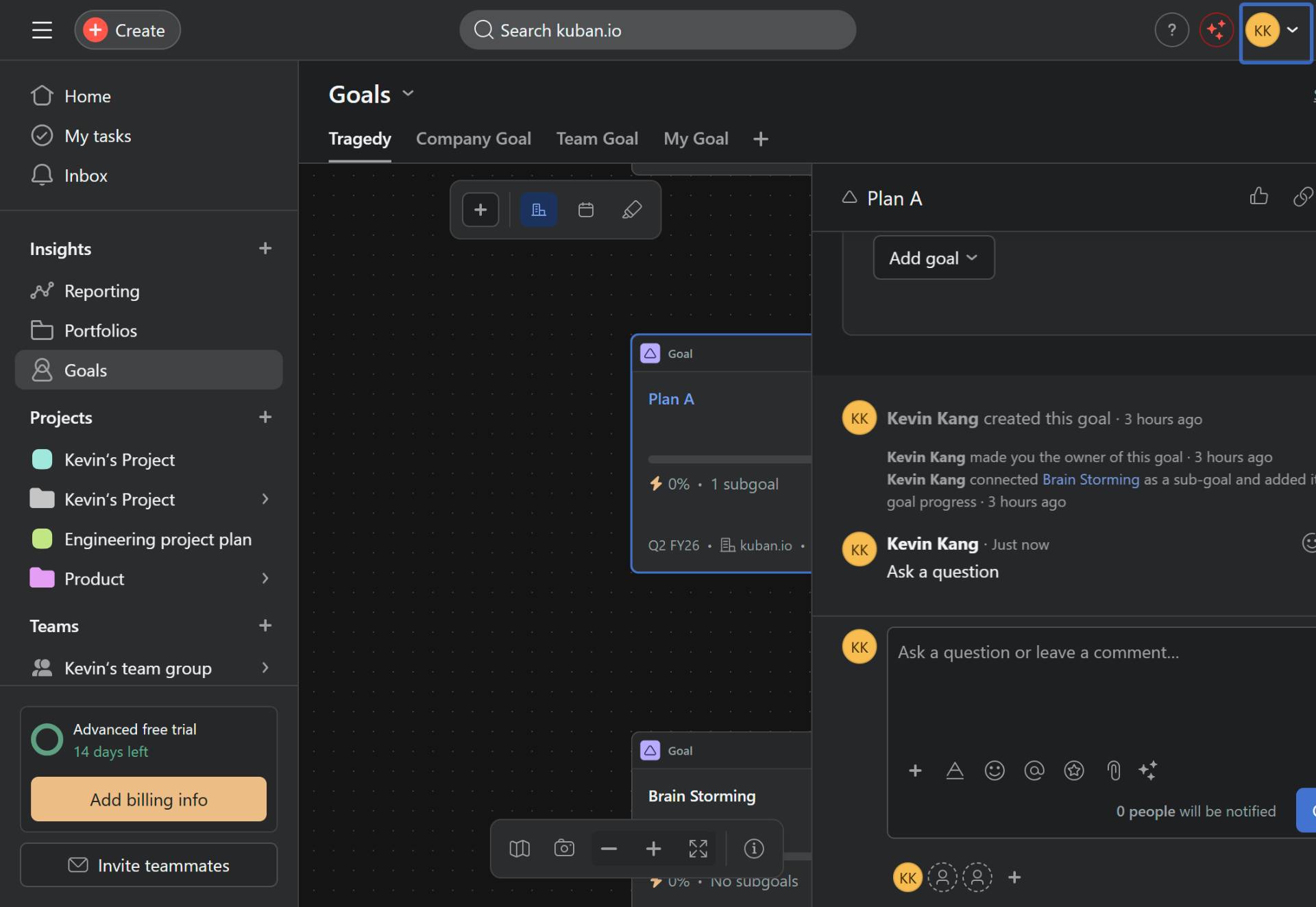
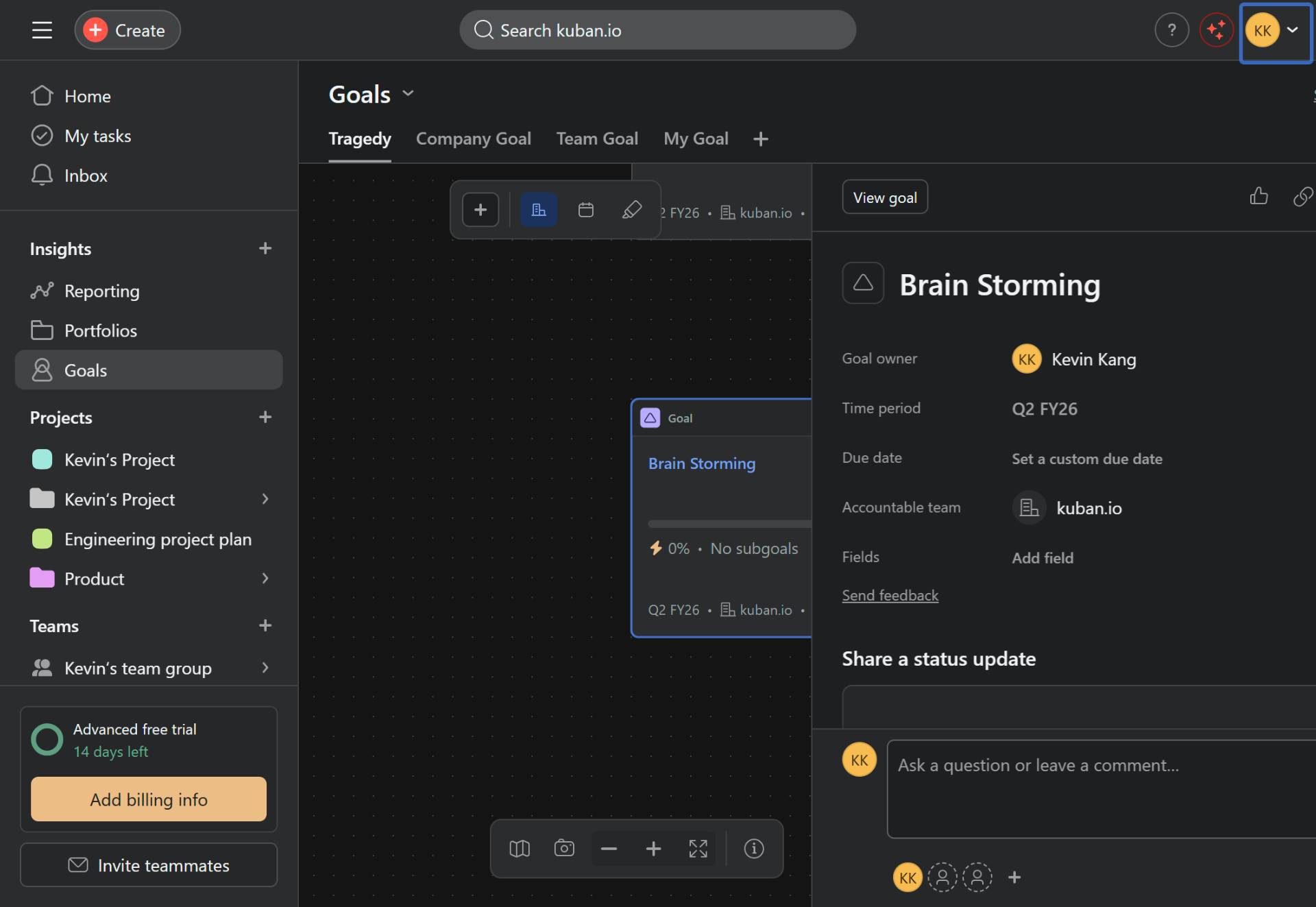
Click on another goal you want to edit, such as Brain Storming, to open its details panel.
- Step 5 of 11
Add a comment to the second goal
Click the comment field and type your message
Click on the comment field and type your message. Click the Comment button to post your comment to this goal.
- Step 6 of 11
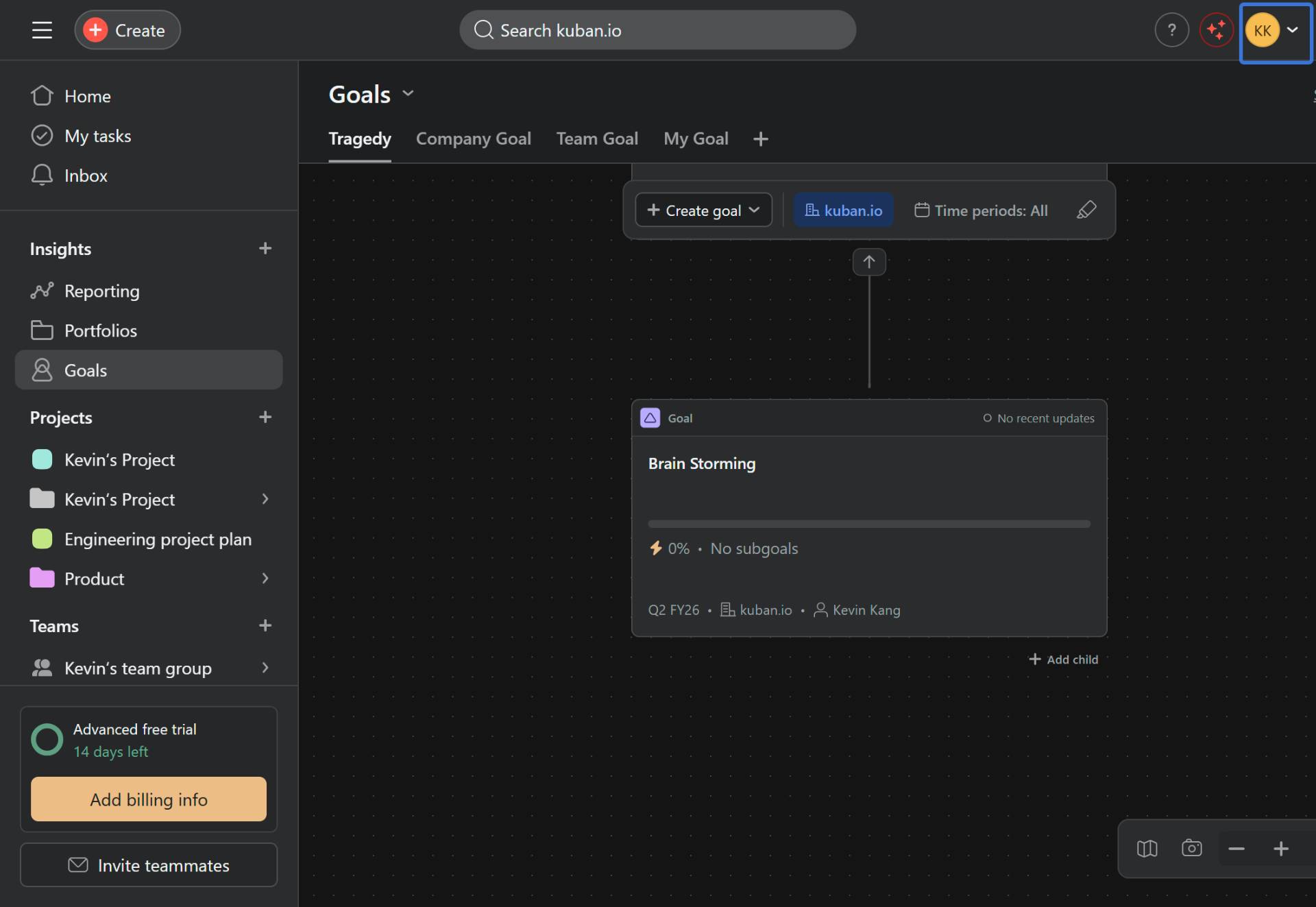
Switch to Company Goal view
Click the Company Goal tab
Click on the Company Goal tab at the top of the Goals page to view goals in list format.
- Step 7 of 11
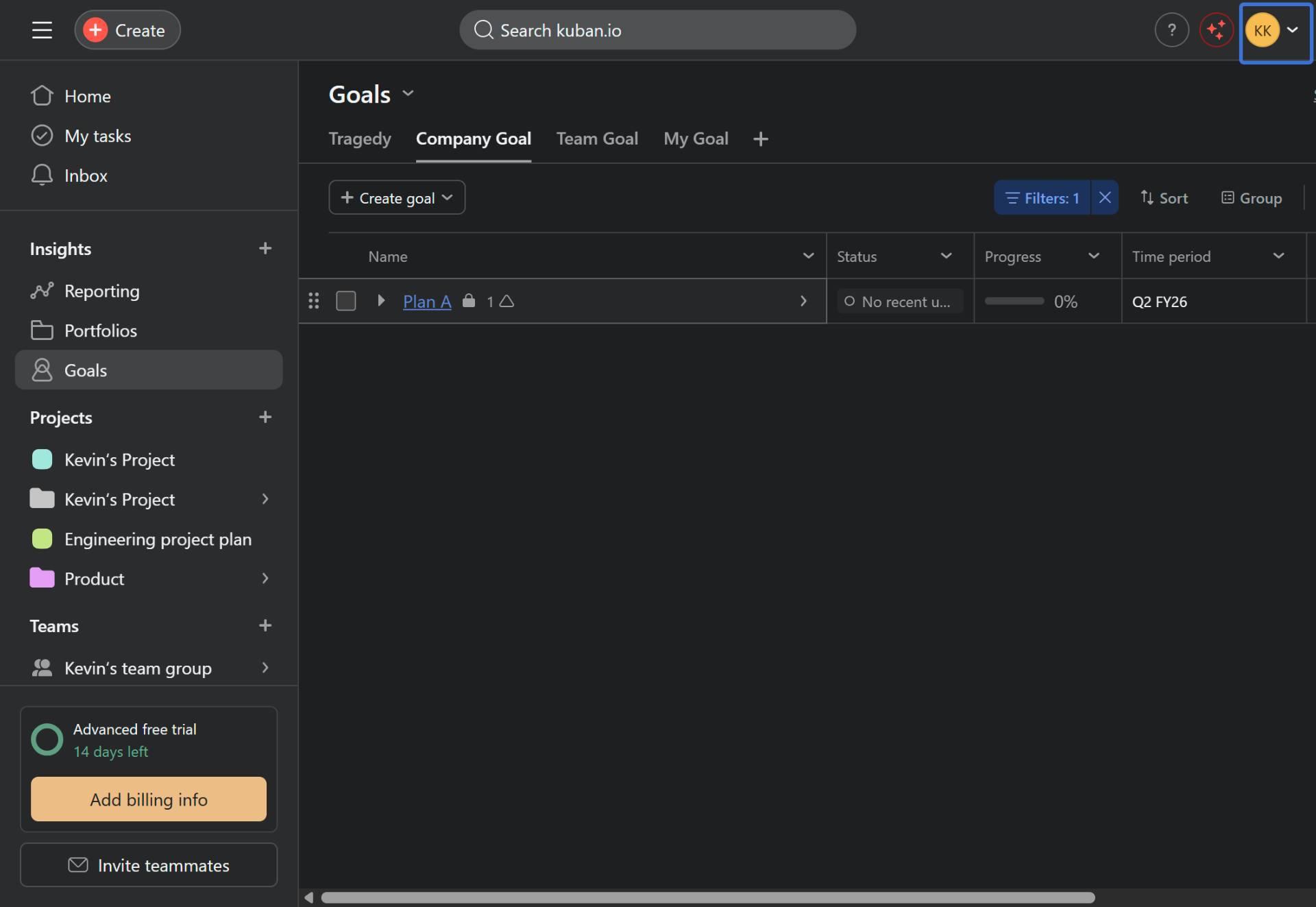
Select the goal from list view
Click the goal name in the list
Click on the goal name (e.g., Plan A) in the list view to open its detailed page.
- Step 8 of 11
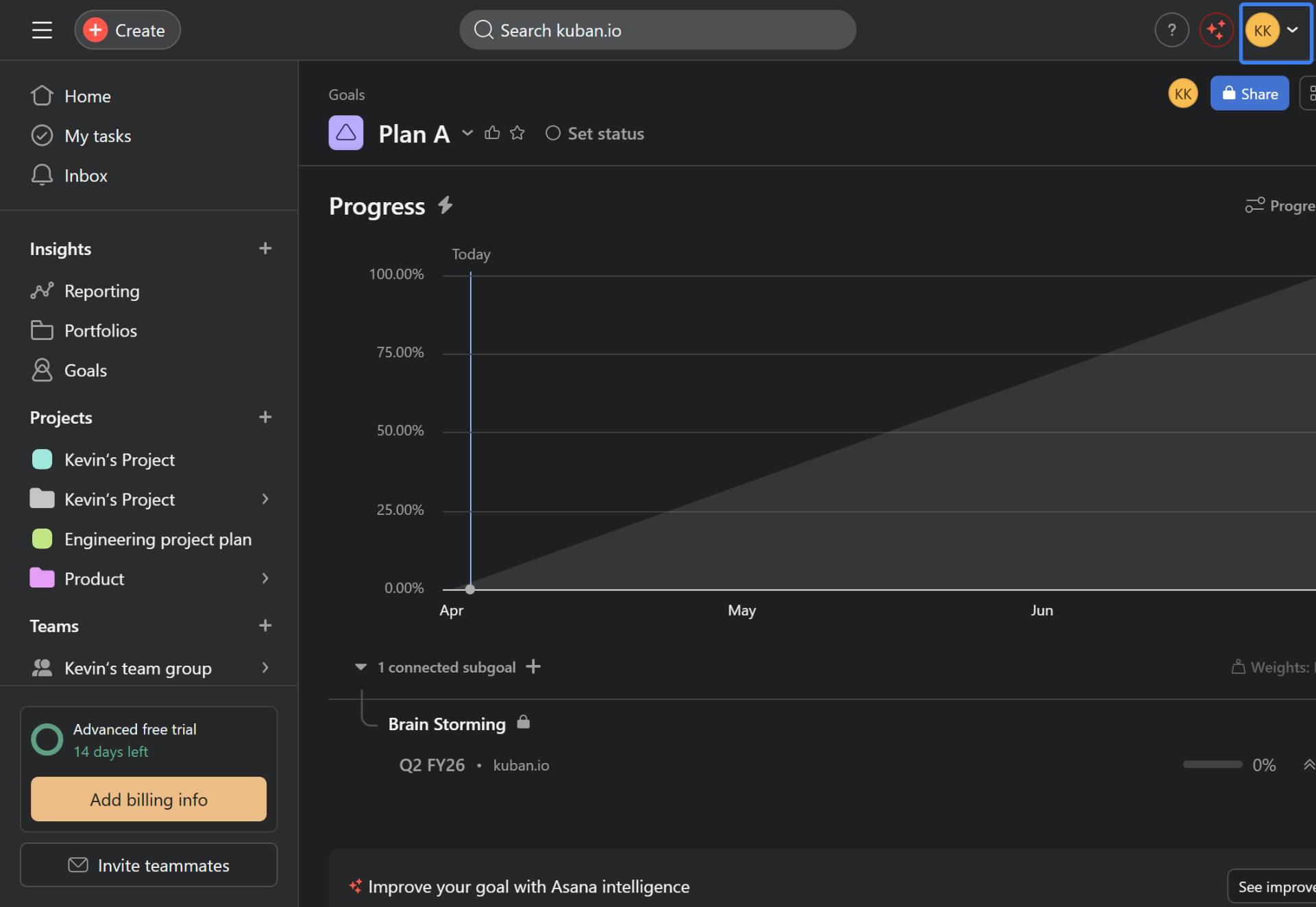
View connected subgoals
Click on the subgoal section
Click on the connected subgoal section to expand and view any subgoals connected to this goal. This shows the hierarchical relationship between goals.
- Step 9 of 11
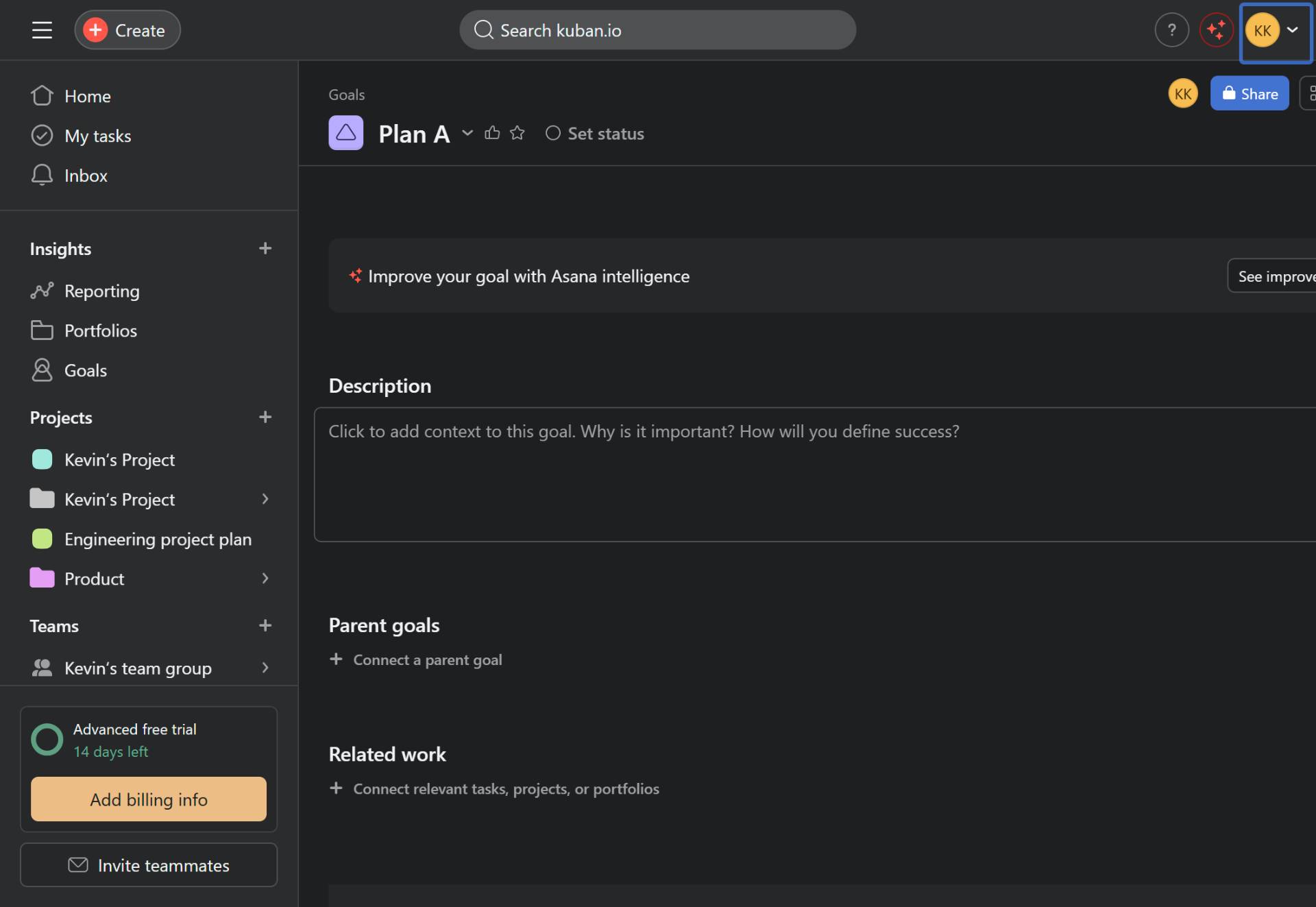
Add a goal description
Click the Description field
Scroll down to the Description section and click on the field to add context about the goal. Type a description explaining why this goal is important and how success will be defined.
- Step 10 of 11
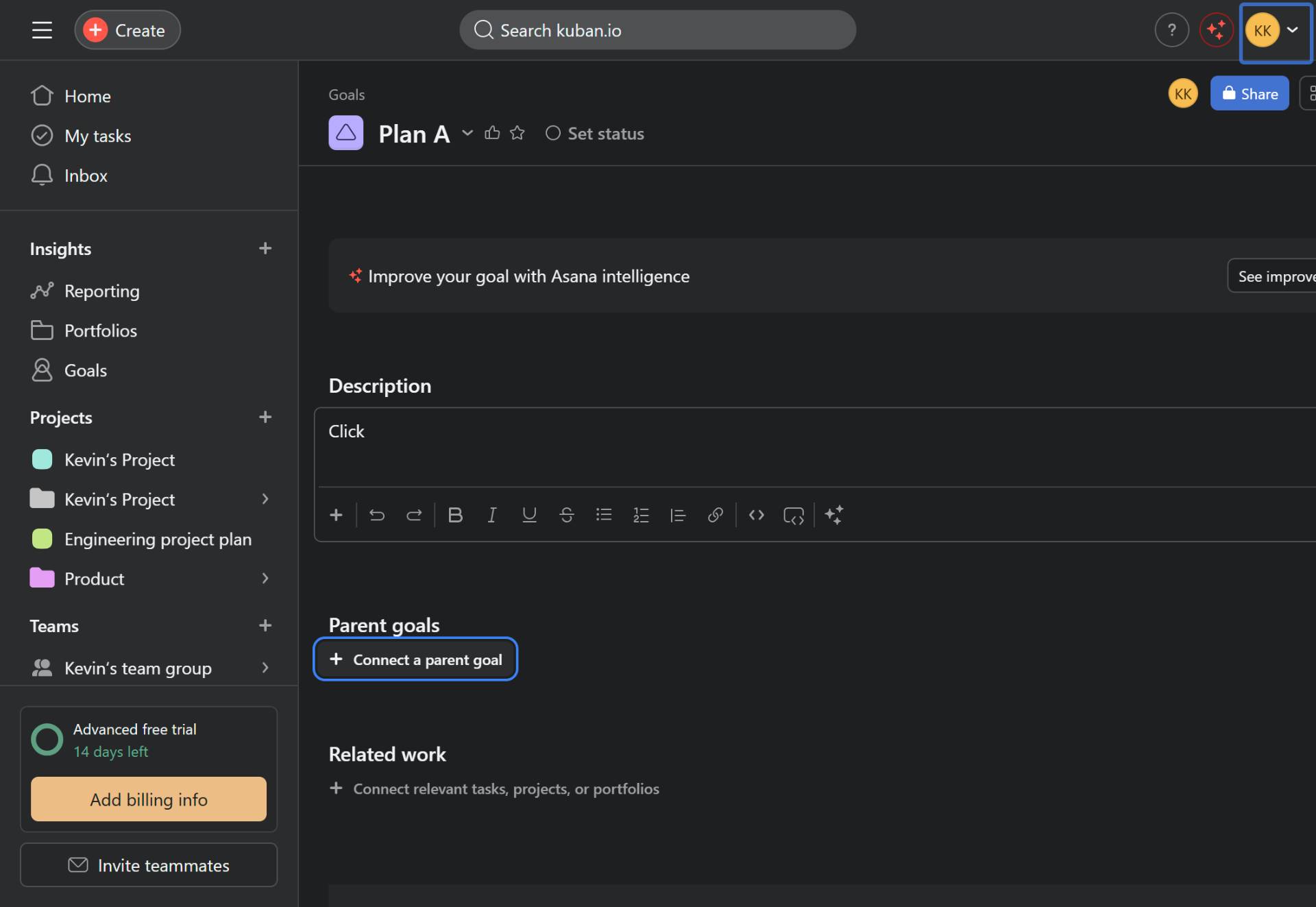
Connect a parent goal
Click Connect a parent goal
Click the Connect a parent goal button in the Parent goals section. A dropdown will appear showing available goals that can be set as parents.
- Step 11 of 11
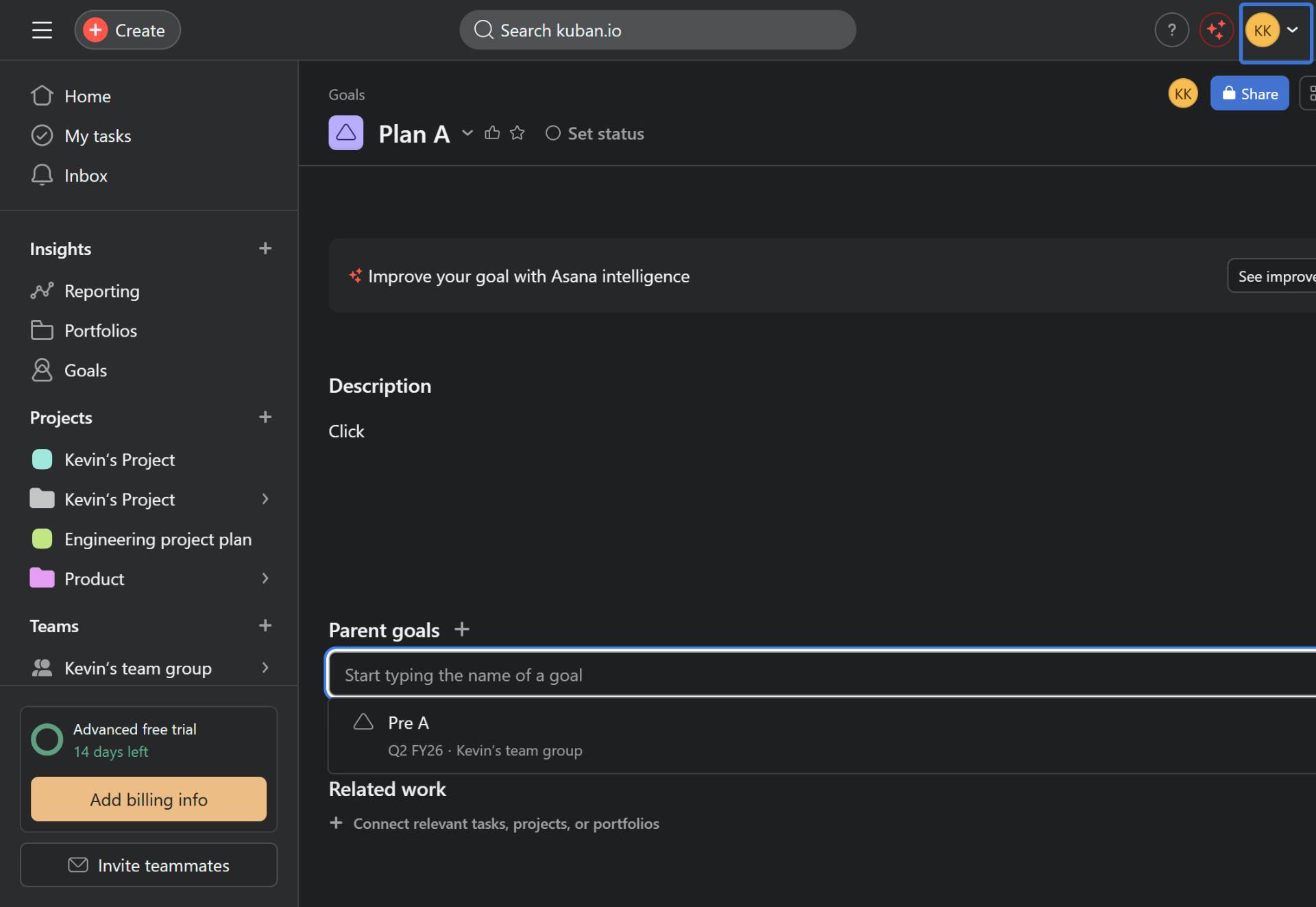
Select the parent goal
Select the parent goal from the dropdown
Select the desired parent goal (e.g., Pre A) from the dropdown list. The goal will now be connected as a child of the selected parent goal, establishing the hierarchical relationship.
Verification
To verify that the goal connections were successful:
Navigate back to the goal detail page and confirm the parent goal appears in the Parent goals section.
Check the Activity feed to confirm the comment posts are visible.
Verify the breadcrumb navigation at the top shows the parent goal relationship (e.g., "Goals > Pre A > Plan A").
Conclusion
You have successfully edited goals in Asana by adding comments, descriptions, and connecting parent goals to establish a clear hierarchy. These connections help track progress and maintain alignment across your organization's objectives.