

Purpose
This SOP describes how to change the font size of text elements in Figma and capture a screenshot of the updated design.
Scope
This procedure is intended for designers and team members who need to modify text properties in Figma and document design changes. Use this SOP when adjusting text font sizes for design presentations or documentation purposes.
Prerequisites
Access to a Figma account with edit permissions for the design file
A Figma design file with text elements available for editing
Procedure
- Step 1 of 5
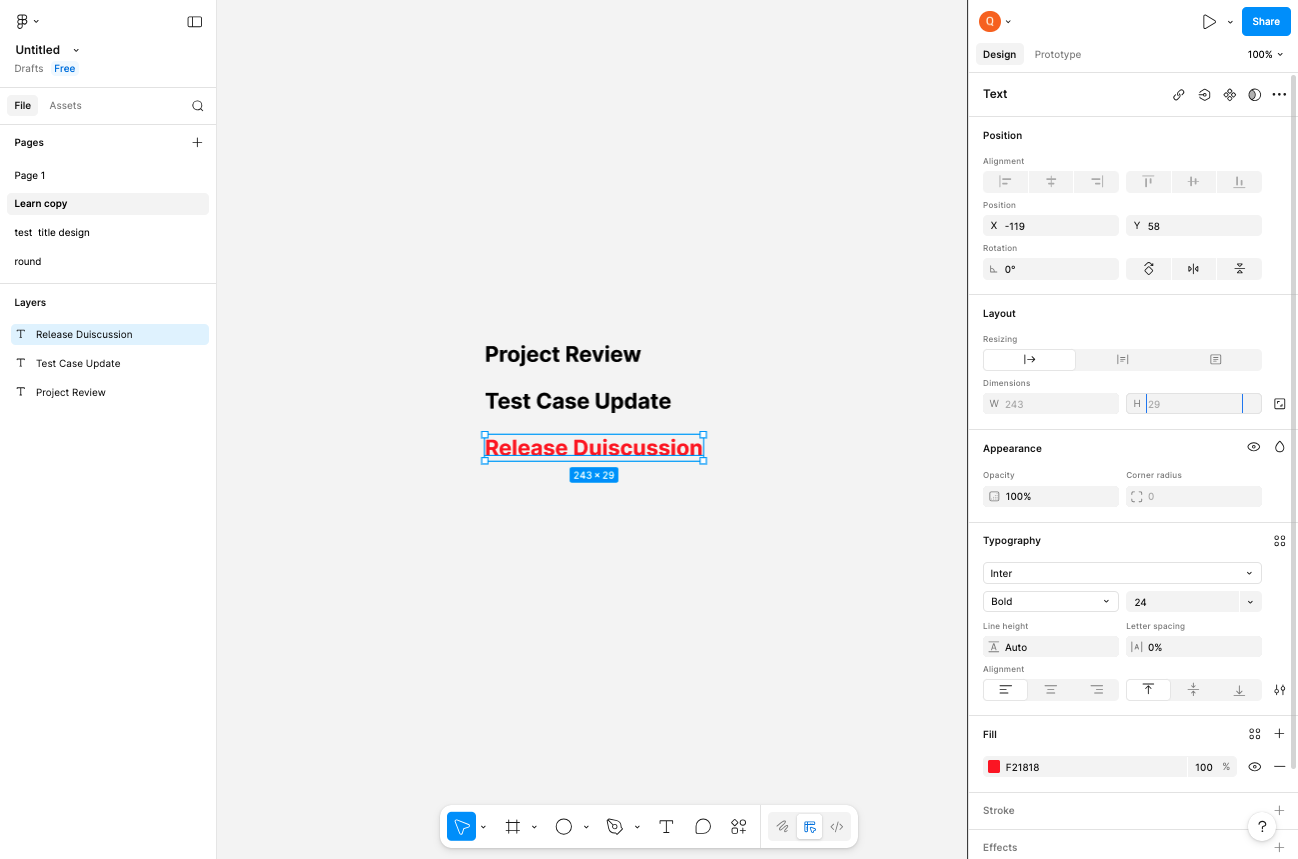
Navigate to Figma design file
Open the Figma design file
Navigate to the Figma design file at www.figma.com and ensure you have the file open in edit mode.
- Step 2 of 5
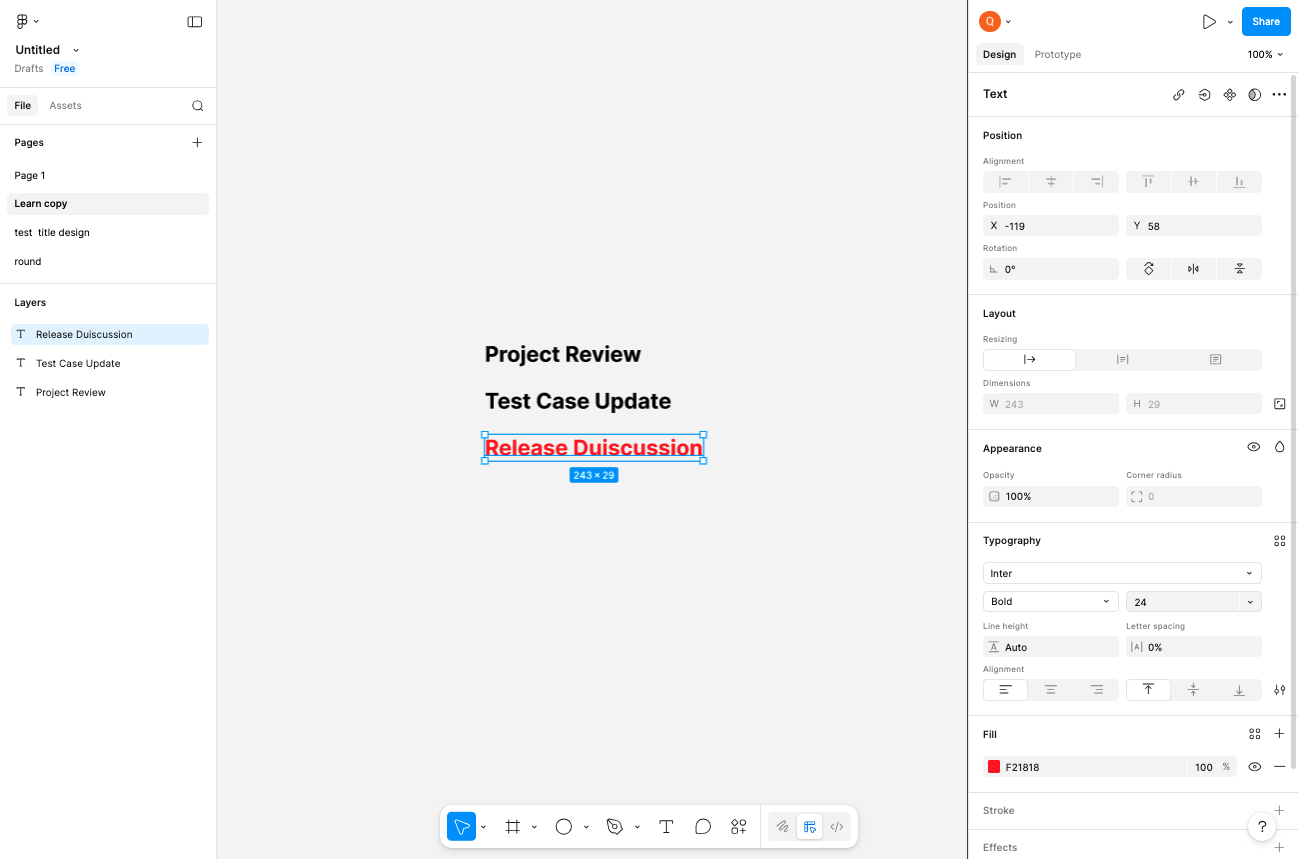
Select the text element
Click the text to select it
Click on the text element you want to modify. The text will become selected with a bounding box, and the properties panel will display on the right side showing the current Typography settings including font family, weight, and size.
- Step 3 of 5
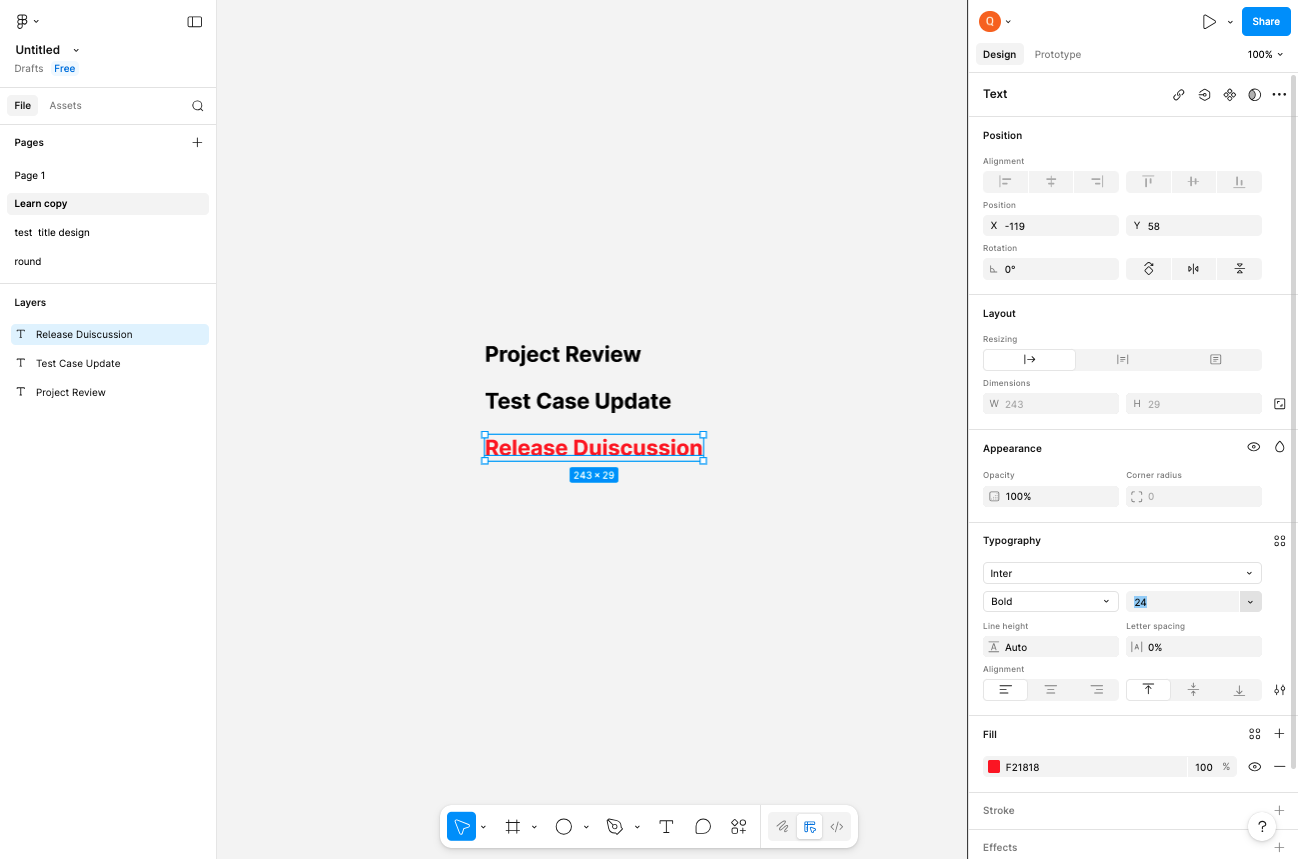
Open the font size dropdown
Click the font size field
In the right-side properties panel, locate the Typography section. Click on the font size field (currently showing the current size, for example 24) to open the font size dropdown menu.
- Step 4 of 5
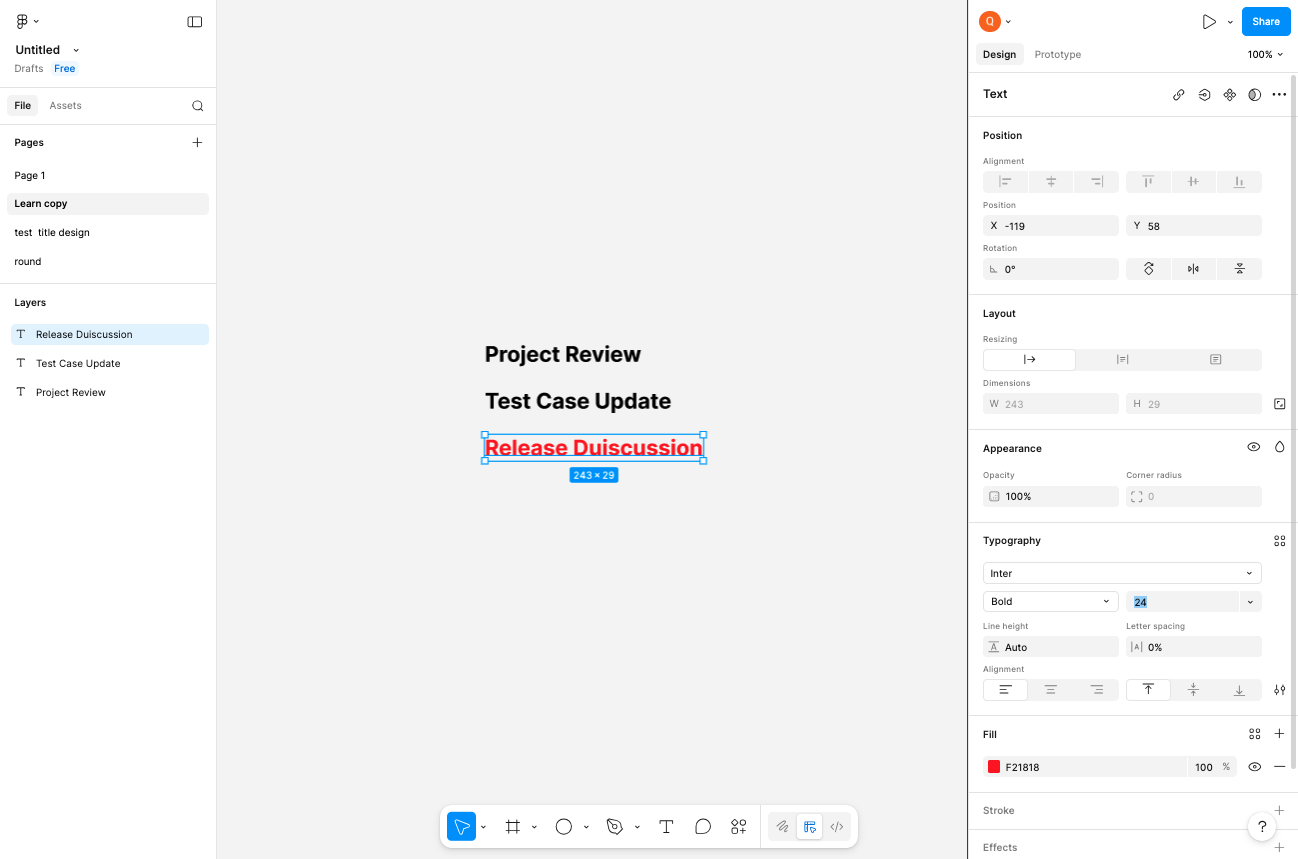
Select desired font size
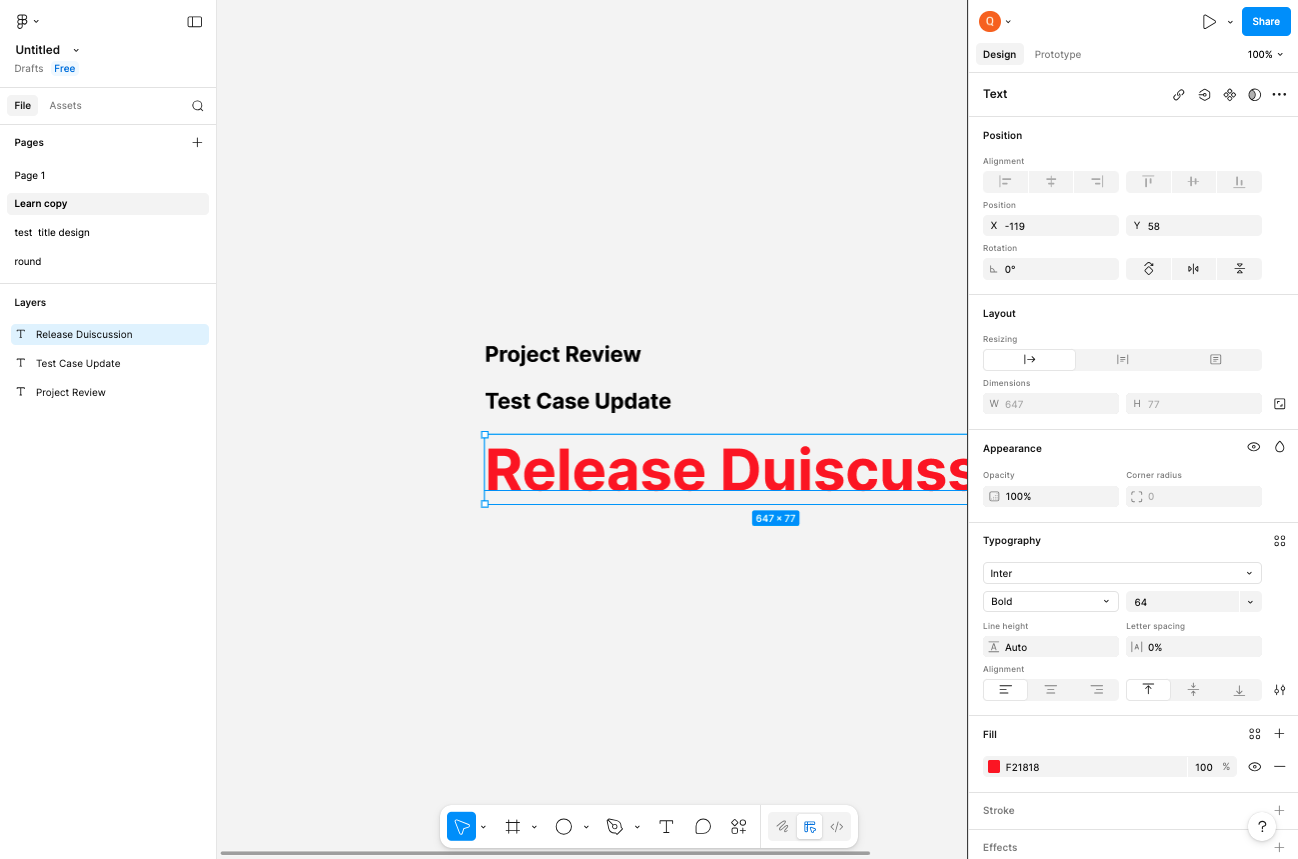
Choose 64 px from the dropdown
From the dropdown menu, click on the desired font size. For example, select 64 to increase the text size to 64 pixels. The dropdown will close and the text element will immediately resize on the canvas.
- Step 5 of 5
Capture screenshot
Take a screenshot of the updated design
After confirming the font size change is applied correctly, capture a screenshot to document the updated design. Use your system's screenshot tool or Figma's built-in export options to save the image.
Verification
Confirm the font size change was applied successfully:
Verify the text element on the canvas displays at the new larger size.
Check the Typography panel on the right shows the newly selected font size (e.g., 64).
Ensure the screenshot clearly captures the updated text styling.
Conclusion
You have successfully changed the font size of a text element in Figma and captured a screenshot of the updated design. The new font size is now applied and visible in your design file.