

Purpose
This SOP describes how to navigate to a Figma design file, modify text formatting properties, and reposition text elements within the canvas.
Scope
This procedure is intended for designers and team members who need to edit text properties and arrange elements in Figma design files. Follow this SOP when updating text formatting or repositioning design elements.
Prerequisites
Active Figma account with access to the design file
Edit permissions for the Figma file
Modern web browser (Chrome, Firefox, Safari, or Edge)
Procedure
- Step 1 of 5
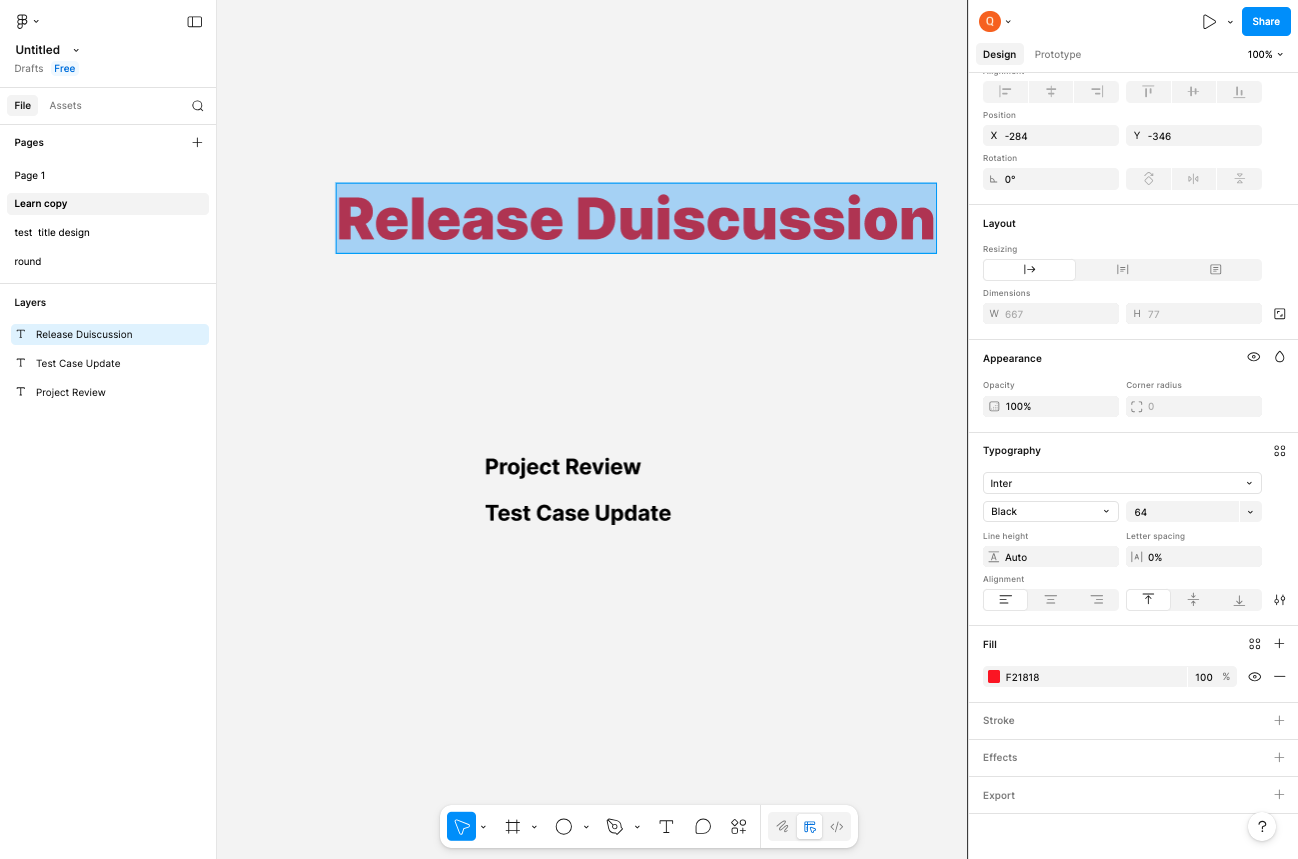
Navigate to Figma Design File
Open the Figma design file
Navigate to figma.com to access the design file. Ensure you are signed in with your Figma account credentials.
- Step 2 of 5
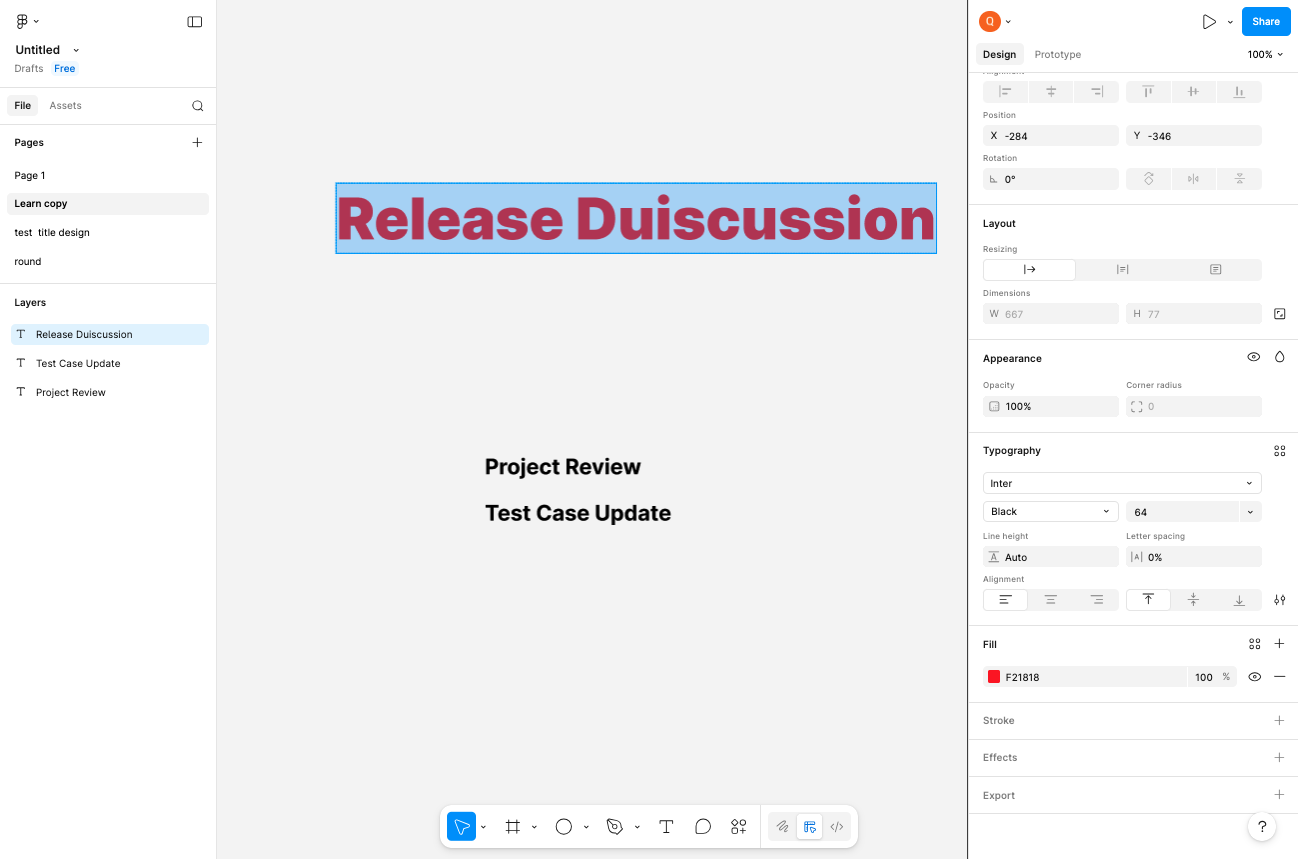
Select Text Element
Click on the text element to select it
Click on the text element you want to modify. The text will become selected, indicated by a blue bounding box with selection handles around it.
- Step 3 of 5
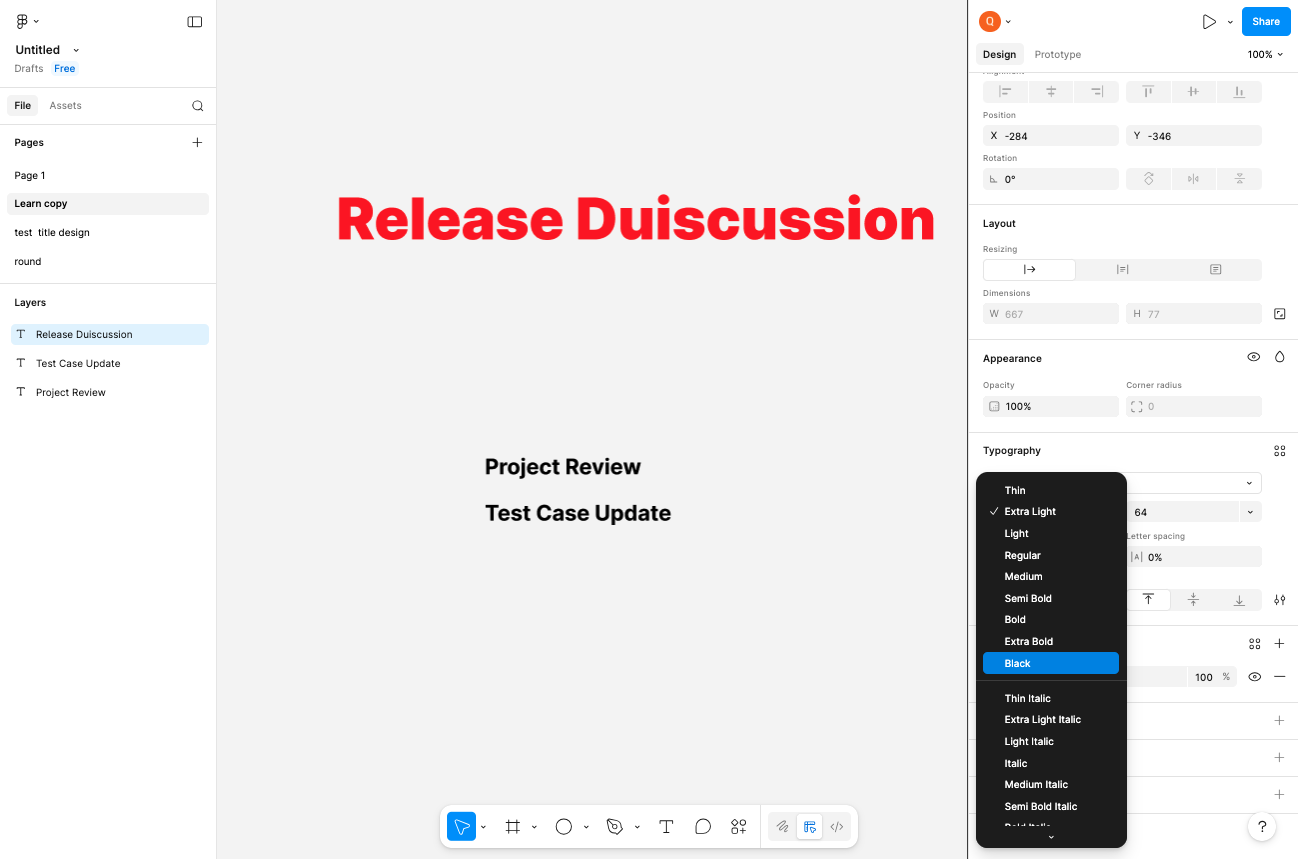
Open Font Weight Dropdown
Click the font weight dropdown in the Typography section
In the right sidebar, locate the Typography section. Click on the font weight dropdown (currently showing the current weight such as "Black") to open the weight selection menu.
- Step 4 of 5
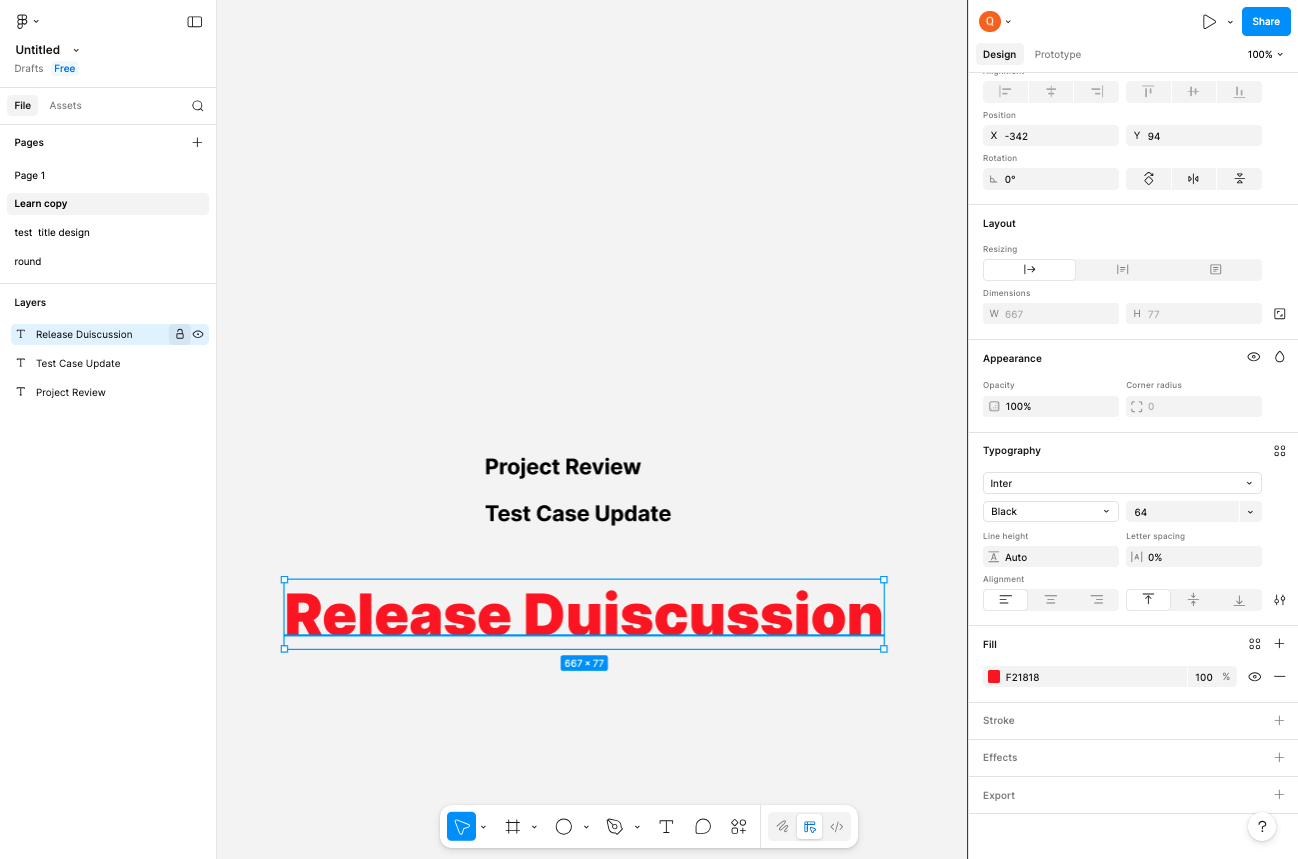
Select and Reposition Text Element
Drag the selected text element to a new position
Click and drag the selected text element to reposition it on the canvas. The element will move as you drag, and the position coordinates will update in real-time in the right sidebar.
- Step 5 of 5
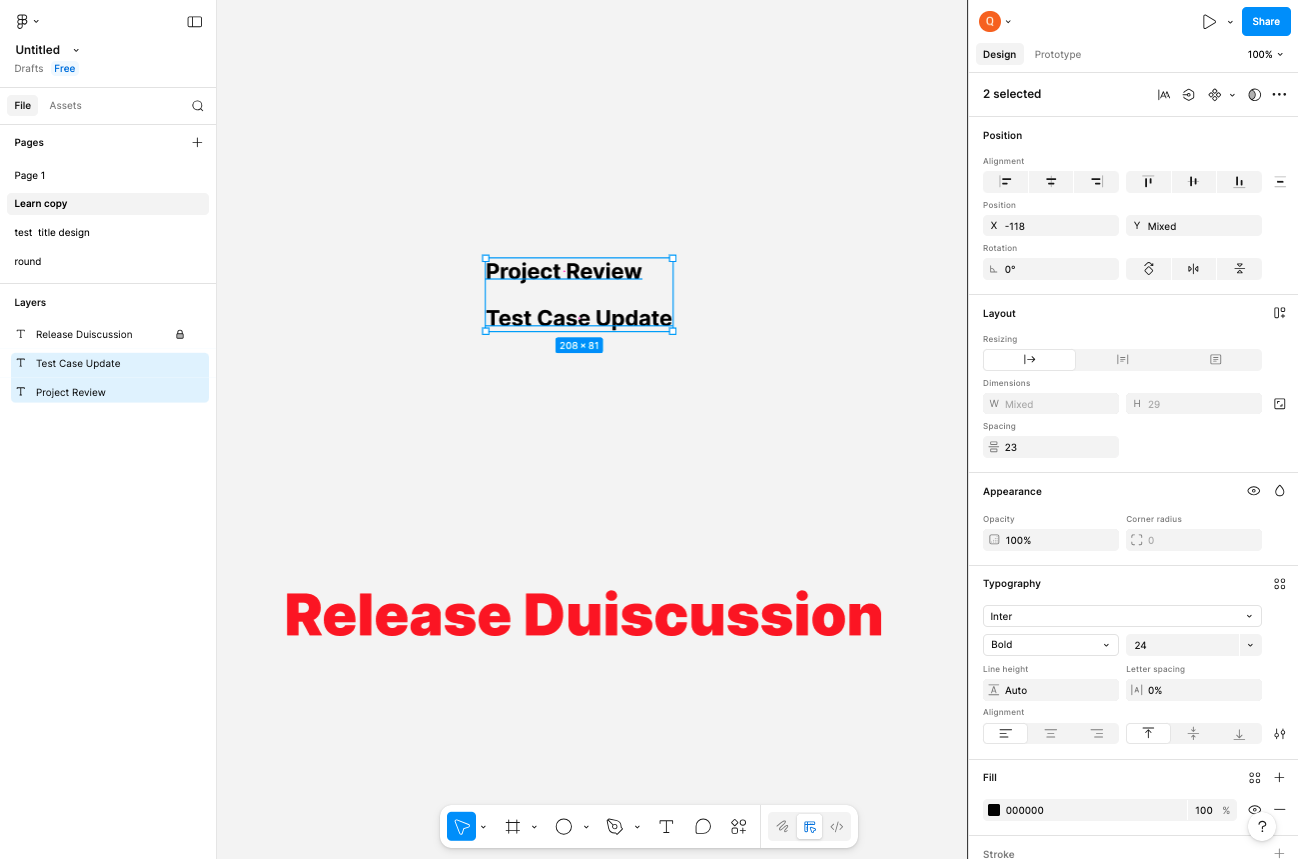
Select Multiple Text Elements
Select multiple text elements for batch editing
To select multiple text elements simultaneously, hold Shift and click on each element you want to include in the selection, or drag a selection box around multiple elements.
Verification
Confirm the procedure was completed successfully by checking:
The text element displays the updated font weight as selected from the dropdown.
The repositioned element is located at the intended coordinates on the canvas.
Multiple selected elements show the selection count in the right sidebar.
Changes are automatically saved to the Figma file (indicated by the save status in the top toolbar).
Conclusion
You have successfully navigated to the Figma design file, modified text formatting properties, and repositioned text elements on the canvas. Your changes are automatically saved and available to all collaborators with access to the file.