

Purpose
This SOP describes how to navigate between pages in a Figma design file and use Google Translate to translate text content for your design documentation.
Scope
This procedure is intended for designers and team members who need to navigate Figma files, manage page structures, and translate design-related text. Follow this SOP when working with multi-page Figma files or preparing multilingual design documentation.
Prerequisites
A Figma account with access to the design file
Web browser with access to Figma and Google Translate
Procedure
- Step 1 of 4
Navigate to Figma design file
Open the Figma file in your browser
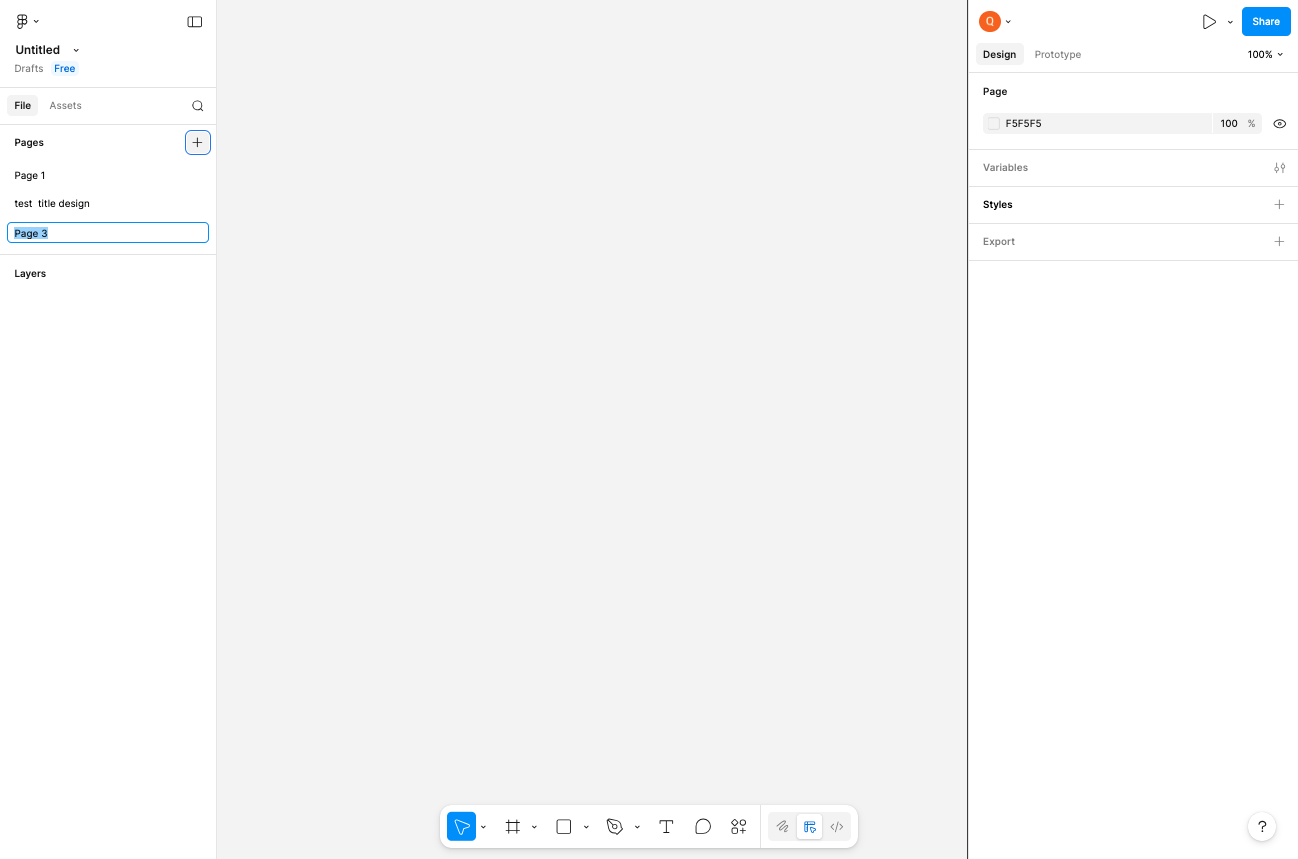
Navigate to www.figma.com to open the Figma design file. The interface displays the Pages panel on the left side, showing available pages including Page 1, Web App design, and Page 3.
- Step 2 of 4
Select and rename a page in Figma
Click the page name to select it
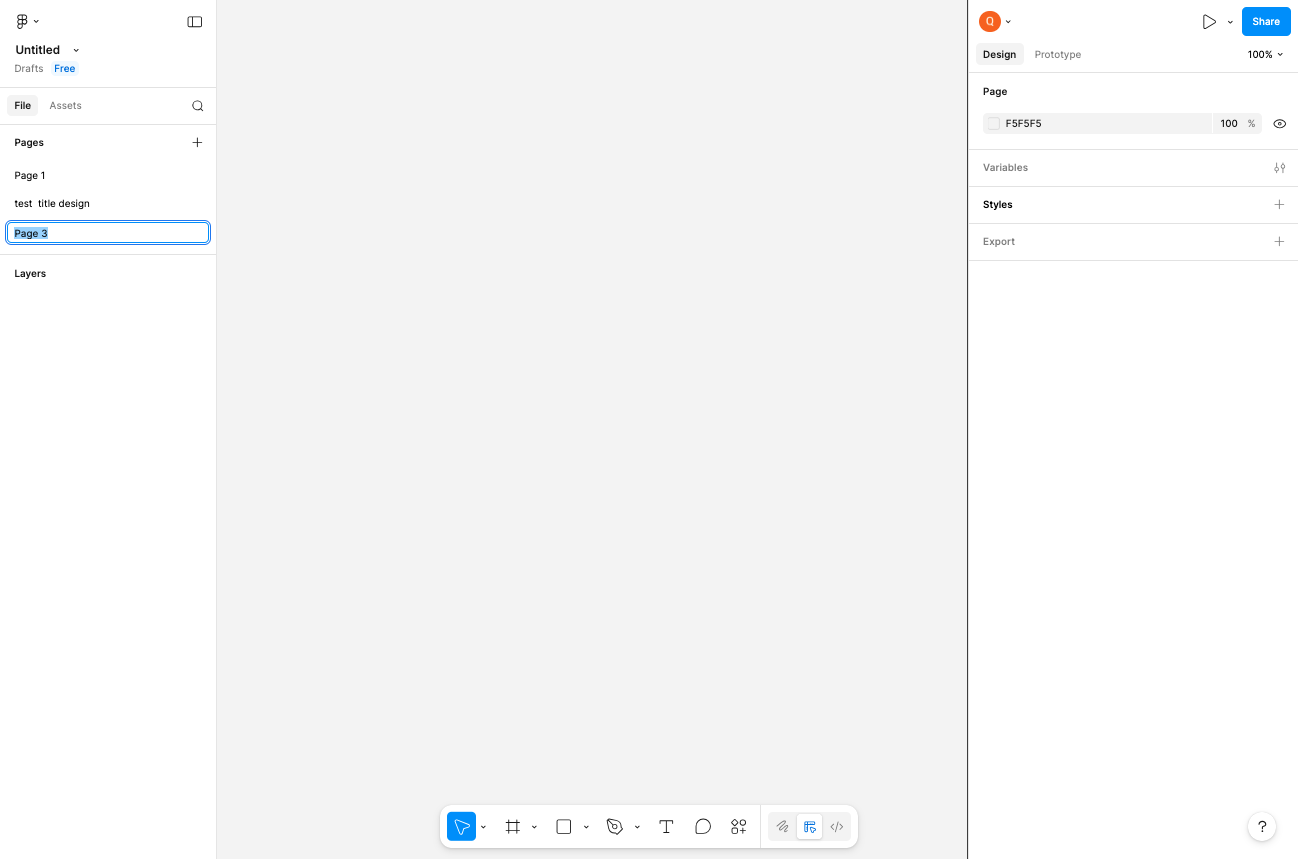
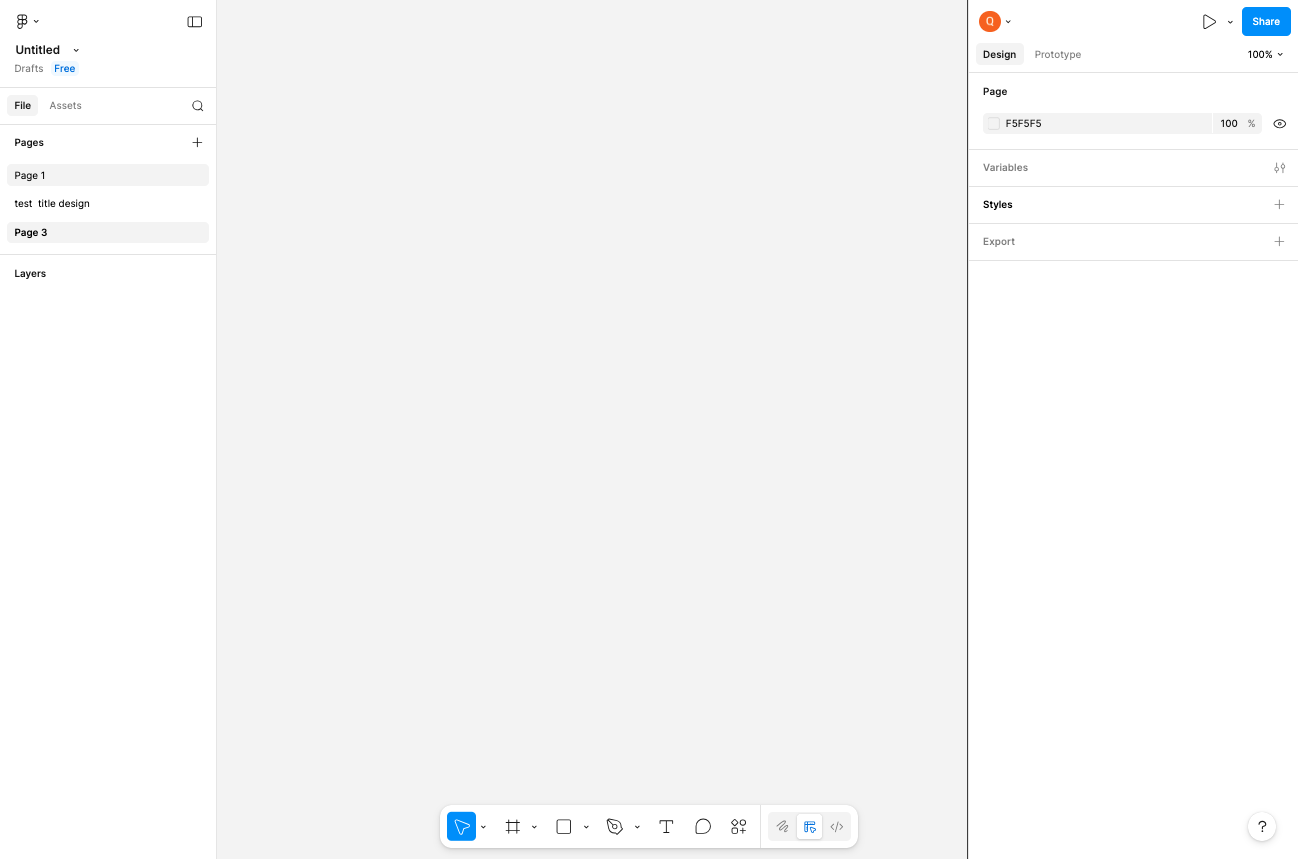
In the left sidebar, click on the page you want to work with. The selected page becomes highlighted and displays the page name in an editable field. You can rename the page by typing a new value directly into the Page name field.
- Step 3 of 4
Navigate to Google Translate
Open Google Translate in a new tab
Modify the page name
- Step 4 of 4
View design elements on the canvas
Return to Figma to view design elements
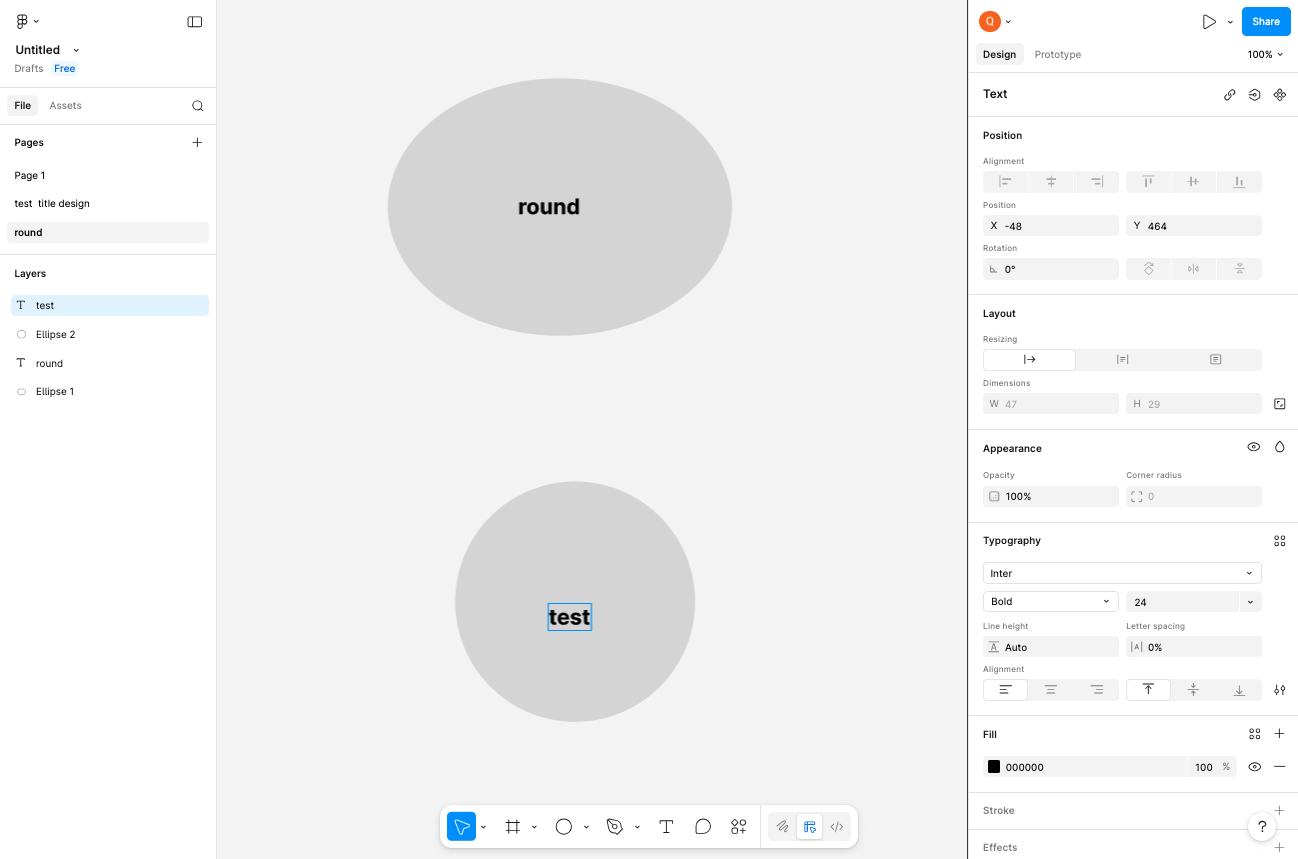
Return to the Figma tab to view the design canvas. The canvas displays design elements such as shapes with text labels (for example, "round" and "test" text elements inside circular shapes). The right panel shows properties for the selected element including Position, Layout, Appearance, Typography, and Fill settings.
Conclusion
You have successfully navigated between pages in Figma and used Google Translate to support your design workflow. Continue this process as needed when working with multi-page designs or multilingual content.