

Purpose
This SOP describes how to change the font weight of text elements in Figma using the Typography panel in the right sidebar.
Scope
This procedure is intended for designers and team members working with text in Figma design files. Follow this SOP when you need to adjust the weight (thickness) of text for visual hierarchy or stylistic purposes.
Prerequisites
Access to the Figma design file
Text element present in the design that supports variable font weights
Procedure
- Step 1 of 5
Navigate to Figma design file
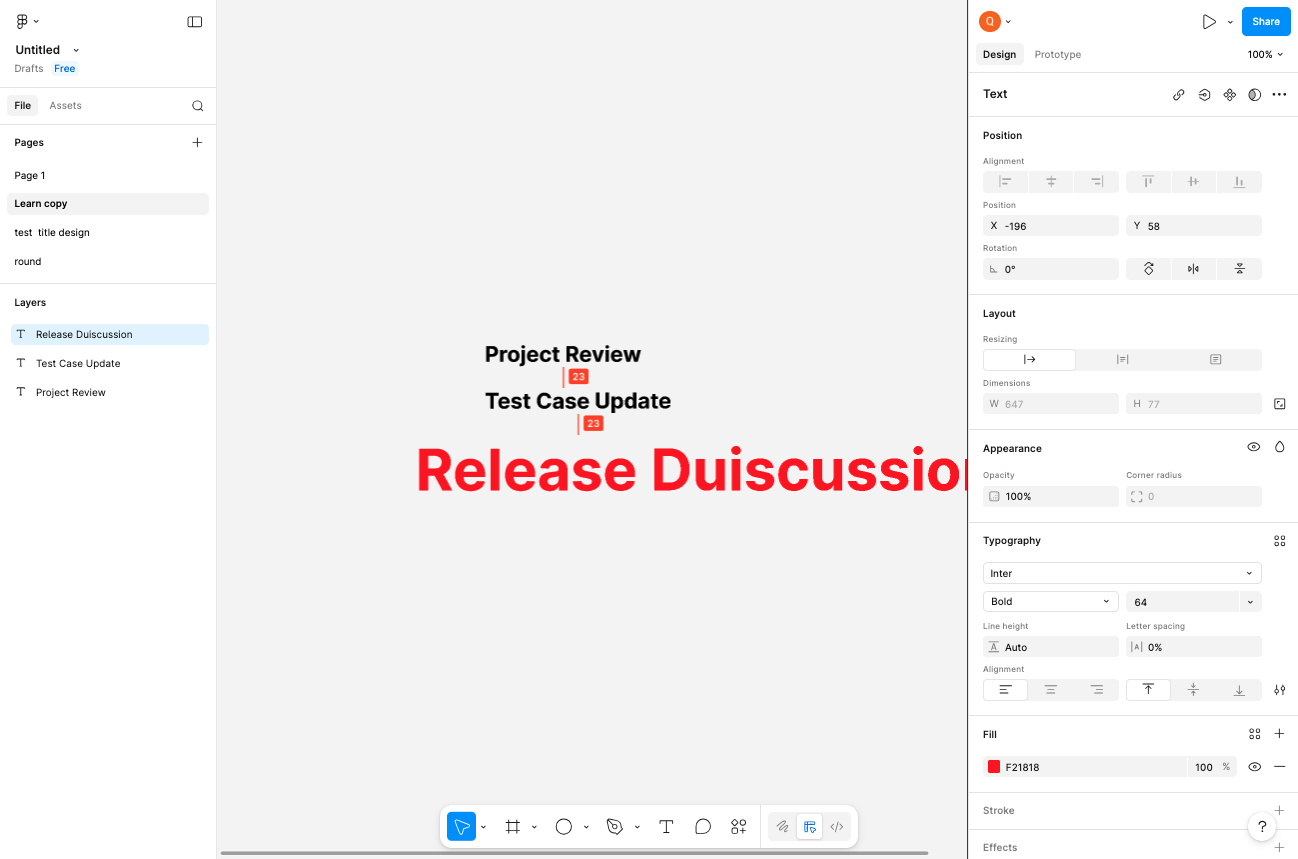
Open the Figma design file
Navigate to figma.com and open the design file containing the text you want to modify.
- Step 2 of 5
Select the text element
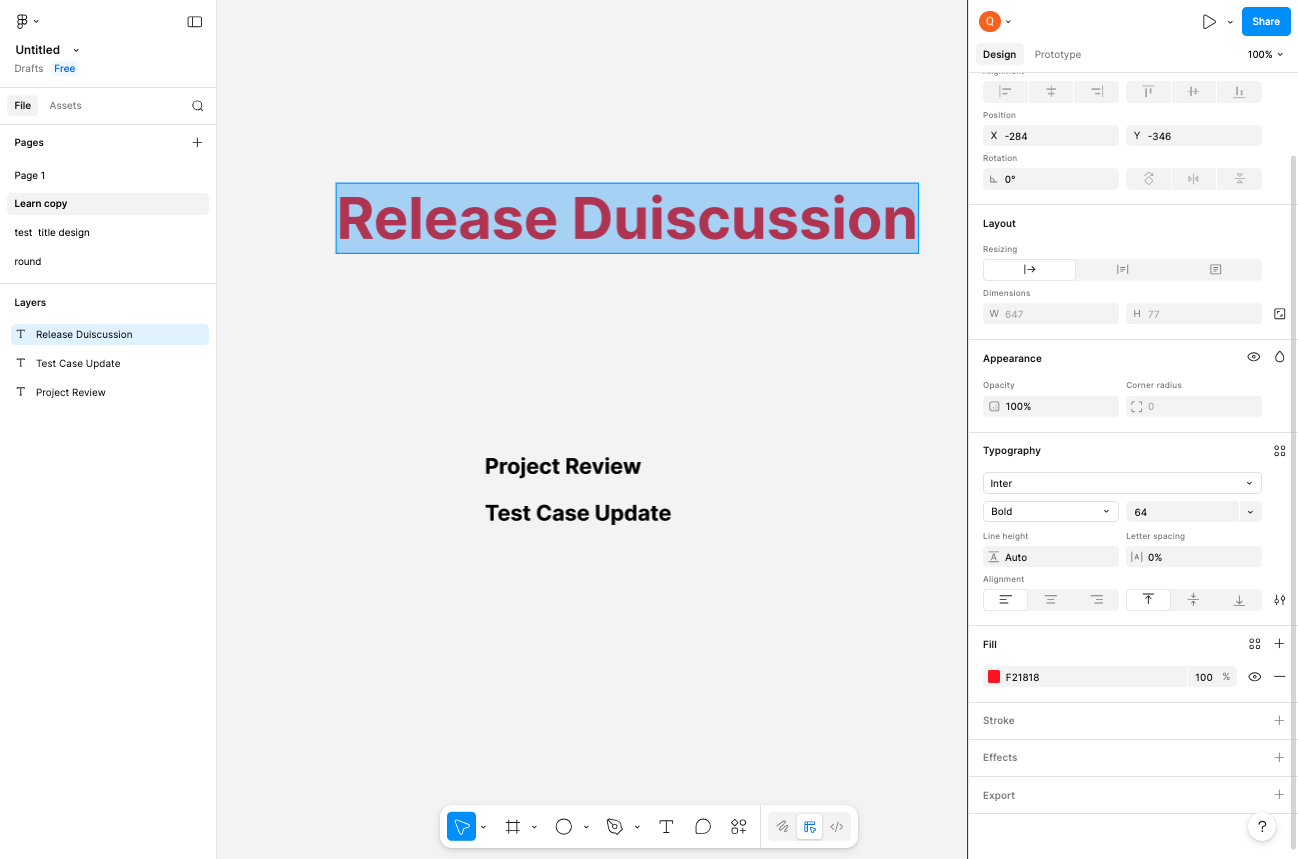
Click on the text to select it
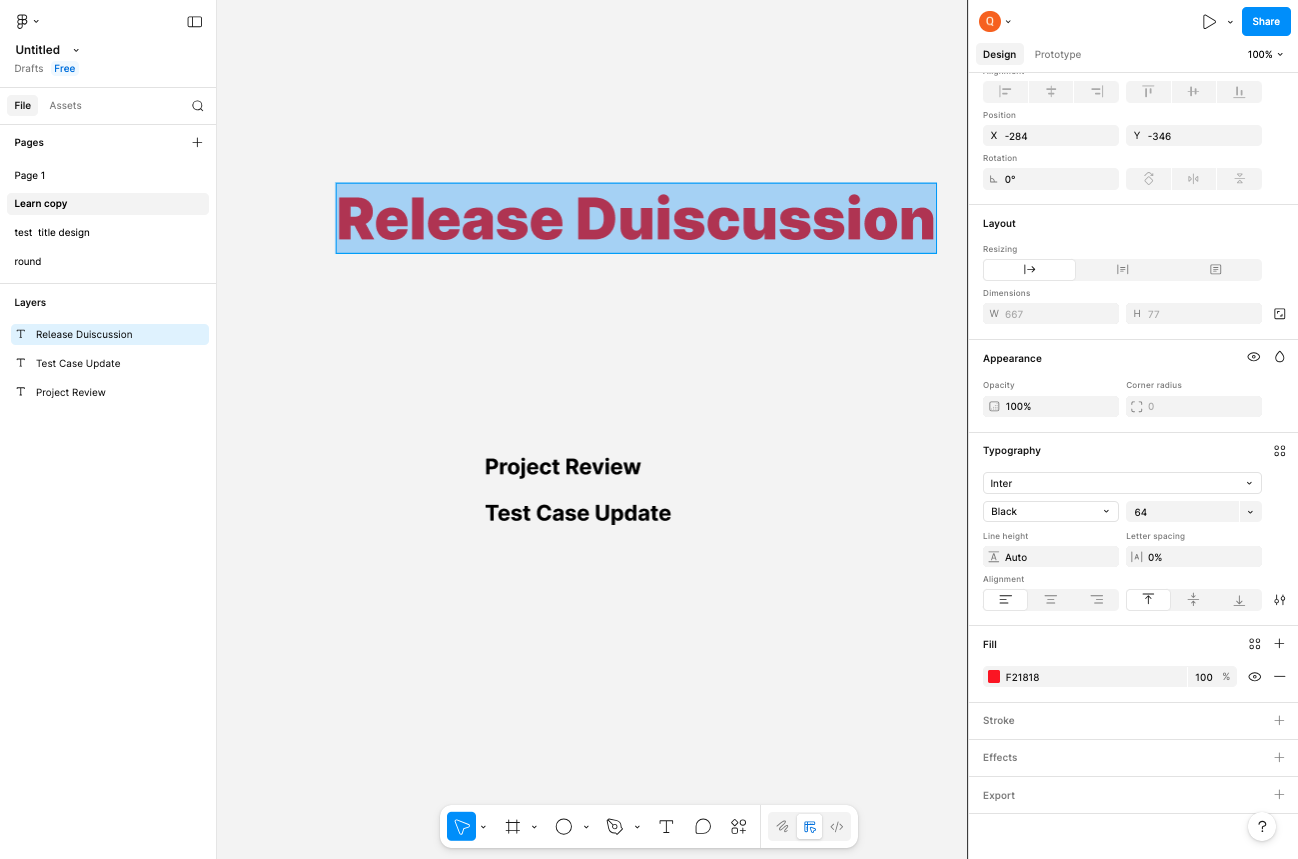
Click on the text element you want to modify. The text will become selected with a blue highlight border, and the right sidebar will display the Typography properties.
- Step 3 of 5
Open the font weight dropdown
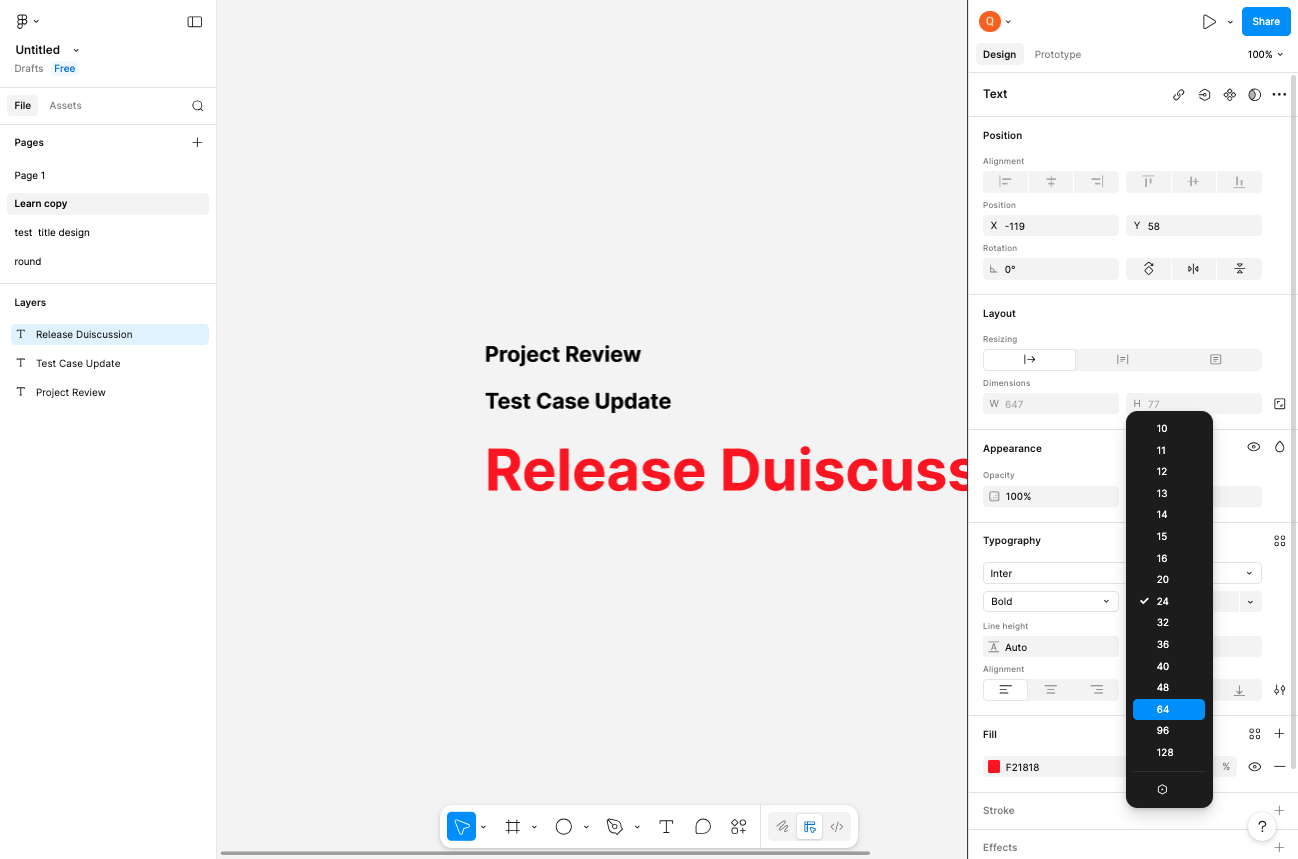
Click the font weight button in the Typography panel
In the right sidebar, locate the Typography section. Click on the current font weight button (e.g., Bold) to open the font weight dropdown menu.
- Step 4 of 5
Select a font weight
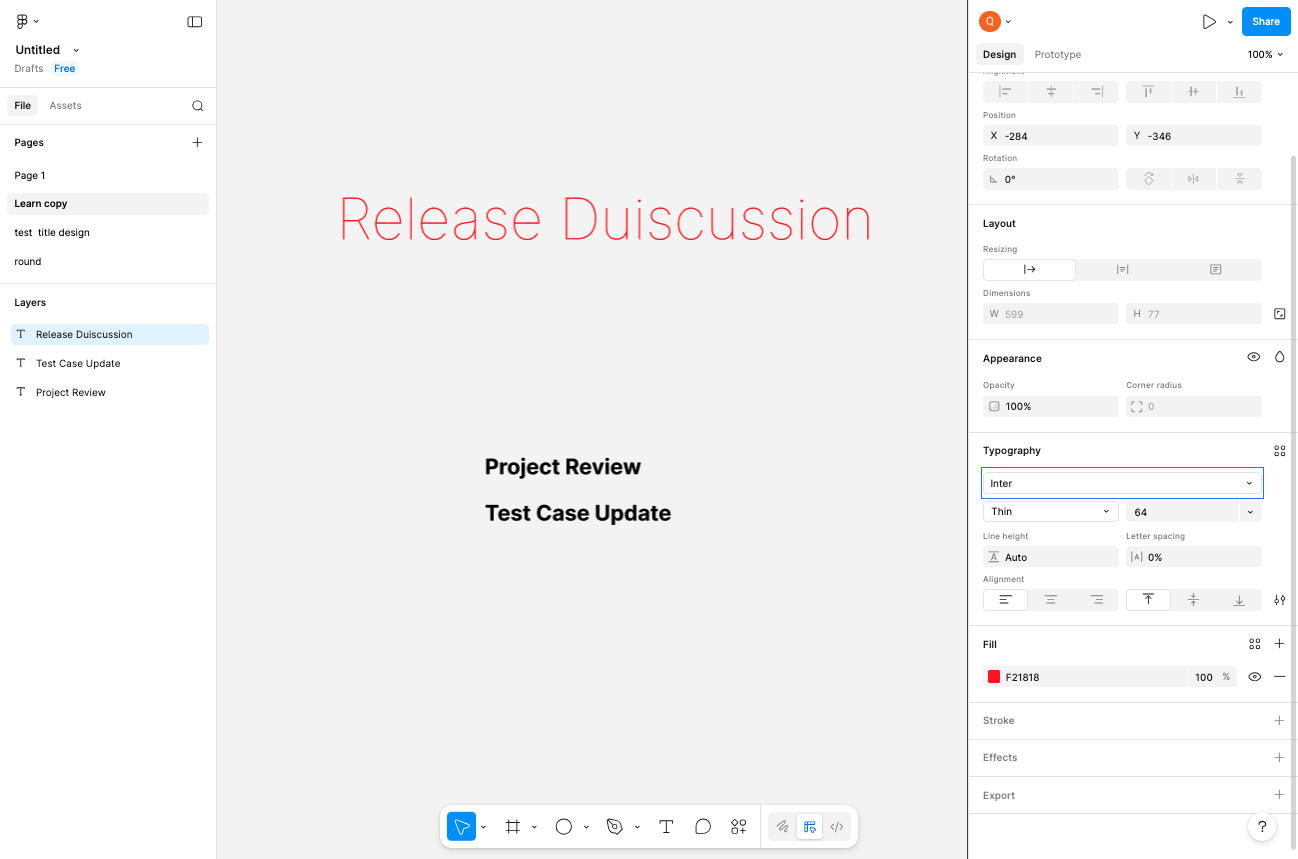
Choose the desired font weight from the dropdown
From the dropdown menu, select the desired font weight. Available options typically include:
- Step 5 of 5
Verify the change
Confirm the text displays the new weight
Verify that the text element now displays with the selected font weight. The Typography panel will show the currently applied weight next to the font name.
Verification
To confirm the font weight change was applied successfully:
Check that the text visually reflects the selected weight (thinner for Light weights, thicker for Bold weights)
Confirm the Typography panel in the right sidebar displays the selected weight name
If the text uses a variable font, ensure the weight change is smooth and the font supports the selected weight
Troubleshooting
Font weight dropdown does not appear
Ensure the text element is selected by clicking directly on it. If the text is part of a component or group, you may need to double-click to enter edit mode or select the specific text layer from the Layers panel.
Selected weight does not apply to text
Some fonts have limited weight variations. If the text does not change after selecting a different weight, the font family may not support that specific weight. Try selecting a different weight or change the font family to one with broader weight support (such as Inter, Roboto, or Open Sans).
Typography panel is not visible
Click the Design tab in the right sidebar to ensure you're in design mode. If the panel is collapsed, click on the Typography section header to expand it.
Conclusion
You have successfully changed the font weight of a text element in Figma. The text now displays with your selected weight, which can be adjusted at any time by repeating this procedure.