

Purpose
This SOP describes how to create a new forum topic in Freshdesk to engage with customers, gather feedback, or make announcements. Following this procedure allows agents to start discussions and share information with the community.
Scope
This procedure is intended for support agents and administrators who need to create new topics in the Freshdesk forums. Use this SOP when you want to start a new discussion, post an announcement, or share information with your user community.
Prerequisites
Logged in to Freshdesk with your agent or administrator account
Access to the Forums feature in your Freshdesk plan
Procedure
- Step 1 of 6
Navigate to kuban-help.freshdesk.com
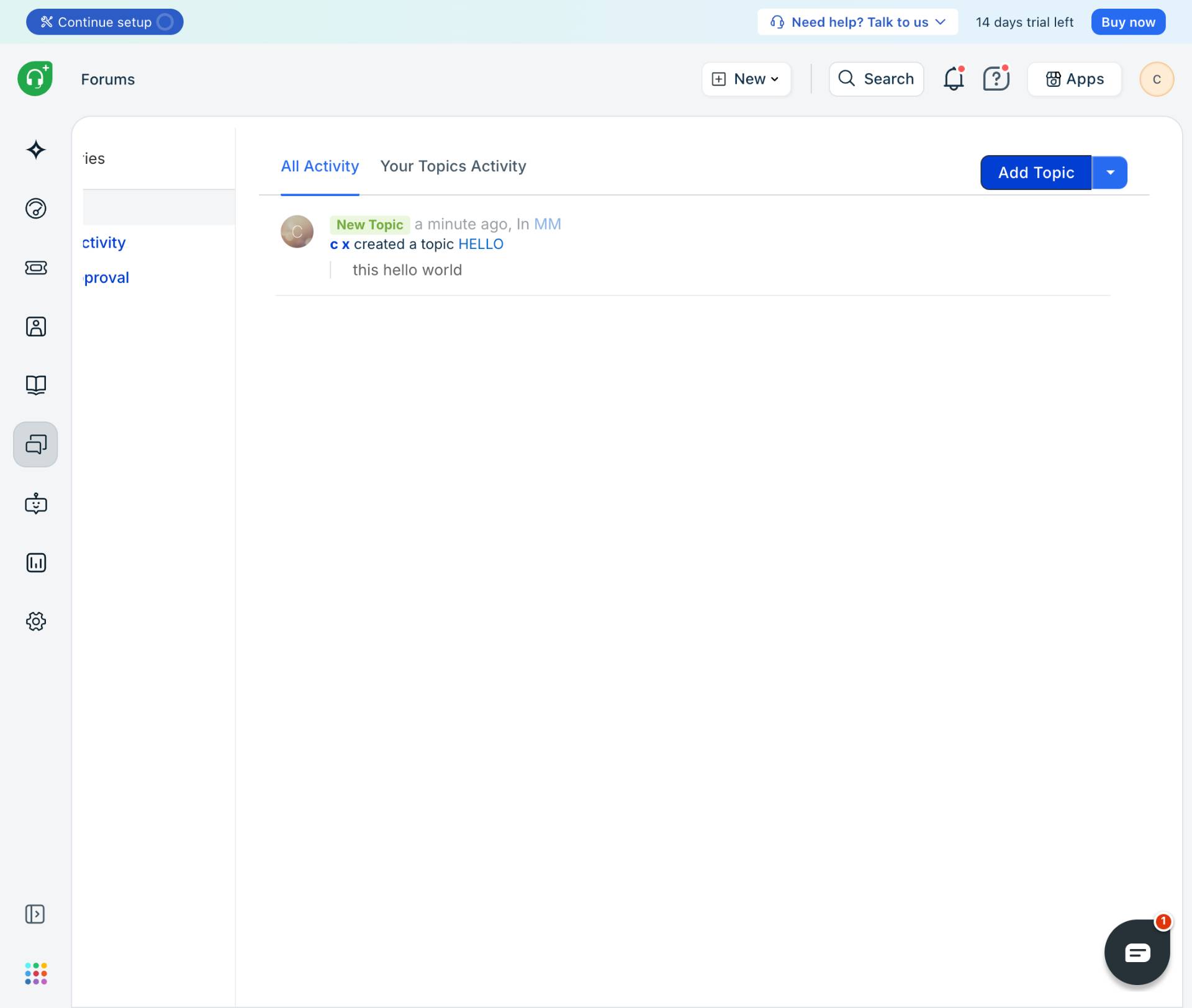
Go to the Forums page
Navigate to kuban-help.freshdesk.com and ensure you are logged in to your Freshdesk account.
- Step 2 of 6
Click the Add Topic button
Click the Add Topic button
Click the Add Topic button located in the upper right area of the Forums page. This opens the topic creation form where you can enter your topic details.
- Step 3 of 6
Enter the topic name
Type the topic name
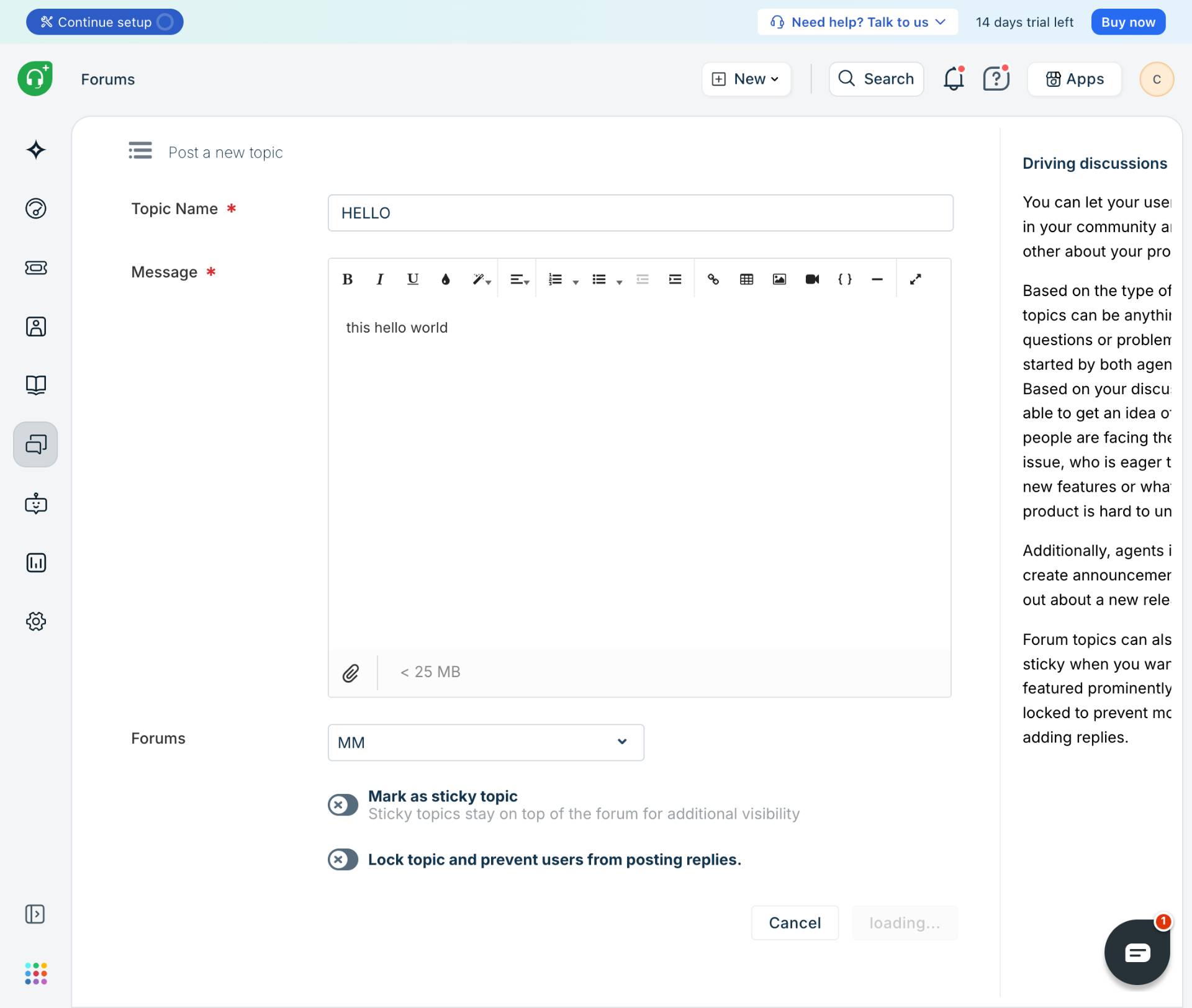
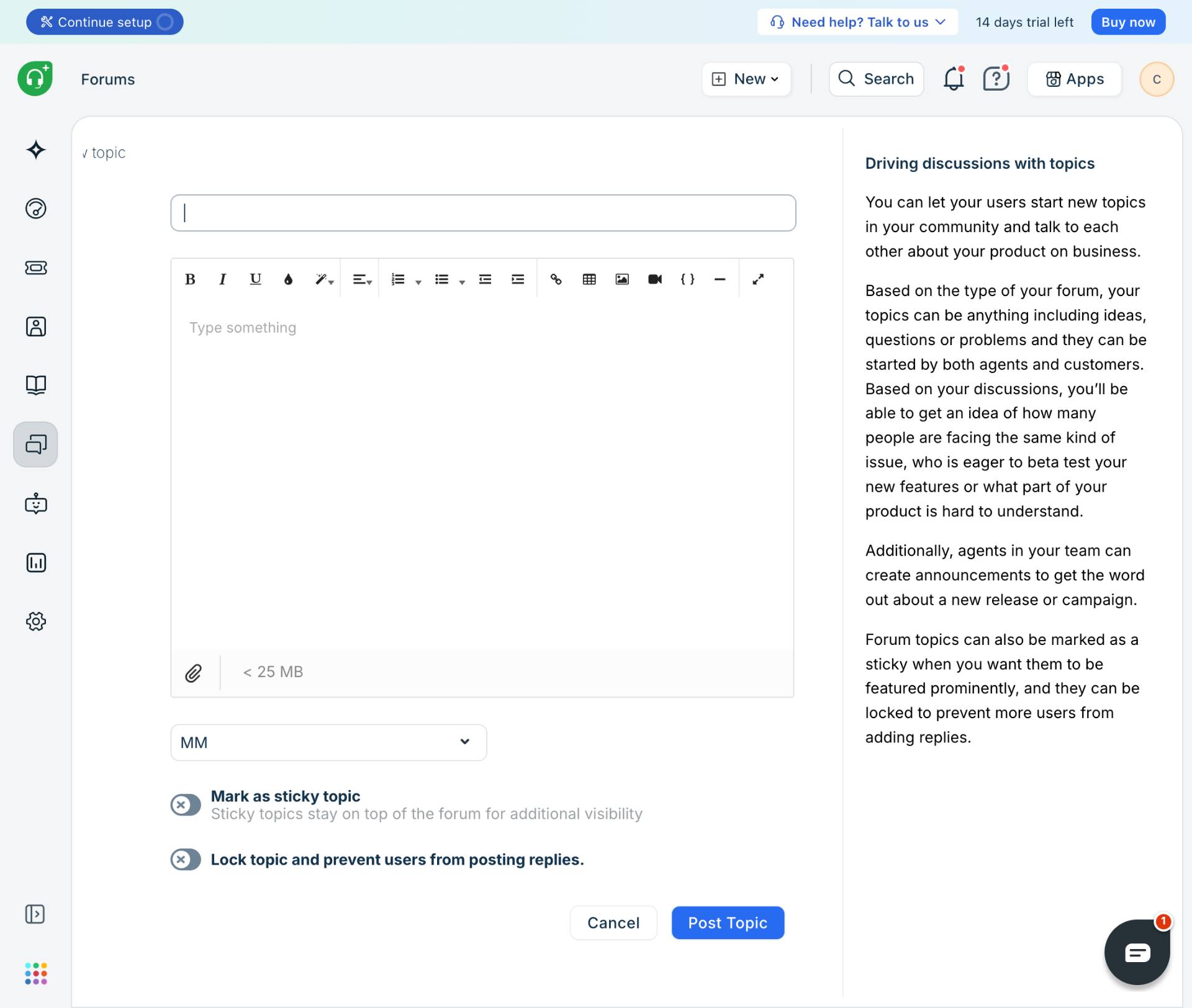
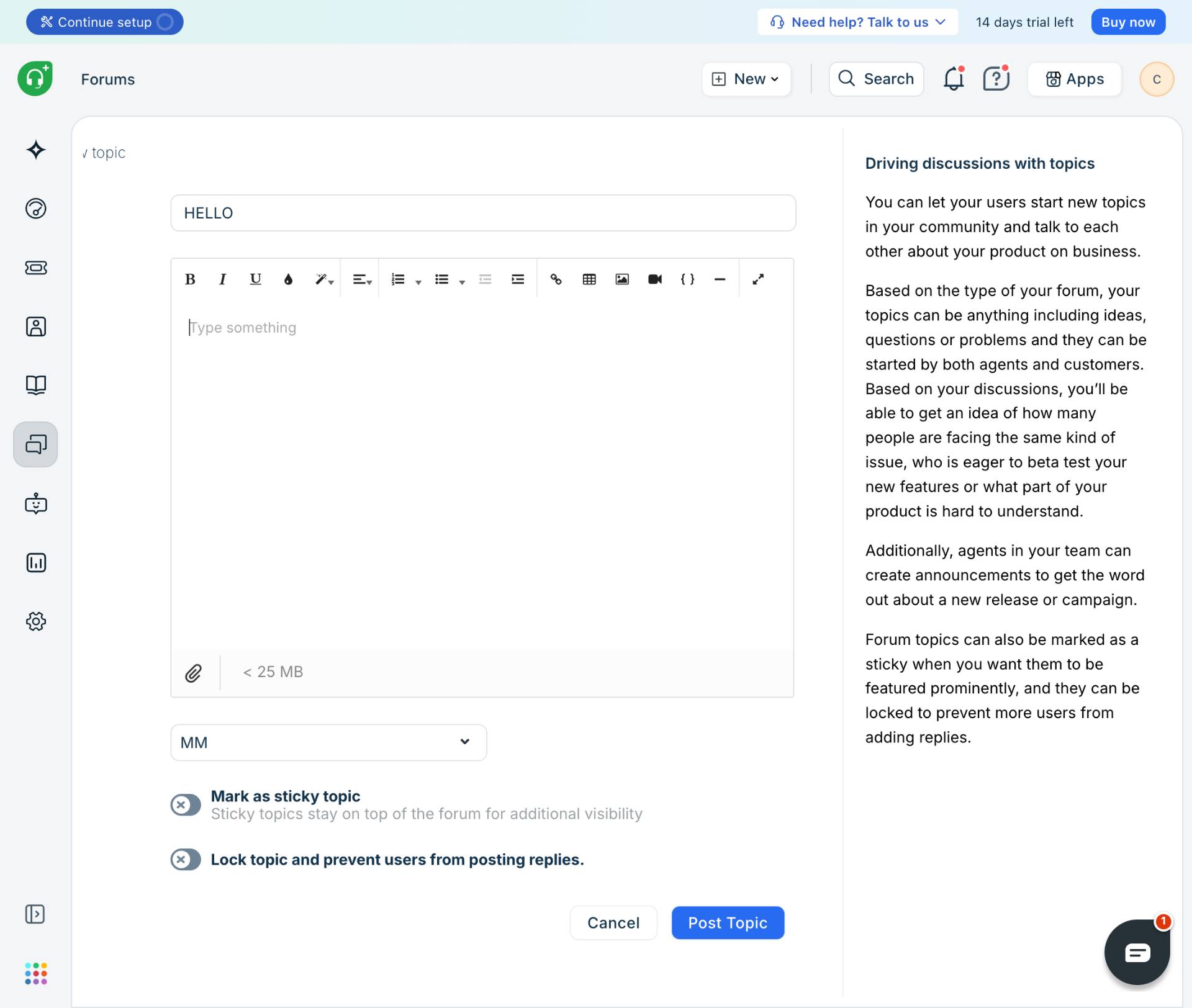
Click into the Topic Name field (marked with a red asterisk as required) and enter a descriptive title for your topic. This is the heading that users will see in the forum listing.
- Step 4 of 6
Enter the message content
Type your message content
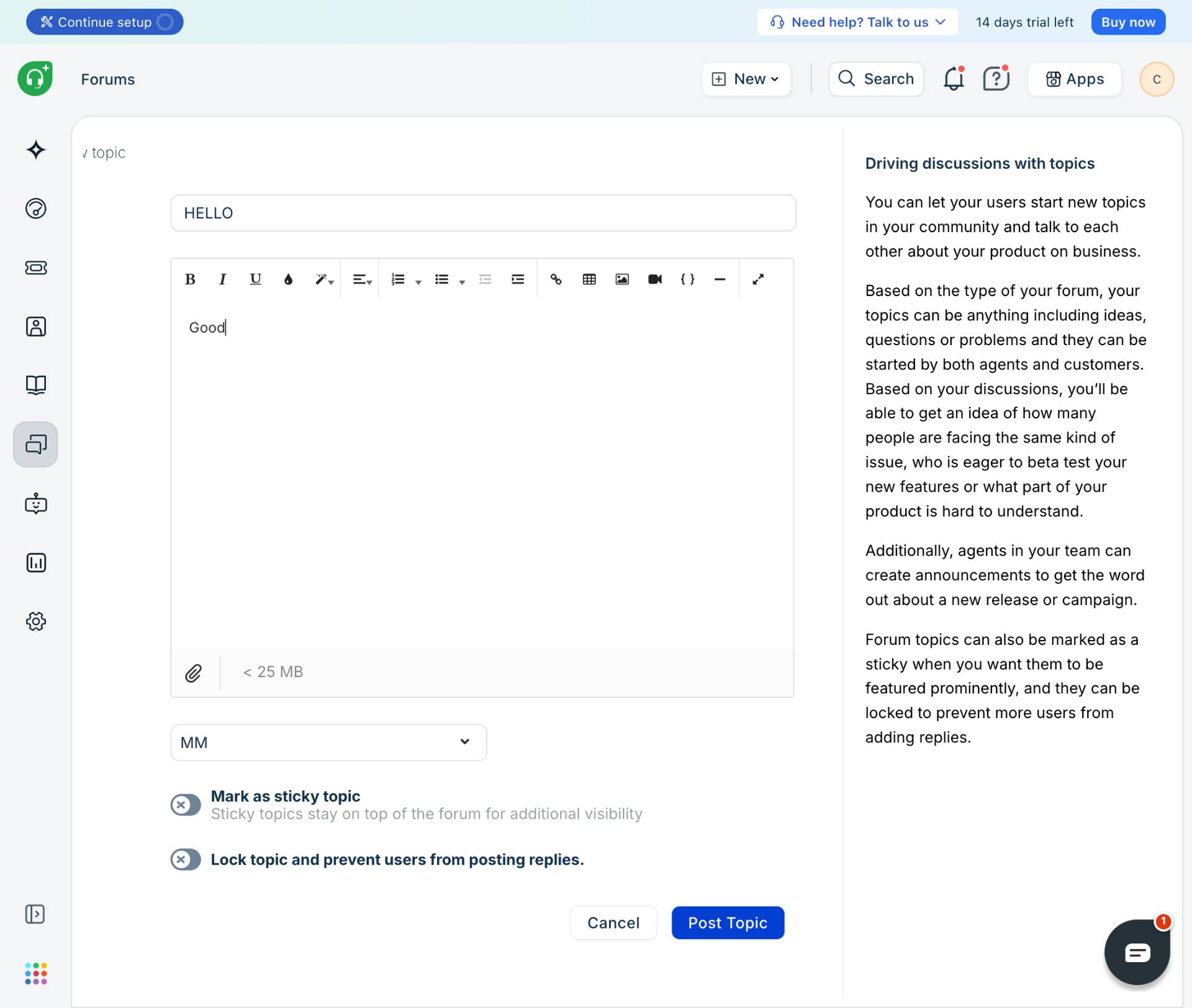
Click into the Message text editor area and type the content of your topic. The editor provides formatting tools including:
- Step 5 of 6
Configure topic options (optional)
Review optional settings
Review the optional settings available below the message editor:
- Step 6 of 6
Post the topic
Click Post Topic to publish
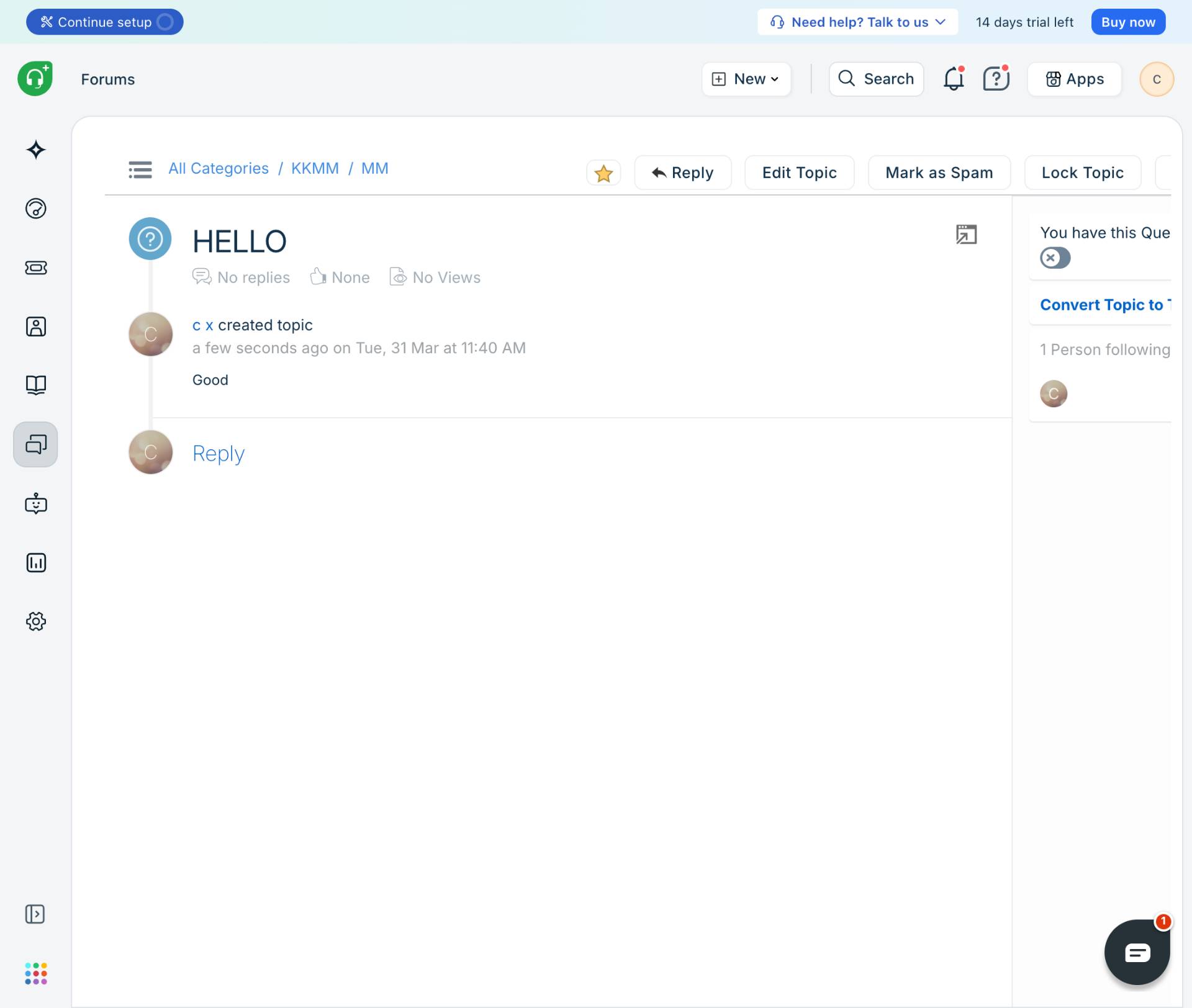
Click the Post Topic button to publish your topic. The system will process your submission and redirect you to the newly created topic page, confirming it has been successfully posted.
Verification
To confirm your topic was created successfully:
After clicking Post Topic, you should be redirected to the topic detail page showing your topic title and message content.
Navigate back to the Forums page to verify your topic appears in the All Activity or Your Topics Activity tab.
Check that the topic displays the correct title, content, and timestamp showing when it was created.
Troubleshooting
Post Topic button is disabled or not responding
Ensure you have filled in both the Topic Name and Message fields. Both are required before you can submit. Check that your message content is not empty - the editor requires at least some text to be entered.
Topic does not appear after posting
Refresh the Forums page to see the updated list. If the topic still does not appear, check your browser's network connection and try creating the topic again. Verify you have the necessary permissions to create topics in this forum category.
Conclusion
You have successfully created a new forum topic in Freshdesk. Your topic is now visible to the community and users can view and reply to it (unless you locked it). The topic will appear in forum listings and activity feeds for users to engage with.