

Purpose
This SOP describes how to create a new company record in the MFE Application using Freshdesk. Creating a company allows you to organize contacts, track tickets, and manage customer relationships under a single entity.
Scope
This procedure is intended for Freshdesk agents and administrators who need to create new company records. Follow this SOP when adding a new customer organization to the system for the first time.
Prerequisites
Logged in to Freshdesk with an agent or administrator account
Access to a ticket view or the main dashboard
Permission to create companies in the Freshdesk instance
Procedure
- Step 1 of 7
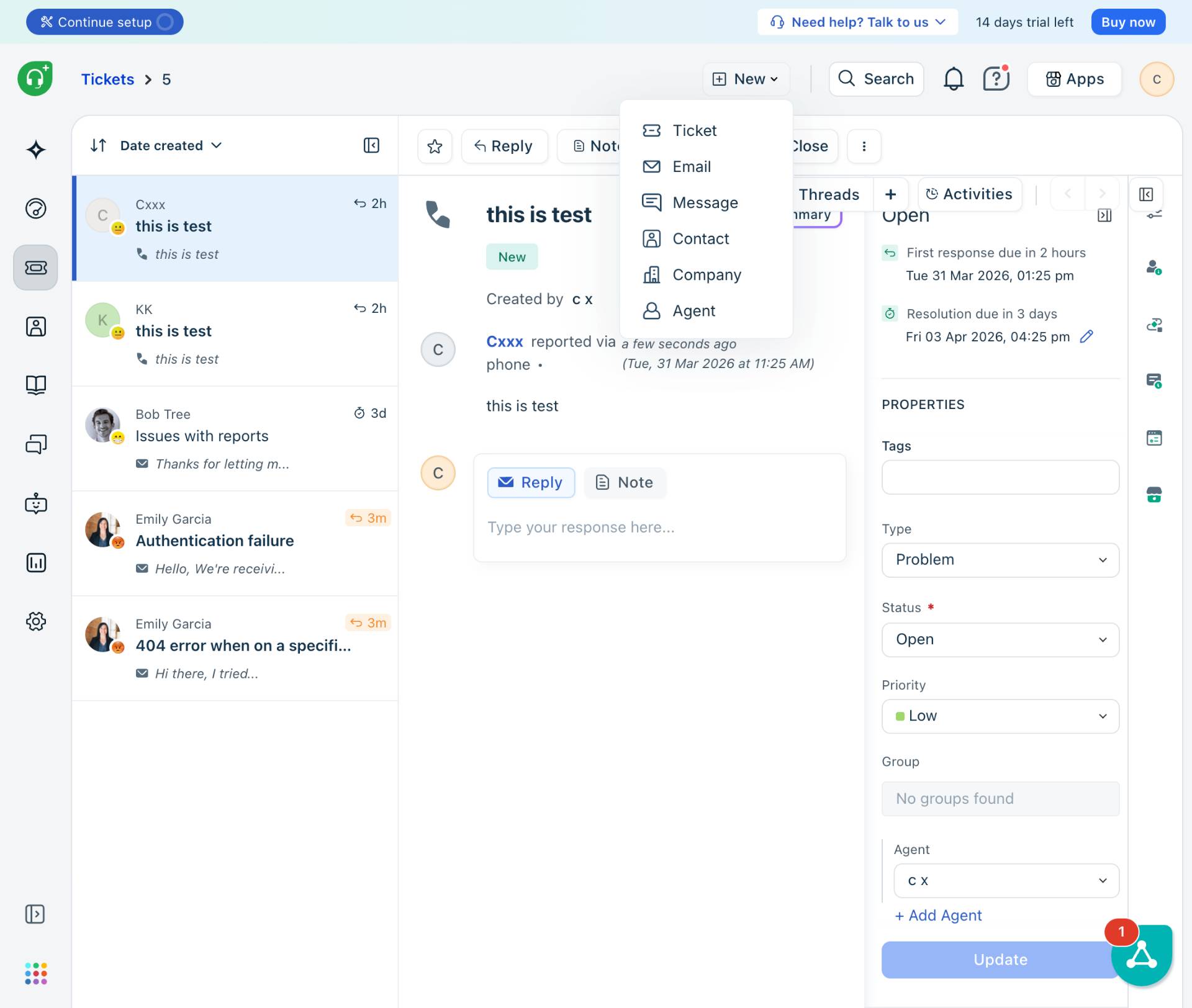
Navigate to Freshdesk ticket page
Navigate to the ticket page
Navigate to kuban-help.freshdesk.com and ensure you are logged in with your Freshdesk credentials.
- Step 2 of 7
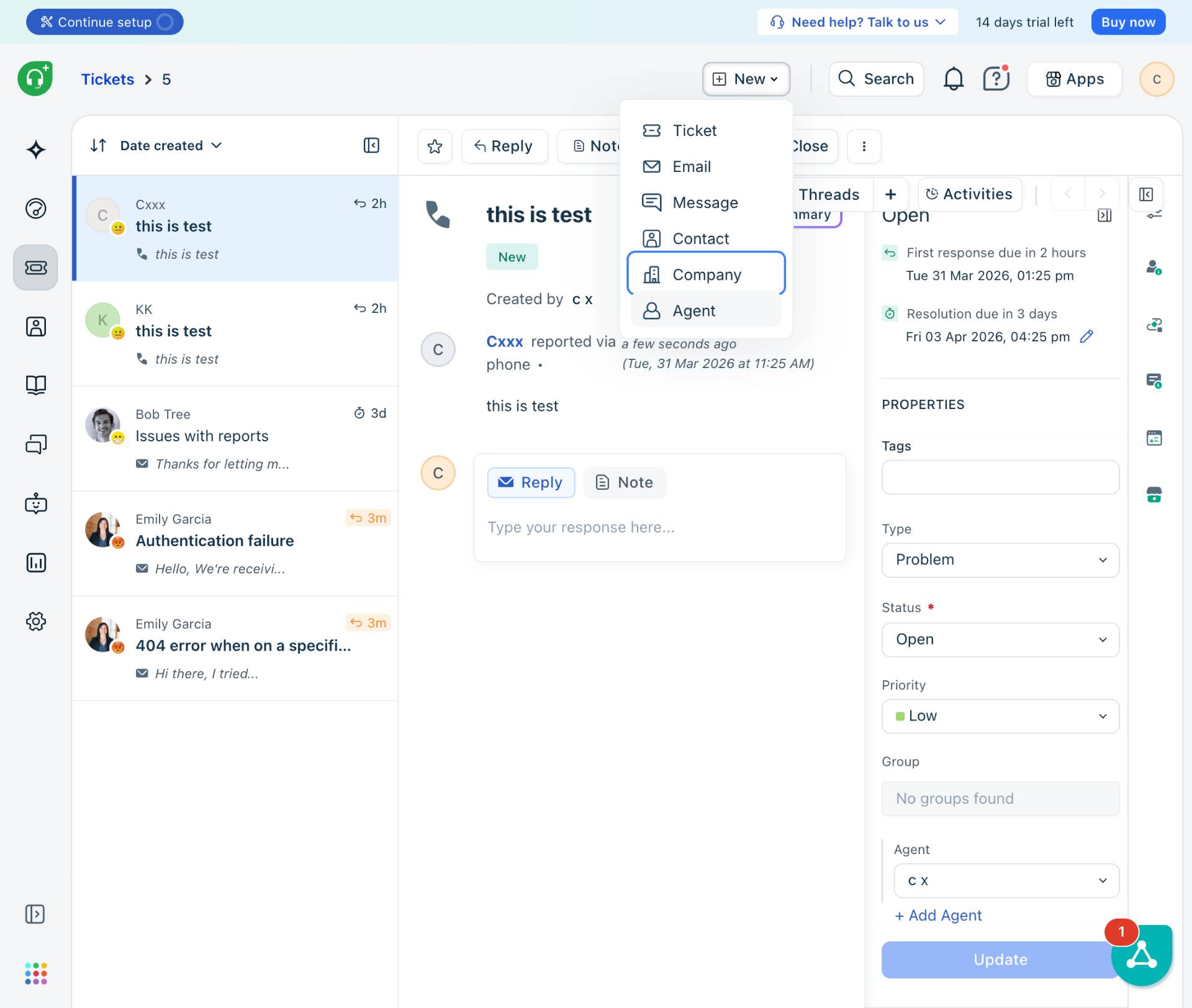
Open the New menu and select Company
Click the New button and select Company
Click the New button located in the top toolbar. From the dropdown menu, select Company.
- Step 3 of 7
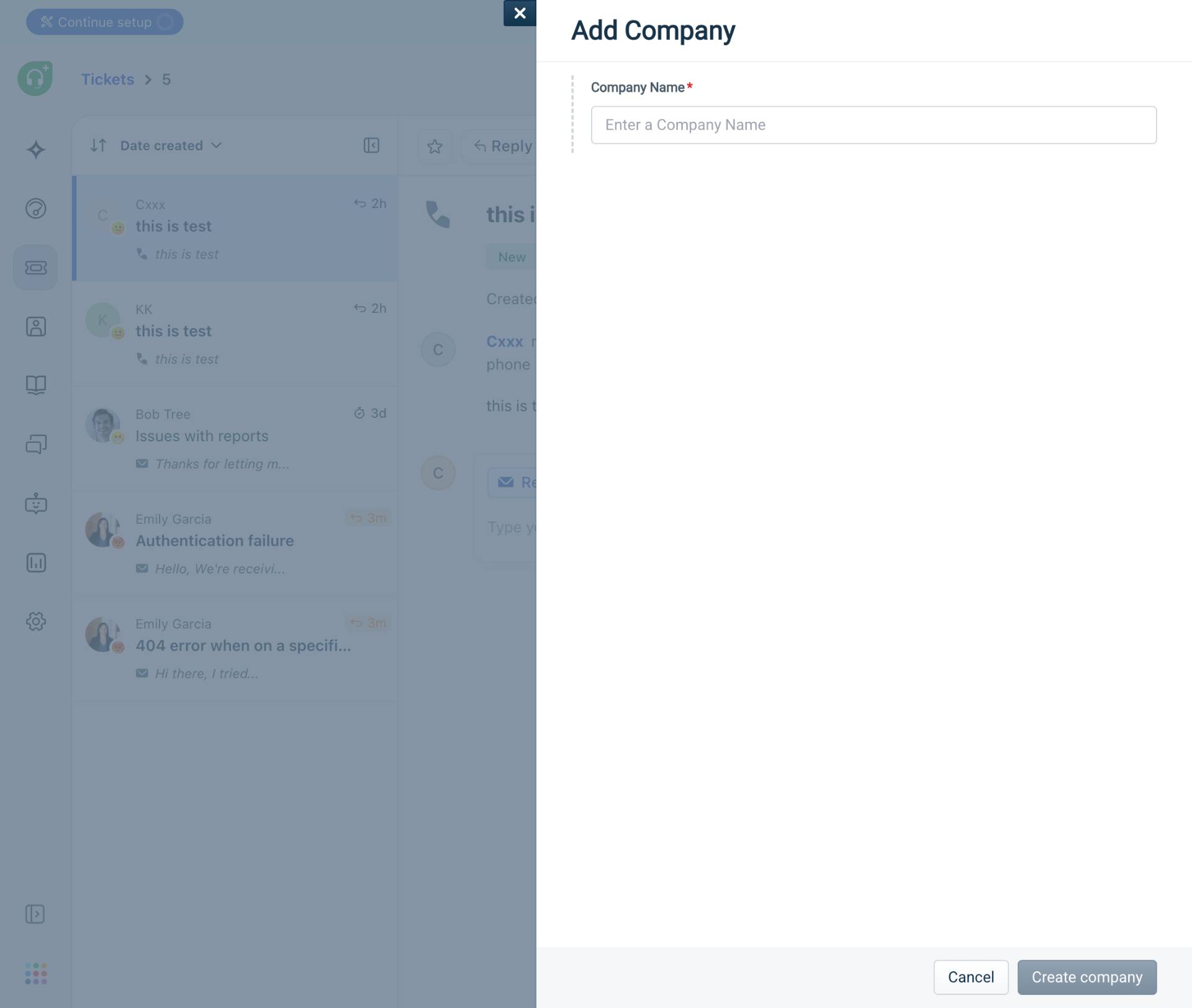
Open the Add Company form
Click on Company option
The Add Company modal dialog will open, displaying a form with various company fields.
- Step 4 of 7
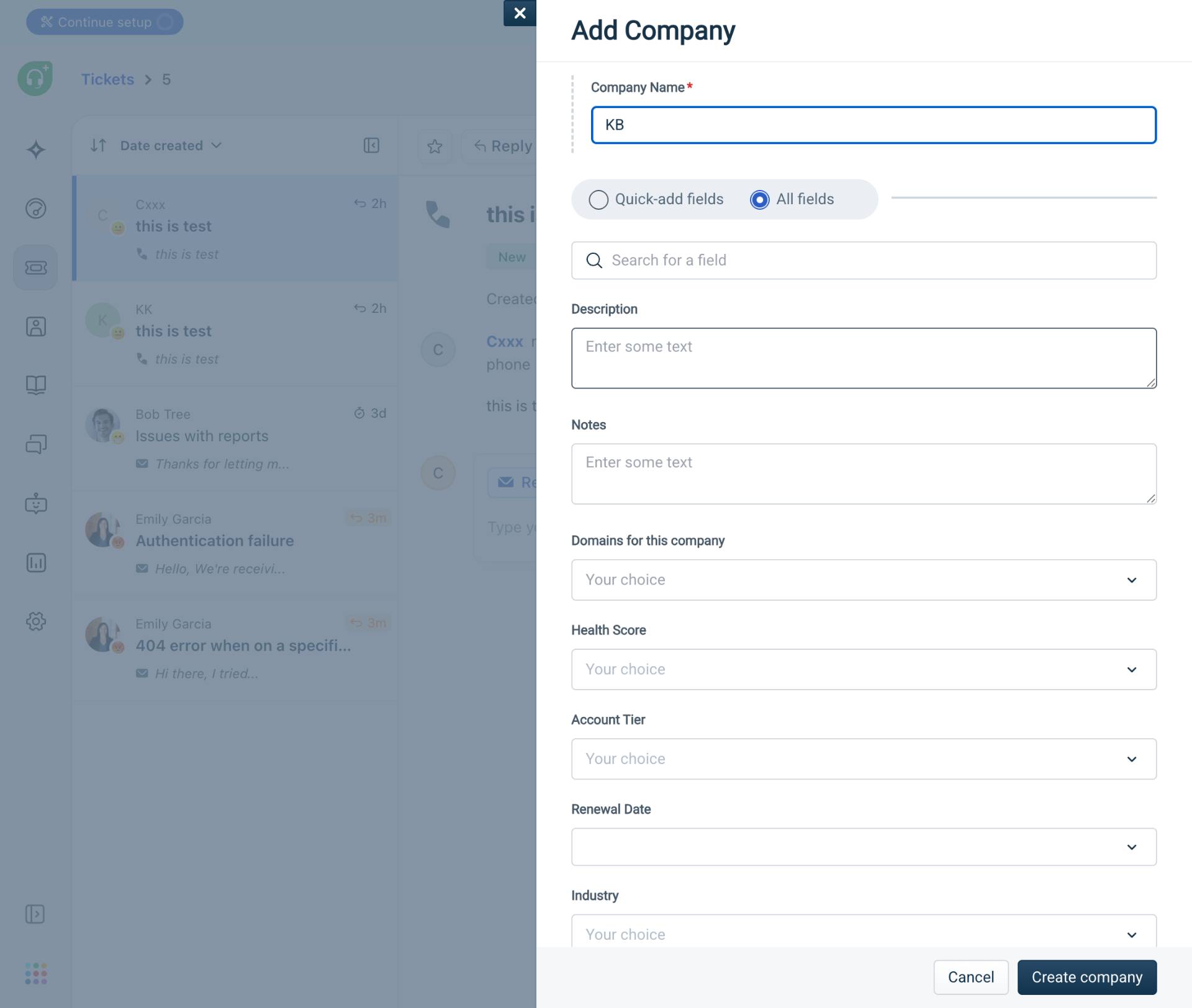
Enter Company Name
Type the company name in the Company Name field
In the Company Name field (marked with an asterisk as required), enter the name of the company. This is a mandatory field.
- Step 5 of 7
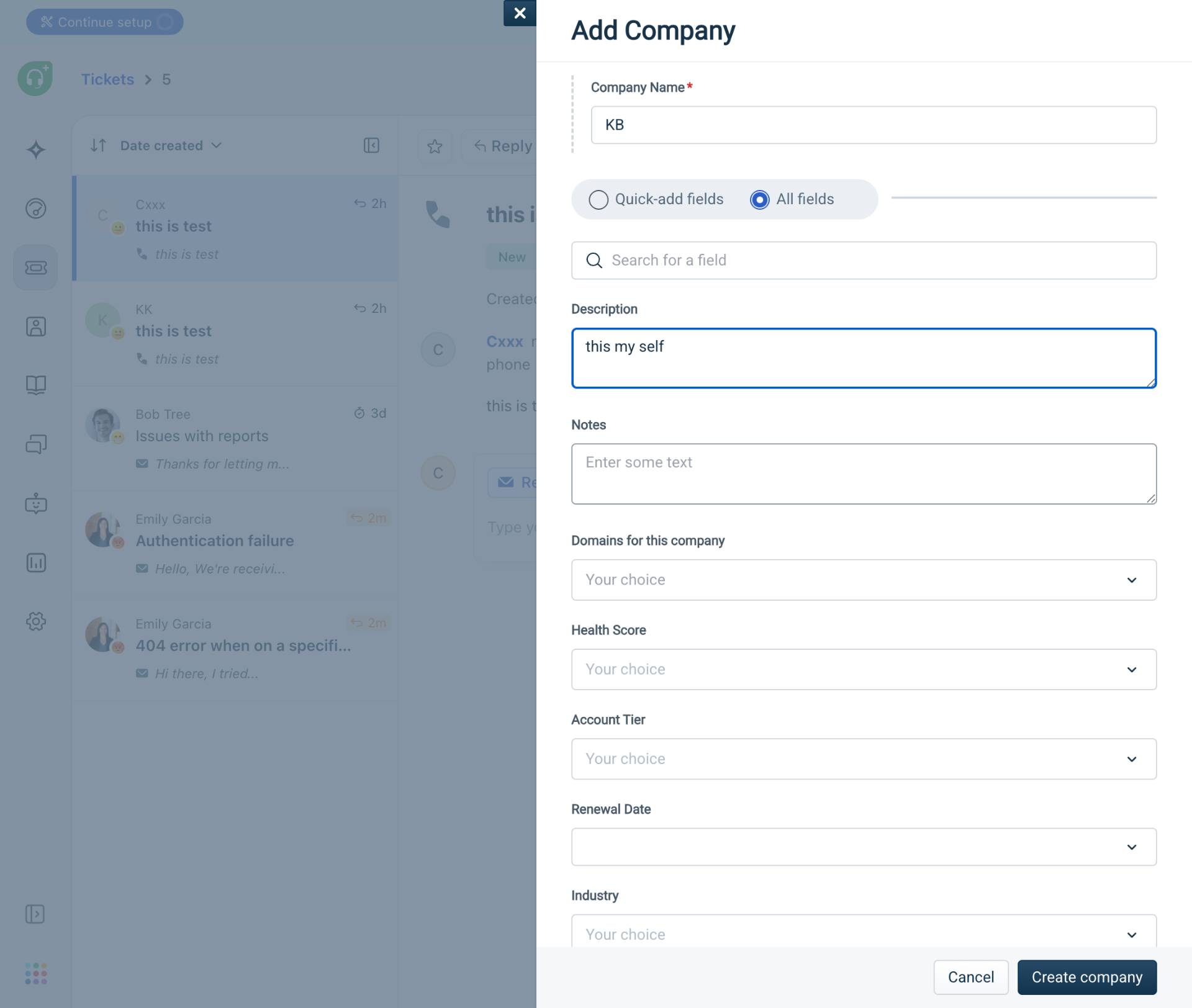
Add Company Description
Enter a description for the company
In the Description text area, enter a brief description about the company. This field is optional but helps provide context about the organization.
- Step 6 of 7
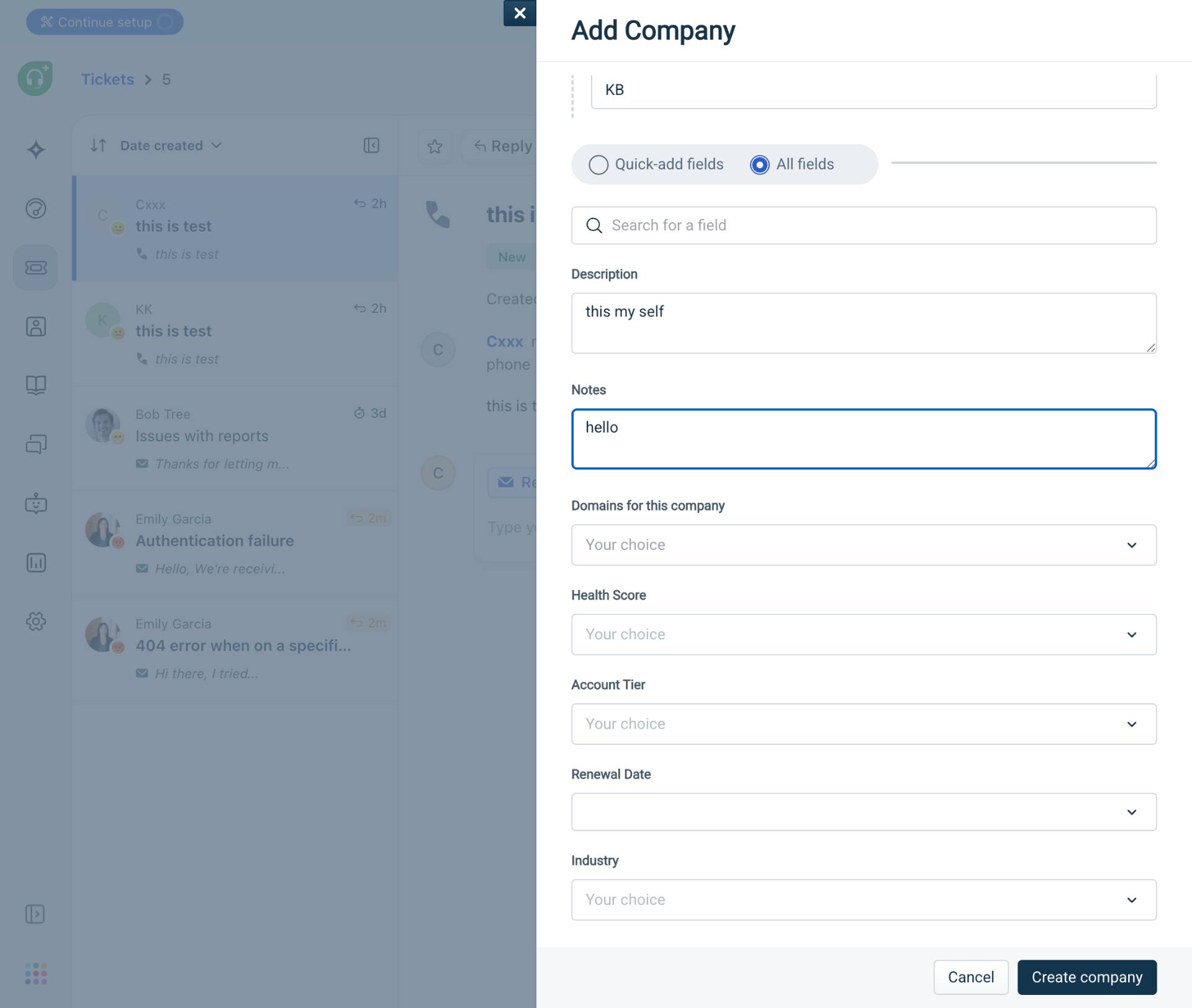
Add Notes
Enter notes about the company
In the Notes text area, enter any internal notes about the company. This field is optional and visible only to your team members.
- Step 7 of 7
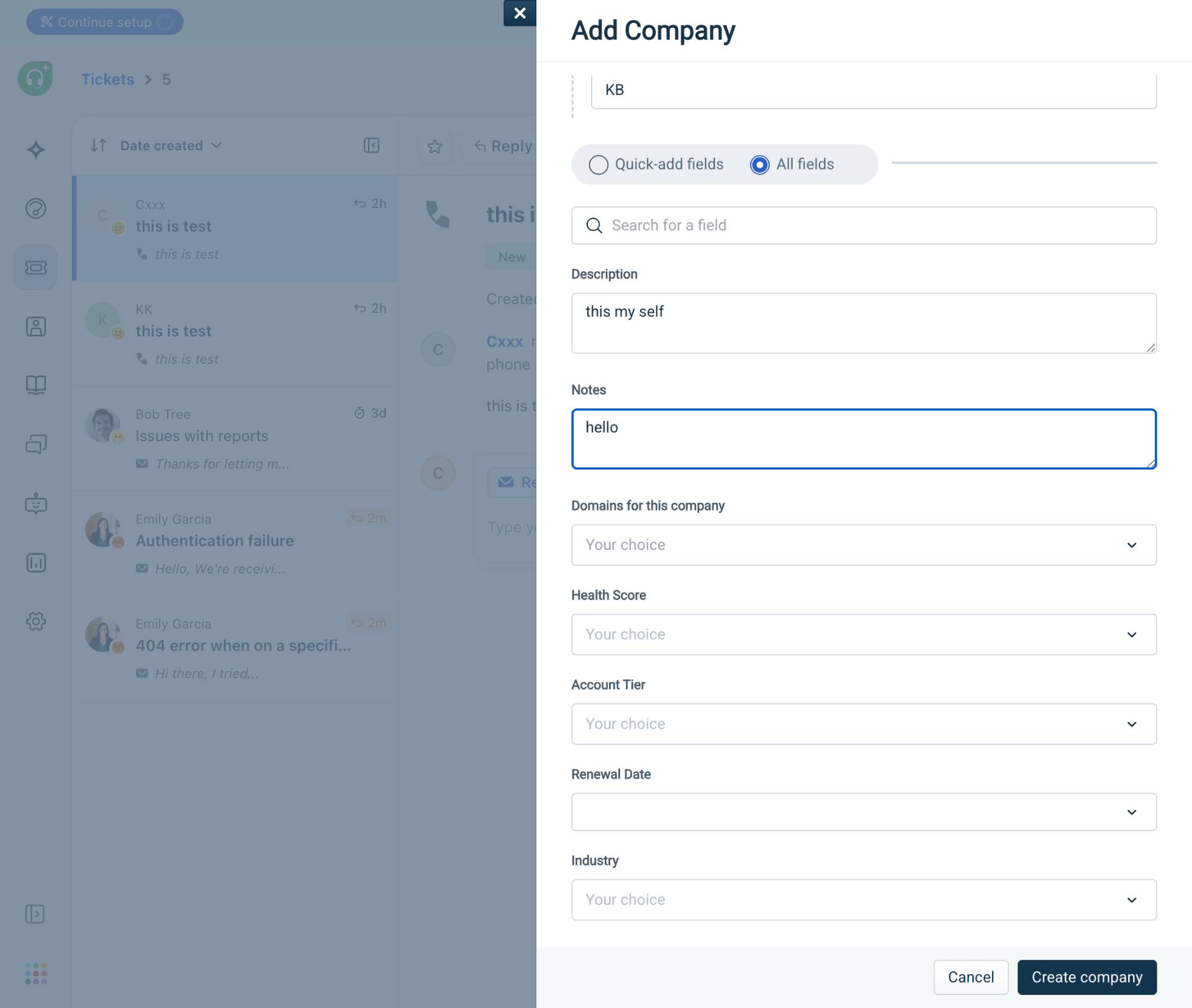
Create the company
Click the Create company button
Click the Create company button at the bottom right of the modal to save the company record.
Verification
After completing the procedure, verify the company was created successfully:
Confirm you are redirected to the company details page showing the company name, description, and notes you entered.
Verify the company appears in the Companies section of Freshdesk.
Check that the timeline, tickets, and notes tabs are visible on the company page.
Conclusion
You have successfully created a new company record in the MFE Application. The company is now available for associating with contacts, tracking tickets, and managing customer relationships.