

Purpose
This SOP describes how to create and publish a new knowledge base article in Freshdesk, including setting up the required folder hierarchy and category structure for article organization.
Scope
This procedure is intended for helpdesk agents and administrators with permissions to manage the knowledge base. Follow this SOP when creating new solution articles for customer self-service support.
Prerequisites
Logged in to your Freshdesk helpdesk account
Knowledge base management permissions (Agent or Administrator role)
Procedure
- Step 1 of 13
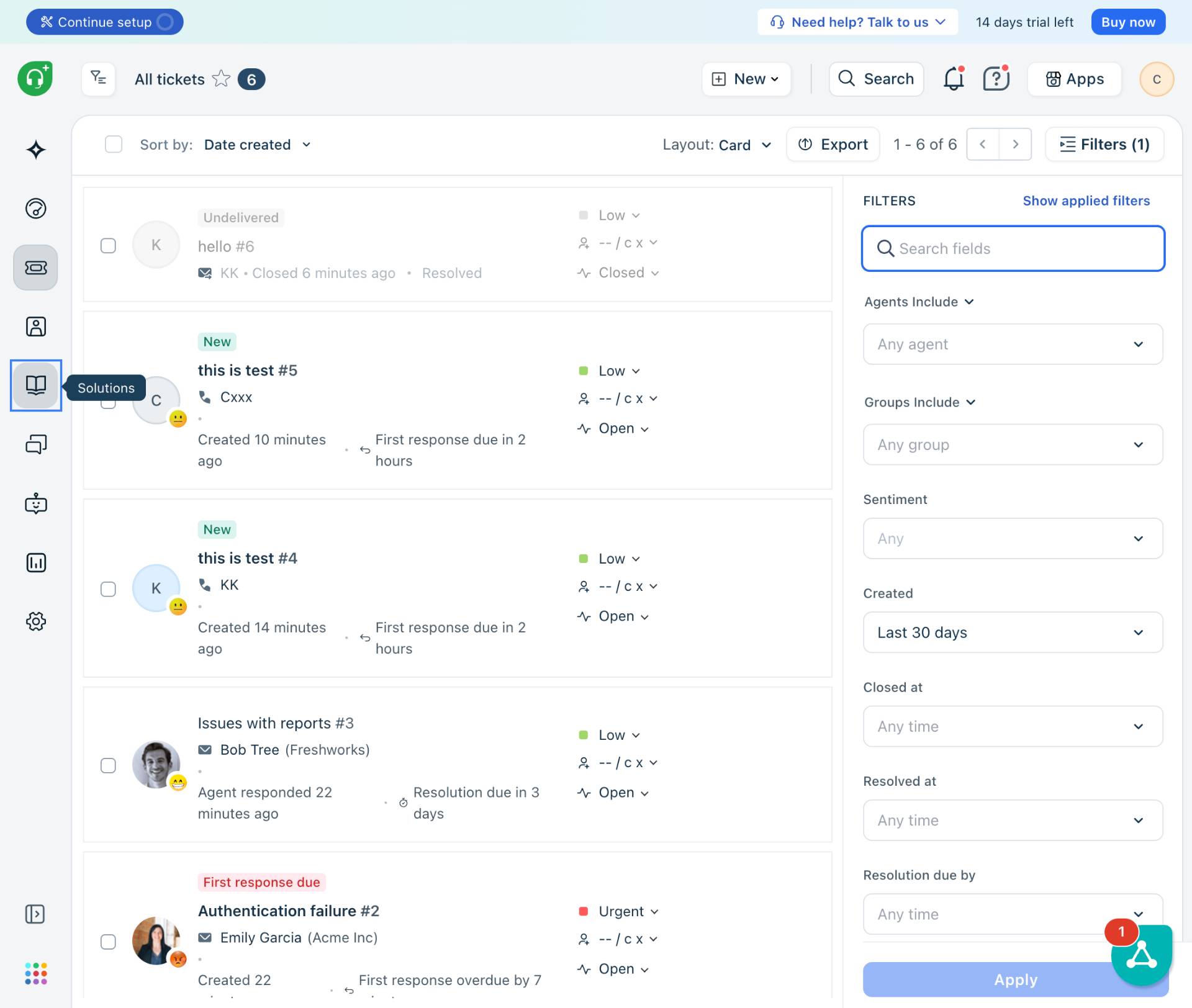
Navigate to kuban-help.freshdesk.com
Access your Freshdesk helpdesk portal
Navigate to kuban-help.freshdesk.com and sign in with your helpdesk credentials.
- Step 2 of 13
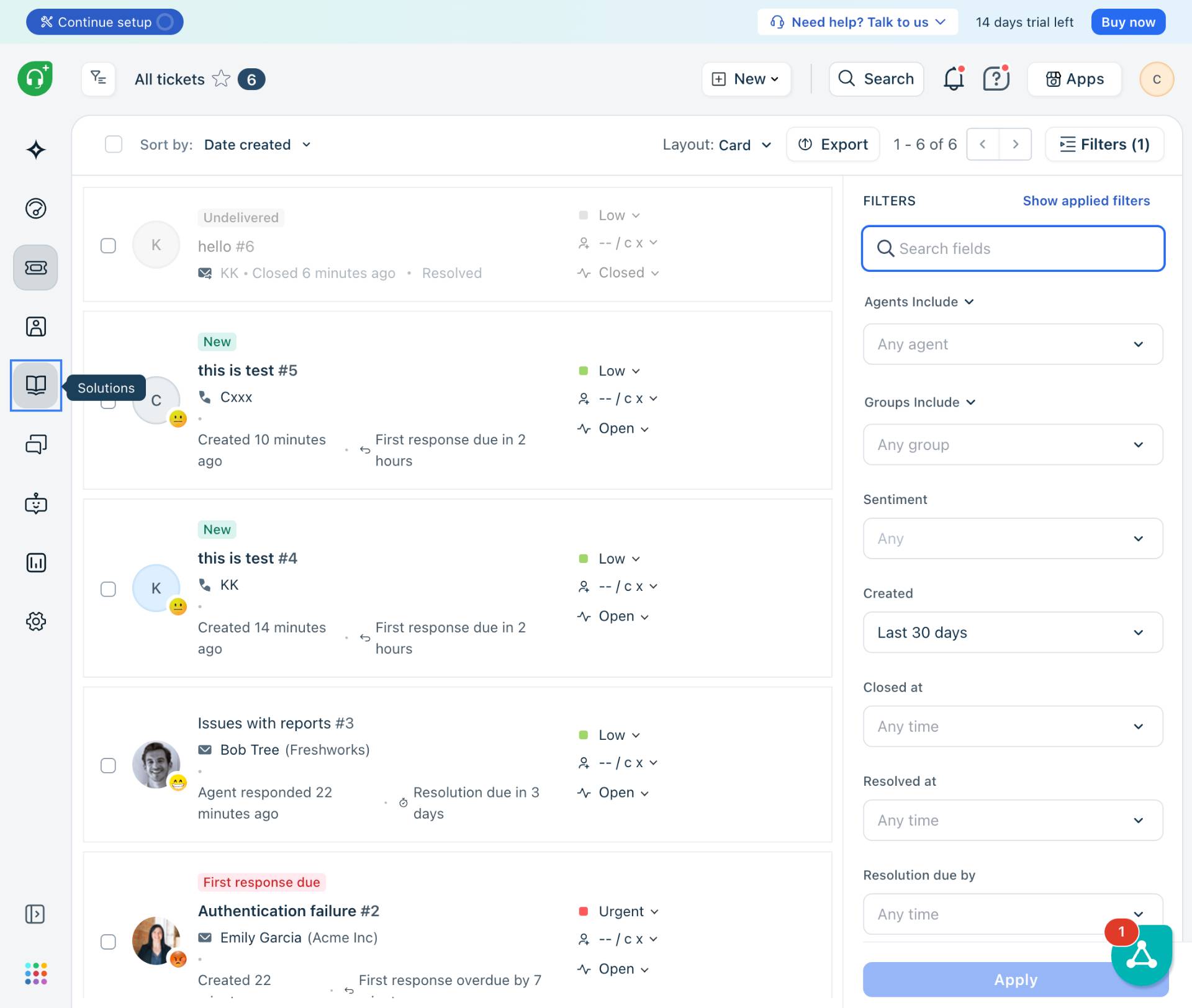
Access the Solutions section
Click the Solutions icon in the left sidebar
Click the Solutions icon (book with lightbulb) in the left navigation sidebar to access the knowledge base management area.
- Step 3 of 13
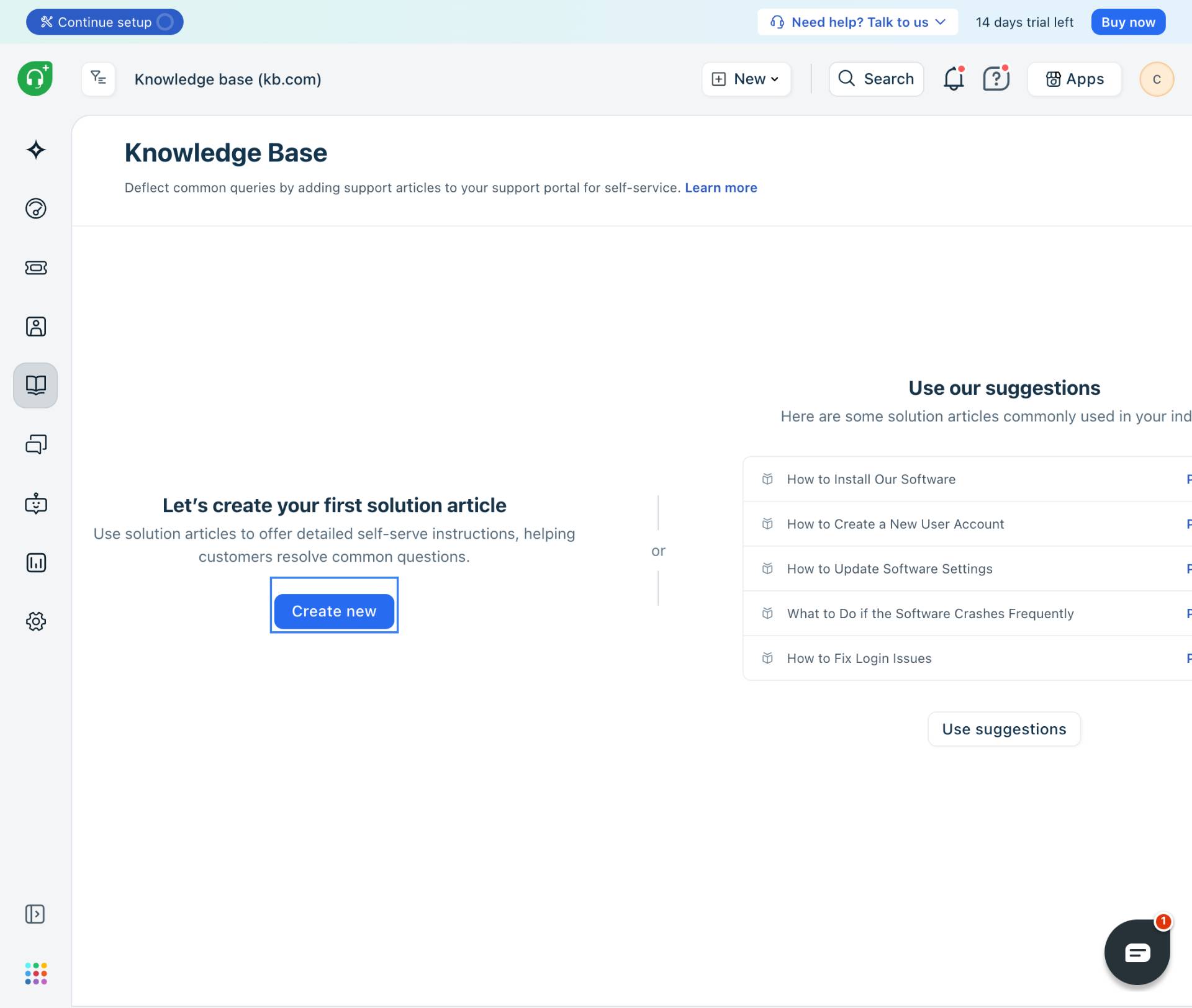
Create a new solution article
Click the Create new button
Click the Create new button to start creating a new knowledge base article. The article editor will open.
- Step 4 of 13
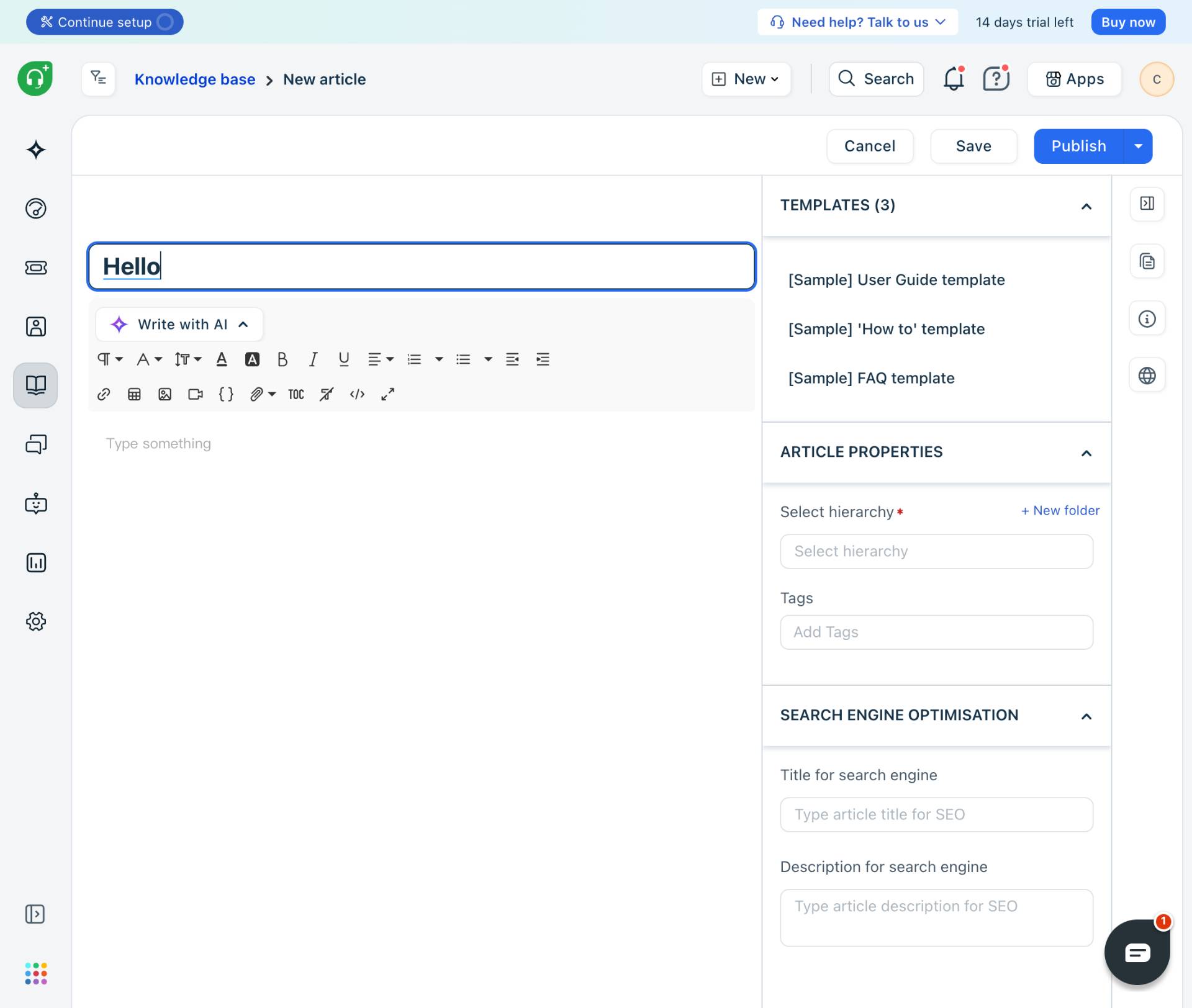
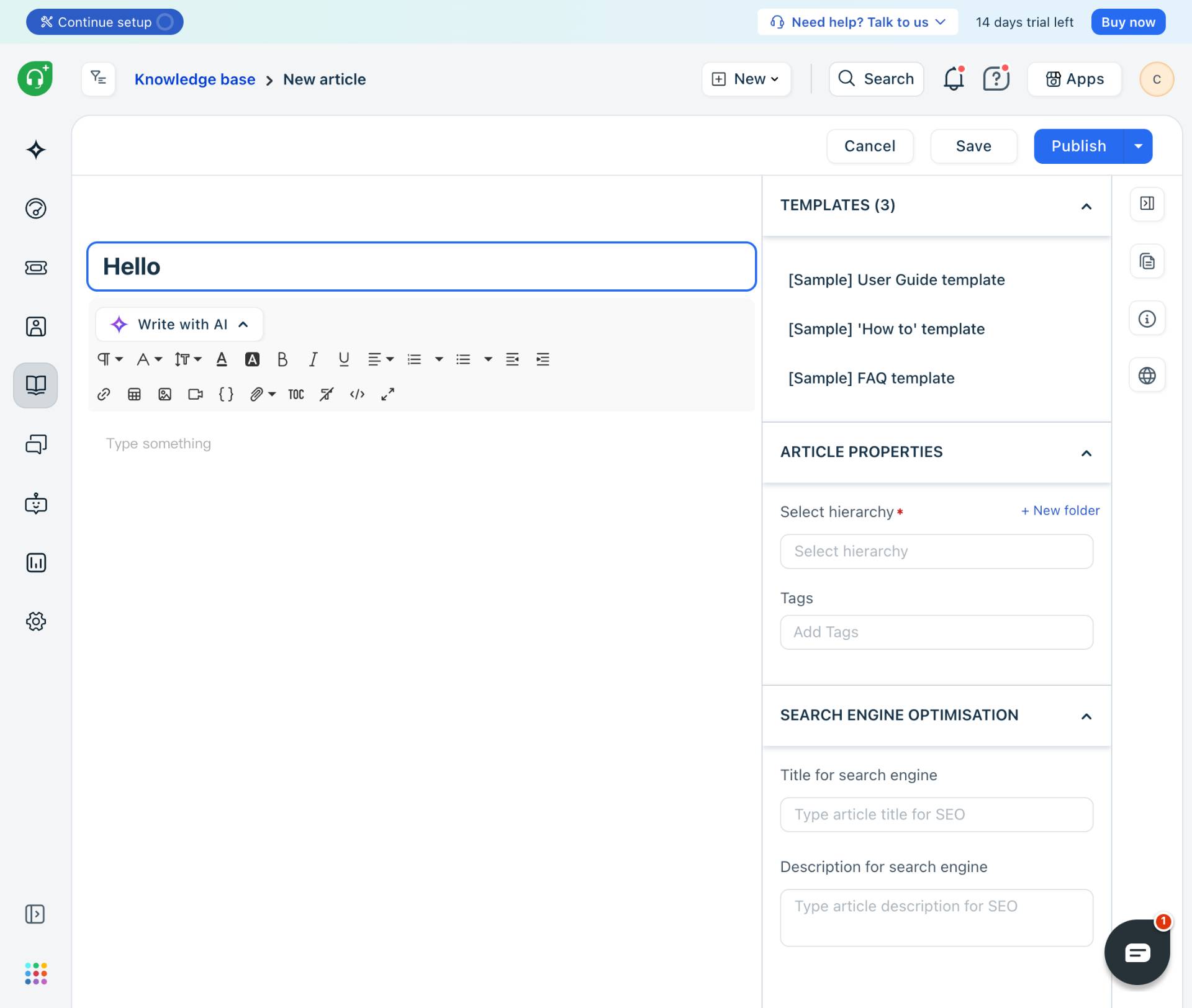
Enter the article title
Type the article title in the title field
Enter a descriptive title for your article in the title field at the top of the editor. This title will be visible to customers in the knowledge base.
- Step 5 of 13
Add article content
Type the article body content
Click in the editor area and type the article content. Use the formatting toolbar to apply styles such as headings, lists, bold, or links as needed.
- Step 6 of 13
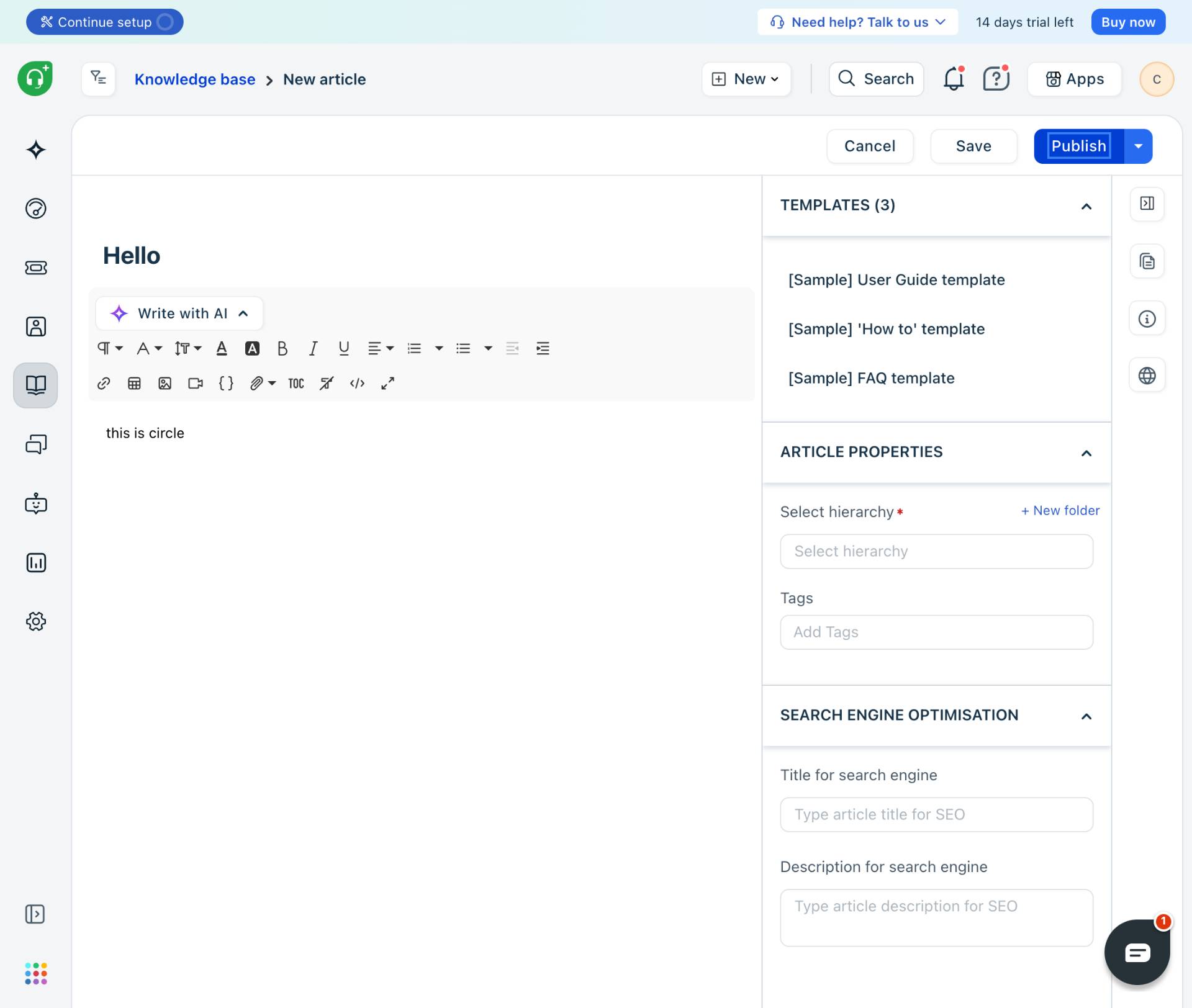
Attempt to publish the article
Click the Publish button
Click the Publish button in the top-right corner. If this is your first article, you will see a validation error indicating that the hierarchy field is required.
- Step 7 of 13
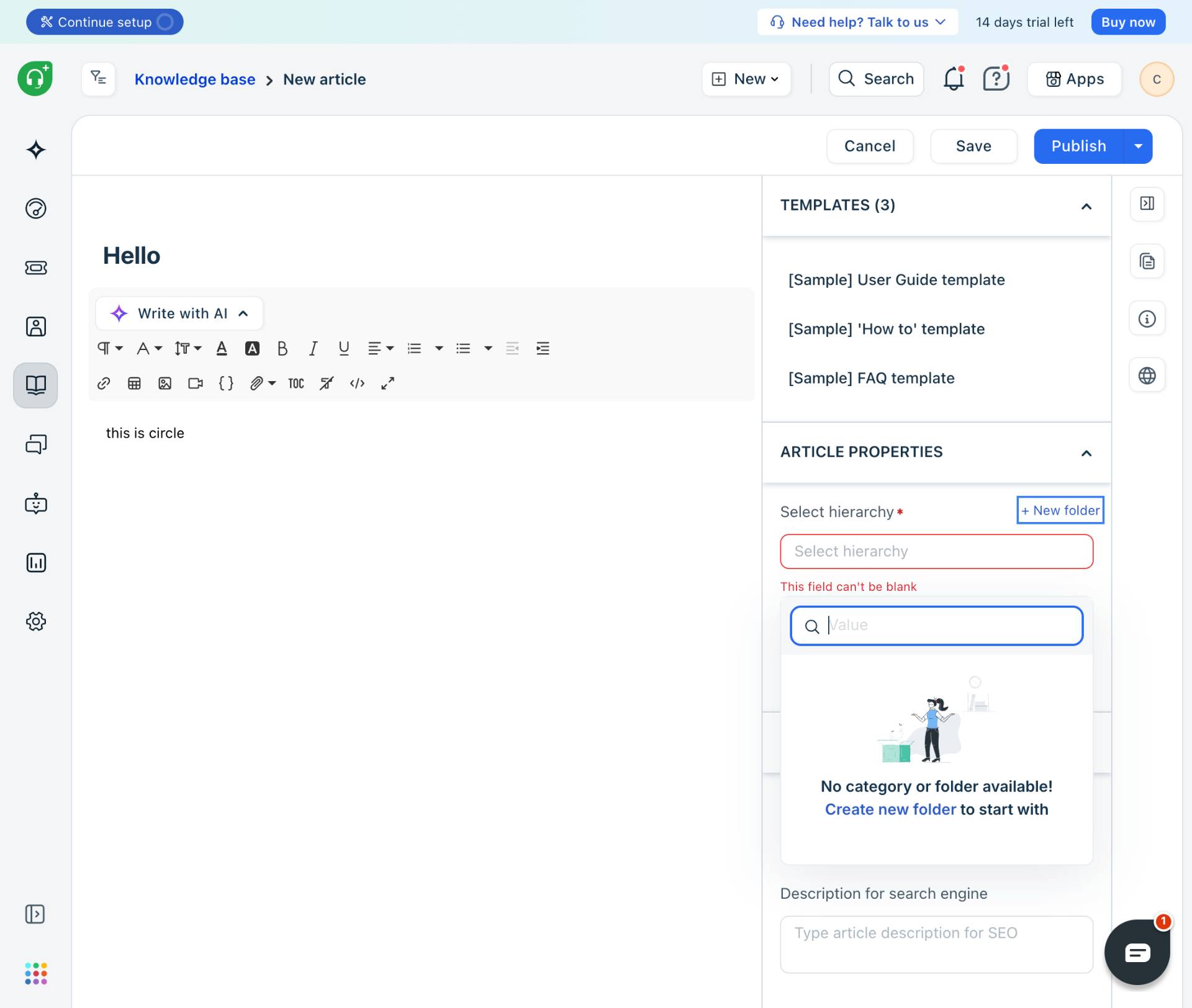
Create a new folder
Click the + New folder button
Click the + New folder link next to the Select hierarchy field. The New folder dialog will appear.
- Step 8 of 13
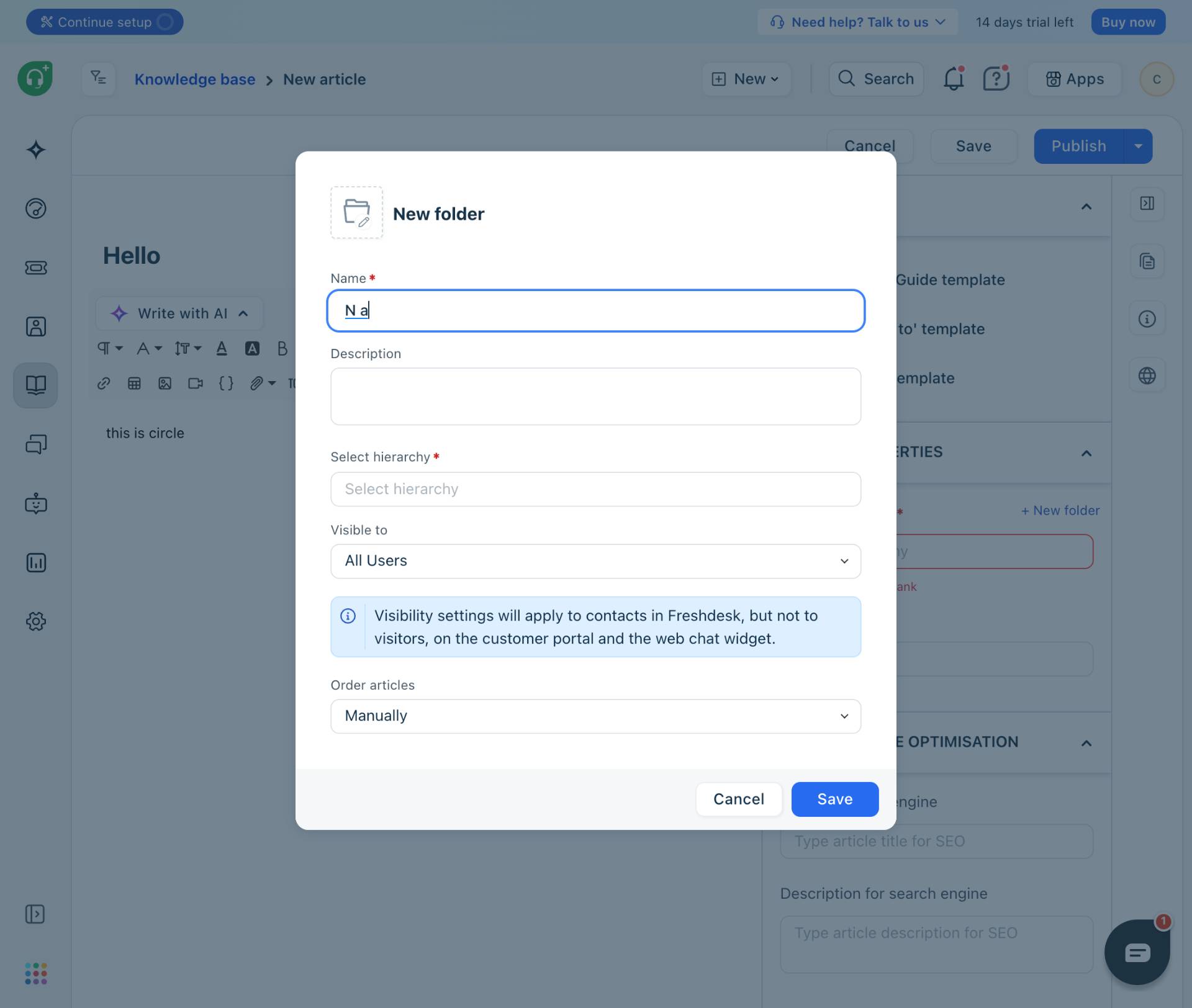
Enter folder name
Type the folder name
Enter a name for the folder in the Name field. This folder will contain your knowledge base articles.
- Step 9 of 13
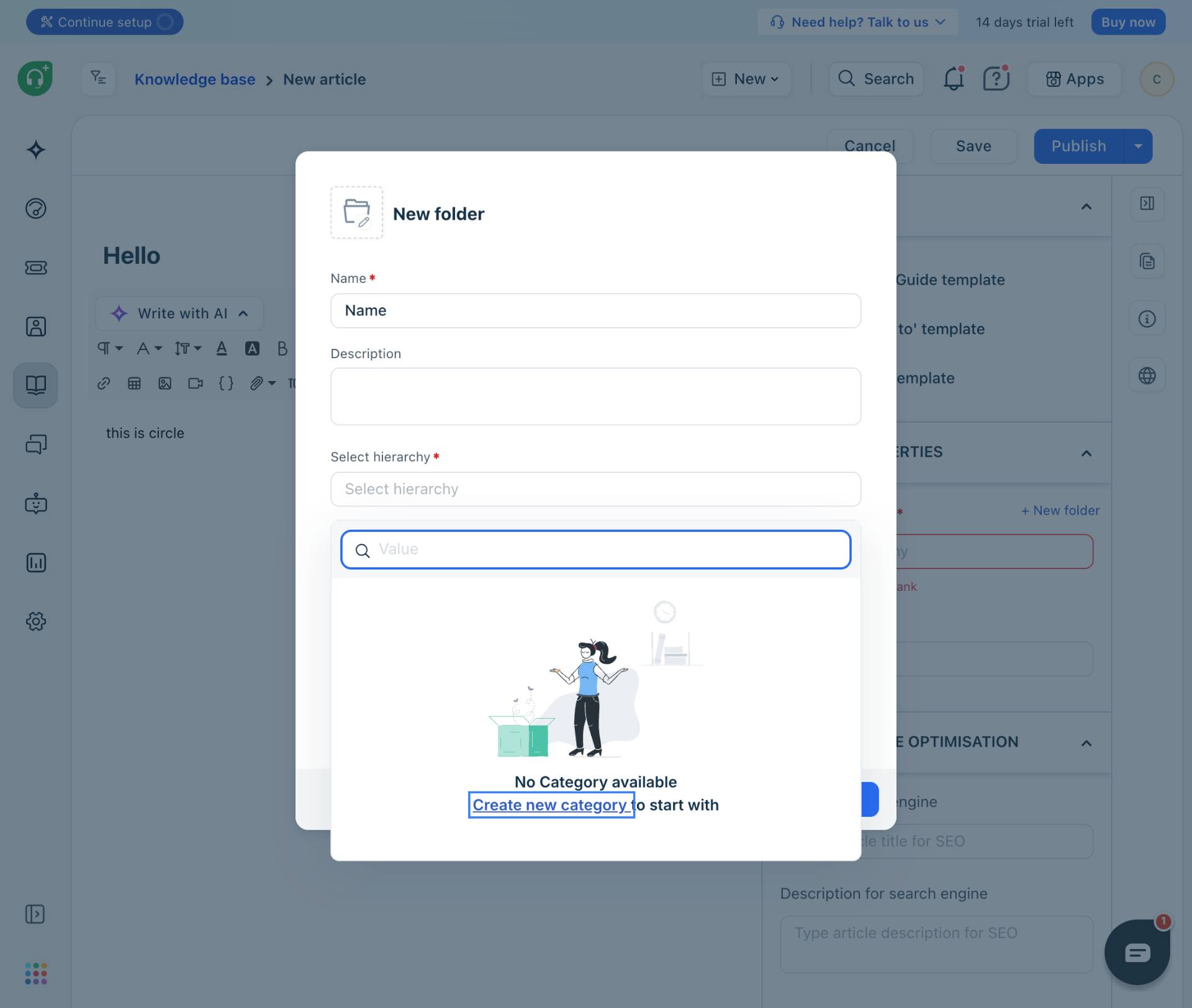
Create a category for the folder
Click Create new category link
Click the Select hierarchy dropdown. If no categories exist, click Create new category to establish the top-level category for organizing folders.
- Step 10 of 13
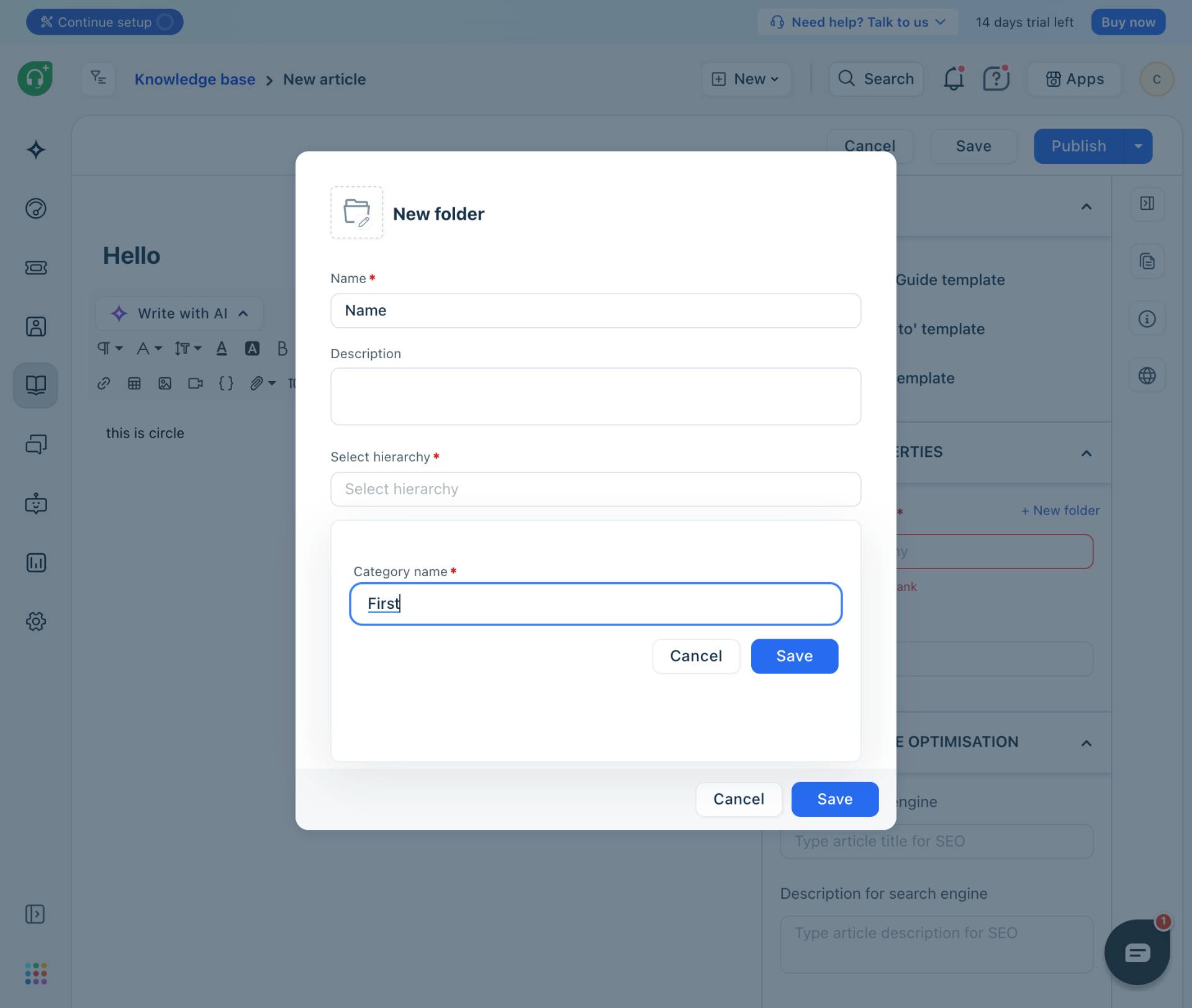
Enter category name
Type the category name
Enter a name for the category in the Category name field. Categories are the top-level organization structure in your knowledge base.
- Step 11 of 13
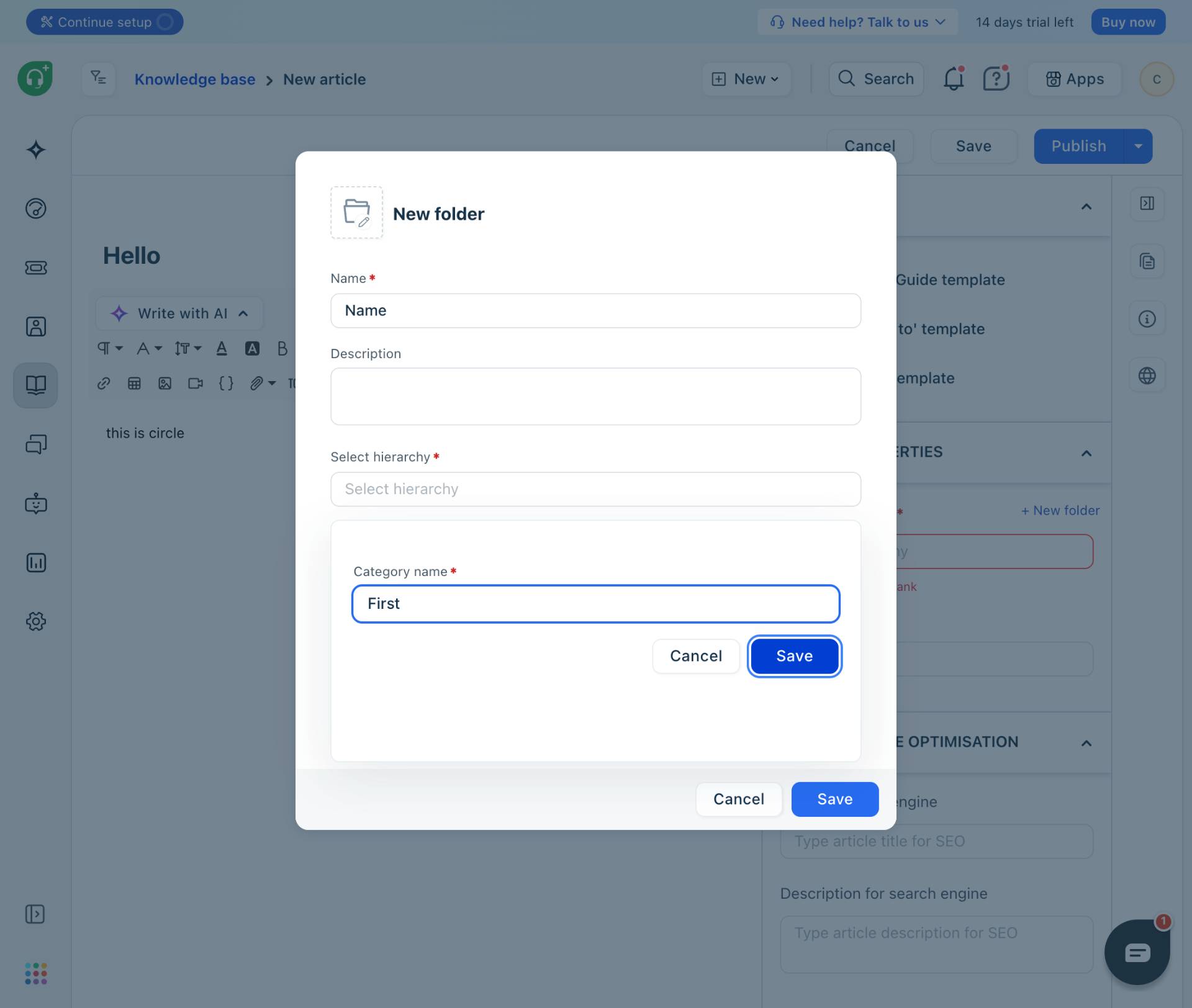
Save the category
Click the Save button to create the category
Click the Save button to create the new category. The category will be selected automatically in the hierarchy field.
- Step 12 of 13
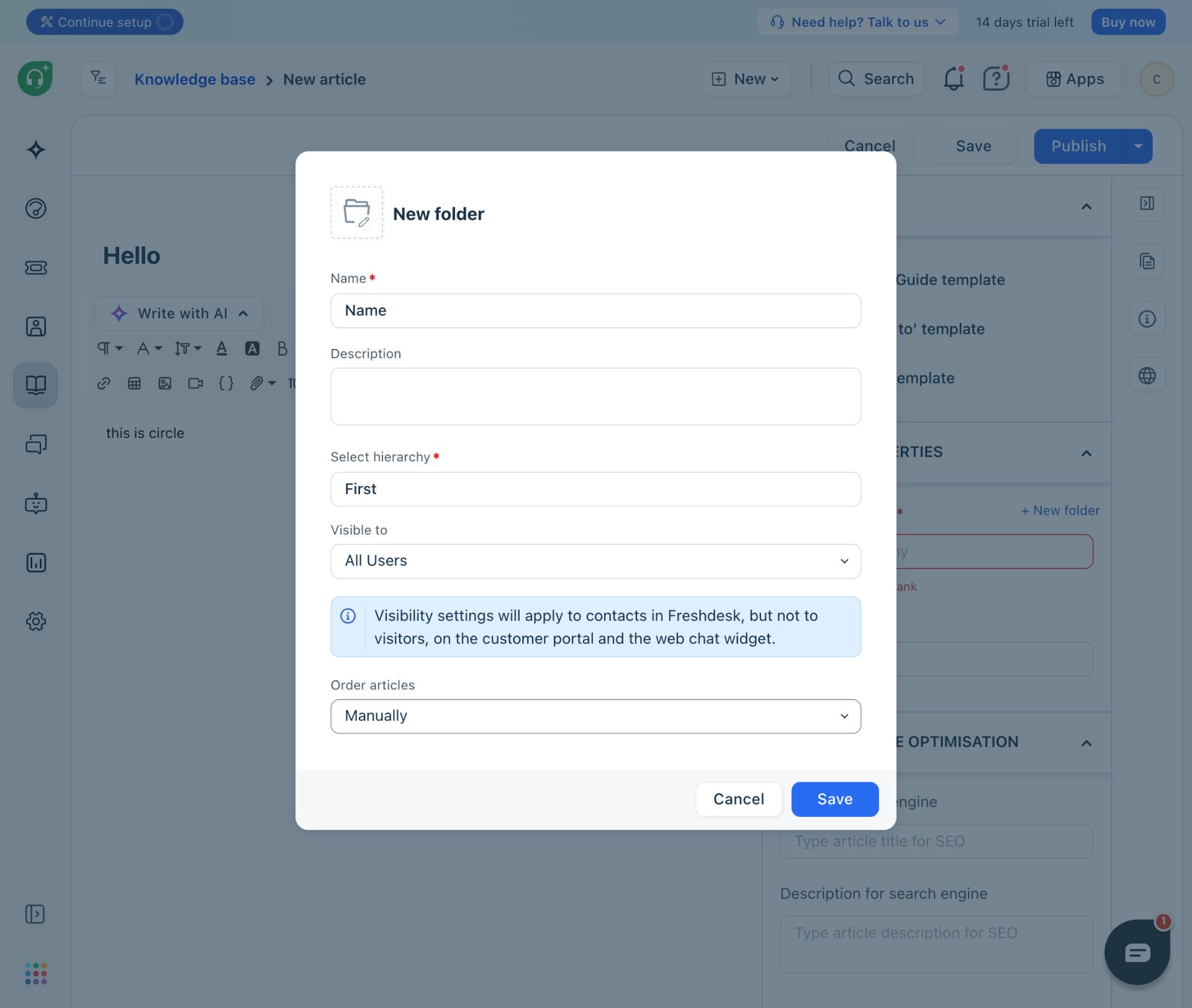
Save the folder
Click the Save button to create the folder
Click the Save button in the New folder dialog to create the folder within the selected category. The dialog will close and the hierarchy field will be populated automatically.
- Step 13 of 13
Publish the article
Click the Publish button to make the article live
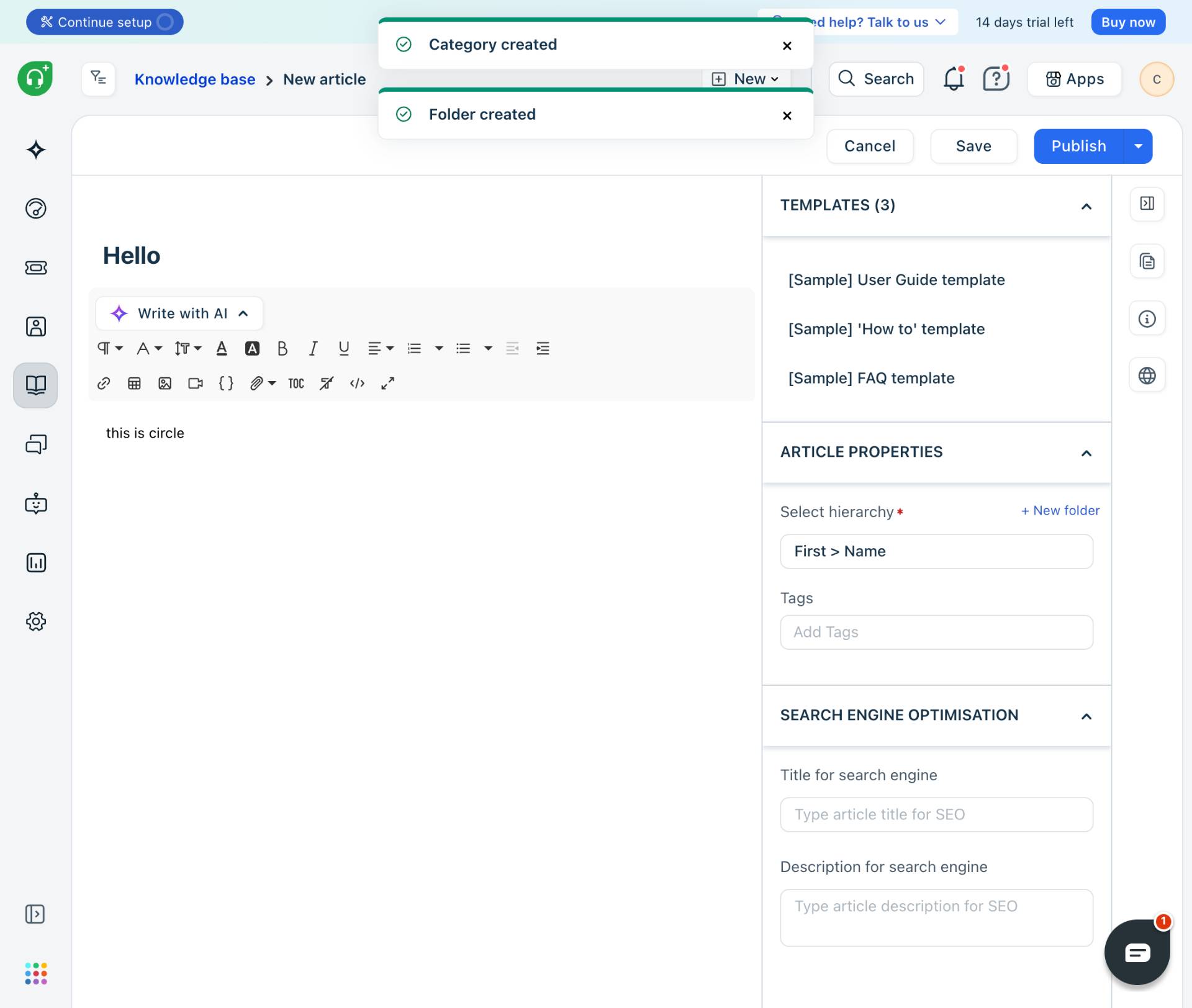
Click the Publish button again. The article will be published and made available to customers in your knowledge base. You will see confirmation notifications for both the category and folder creation.
Verification
After completing the procedure, verify that the article was published successfully:
Confirm the article page displays with a Published status badge in the right panel.
Verify the Location section shows the correct category and folder hierarchy.
Check that the article content and title are displayed correctly.
Navigate to your customer-facing knowledge base portal to confirm the article is visible to users.
Troubleshooting
Error: This field can't be blank when publishing
This error appears when the Select hierarchy field is empty. You must create at least one category and folder before publishing. Follow steps 7-12 in the procedure to establish the required folder structure.
No category available when creating a folder
If you see No Category available when trying to select a hierarchy, click the Create new category link to create a top-level category first.
Conclusion
You have successfully created and published a knowledge base article in Freshdesk, complete with the required category and folder hierarchy. The article is now live and accessible to your customers for self-service support.