

Purpose
This SOP describes how to reply to customer support tickets in the KB.com help desk system using Freshdesk.
Scope
This procedure is intended for support agents and customer service representatives who need to respond to customer inquiries. Follow this SOP when replying to open or pending tickets in the system.
Prerequisites
Logged in to the KB.com Freshdesk system with your agent credentials
Access to the ticket you need to reply to (ticket number or URL)
Agent permissions assigned to your account
Procedure
- Step 1 of 4
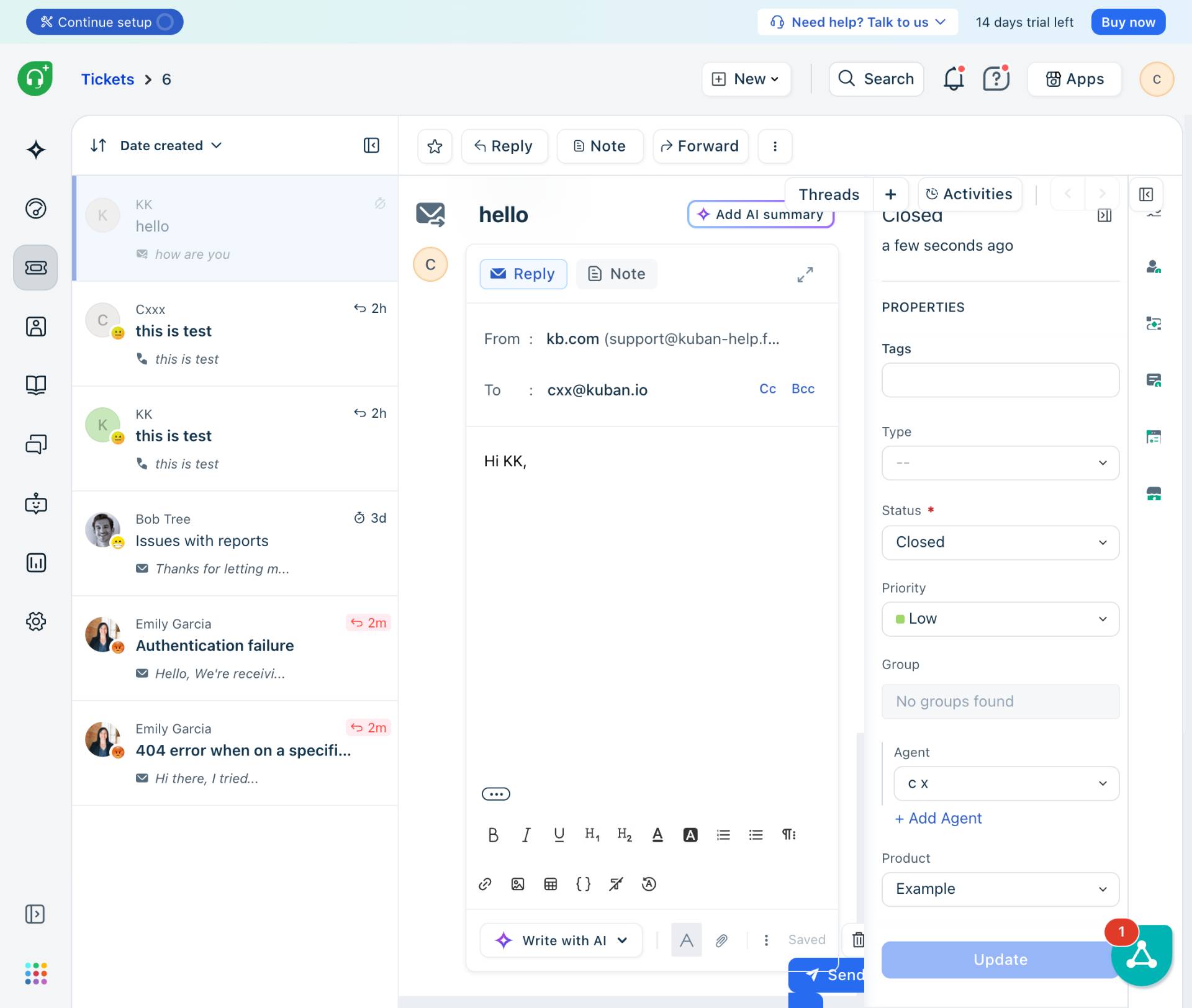
Navigate to the ticket page
Open the ticket URL
Navigate to kuban-help.freshdesk.com and open the specific ticket you need to reply to. The ticket page displays the conversation history, customer details, and ticket properties on the right panel.
- Step 2 of 4
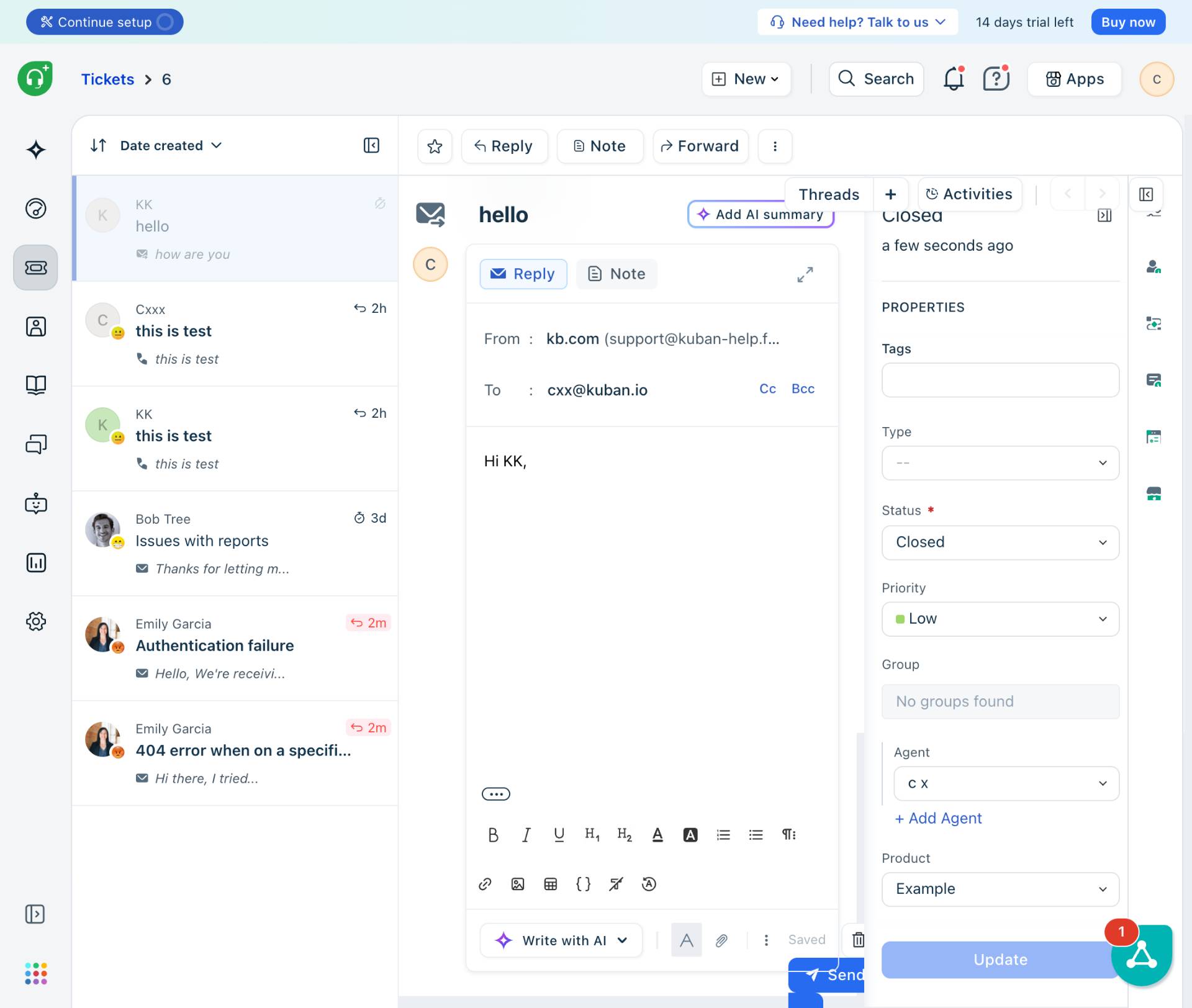
Click in the reply text area
Click the reply editor
Click inside the reply text editor area to position your cursor. The editor is located in the center panel below the ticket header and recipient information.
- Step 3 of 4
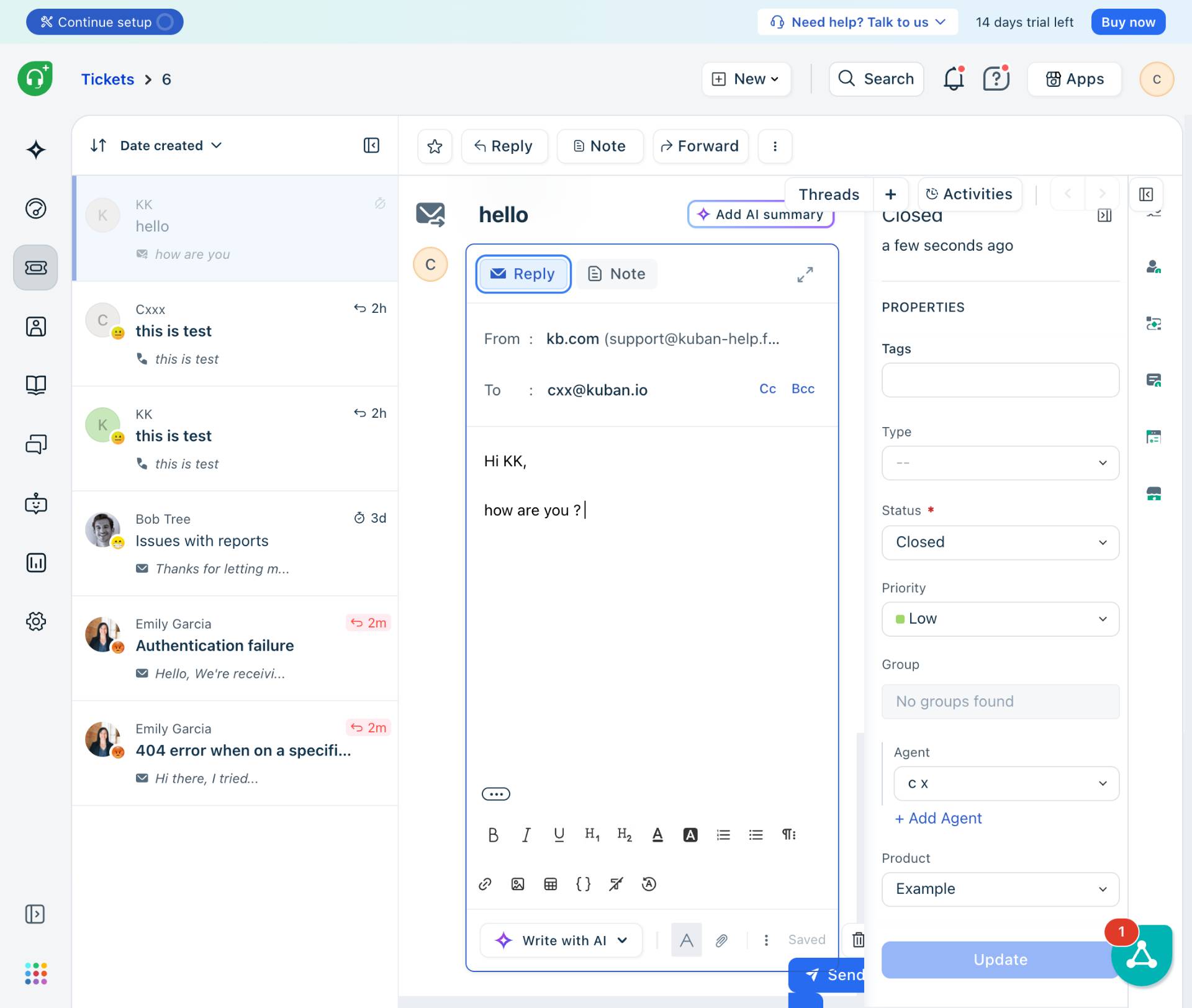
Type your response message
Compose your reply message
Type your response message in the text editor. You can use the formatting toolbar below the text area to apply bold, italic, lists, or other formatting. The toolbar includes options for:
- Step 4 of 4
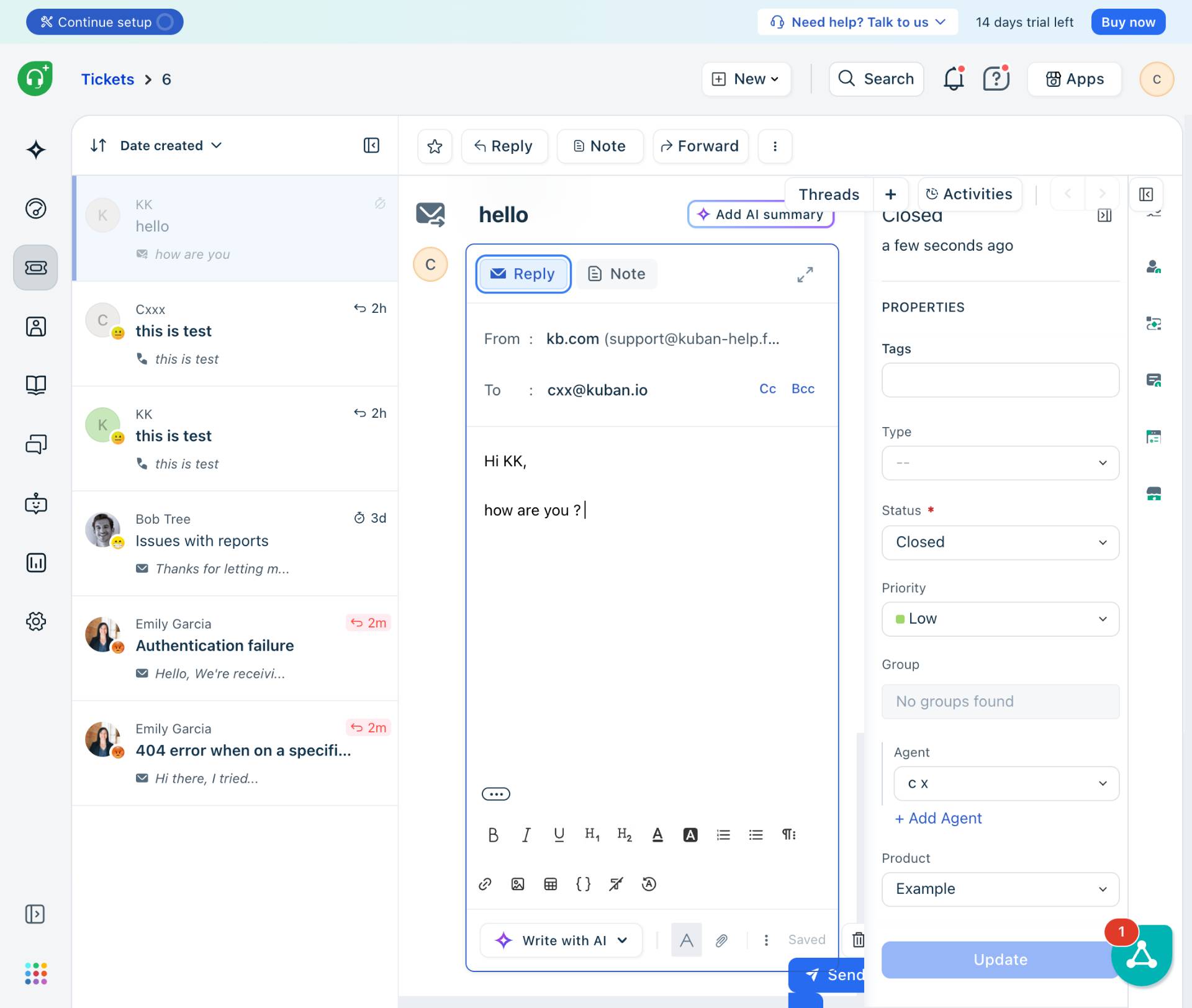
Click the Reply button
Click the Reply button
Click the Reply button located in the toolbar below the ticket subject. This button has a checkmark icon and sends your response directly to the customer via email. Alternatively, you can use the Note button if you want to add an internal note that is not visible to the customer.
Verification
After sending your reply, verify the following:
Your reply appears in the ticket conversation thread with a timestamp
The Activities panel on the right shows your reply action
The ticket status updates if configured to change automatically upon reply
Troubleshooting
Reply button is not clickable or grayed out
Ensure you have typed content in the reply text area. The Reply button becomes active only when there is text to send. If the ticket is closed, you may need to reopen it first or add a private note instead.
Message formatting not applying correctly
Select the text you want to format before clicking the formatting button. Some formatting options require text selection first. If the toolbar buttons are not responding, try refreshing the page and retyping your message.
Cannot access the ticket page
Verify you are logged in with the correct account. If you see an access denied message, contact your administrator to ensure you have been assigned the proper agent permissions for the ticket group.
Conclusion
You have successfully replied to a customer ticket in the KB.com help desk system. The customer will receive your response via email, and the conversation will be recorded in the ticket history for future reference.