

Purpose
This SOP describes how to submit a comment on a GitHub pull request to provide feedback, ask questions, or discuss code changes with team members.
Scope
This procedure is intended for anyone with access to a GitHub repository who needs to participate in pull request discussions. Follow this SOP when reviewing code, requesting changes, or communicating about proposed modifications.
Prerequisites
Active GitHub account with repository access
Logged in to GitHub
Access to view the target pull request
Procedure
- Step 1 of 5
Navigate to github.com
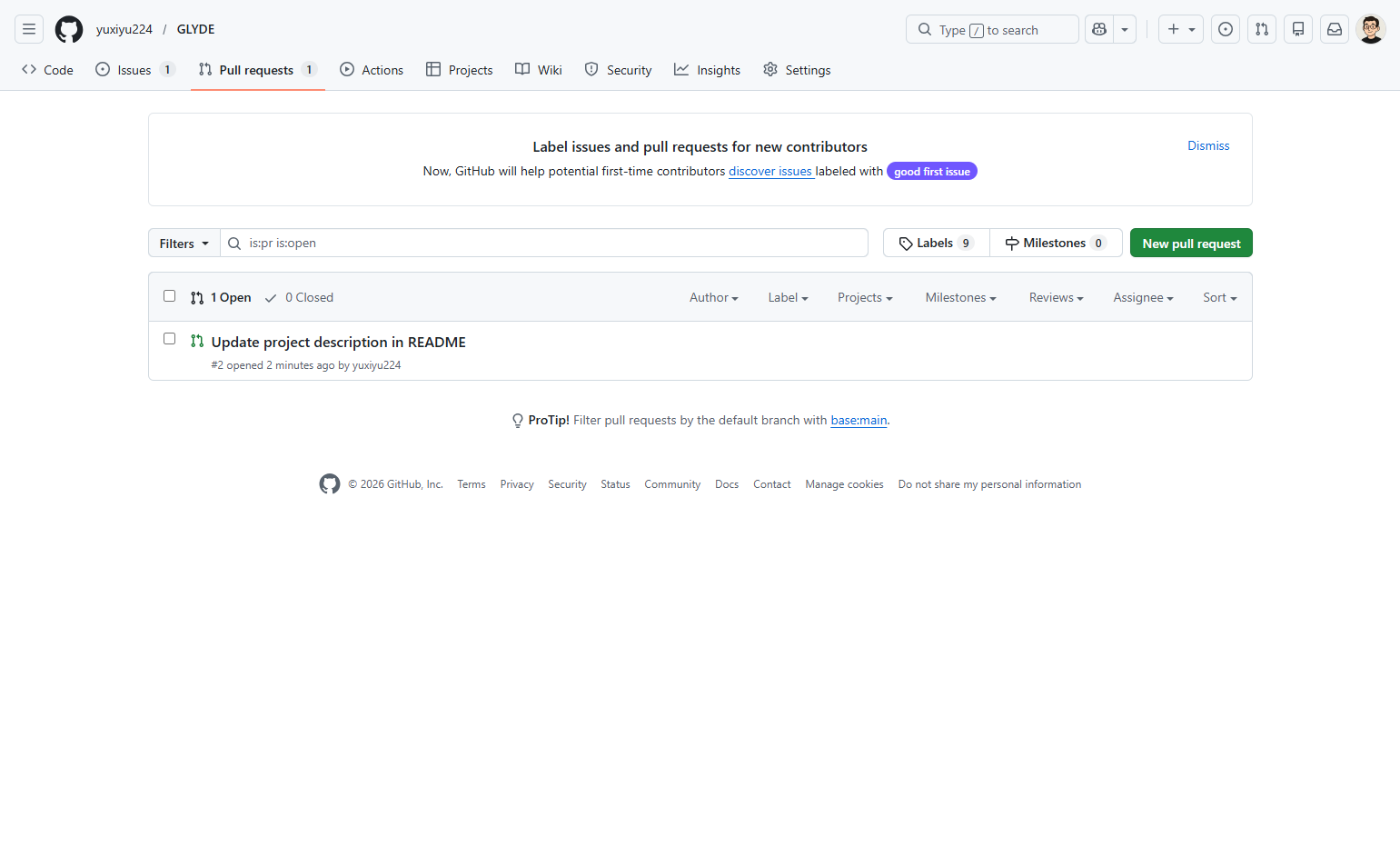
Go to the repository's Pull requests page
Navigate to github.com and locate the target repository. Click on the Pull requests tab in the repository navigation menu to view all open pull requests.
- Step 2 of 5
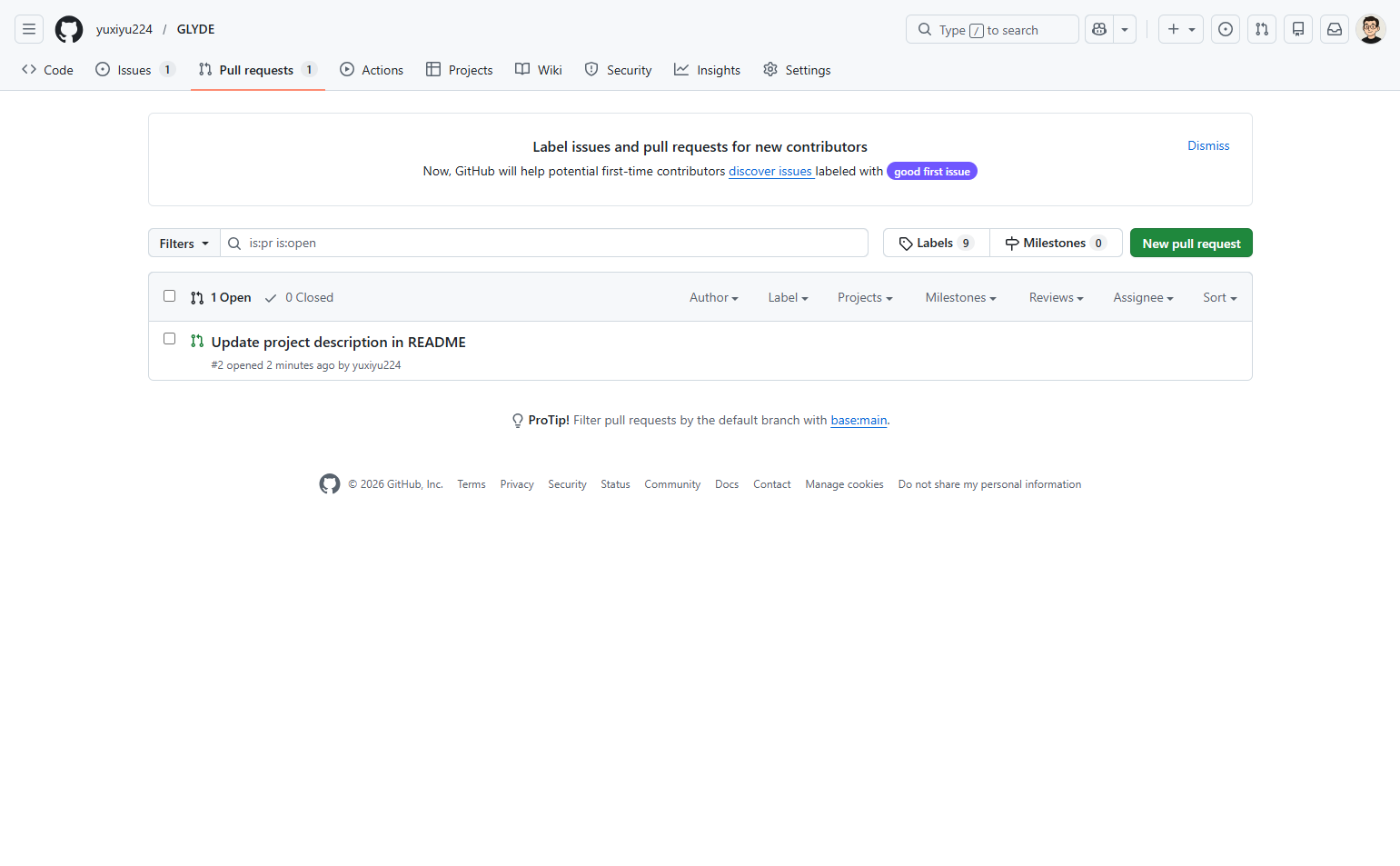
Select the pull request
Click on the pull request title
From the list of pull requests, click on the title of the pull request you want to comment on. This opens the detailed pull request view where you can see the description, commits, and existing comments.
- Step 3 of 5
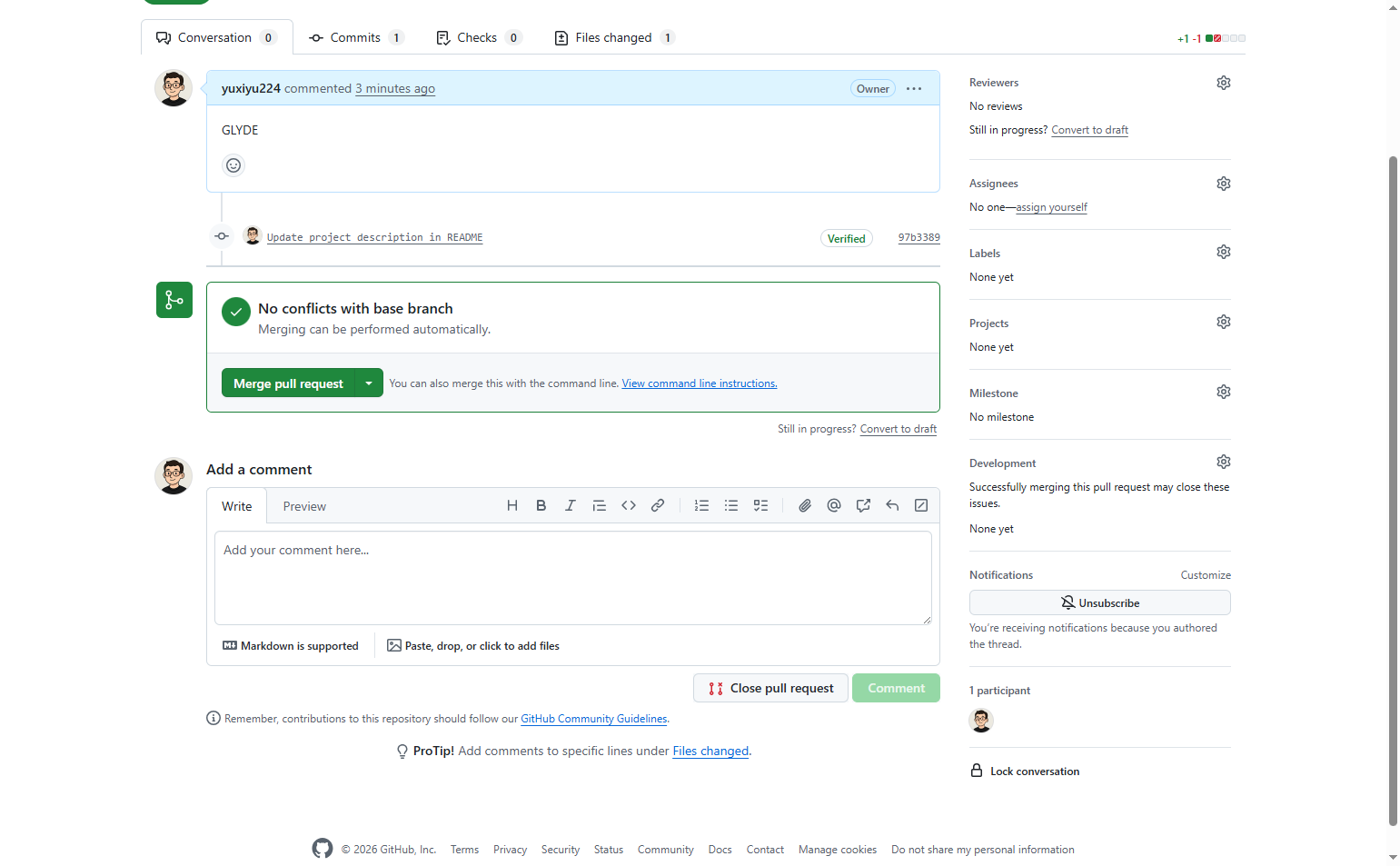
Click the comment input area
Click in the Add a comment textarea
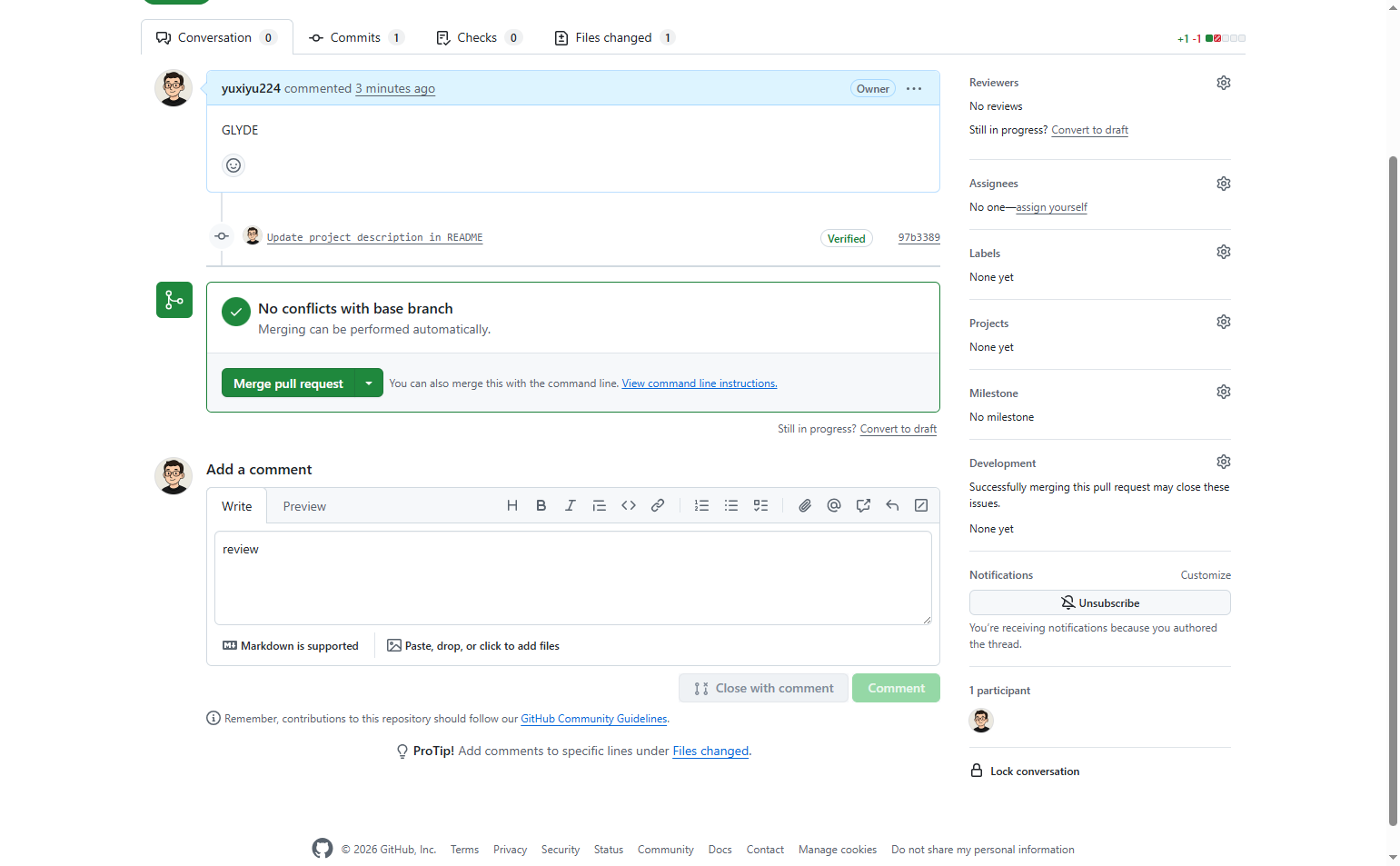
Scroll to the bottom of the pull request conversation page to the Add a comment section. Click inside the text input area that shows the placeholder text Add your comment here... to focus the field and begin typing.
- Step 4 of 5
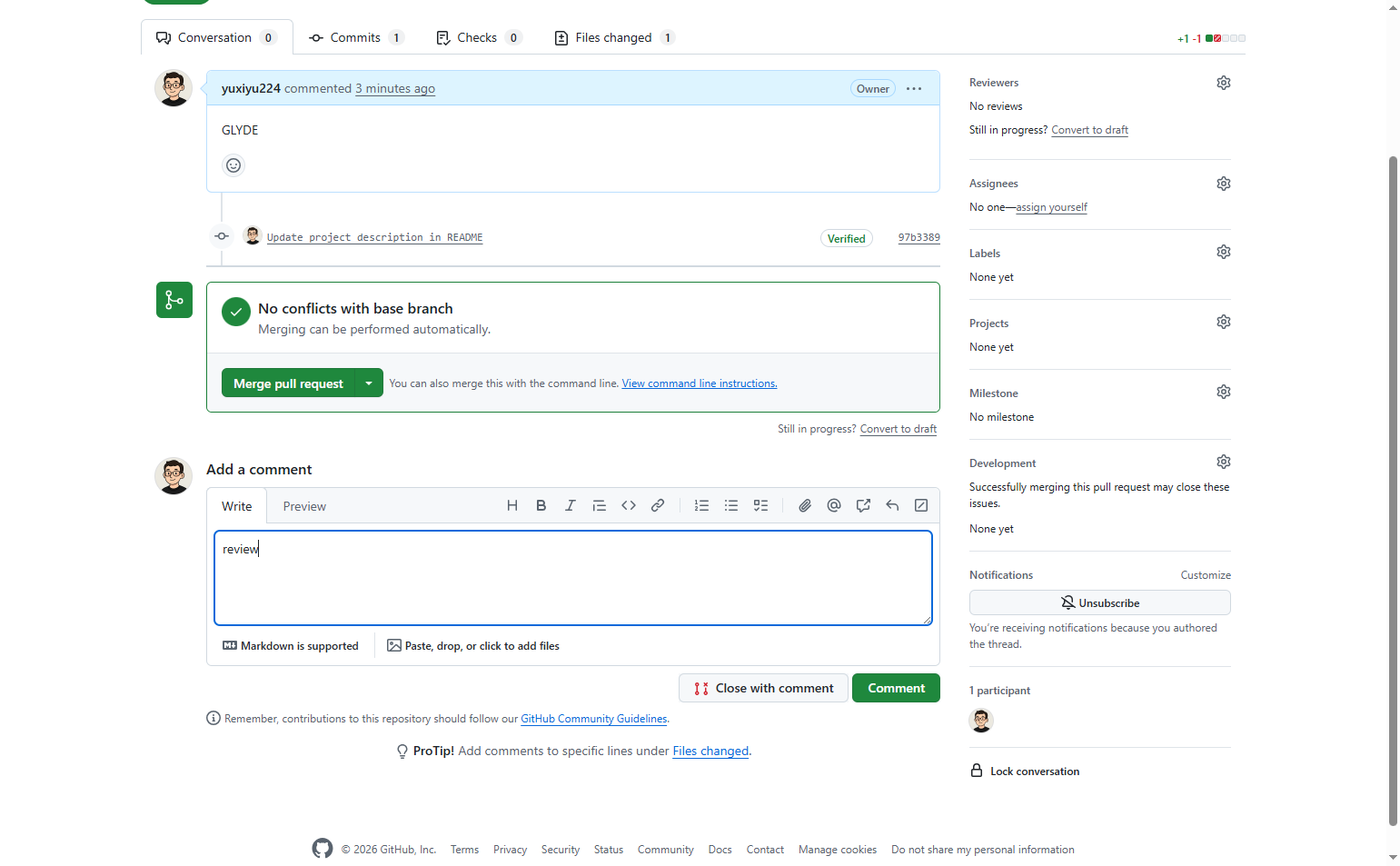
Enter your comment
Type your comment message
Type your comment into the text area. You can use Markdown formatting for styling. The toolbar above the text area provides buttons for bold, italic, code blocks, lists, and inserting links.
- Step 5 of 5
Submit the comment
Click the Comment button
Once you have finished typing your comment, click the green Comment button to submit your comment. Your comment will be posted immediately and appear in the conversation timeline.
Verification
Confirm your comment was submitted successfully:
Your comment appears in the conversation timeline with your username and timestamp
The comment input area is cleared and returned to the placeholder state
Repository collaborators will receive notifications based on their settings
Conclusion
You have successfully submitted a comment on a GitHub pull request. The comment is now part of the pull request discussion and visible to all collaborators.