

Purpose
This SOP describes how to invite teammates to an Asana team workspace, allowing them to collaborate on projects and tasks.
Scope
This procedure is intended for team owners, administrators, or members with invitation privileges. Follow this SOP when adding new team members to your Asana workspace.
Prerequisites
Logged in to Asana with your account
Access to the team you want to invite members to
Permission to invite members to the team
Email addresses of the teammates you want to invite
Procedure
- Step 1 of 5
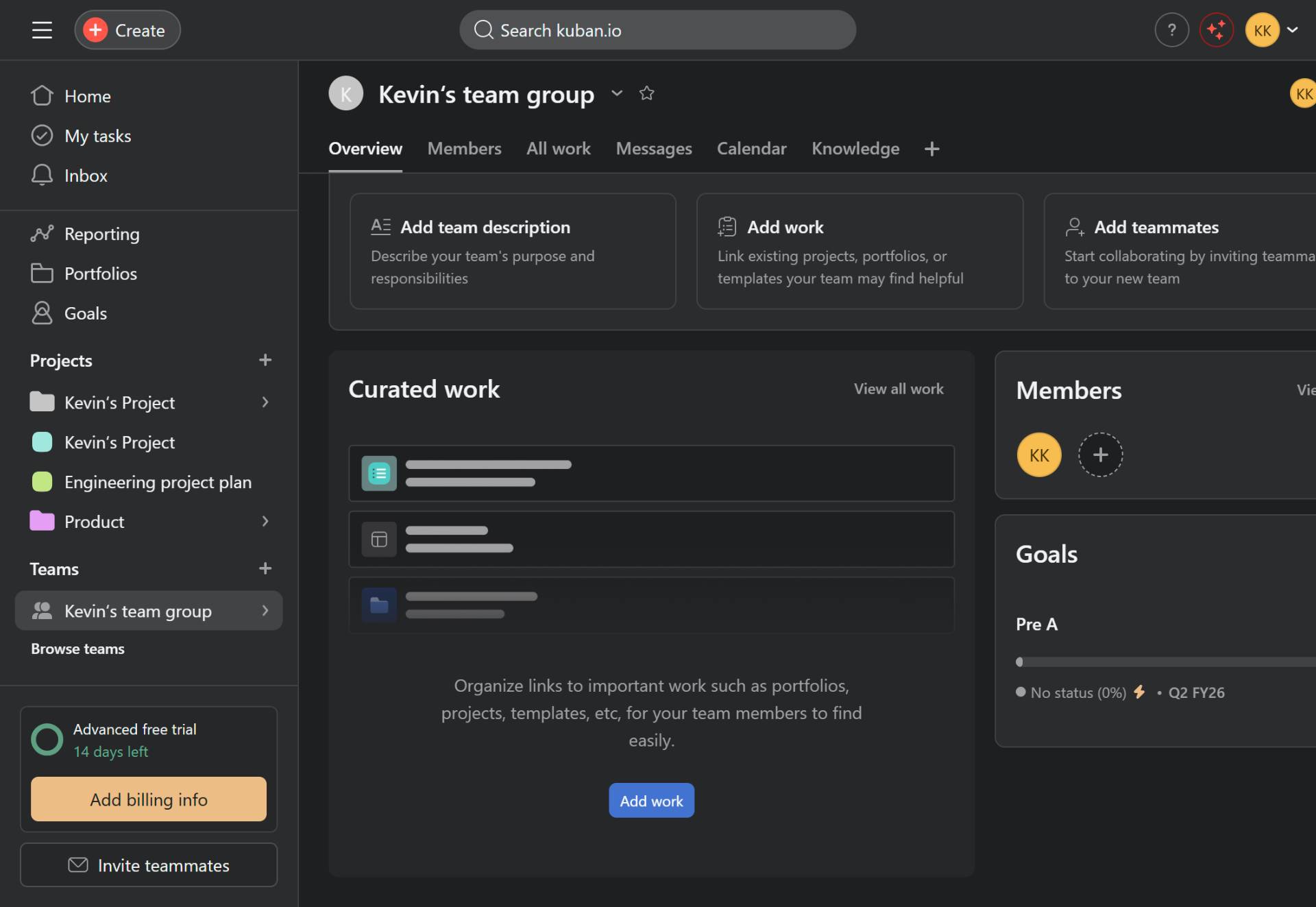
Navigate to Asana team page
Click the Invite teammates button
Navigate to app.asana.com and open the team page where you want to invite members. Click the Add teammates button located in the top-right section of the team overview page.
- Step 2 of 5
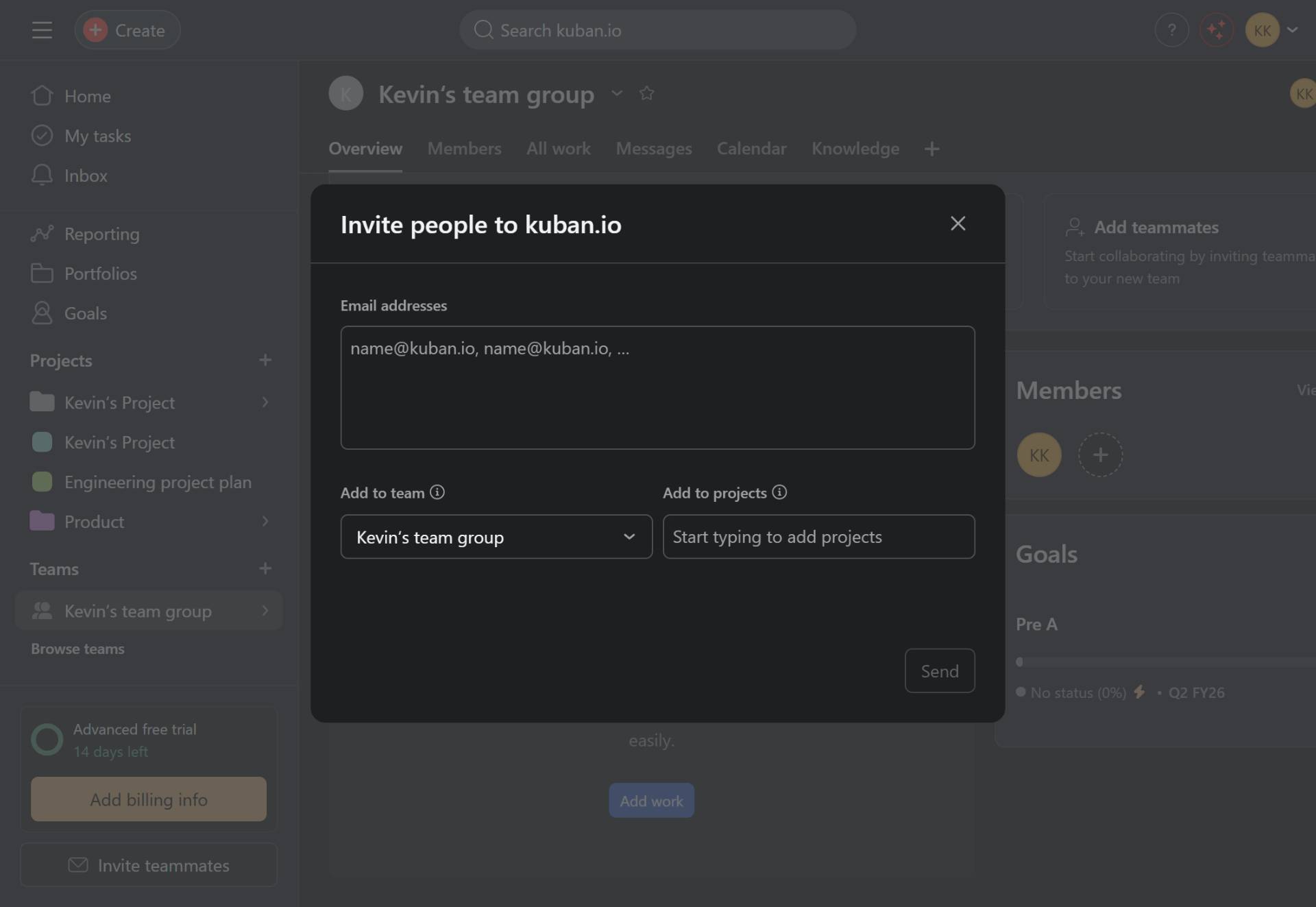
Open the invitation dialog
Click the email addresses field
The Invite people dialog will open. Click on the Email addresses input field to begin entering the email addresses of the teammates you want to invite.
- Step 3 of 5
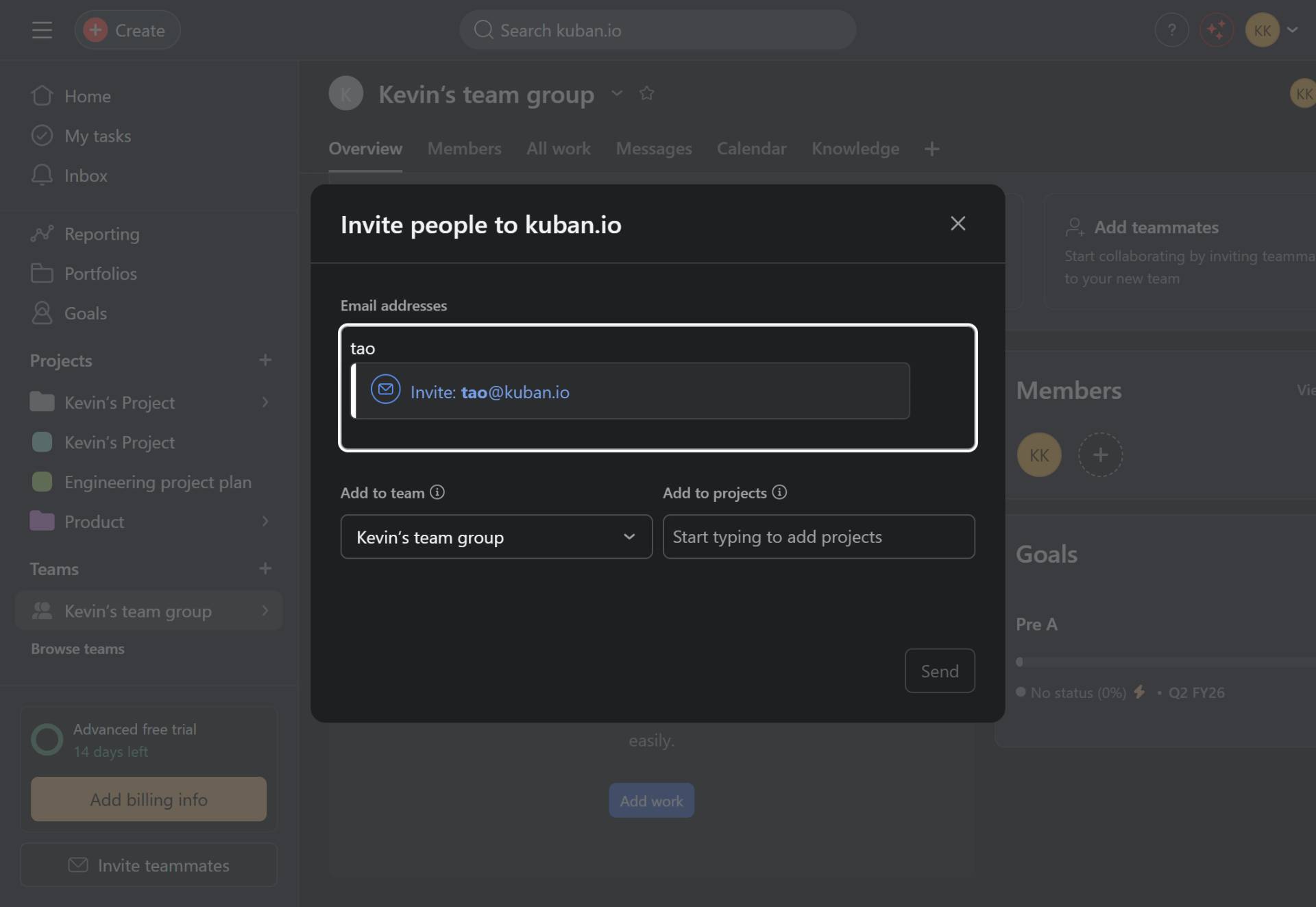
Enter the teammate's email address
Type the email address
Type the email address of the teammate you want to invite. As you type, Asana will display matching suggestions if the email domain matches your organization.
- Step 4 of 5
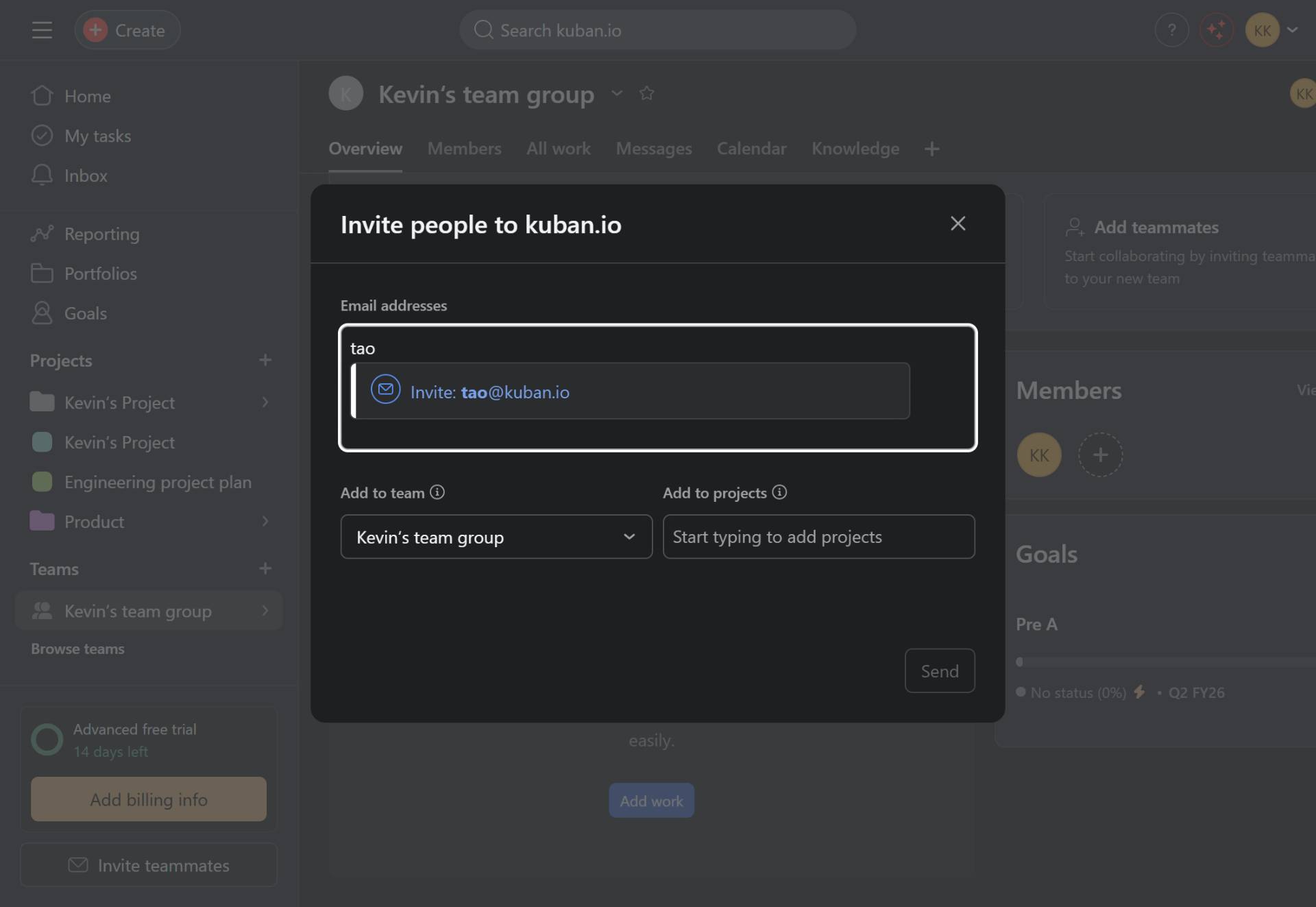
Select the email from suggestions
Click the suggested email address
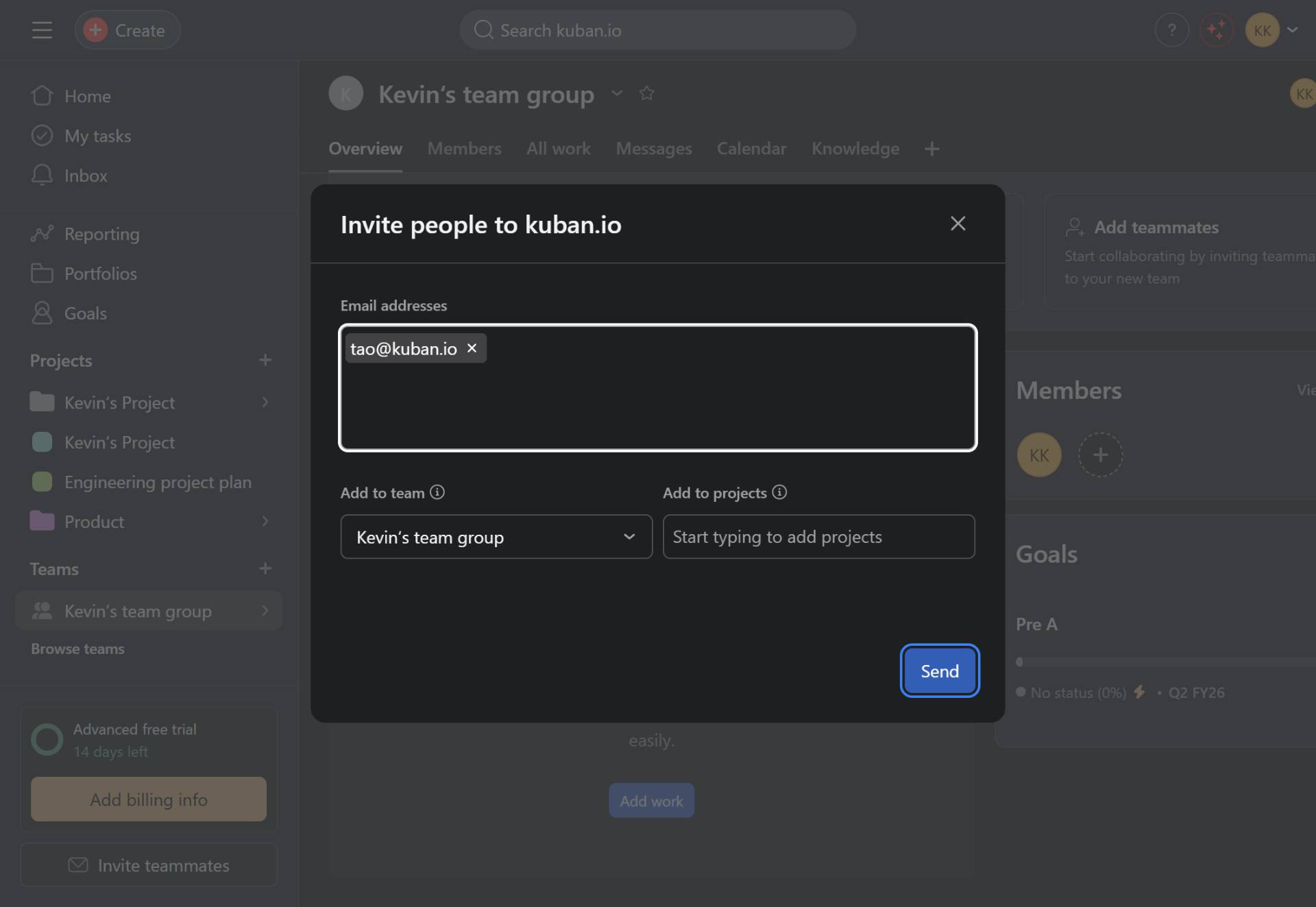
If a matching suggestion appears, click on it to select the email address. The email will be added as a tag in the input field. You can repeat this process to add multiple teammates at once.
- Step 5 of 5
Send the invitation
Click the Send button
Verify that the Add to team dropdown shows the correct team name. Optionally, you can also add the invitee to specific projects using the Add to projects field. Once ready, click the Send button to send the invitation email to the teammate(s).
Verification
To confirm the invitation was sent successfully:
The invitation dialog should close automatically after clicking Send.
Navigate to the Members tab of your team to view pending invitations.
The invited teammate should appear in the members list with a pending status until they accept the invitation.
Troubleshooting
Invitation email not received
Ask the invited teammate to check their spam or junk folder. If not found, verify the email address was entered correctly and resend the invitation.
Cannot find the Invite teammates button
Ensure you have the necessary permissions to invite members. Team owners and admins typically have this access. If you are a regular member, contact your team administrator.
Email address not recognized
You can manually type the complete email address and press Enter or comma to add it. The system will accept any valid email format.
Conclusion
You have successfully invited a teammate to your Asana team. The invited user will receive an email notification and can join the team to start collaborating on projects.